PipelineOn

PipelineOn
Description
PipelineOn helps home-service companies see likely homeowner visitors from the ZIP codes they serve.
This plugin connects WordPress to the PipelineOn service without copying code. An account owner who can approve or add the exact website is required; the service is not included with the plugin.
External service
On a fresh installation, installing or activating the plugin does not contact PipelineOn. An Administrator must choose Connect to PipelineOn first.
After Connect to PipelineOn, requests use these routes under https://app.pipelineon.com/api/integrations/wordpress/: authorization/init, authorization/status, connection/start, connection/complete, and connection/status.
WordPress sends a random installation ID, public website and WordPress addresses, return and temporary check addresses, one-time security values, and plugin and WordPress versions. PipelineOn uses them to confirm the website and return the Administrator safely. Private values stay in WordPress and expire. No PipelineOn password is sent or stored.
When connected, enabled, and allowed by the site’s privacy choices, the plugin loads https://pp-n.com/p.js. PipelineOn may process page and referring addresses, browser, device, IP and network details, visitor and visit IDs, website activity, and recognized form fields to identify likely homeowner visitors and measure results.
Page addresses exclude sign-in details and retain only approved advertising details. PipelineOn does not read unrelated cookies or browser storage. Only clearly recognized email, phone, name, and company form fields are sent—never passwords, hidden fields, payment or banking details, security codes, or unrecognized values.
Depending on customer settings, tracking may use these matching services. They are not contacted while tracking or required privacy choices are off. Each may receive the stated identifiers plus browser, device, and network details described above.
- AtData may receive a PipelineOn visitor label. See its Privacy Policy and Terms.
- BDEX Omni Pixel may load from
https://static.icexyz.comand receive PipelineOn visitor or visit IDs. See its Privacy Policy; use is also governed by the customer’s BDEX agreement. - FullContact Customer Recognition may load from
https://tags.fullcontact.comand receive customer settings. Match-quality checks may also send hashed email values. See its Privacy Policy and Terms.
PipelineOn’s optional Fingerprint browser tool stays off in WordPress.
Before enabling, review PipelineOn’s Privacy Policy and Terms.
Privacy and consent
The plugin adds suggested disclosure text under Settings > Privacy. Site owners must review that text, their PipelineOn settings, applicable law, and their site’s privacy choices.
Logged-in WordPress Administrators are not tracked during normal visits. Verify tracking now allows one Administrator test visit.
PipelineOn supports the WP Consent API and registers po_vid and po_sid as marketing cookies. When available, both statistics and marketing must be allowed. Turning either off stops tracking and clears PipelineOn cookies and browser storage; restoring both starts a new visit. Privacy tools may also use pipelineon:consent-granted or pipelineon:consent-revoked. Developers can stop tracking with:
add_filter( 'pipelineon_should_load', '__return_false' );
The filter cannot bypass the connection, local tracking setting, Administrator exclusion, or exact website-address checks.
Local data
The plugin stores a random installation ID, approved website address, versions, connection and tracking status, website ID, safe status messages, and recent-activity dates. WordPress holds private one-time values while a connection step finishes or expires. It stores no PipelineOn password, customer profile, account details, or reusable sign-in details.
Deactivation stops the plugin from adding tracking to newly generated pages but keeps the saved connection; reactivation can resume tracking. Purge any WordPress or CDN page cache after pausing or deactivating.
To remove the remote connection, choose Disconnect and wait until Settings > PipelineOn shows Disconnected before uninstalling. Disconnecting stops new plugin output locally while PipelineOn confirms the request. Uninstall deletes only local data; uninstalling before confirmation may leave the remote association.
Installation
- In Plugins > Add New, search for “PipelineOn” and choose Install Now. If the new listing is not searchable yet, download its ZIP from WordPress.org and use Upload Plugin.
- Choose Activate. On a fresh installation, this makes no PipelineOn request and starts no tracking.
- A normal single-plugin activation opens Settings > PipelineOn. If it does not, use the Settings link on the Plugins screen.
- Confirm the website, then choose Connect to PipelineOn.
- Sign in or create an account, then approve or add the website shown. The browser returns automatically.
- WordPress shows Connected – checking tracking. If needed, choose Verify tracking now.
- Add your services and service-area ZIP codes in PipelineOn.
The website must use HTTPS and allow WordPress to reach app.pipelineon.com. Password protection, maintenance pages, or security tools can stop the website check. Choose Get setup help if it does not finish.
On Multisite, a Super Admin installs PipelineOn at Network Admin > Plugins > Add New and chooses Network Activate. Open the target subsite dashboard, then Settings > PipelineOn > Connect to PipelineOn. Network activation never connects subsites; connect each one separately.
Screenshots
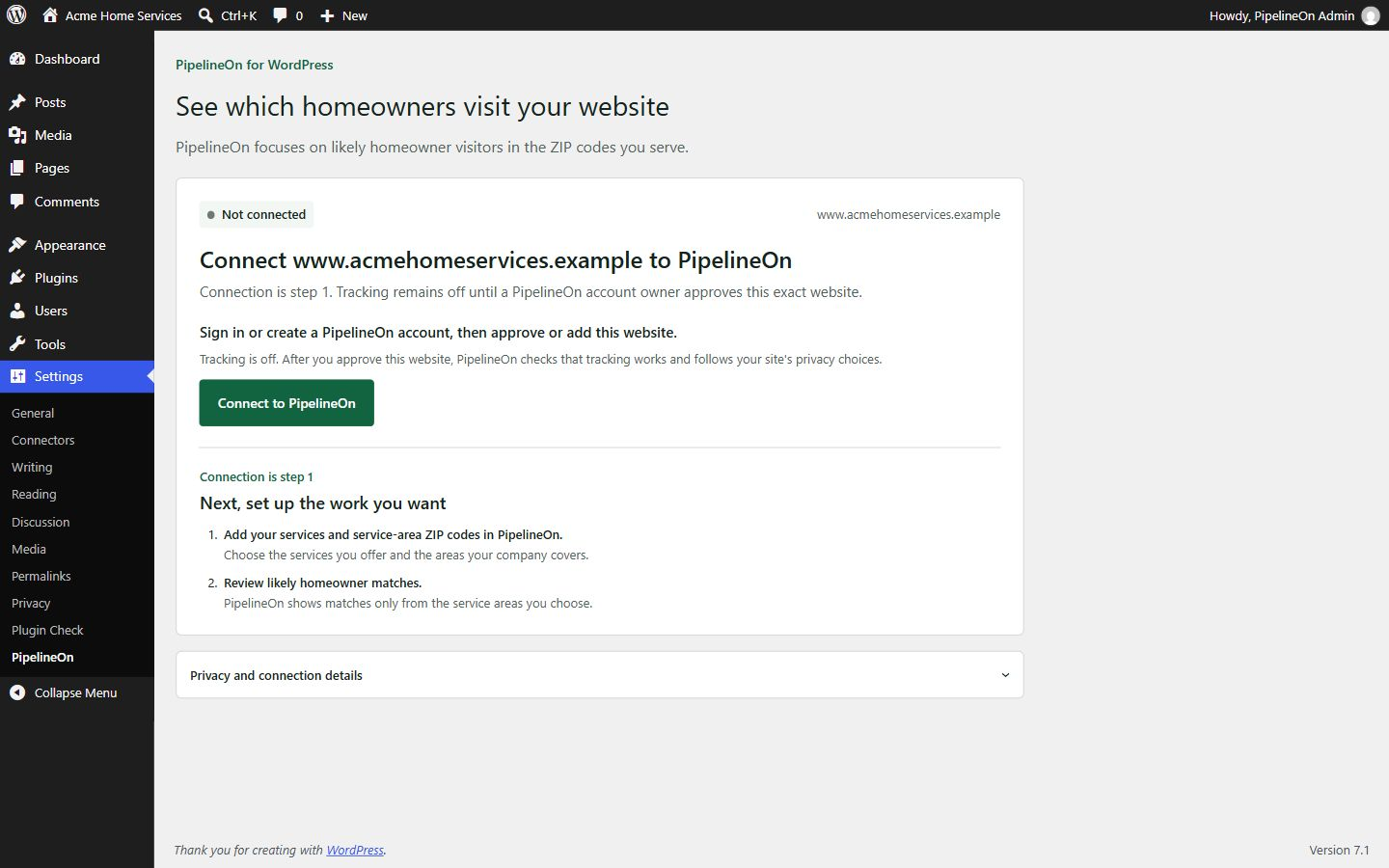
Local-only setup state before the explicit connection step.
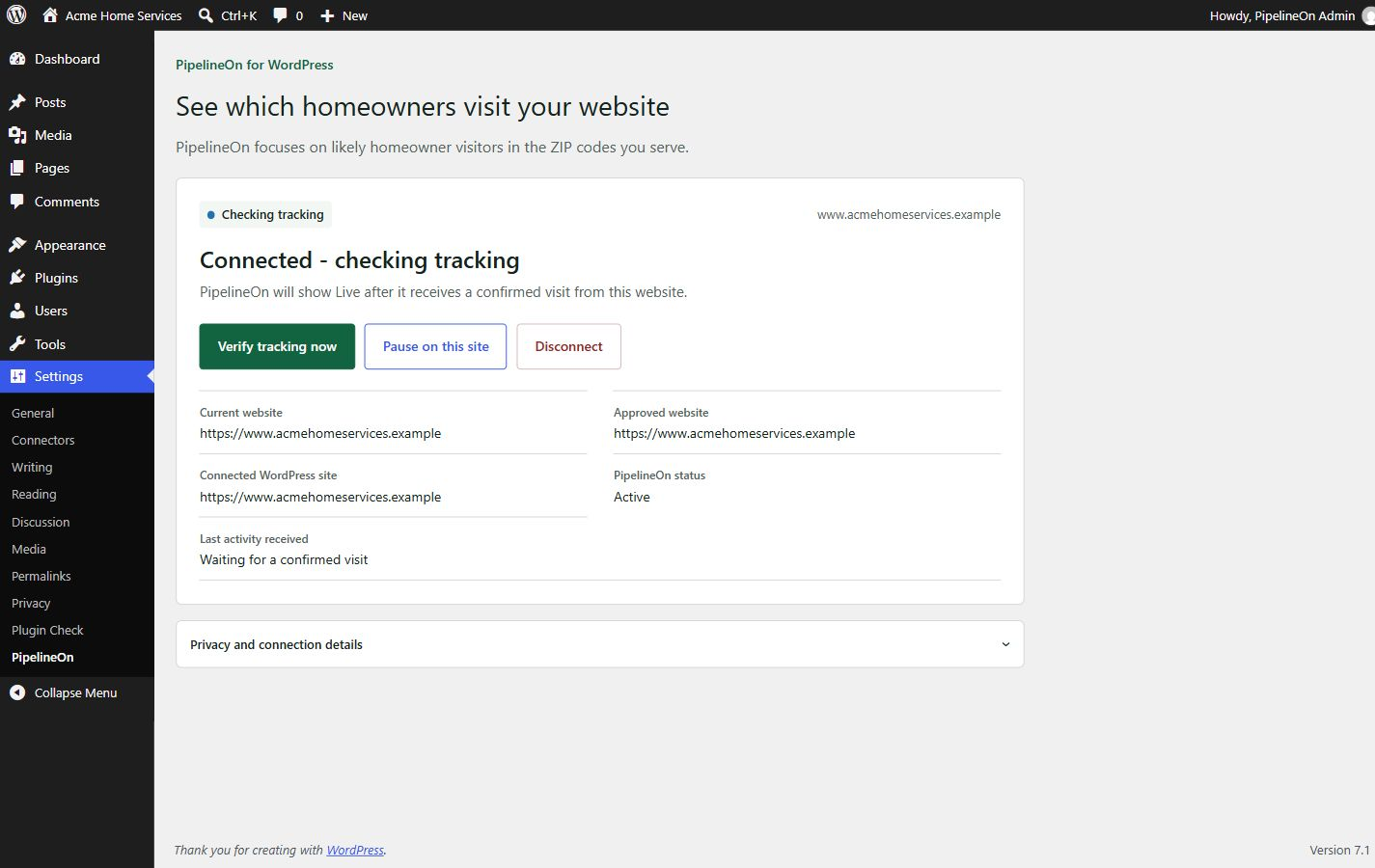
Connected website waiting for a confirmed visit.
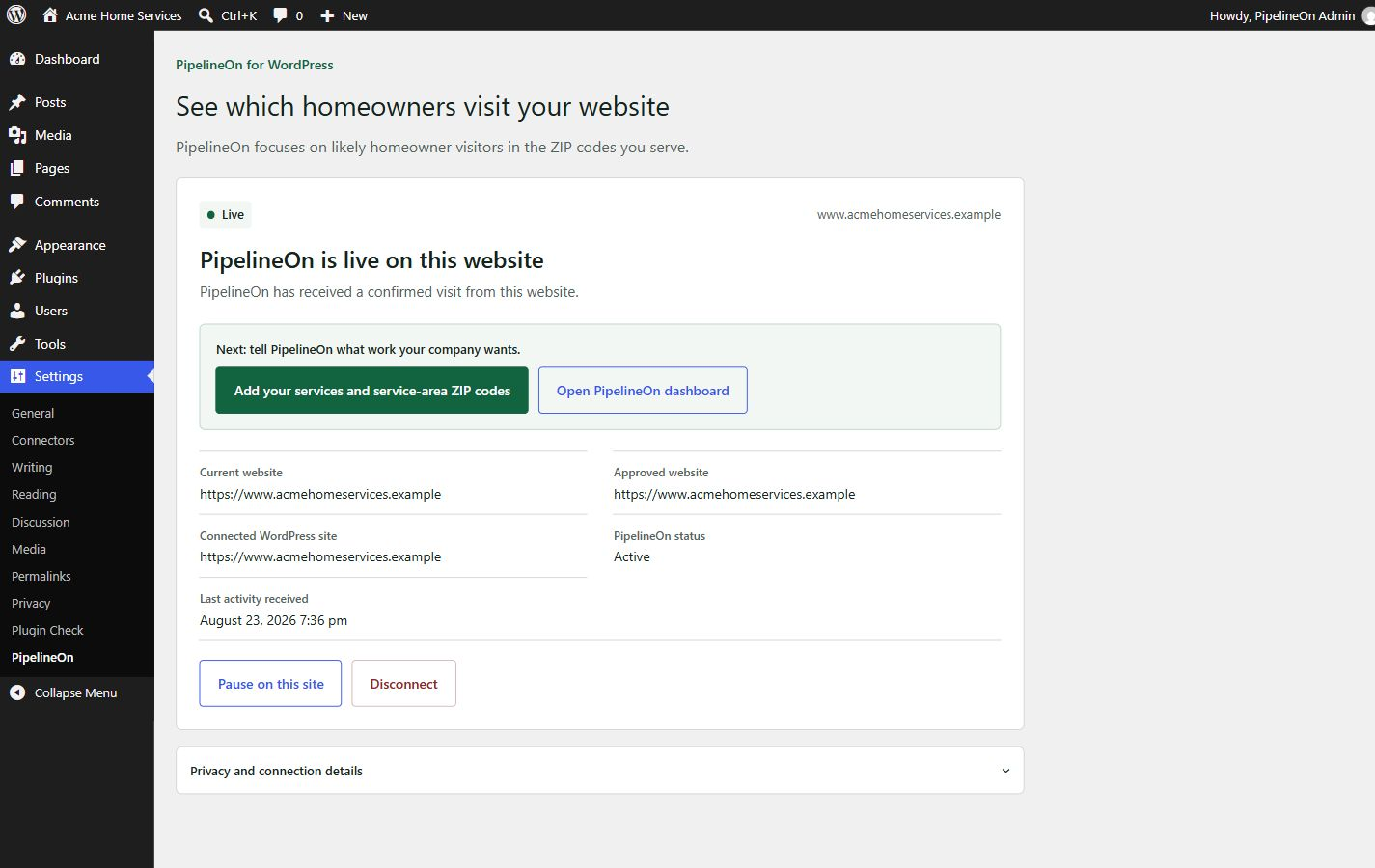
Live status with links to service areas and the PipelineOn dashboard.
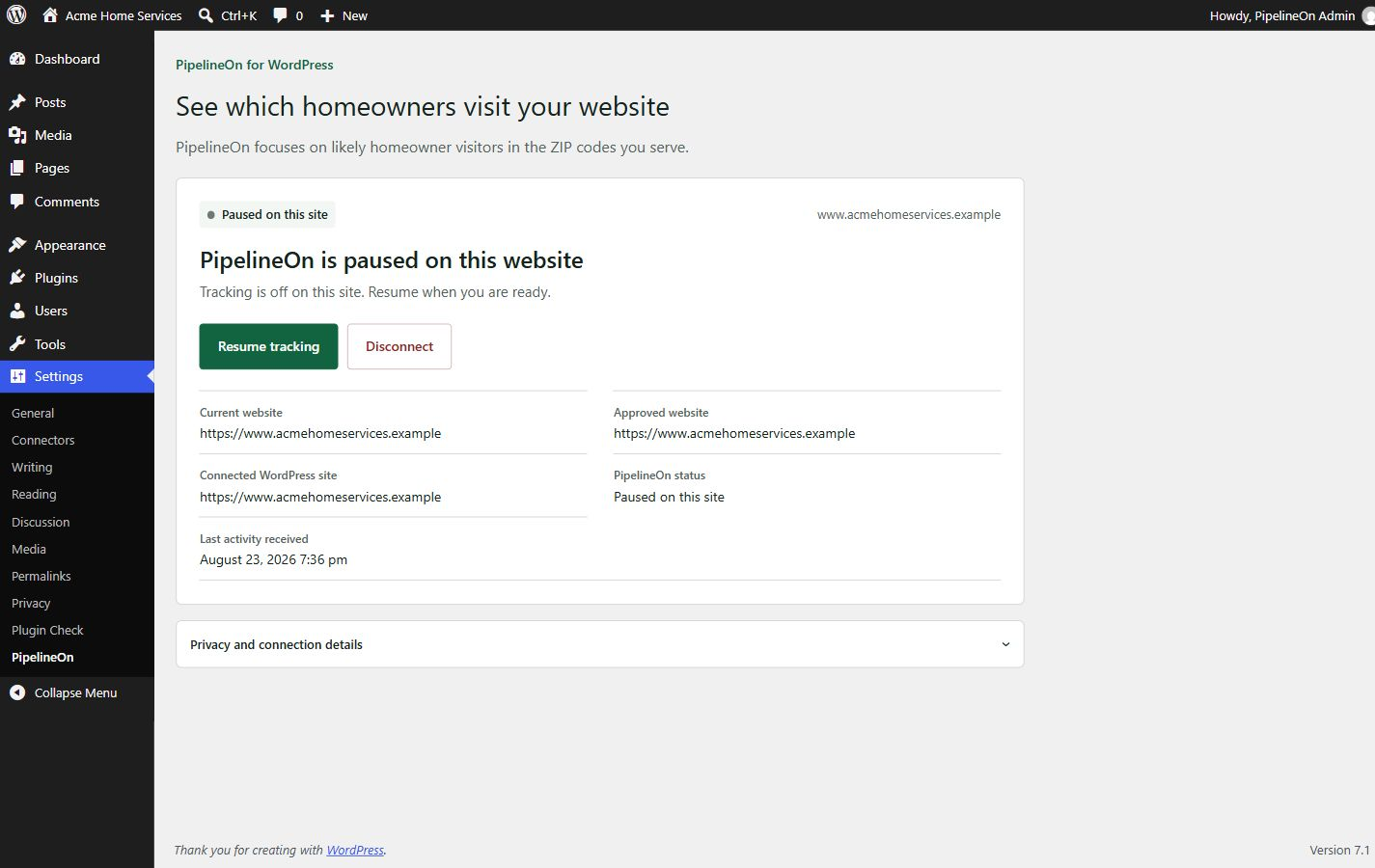
Paused state with Resume and Disconnect controls.
Faq
A fresh activation does not. The plugin first contacts PipelineOn after an Administrator selects Connect to PipelineOn. Reactivating a previously connected installation restores its saved connection and can resume tracking.
No. PipelineOn sends the needed website setting back to WordPress after the website is approved and checked.
Connected means the website was approved. Live means PipelineOn received a confirmed visit. If Live does not appear, choose Verify tracking now or Get setup help.
The WordPress connection is still active, but tracking is off for the reason shown. Choose Review in PipelineOn. You do not need to reinstall the plugin.
Tracking stops when the current website address no longer matches the approved address. Reconnect the correct website to continue.
Pause on this site stops the plugin from adding tracking to newly generated pages. Purge WordPress or CDN page caches after pausing. Resume tracking starts it again and waits for a new confirmed visit. Paused in PipelineOn must be reviewed in PipelineOn.
Deactivation keeps the saved connection for reactivation. To remove it, choose Disconnect, purge page caches, and wait for Disconnected before uninstalling. Uninstall removes only WordPress data and does not contact PipelineOn.
The plugin checks themes, tag managers, and code snippets. If the older setup matches, wait until the plugin shows Live, then remove it. If it does not match this website, tracking stays off until you remove it.
No. Connecting the website and allowing visitor tracking are separate choices. When the WP Consent API is available, both statistics and marketing must be allowed. Site owners remain responsible for their privacy setup.
Read the WordPress setup guide or contact PipelineOn support. Public questions can also use the WordPress.org support forum. Do not post account, visitor, lead, or customer data in the public forum.
Reviews
Changelog
1.0.0
- Initial public release with explicit website approval, tracking and privacy controls, exact-site checks, and older-installation detection.