Plugear Review Step for Contact Form 7

Plugear Review Step for Contact Form 7
Description
Contact Form 7 sends a message the moment the visitor presses submit. There is
no chance to look at what was typed. Plugear Review Step puts a confirmation
step in between: the visitor presses the button, sees the values they entered,
and only then sends.
You turn it on with one checkbox in a Confirm Screen tab on the form you
already have. There is no second form to keep in sync, no confirmation page to
create, and nothing to add to the form template.
The confirmation looks like your form
The confirmation is not a separate panel. Each input is replaced in place
by the value that was typed, so labels, table rows, fieldsets and every bit of
markup you wrote stay exactly where they were. A form laid out in a table stays
a table. A two-column layout stays two columns.
The Edit and Send buttons are built from your existing submit button, so they
inherit whatever your theme gives it.
Nothing is sent until the visitor confirms
The confirmation step runs Contact Form 7’s own validation rules on the server
and returns the result — nothing else. No mail is sent, no spam check is
charged, and none of the wpcf7_* submission hooks fire. Other plugins that
act on a submission cannot be triggered twice.
When the visitor presses Send, Contact Form 7 runs its normal submission
exactly once. The mail you receive is the same mail you would have received
without this plugin.
Errors look the way they always did
If something is invalid, the message appears in the same place, with the same
markup and the same accessibility wiring that Contact Form 7 uses itself. Your
theme’s styling for form errors keeps working, and screen readers announce
errors the same way.
Settings
Per form, in the Confirm Screen tab:
- Turn the confirmation step on or off
- Button labels for Confirm, Edit and Send
- Whether to show a placeholder for fields left empty, and what that text says
- Whether to scroll to the top of the form when entering and leaving the
confirmation
Full-width numbers are fixed for you
On a Japanese phone keyboard, typing a number produces full-width digits. A phone
number entered that way is rejected by Contact Form 7’s own validation, and the
visitor is sent back to retype it without being told why.
Plugear Review Step converts full-width letters, digits and spaces to half-width
at the moment the visitor presses the confirm button — never while they are
typing, which would break Japanese input mid-conversion. Phone, number, email and
URL fields are handled by default; any other field can opt in with a hankaku
option on the form tag.
Number fields are the one exception: the browser itself discards full-width digits
from a number input before any script can see them, so there is nothing left to
convert.
For developers
plg_prscf7_scroll_offset— gap kept above the form when scrolling
(default10vh, i.e. 10% of the viewport)plg_prscf7_load_css— return false to drop the bundled stylesheetplg_prscf7_normalize_fields— which fields are converted to half-widthplg_prscf7_safe_validation— skip third-partywpcf7_validate_*callbacks
during the confirmation step
The confirmation markup uses plg_prscf7_-prefixed classes
(plg_prscf7_confirming, plg_prscf7_value, plg_prscf7_actions,
plg_prscf7_back, plg_prscf7_send) that are safe to style.
Only two rules ship as CSS: spacing between the two buttons, and a secondary
look for the Edit button. Everything else is left to your theme.
日本語
Contact Form 7 に確認画面(入力確認)を追加するプラグインです。送信ボタンを押すと
入力内容の確認ページが表示され、そこで初めて送信されます。入力ミスと二重送信を
減らせます。
フォームは 1 つのままです。 確認用のフォームを複製したり、確認ページを別に作ったり
する必要はありません。既存のフォームの「確認画面」タブでチェックを入れるだけです。
確認画面は別画面を作らず、入力欄があったその場所を入力値に差し替えます。ラベル・
表組み・入れ子の HTML はそのまま残るので、テーマで整えたレイアウトが崩れません。
「修正する」「送信する」のボタンは既存の送信ボタンから作るため、テーマの見た目を
そのまま受け継ぎます。
確認ステップではメールを送らず、スパム判定も走らせません。検証は Contact Form 7 自身の
ルールをサーバー側で実行して結果を返すだけです。エラー表示も Contact Form 7 と同じ形で
出るので、テーマのスタイルと読み上げがそのまま効きます。
全角半角の正規化も入っています。スマホのかな入力で打った全角数字(090…)は
Contact Form 7 の検証で弾かれますが、確認ボタンを押した時点で半角に直すので、利用者が
打ち直す必要がありません。入力中には触らないので、日本語入力の変換を壊しません。
電話・数値・メール・URL は指定なしで対象、それ以外はフォームタグに hankaku と
書けば対象にできます。ただし [number] だけは、ブラウザが全角数字を受け取った時点で
値を捨ててしまうため直しようがありません。
日本語の翻訳は WordPress.org の翻訳サイト(translate.wordpress.org)で提供します。
翻訳が届く前でも、確認画面のボタン文言はフォームごとに設定できます。
Installation
- Install and activate Contact Form 7 (version 5.7 or later) first. On
WordPress 6.5 and later this is required: WordPress will not let you
activate this plugin while Contact Form 7 is inactive. - Install this plugin and activate it.
- Open Contact Contact Forms and edit the form you want a confirmation
step on. - Open the Confirm Screen tab, tick Show a confirmation step before
sending, and save.
That is all. The form on your site now shows a confirmation step. Nothing in
the form template has to change.
Screenshots
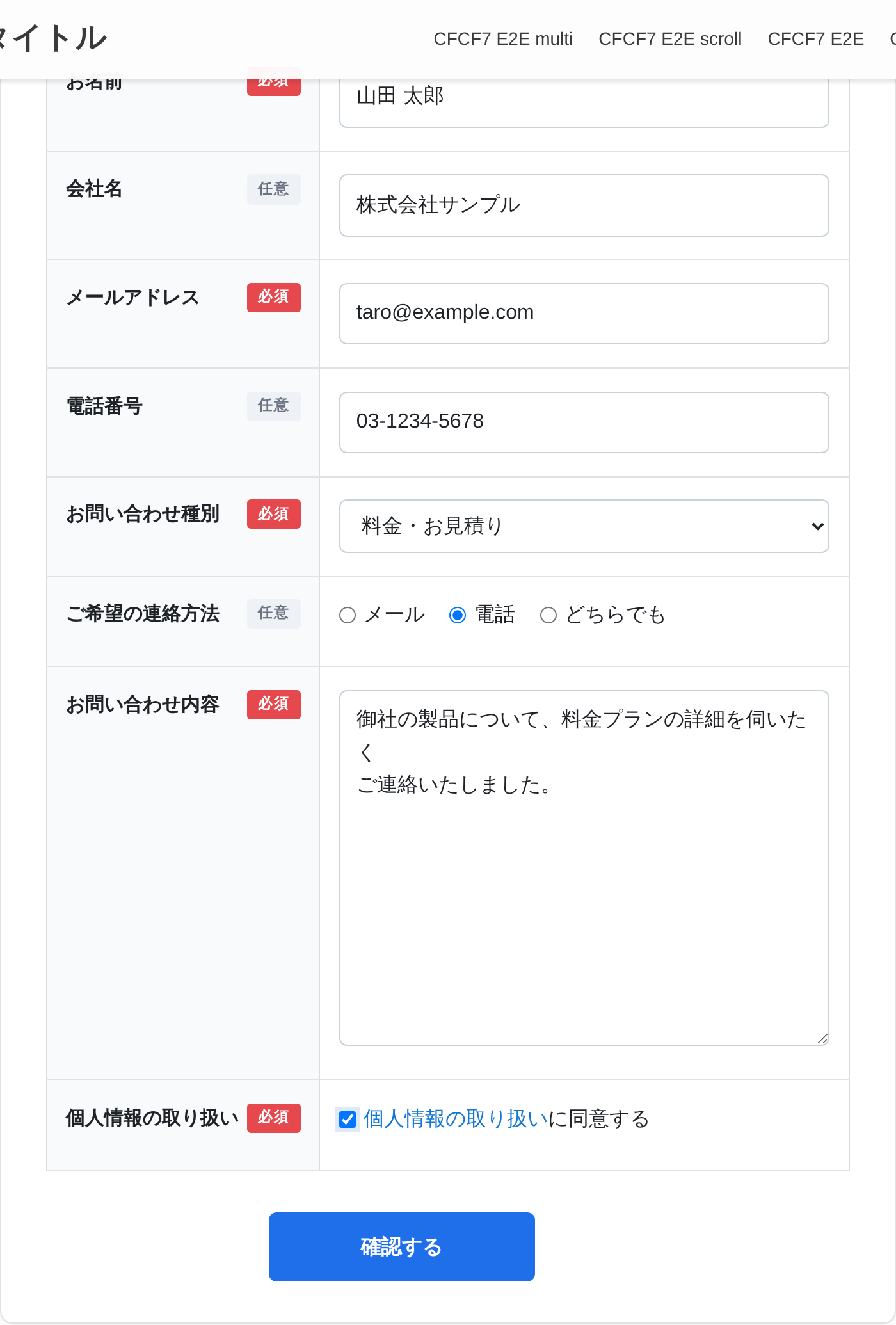
The form as the visitor fills it in. This is your own form — the plugin does not change the markup.
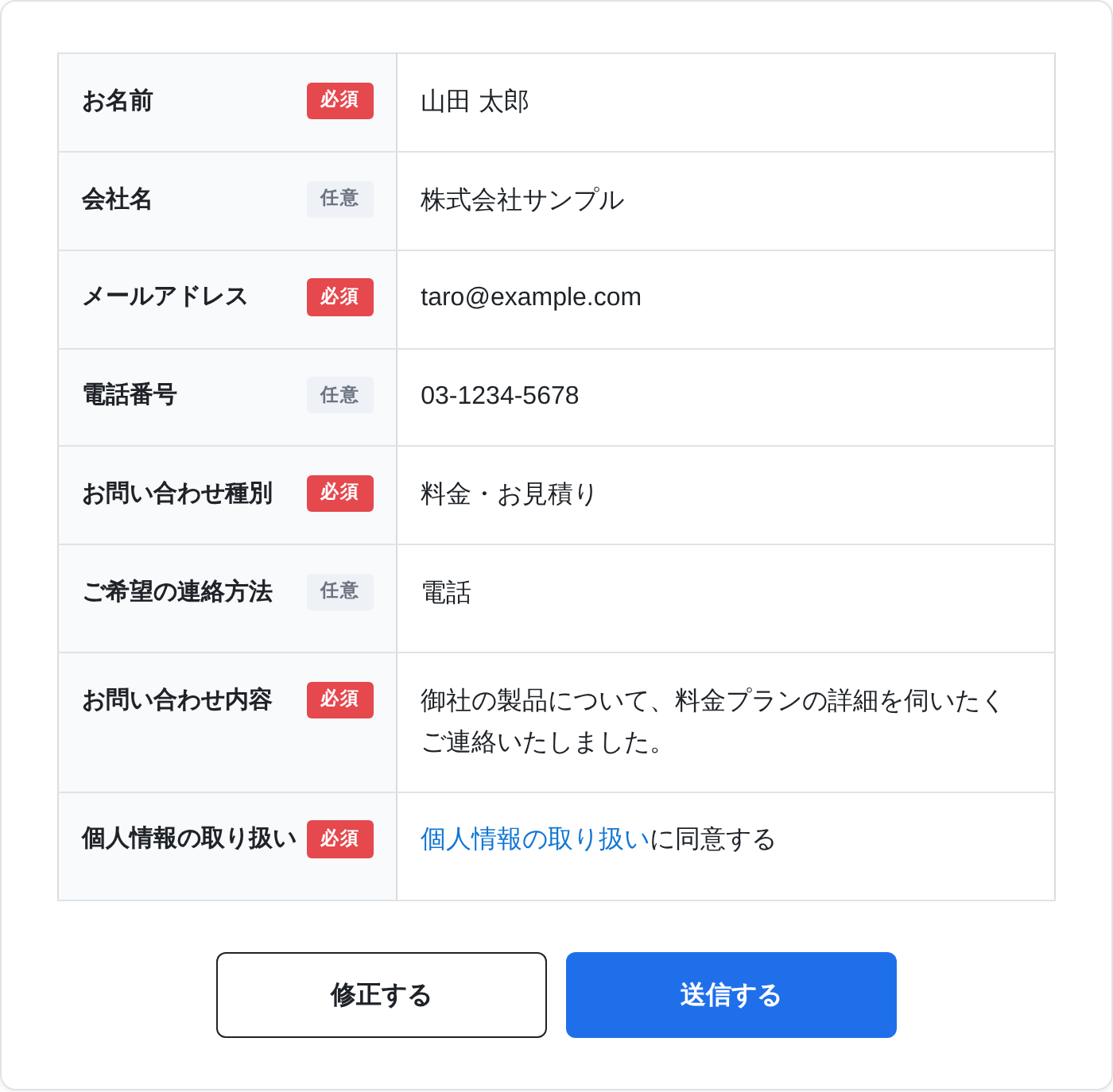
The confirmation. Every input is replaced in place by the value that was typed, so the table rows, labels and required badges stay exactly where they were. Edit and Send are built from your own submit button.
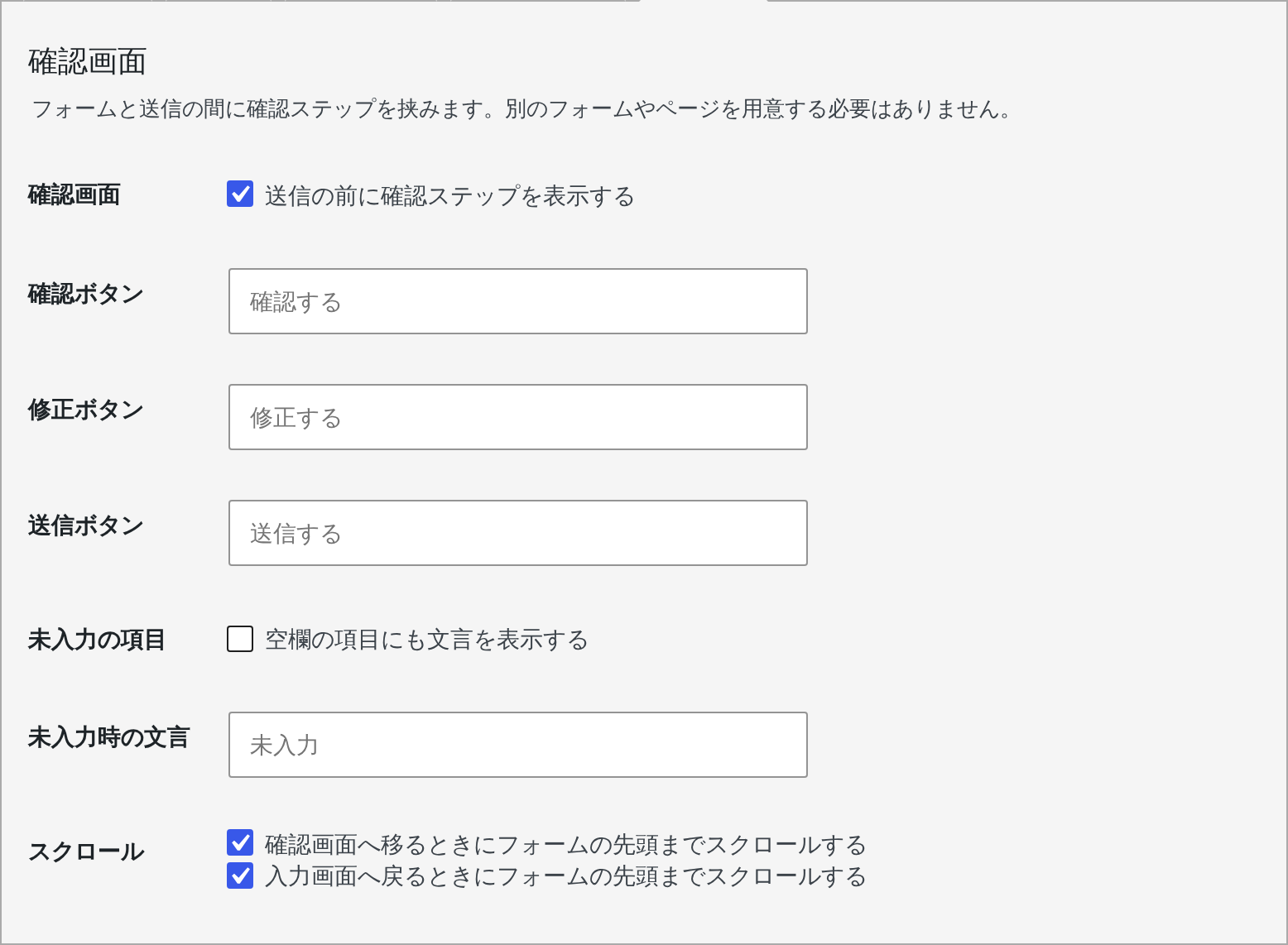
The Confirm Screen tab on the form editor. Turning the confirmation on is a single checkbox; the rest is optional wording and scrolling.
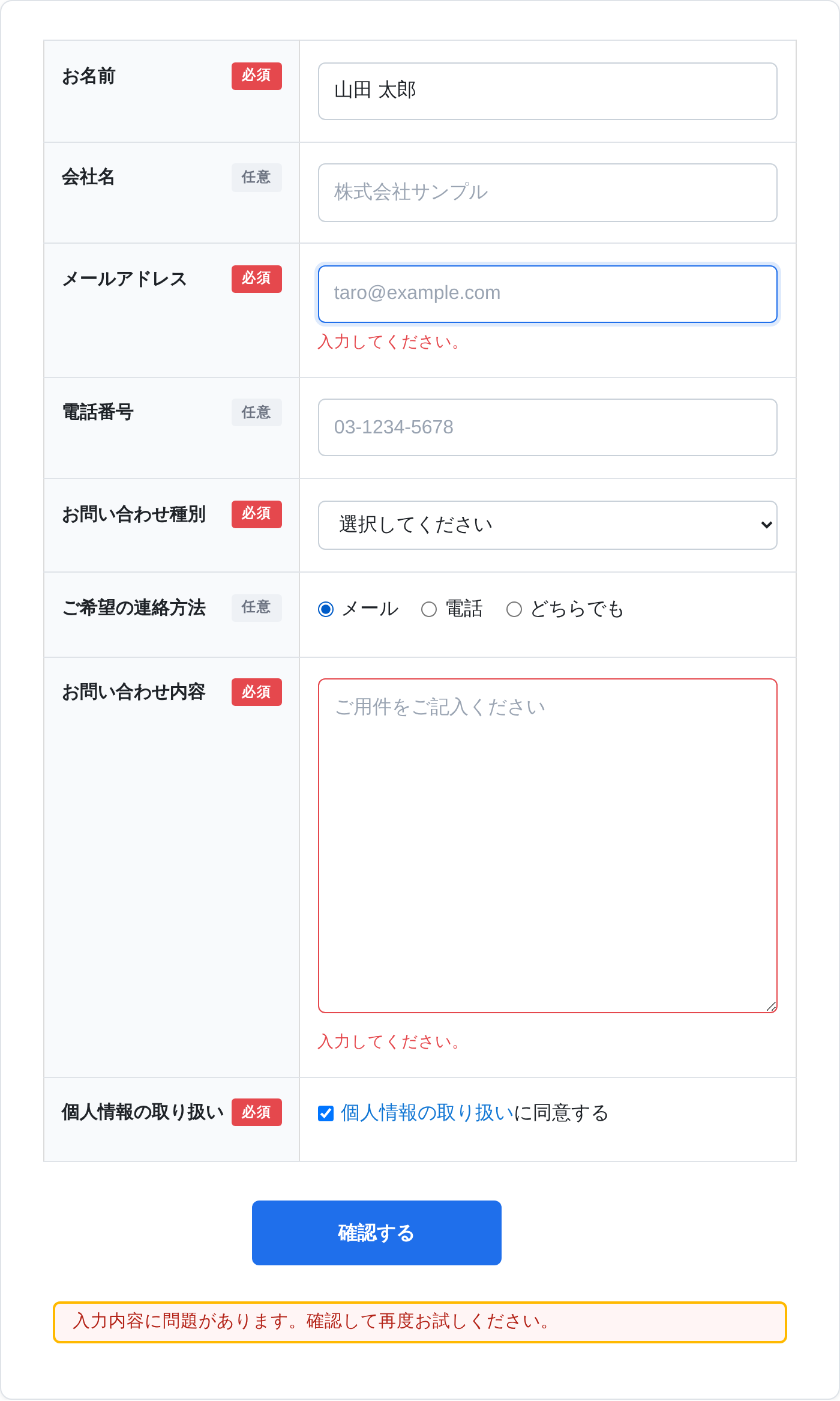
A validation error. The message appears in Contact Form 7's own markup, so the styling your theme already has for form errors keeps working.
Faq
Yes. Contact Form 7 5.7 or later must be installed and active. On WordPress 6.5
and later this plugin declares Contact Form 7 as a dependency, so WordPress
blocks activation until Contact Form 7 is active, and it will not let you
deactivate Contact Form 7 while this plugin is active. On older WordPress, and
whenever the installed Contact Form 7 is older than 5.7, this plugin simply
does nothing and tells you so on the admin screen — your site keeps working
normally.
No. One form, one shortcode. The confirmation happens on the same page.
No. The confirmation step never sends mail. Contact Form 7’s normal submission
runs once, when the visitor presses Send.
Reviews
Changelog
1.0.1
- Housekeeping: cleaned up source code comments. No functional changes.
1.0.0
- First release.