Dark Mode for Elementor – Global colors mapping
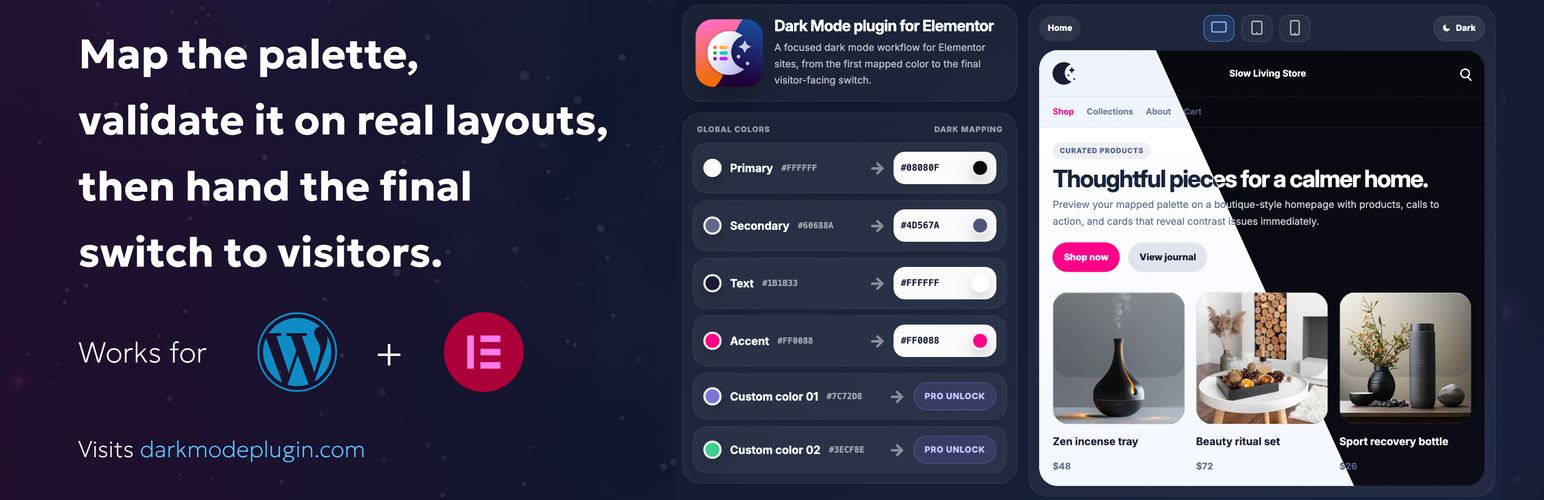
Dark Mode for Elementor – Global colors mapping
Description
Dark Mode for Elementor helps you build a consistent dark mode experience on Elementor sites without restyling every widget manually.
Core capabilities:
- Add a dedicated dark mode toggle widget for Elementor.
- Map dark colors to every system and custom Elementor Global Color and reuse them site-wide.
- Keep the visitor preference in the browser.
- Choose the startup mode and configure shortcode fallback controls.
- Preview the mapped result before applying changes across the site.
This plugin is designed for sites that already rely on Elementor Global Colors and want a centralized dark mode workflow.
Why teams use it:
- It keeps dark mode aligned with Elementor’s design system.
- It gives you a simple site-wide workflow based on Elementor Global Colors.
- It helps you ship a useful toggle experience with a focused setup flow.
External Services
This plugin does not require an external service for its core Free functionality.
It includes informational links to the Presario website:
- https://darkmodeplugin.com/ – product website and documentation
- https://darkmodeplugin.com/support – support page
Installation
- Upload the plugin files to the
/wp-content/plugins/presario-dark-modedirectory, or install the plugin through the WordPress plugins screen. - Activate the plugin through the
Pluginsscreen in WordPress. - Make sure Elementor is installed and activated.
- Go to
Dark Modein the WordPress admin to configure your dark palette. - Add the
Dark Mode Togglewidget in Elementor where you want the switch to appear.
Screenshots

Map Elementor Global Colors to dedicated dark mode values.

Configure your site-wide dark palette from Elementor Global Colors.

Choose the startup mode and shortcode controls for the Free plugin.

Use the shortcode fallback when the switch must live outside an Elementor layout.


Faq
Yes. Elementor must be installed and activated.
The plugin is translation-ready and uses the presario-dark-mode text domain.
Yes. The plugin is theme-agnostic, but it is especially effective when the site colors are driven by Elementor Global Colors.
Reviews
Finally, a true Elementor dark mode!
By 
Finally, a dark mode plugin that is fully linked to Elementor’s Global Colors! Everything switches perfectly without complicated setup or endless manual adjustments. It works beautifully, feels lightweight, and saves an incredible amount of time. Exactly what I was looking for. Highly recommended!
Changelog
1.1.0
- Made the complete Elementor Global Colors palette available in the Free plugin, including custom colors.
- Removed the Pro-only restriction and upgrade prompt for custom Global Color mapping.
- Confirmed compatibility with WordPress 7.0.2 and updated the WordPress.org compatibility metadata.
- Updated the public plugin name without changing its existing slug or update path.
1.0.0
- First official public launch of Presario Dark Mode for Elementor.
- Added the dark mode toggle widget and Elementor Global Colors mapping workflow.
- Prepared the plugin for WordPress.org distribution and customer-ready production use.