Better Compare – Advance Product Comparison for WooCommerce

Better Compare – Advance Product Comparison for WooCommerce
Description
Shoppers who can’t tell two products apart often leave to compare them somewhere else. Better Compare keeps them in your store. They tap Compare on any product, collect a few products in a sticky compare bar, and open one clear table that puts every price, rating, stock status and attribute side by side, with the rows that differ highlighted. On a phone the same comparison becomes swipeable cards, so nobody has to pinch or scroll sideways.
It’s ready the moment you activate it. A short 3-step setup (which you can skip) places the buttons, picks the rows and sets the look, and a compare page is created for you. Better Compare works with block themes such as Twenty Twenty-Four and Twenty Twenty-Five, with classic themes such as Astra, Storefront, Kadence and GeneratePress, and with the WooCommerce Product Collection and Single Product blocks.
How it works
- Compare A Compare button sits on every product in your shop and on each product page. One click adds the product; the button changes to “Added”, and clicking it again removes it.
- Collect A compact bar appears at the bottom of the screen with the chosen products, a “+ Add more” search and a “Compare now” button. The list is kept while shoppers browse, and for logged-in shoppers on every device.
- Decide The comparison opens in a popup or on the compare page. Rows that differ are highlighted, “Only differences” hides the rest, and each product has its own Add to cart button, so shoppers can buy straight from the comparison.
Great for
- Electronics and appliances: compare specs such as screen size, battery, storage or power side by side.
- Fashion and furniture: compare sizes, materials, colors and dimensions.
- Food, beauty and health: compare ingredients, weights and prices per pack.
- B2B and catalogs: let buyers line up models and SKUs before they order.
Free features
Compare button
- Shows on shop and category pages and on the product page. Choose where: before or after the title, after the price, before or after Add to cart, or on any theme hook you name.
- Four styles: a button, a text link, an icon only, or a checkbox. Pick one of nine icons (or none), place it left or right, and write your own labels for “Compare”, “Added” and “Remove”.
- Use your theme’s own button style, so it matches Add to cart, or give it your own corners and colors.
- For variable products the button adds the variation the shopper picked.
- A live preview in the settings shows every change before you save.
Compare list
- Shoppers compare 2 to 6 products; you set the limit. When the list is full they see a friendly message.
- Guests keep their list in a signed cookie for as many days as you choose. Logged-in shoppers keep it in their account, on every device, and their guest list is merged in when they log in.
- Short notices confirm each change, with Undo. The comparison can open by itself after the second product, after every add, or never.
- The buttons and bar can stay hidden on the cart and checkout pages.
Sticky compare bar
- Thumbnails of the chosen products, each with a remove button, plus Clear all and Compare now.
- A “+ Add more” product search right in the bar, so shoppers can add products without leaving the page.
- Place it at the bottom or top of the screen, on the left, center or right, and show it from the number of products you choose.
Comparison popup and compare page
- Open the comparison in a centered popup, a full-screen overlay, on the compare page, or let shoppers choose.
- The popup is keyboard friendly: focus stays inside, Esc closes it, and focus returns to where the shopper was. On phones it fills the screen.
- A compare page is created when you activate the plugin, using the Compare Table block. Pick another page or repair it under Tools.
Comparison table
- Choose the rows and drag them into order: image, title, price, rating, stock, SKU, description, weight, dimensions and Add to cart, plus every global product attribute and your product taxonomies (such as brand). Rename any row.
- Rows where the products differ are highlighted. An “Only differences” switch hides the rest (it can start switched on), empty rows are hidden, and values every product shares show once as “Same on all”.
- Row labels and the product header stay visible while scrolling, and price and Add to cart can repeat at the bottom of long tables.
- Shoppers can pin a base product to compare everything against, remove products, clear the list, or fill an empty “Add a product” slot.
- “You may also compare” suggests related products to add in one click.
- Choose the short or full description, the image size, a table title and intro text, and what empty cells show.
Mobile cards
- On phones and tablets the table becomes cards side by side: 1 or 2 columns on phones, 2 to 4 on tablets.
- Shoppers swipe or tap the arrows to page through products, while the pinned product stays in place.
- No sideways scrolling. Prefer a scrolling table? Switch to it in the settings.
Share and print
- Share a comparison on WhatsApp, Facebook, X, LinkedIn, Telegram or by email, through the phone’s own share sheet, or by copying the link.
- Use short links or plain
?compare=links. A shared comparison opens read-only for the person who receives it. - Print prints just the table, without buttons or the rest of the page.
Design
- Minimal and Classic table templates.
- Follow your theme’s fonts and colors, or set your own corners, highlight color and button colors. A contrast check warns you about hard-to-read colors.
Blocks and shortcodes
- Four blocks: Compare Button, Compare Table, Compare Bar and Compare Counter (an icon with the number of products, for your header).
- The same as shortcodes:
[pcfw_compare_button],[pcfw_compare_table],[pcfw_compare_bar]and[pcfw_compare_counter]. - The Compare Table block and shortcode can also show fixed products, which is handy for a “compare our bestsellers” page.
Built for your store
- Respects your catalog: hidden, private and draft products never show, and neither do out-of-stock products when WooCommerce hides them. Leave any product out with “Exclude from comparison”.
- Fast: shop pages load only a small script for the buttons and the bar. The comparison table loads the first time a shopper opens it, and its data is cached.
- Accessible: real buttons and switches, visible focus, screen reader labels and good color contrast.
- Translation ready, RTL ready, and compatible with WPML and Polylang.
- Compatible with WooCommerce High-Performance Order Storage (HPOS).
- Tools: export and import your settings, a system status report, and the compare page repair.
For developers
- A REST API (
pcfw/v1) for the list, the table data and product search. - A JavaScript API (
window.pcfw): add, remove, clear, open and listen for changes. - Actions and filters for the rows, the table data, who can add what, texts and more.
- Theme-overridable templates: copy any file from
templates/toyourtheme/pcfw/. - WP-CLI commands to read and change the settings.
Better Compare Pro
Better Compare Pro is an add-on that turns the comparison into a sales tool.
A smarter table
- Rows from custom fields, ACF, Meta Box, product-level attributes and any taxonomy.
- Spec groups (such as Display, Battery, Camera), tooltips that explain a row, and unit conversion, so “0.8 Ah” and “800 mAh” line up.
- Different rows for each category, picked automatically.
- Winner badges such as “Lowest price” and “Top rated”, or your own rule for any row; numeric bars that show differences at a glance; and stock icons.
- Cards, Spec sheet and Dark templates, full table and button styling, popup animations, phone styling and custom CSS.
Rules
- Let only logged-in shoppers compare, or only products from the same category.
- Category tabs split mixed comparisons (“All”, then one tab per category).
- Multiple saved lists and comparison history for logged-in shoppers, in My Account.
- Exclude whole categories, single products or user roles (for example wholesale customers).
Engage
- A quick comparison table on the product page (“Compare with similar”), “People also compared” and “Recently compared”.
- Add the selected products to the cart in one click, add them all to a wishlist (YITH or TI WooCommerce Wishlist), or request a quote.
- “Email me this comparison” with opt-in leads, Save as PDF with your logo, and price-drop and back-in-stock alerts with double opt-in.
SEO
- “Product A vs Product B” landing pages with your own intro and verdict, a comparison table search engines can read, Product and ItemList schema, and sitemap support for WordPress, Yoast SEO and Rank Math.
- A Curated Comparison block to put an editor-picked comparison in any post or page.
Coming soon in Pro: comparison analytics and an AI comparison summary.
Privacy
Better Compare keeps the products a guest compares in a signed first-party cookie that holds product IDs only. For logged-in shoppers the list is saved in your site’s database. The plugin sends nothing to outside services: the share buttons are ordinary links that open only when a shopper clicks one. Saved lists are part of WordPress’s personal data export and erase tools, and suggested text is added to your privacy policy guide.
Installation
From your WordPress dashboard
- Go to Plugins > Add New Plugin.
- Search for Better Compare.
- Click Install Now, then Activate.
- The 3-step setup opens. Choose where the buttons show, which rows to compare and the look, or skip it to use the defaults.
Manually
- Download the plugin and unzip it.
- Upload the
product-comparison-for-woocommercefolder to/wp-content/plugins/. - Activate it on the Plugins screen.
- Open Better Compare in the admin menu to change the settings.
Requirements
- WordPress 6.5 or newer, WooCommerce 8.5 or newer and PHP 7.4 or newer.
Screenshots
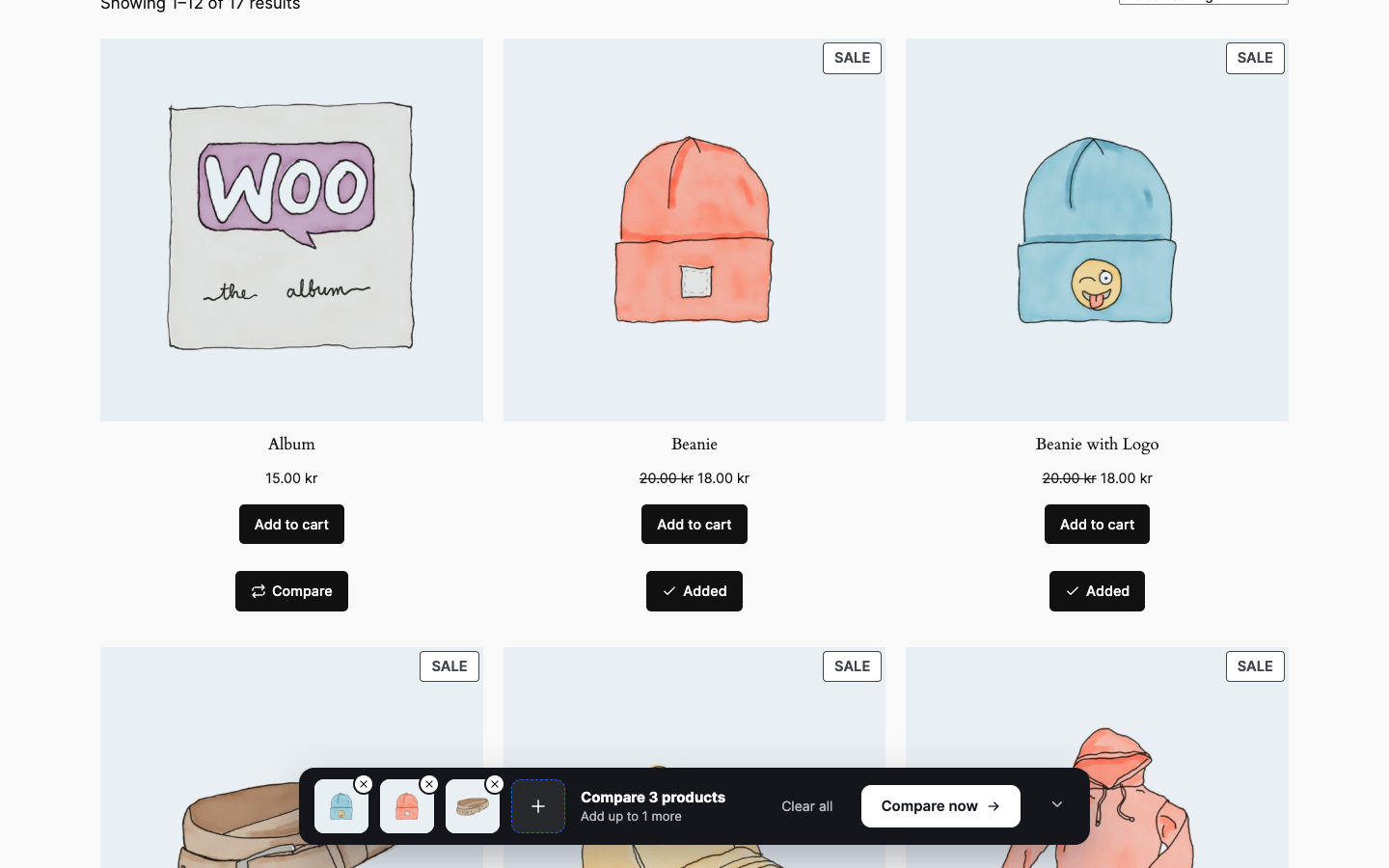
Compare buttons on the shop page, matching the theme's Add to cart, with the sticky compare bar.

The comparison popup: rows that differ are highlighted, with Share, Print and "Only differences".
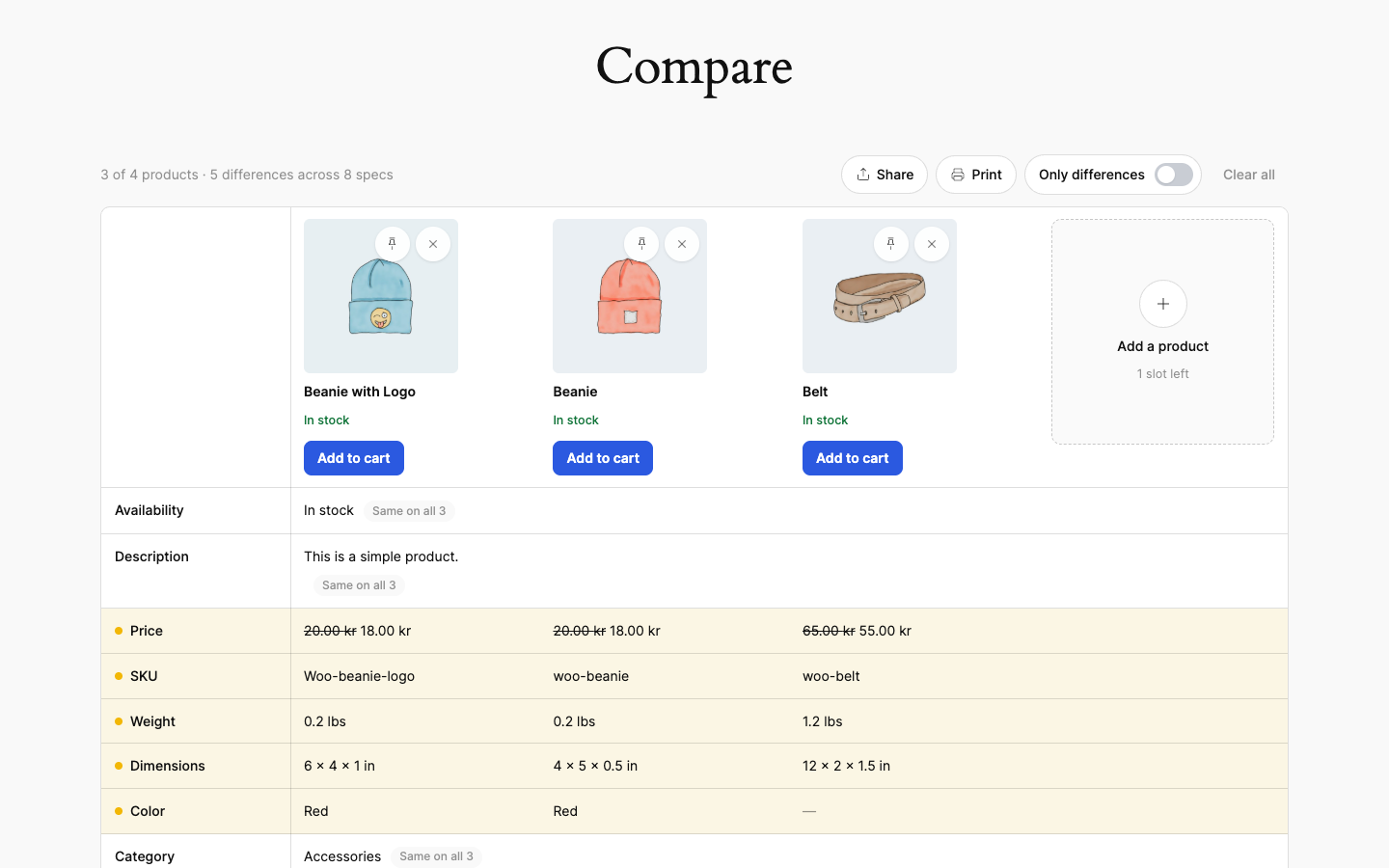
The compare page, with a product slot left for one more.
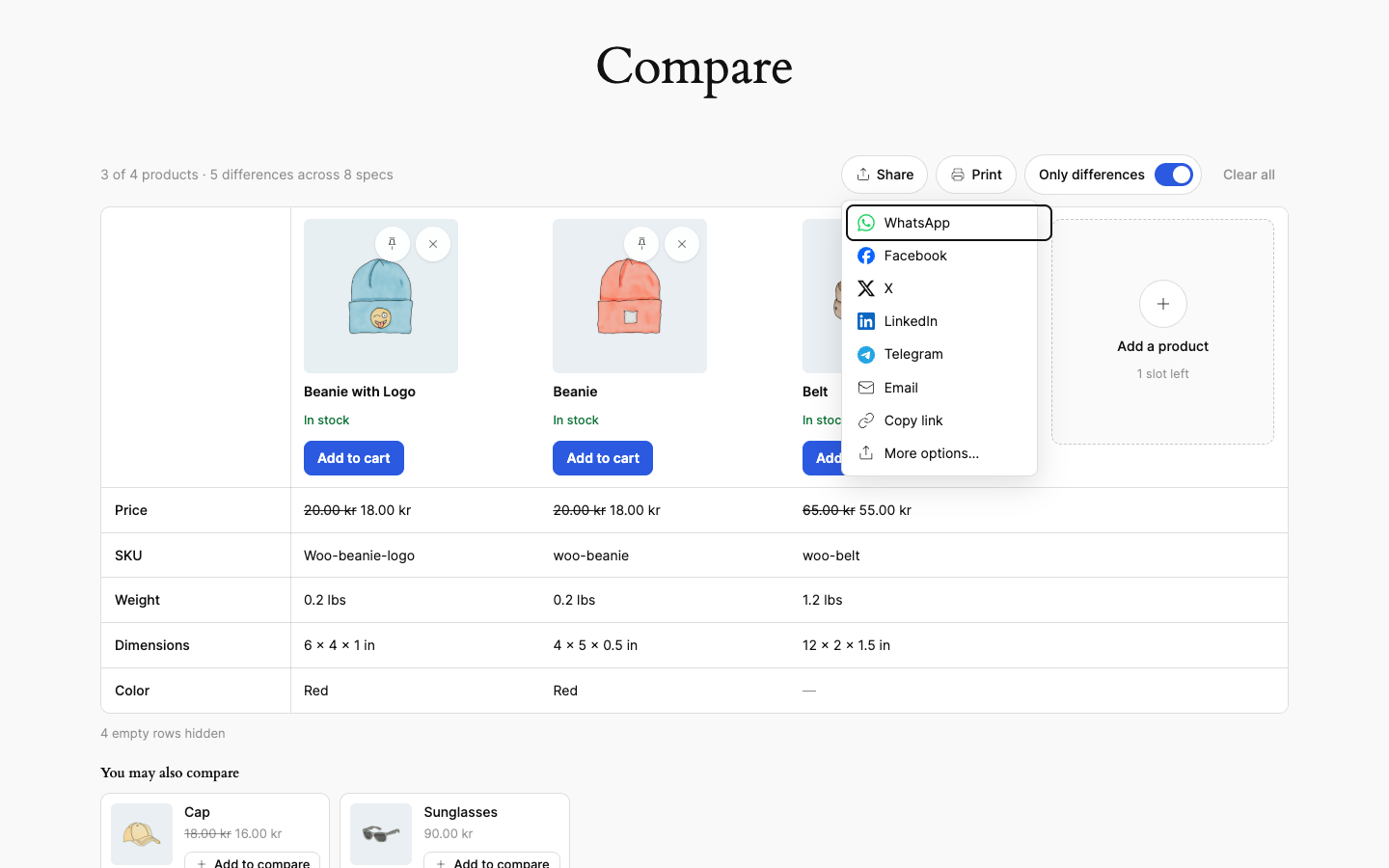
"Only differences" switched on, and the Share menu with its networks.
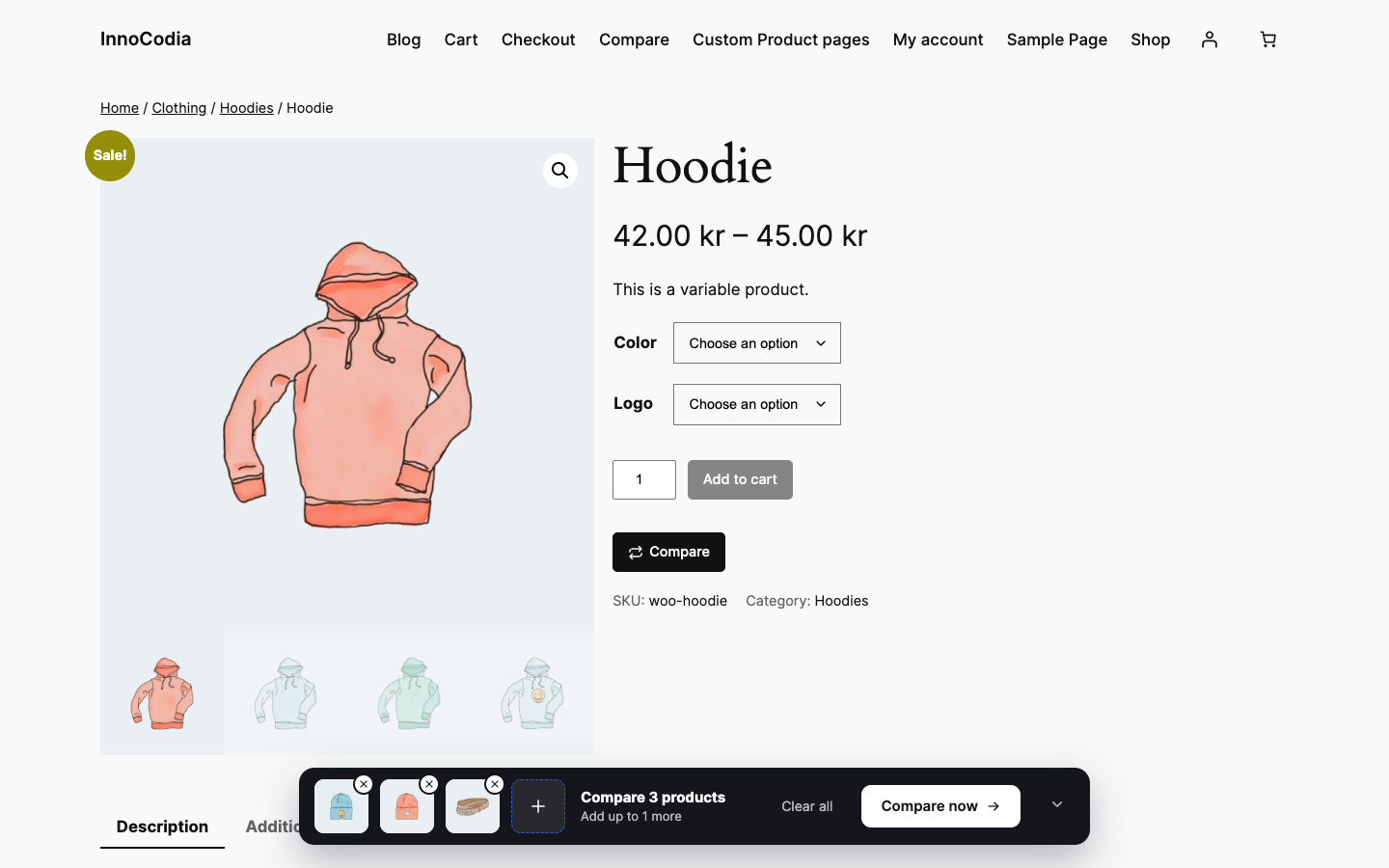
The Compare button on a product page, next to Add to cart.
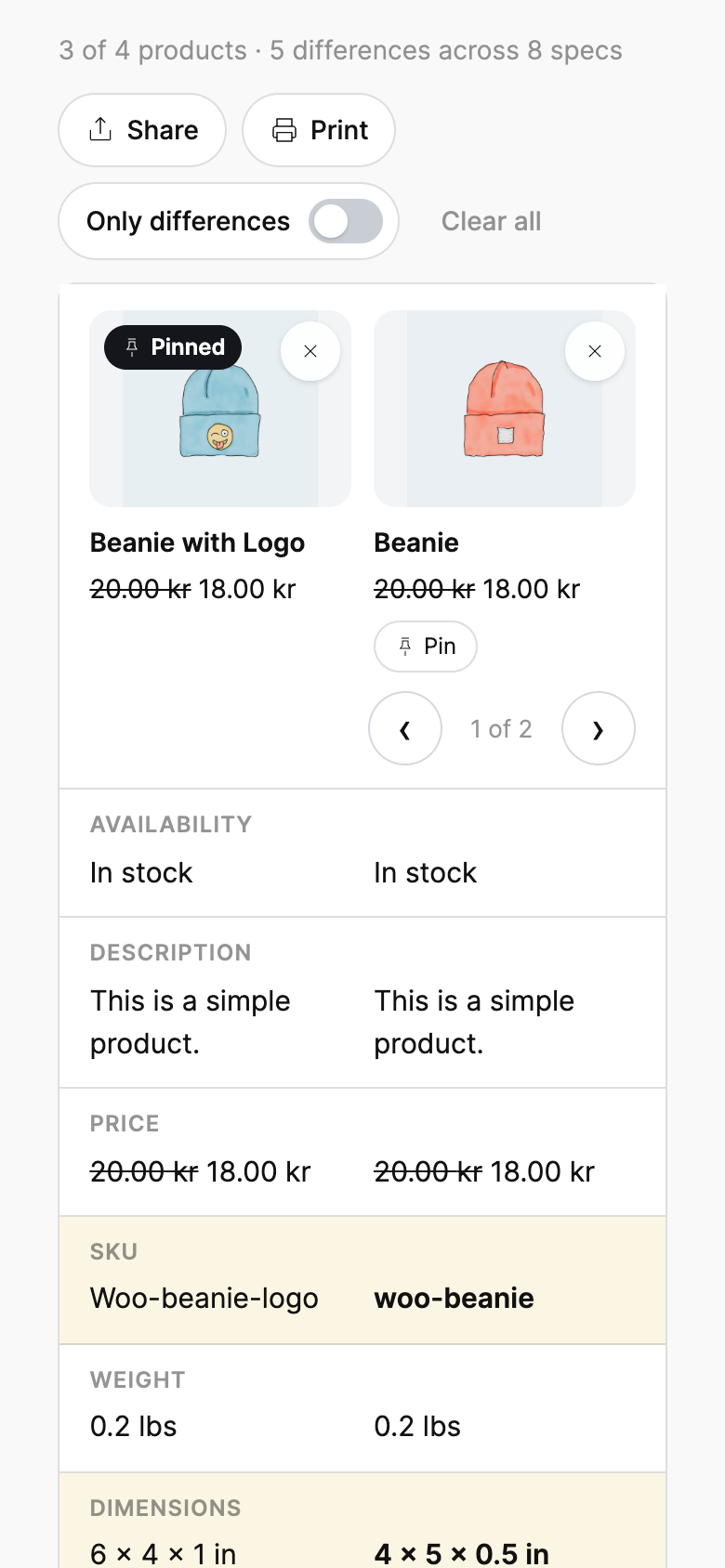
Swipeable comparison cards on a phone, with a pinned product.
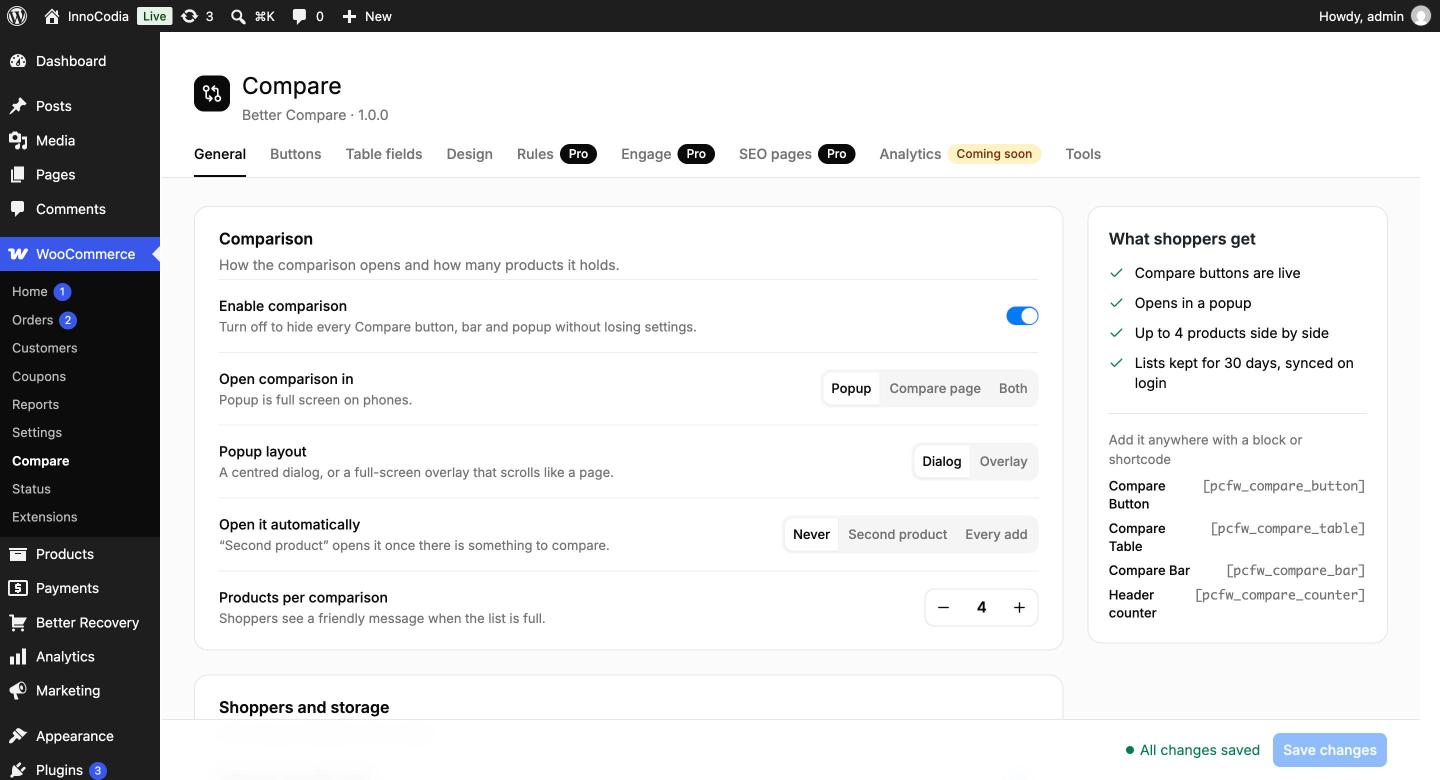
General settings, with a summary of what shoppers get and the blocks and shortcodes.
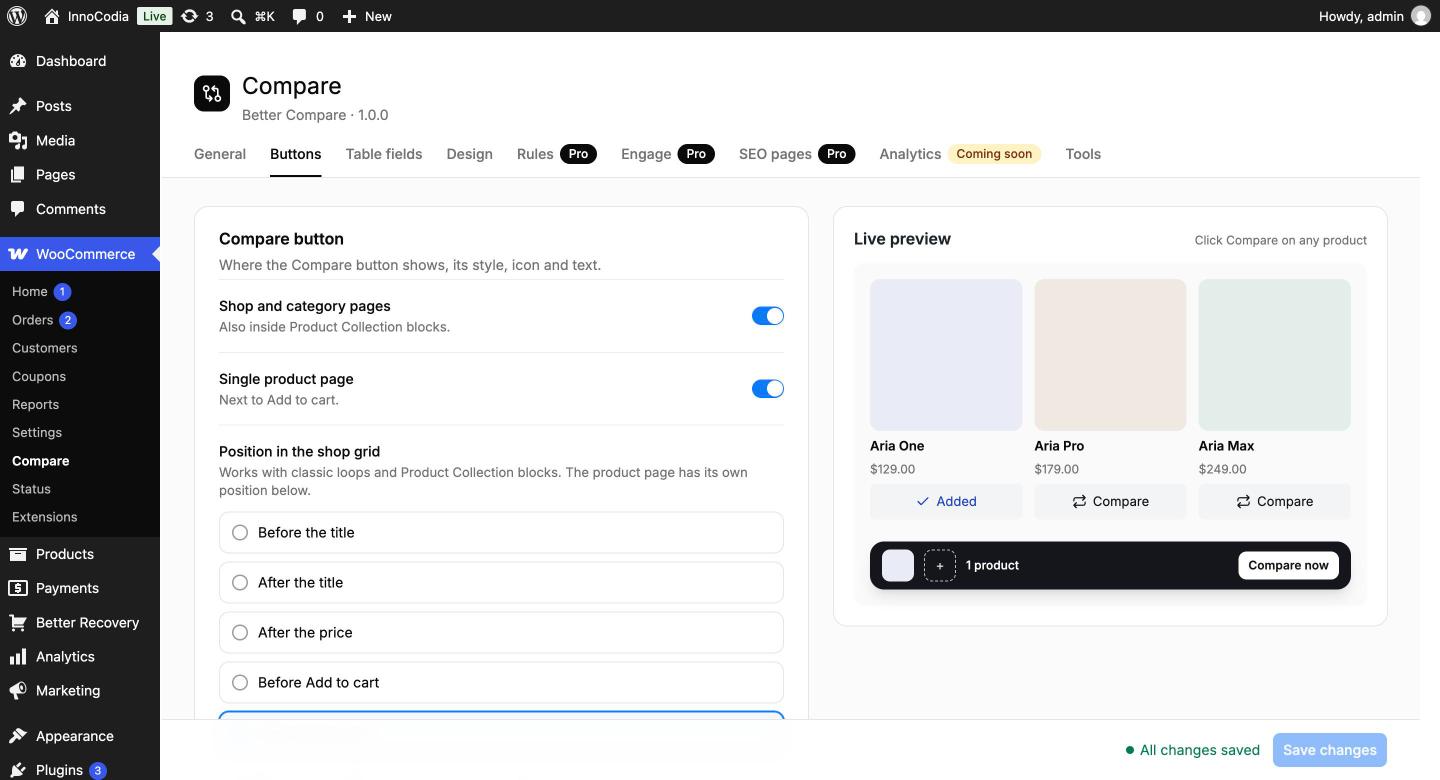
Compare button settings with a live preview.
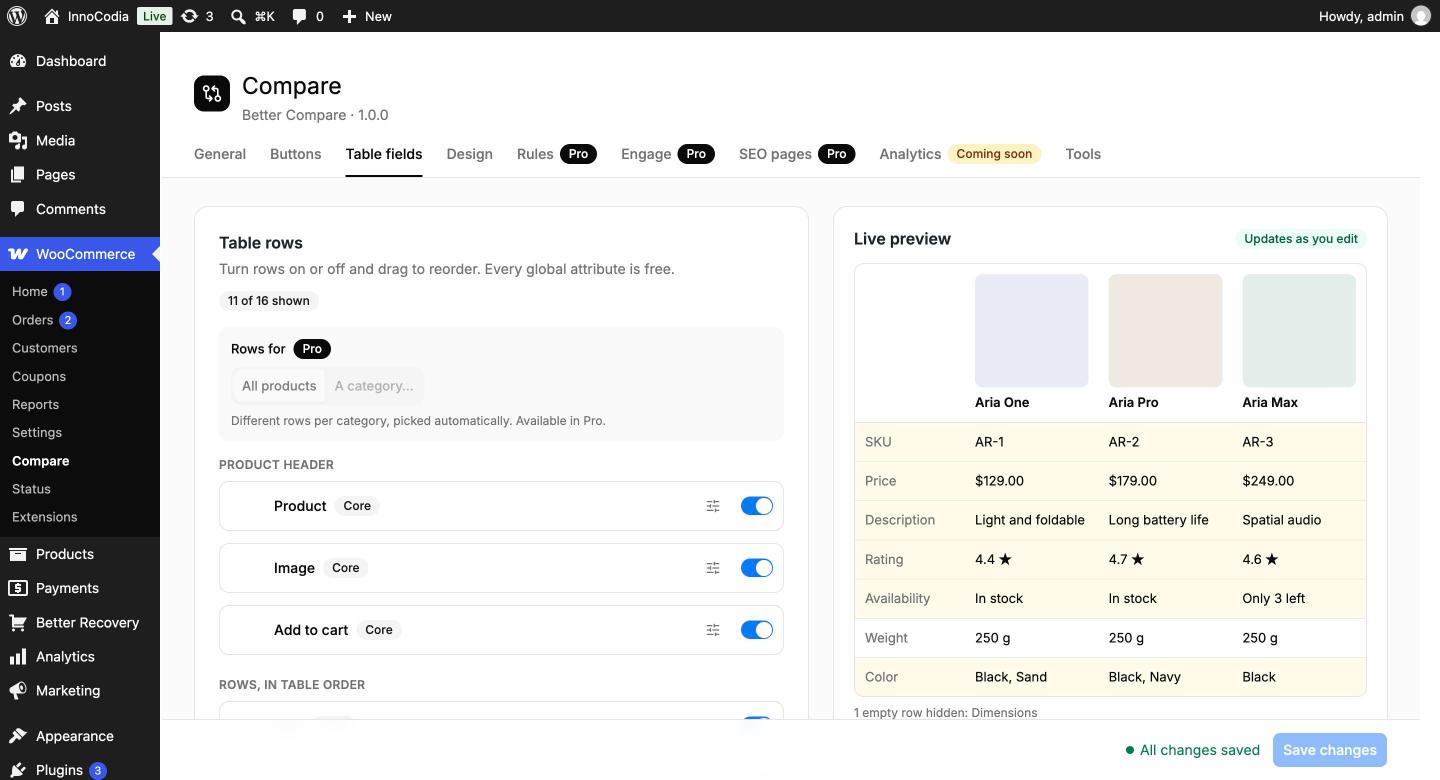
Table rows: turn rows on or off and drag them into order, with a live preview.

Design: table templates, your theme's style or your own colors.
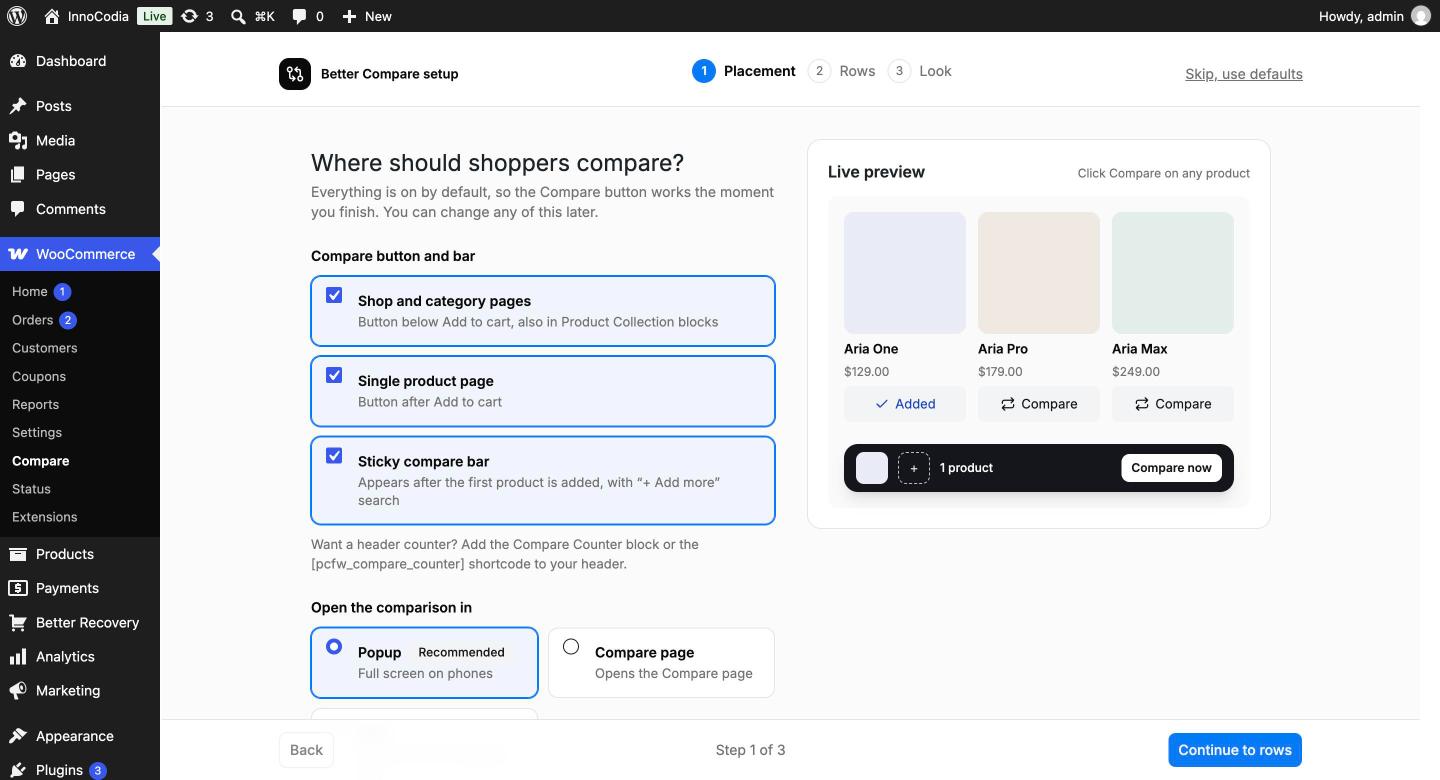
The 3-step setup that opens after activation.
Faq
Yes. It works with block themes (such as Twenty Twenty-Four and Twenty Twenty-Five) and classic themes (such as Astra, Storefront, Kadence and GeneratePress). The Compare button can use your theme’s own button style, and the table can follow your theme’s fonts and colors.
Yes. The Compare button appears inside the Product Collection and Single Product blocks, next to Add to cart. You can also place the Compare Button, Compare Table, Compare Bar and Compare Counter blocks anywhere in the editor.
No. A compare page is created when you activate the plugin. You can choose another page or repair it under Better Compare > Tools.
Yes. Add the Compare Table block or the [pcfw_compare_table] shortcode. Without products it shows the shopper’s own list; with product IDs (for example [pcfw_compare_table ids="12,34,56"]) it always shows those products.
Between 2 and 6, set under Better Compare > General. When the list is full, shoppers see a friendly message.
Price, rating, stock, SKU, description, weight, dimensions and Add to cart, every global product attribute (such as color or size) and your product taxonomies (such as brand). Choose the rows and their order under Better Compare > Table fields. Custom fields, ACF, Meta Box and product-level attributes come with Pro.
Yes. On the product page the Compare button adds the variation the shopper picked, and the table shows that variation’s price, stock and attributes. You can choose to compare the parent product instead.
Yes. Guests keep it in a cookie for as long as you choose (30 days by default). Logged-in shoppers keep it in their account, on every device, and their guest list is merged in when they log in.
The table turns into swipeable cards with 1 or 2 products per screen, so shoppers never scroll sideways. You can switch to a scrolling table instead under Better Compare > General.
Yes. Tick Exclude from comparison on the product’s Advanced tab. Hidden, private and draft products are never shown. Pro can also exclude whole categories and user roles.
Yes. Under Better Compare > Buttons choose the style (button, link, icon or checkbox), the icon and its position, and your own labels. Under Better Compare > Design follow your theme’s style or set your own corners and colors.
No. Shop pages load only a small script for the buttons and the bar. The comparison table is loaded the first time a shopper opens it, and its data is cached.
Yes. The compare list lives in the shopper’s browser and their account, and the buttons update after the page loads, so cached pages show each shopper their own list.
Yes. All texts are translatable, the plugin is RTL ready, and it works with WPML and Polylang. You can also change any shopper-facing text with the pcfw_text filter.
Yes. Copy a file from the plugin’s templates folder to yourtheme/pcfw/ and edit it there. Updates won’t overwrite your copy.
Guests’ lists are kept in a first-party cookie with product IDs only, nothing is sent to outside services, and saved lists are part of the WordPress personal data export and erase tools.
Custom field and ACF rows, spec groups, winner badges, category rules and tabs, saved lists, a quick table on product pages, add to cart and wishlist from the table, quotes, alerts, SEO “A vs B” pages and more templates. See the Better Compare Pro section above.
Reviews
Changelog
1.1.6
- New: Better color picker for every color setting, with a hex field, RGB values and an eyedropper.
- New: Compare button backgrounds (normal, hover and added) and the compare bar’s button can use a gradient.
- New: “Icon” color for the Compare button, next to “Icon when added”.
- Improved: Link style Compare button: turns the “added” color once added, and red with “Remove” on hover.
- Improved: Icon-only Compare button is a full 44px square with the theme’s button style.
- Fix: The Compare button’s icon color was not saved.
- Fix: The Buttons tab preview didn’t show the icon color.
- Fix: The “Add to compare” button in “You may also compare” could stick out of its card.
- Dev: Releases deploy one at a time, and the Composer autoloader is the same on every build.
1.1.5
- New: With “Use my theme’s table style” on, Add to cart and Browse products in the table use your theme’s button style.
- New: Larger product images in the comparison table, popup and phone cards.
- Improved: The Design tab preview shows every table template, and follows the theme style switch the way the store does.
- Improved: The popup, Compare button and table toolbar match the design more closely: rounder popup corners, 44px buttons and a toolbar that lines up.
- Fix: “Send this comparison” card and row tooltips were invisible (white on white) with the theme’s table style.
- Fix: Table icons (pin, remove, share, close) were drawn too thin.
- Fix: The “See my comparison” link in the shared-comparison notice took the theme’s link color and could be hard to read.
- Fix: The two Add to cart buttons under the phone cards overlapped and ran off the screen on some themes.
- Fix: Full-width fields and buttons could overflow on themes that don’t set box-sizing (such as Twenty Twenty-Four).
- Fix: The popup was missing the line under the last row, and the “empty rows hidden” note wasn’t aligned.
1.1.4
- New: Menu svg icon added and main menu removed from WooCommerce.
1.1.3
- Fix: Old readme showing in org issue.
1.1.2
- Updated: Expanded the readme with complete Free and Pro feature documentation, installation instructions, FAQs, compatibility details, and screenshot descriptions.
1.1.1
- Bumped: Version Bumped deu to stable tag version.
1.0.1
- Added: Detailed plugin description and usage instructions.
- Added: Documentation for compare buttons, compare lists, sticky compare bar, comparison popup and page, comparison table, mobile cards, sharing, printing, and design options.
- Added: Documentation for Free features, including blocks, shortcodes, accessibility, performance, compatibility, privacy, developer APIs, hooks, filters, templates, and WP-CLI commands.
- Added: Documentation for Better Compare Pro features, including advanced table customization, comparison rules, saved lists, shopper engagement, integrations, alerts, and SEO.
- Added: Installation instructions, system requirements, and detailed FAQs.
- Added: Screenshot descriptions covering the setup wizard, settings, comparison layouts, and key features.
1.0.0
- First release.