Ninjalytics: Sales Reports & Order Export for WooCommerce and EDD
Ninjalytics: Sales Reports & Order Export for WooCommerce and EDD
Description
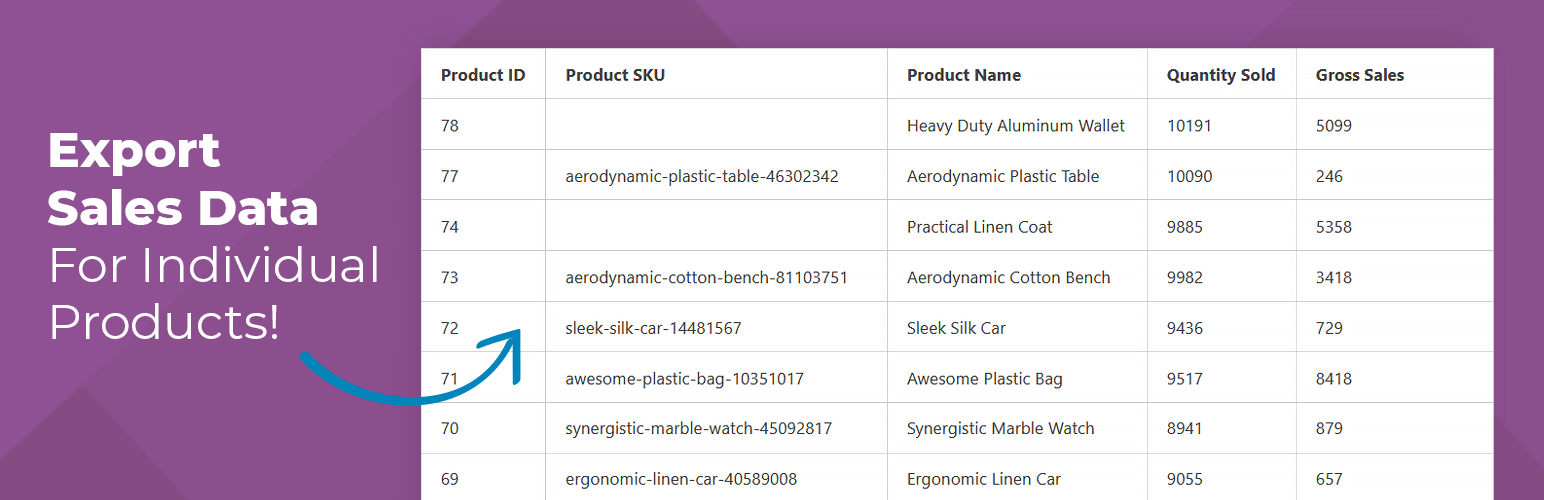
Ninjalytics creates powerful sales reports and order exports for your WooCommerce store. Generate detailed product sales reports with charts, or export individual order line items for fulfillment and accounting. Choose from 15+ pre-built templates, customize which fields to include, filter by date ranges and order status, and preview everything live before downloading.
Perfect for smart decision making, monitoring sales performance, order fulfillment, inventory management, and accounting. Works with both WooCommerce and Easy Digital Downloads (beta).
Previously using “Product Sales Report for WooCommerce” and “Export Order Items for WooCommerce” as separate plugins? Ninjalytics replaces both – everything you need is now in one plugin, plus more.
Reporting Features & Benefits
- Live preview and one-click download – see your data instantly before exporting
- Pre-built report templates – quickly create reports from 15+ ready-made templates including Top Selling Products, Stock Reports, Sales by Region, Live Carts analysis*, and more
- Order Export Mode – export individual order line items with full order details (billing/shipping info, order status, dates) – replaces Export Order Items plugin functionality
- Flexible date ranges – use quick shortcuts like “Last 7 days,” “This Year,” or set precise relative and absolute date ranges
- Order status filtering – include or exclude sales based on transaction status
- Product-specific reporting – store-wide reports, by product(s), product categories, and/or custom segmentation
- Interactive charts – create line and bar charts to help visualize your data
- Report presets – save custom report settings to regenerate reports later
- Variation support – report on variations separately or together
- Custom sorting – set display order for your data
- Flexible field selection – choose what fields to include in your report from dozens of available fields
- Cost of Goods (COGS) tracking – calculate profit and margins (requires compatible COGS plugin)
- Exclude free products – leave free products out of your report
- Row limits – set report to only include top X results
- CSV export – export in versatile CSV format for universal spreadsheet compatibility
- High Performance Order Storage (HPOS) – full support for WooCommerce’s modern order storage system
- Customizable live preview – link order and product IDs directly to their pages, color-code order status, and highlight negative numbers in the preview table
- Import & Export Report Settings —- save a report’s configuration to a file and load it back in seconds. Great for backups, moving between stores, or sharing setups.
- Works with WooCommerce, Live Carts for WooCommerce and Easy Digital Downloads (beta)
View, Download, and Share
Use the report builder to quickly create a custom report, view in your dashboard, or click “Download Report” and your custom report will be generated and downloaded as a CSV. Import to your favorite spreadsheet software or share it with members of your team.
Pre-Built Report Templates
Ninjalytics includes 15+ ready-to-use report templates to get you started quickly:
Product Sales Templates:
- Blank Product Report: A minimal starting point for a product report – pick your own fields and settings from scratch.
- All Sales: Sales trend chart with quantity sold and revenue after discounts, shown per product.
- Top Selling Products: Identify top selling products with quantities and revenue in a single view.
- Top Rated Products: See products with the highest customer ratings to highlight quality performers. (Pro only)
- Sales by Product: Review sales totals grouped by product to spot trends quickly.
- Refunds By Product: Top products by refunded amount in the period. Compare with sales columns; add a calculated field for refund rate if you need it. (Pro only)
Inventory Management Templates:
- Stock Report: Monitor stock levels and surface products that need replenishment.
- Low & Out Of Stock: Lowest on-hand quantities first so shortages stand out; sold units follow the report dates and statuses.
Geographic & Segmentation Templates:
- Sales by Country: Analyse performance by billing country for geo insights.
- Sales by Currency: Track sales totals by currency when selling internationally.
- Sales by Payment Method: Compare revenue by payment method to understand buyer preferences.
- Sales Trend (Monthly): Revenue and units sold summed by calendar month across the dates you choose.
- Sales Trend (Weekly): Revenue and units sold summed by week across the dates you choose.
- Top Revenue By Billing Email: Ranking of billing emails by revenue in your date range, with units, orders and average order total (top 100 rows).
- Sales by US State: Break down sales totals by US state for regional insights. (Pro only)
- Refund Trend (Monthly): Refunded amounts and units by calendar month across the dates you choose. (Pro only)
Order Export Templates:
- Blank Order Export: A minimal starting point for an order export – choose your own fields, one row per order or per line item.
- Accounting: One row per completed order with totals, tax, and billing country for bookkeeping.
- Fulfillment & Shipping: One row per order with shipping contact, address, method and quantities for picking, packing and labels.
- Refunds & Returns: One row per refunded order with status, and amounts.
- Line Items (One Row Per Item): One row per line item for supplier files, picking lists and SKU-level analysis.
- Order Margin Summary: One row per completed order with revenue and tax amounts. COGS columns appear when cost tracking is enabled.
Live Carts Templates:
- Live Carts Report: Aggregate cart statistics and trends
- Live Carts Export: Individual cart details export
- Carts by Status: Segment carts by status (active, abandoned, converted)
- Average Cart Value: Monitor cart value trends over time
Requires free Live Carts for WooCommerce plugin)
Simple Filtering
Ninjalytics gives you a ton of control for zeroing in on what’s important. See what products are performing best based on quantity or sales so you can refine your online sales strategy. Filter by date range, order status, item, and/or category.
Live Carts Integration
When you have the free Live Carts for WooCommerce plugin installed (Pro version also available), Ninjalytics automatically adds specialized reporting templates for analyzing abandoned and active shopping carts. Track cart abandonment rates, monitor cart values, and understand customer behavior before checkout to optimize your conversion funnel.
Key Reporting Fields Available:
Product Sales Reports:
- Product Image, ID, SKU, Name
- Variation ID, SKU, Attributes
- Product Categories
- Current Stock Quantity
- Quantity Sold
- Gross Sales
- Gross Sales (After Discounts)
- Total Sales Including Tax
- Cost of Goods Sold (COGS, Profit, Gross Margin)
- Order Count, Average Order Total
- Line Item Count
- And more…
Order Export Reports:
- Order ID, Status, Total, Date/Time
- Order Item Type, Line Item Name
- Billing Name, Phone, Email, Address, State
- Shipping Name, Phone, Email, Address
- Line Item Quantity, Gross, Total
- Line Item Tax, Taxes
- Order Shipping Methods
- Product details for each line item
- And more…
You can rename any field in your reports and reposition it.
Note: The Pro version adds additional advanced fields including product prices, detailed taxes, refund data, customer notes, order notes, custom meta fields, and more. See “Get Pro Features” section for details.
Get Pro Features
If you are a power user needing advanced options for fine-tuning reports, upgrade to pro:
- Email reports – send reports to any email address with a single click, or use scheduled reports addon for automation
- Multiple export formats – save reports in XLSX (Excel), HTML, or Enhanced HTML formats in addition to CSV
- Pie charts – create pie charts for visual data representation (free version includes line and bar charts)
- Alternative date ranges – filter orders by paid date, completed date, or custom date fields (e.g., delivery date from other plugins) instead of order date
- Custom calculated fields – create your own formulas using arithmetic operators and built-in functions (Concatenate, Get Post Title, Get Permalink, Timestamp to Date/Time, and more) to calculate custom metrics
- Advanced field customization – include custom product/order meta fields
- Expanded product filtering – filter by product tags, custom fields, and product variation-specific attributes
- Multiple custom segments – use several custom segmentation fields at the same time for complex data grouping
- User role filtering – generate reports filtered by customer user roles (both default and custom roles)
- Order meta filtering – limit reports to orders matching specific custom meta field values (e.g., delivery date, custom order tags)
- Advanced order fields – access to Order Source, Order Notes, Customer Notes, Shipping State, and refund-related fields
- Ninjalytics App – access your reports on the go with the Ninjalytics app for Android or iOS (beta)!
- Want more? – check out our add-ons for expansion plugins
Reviews
⭐️⭐️⭐️⭐️⭐️
“I needed reports to help make informed decisions for ordering new stock from suppliers and the Ninjalytics was perfect. It can create very granular reports for specific product categories or one grand report for all our products. Well done!”
-@krooisant
⭐️⭐️⭐️⭐️⭐️
“I was looking for good frontend reports for my marketplace and I came across the winning trio, Ninjalytics, Export Items Pro in combination with Frontend Reports. This trio was the best for the job.”
-Yinon Tubi
If you like this plugin, please consider leaving a comment or review.
Documentation
Explore the full Ninjalytics documentation:
- Introduction
- Compatibility
- Presets & Templates
- Report Dates
- Report Configuration
- Extending Ninjalytics
Addons & Integrations
Looking to automate your reports, share them on the frontend of your site, or export details about an individual sale for order fulfillment? Upgrade or become a member for access to these add-ons:
Scheduled Email Reports – email your reports as an attachment on a recurring schedule
Frontend Reports – embed a report or a download link in a post or a page
Export Order Items Pro – export order details for use in order fulfillment and data analysis
You may also like these plugins
BerryPress has built a range of powerful plugins for WooCommerce and WordPress. Check out some of our favorites below – and don’t forget to leave a ⭐⭐⭐⭐⭐ review to help others in the community discover them!
- Inline Image Upload for BBPress – Add a TinyMCE WYSIWYG editor to BBPress forums and enable inline image uploads, so users can easily attach and display images within their posts.
- PhotoBerry Studio – Create beautiful, customizable product photo galleries directly in your WordPress dashboard.
- Automatic Product Categories – Available as a free version and Pro. Automatically assign products to categories based on custom rules, saving you time and keeping your store organized.
- Live Carts for WooCommerce – Free plugin to view and analyze live shopping carts in real time to understand user behavior and optimize conversions (Pro version also available). Integrates with Ninjalytics to add 4 specialized cart reporting templates.
- Customer Address Change Notification for WooCommerce – Get instant notifications when customers update their shipping or billing address, helping you stay on top of changes and prevent delivery issues.
- LoginBerry – Automatic email verification for WordPress accounts. Stops fake signups by requiring a 6-digit activation code before users can log in – zero configuration needed.
To view BerryPress’s premium WordPress plugins and themes, visit our WordPress products catalog page.
Enjoy!
Installation
- Click “Plugins” > “Add New” in the WordPress admin menu.
- Search for “Ninjalytics”.
- Click “Install Now”.
- Click “Activate Plugin”.
Alternatively, you can manually upload the plugin to your wp-content/plugins directory.
Screenshots
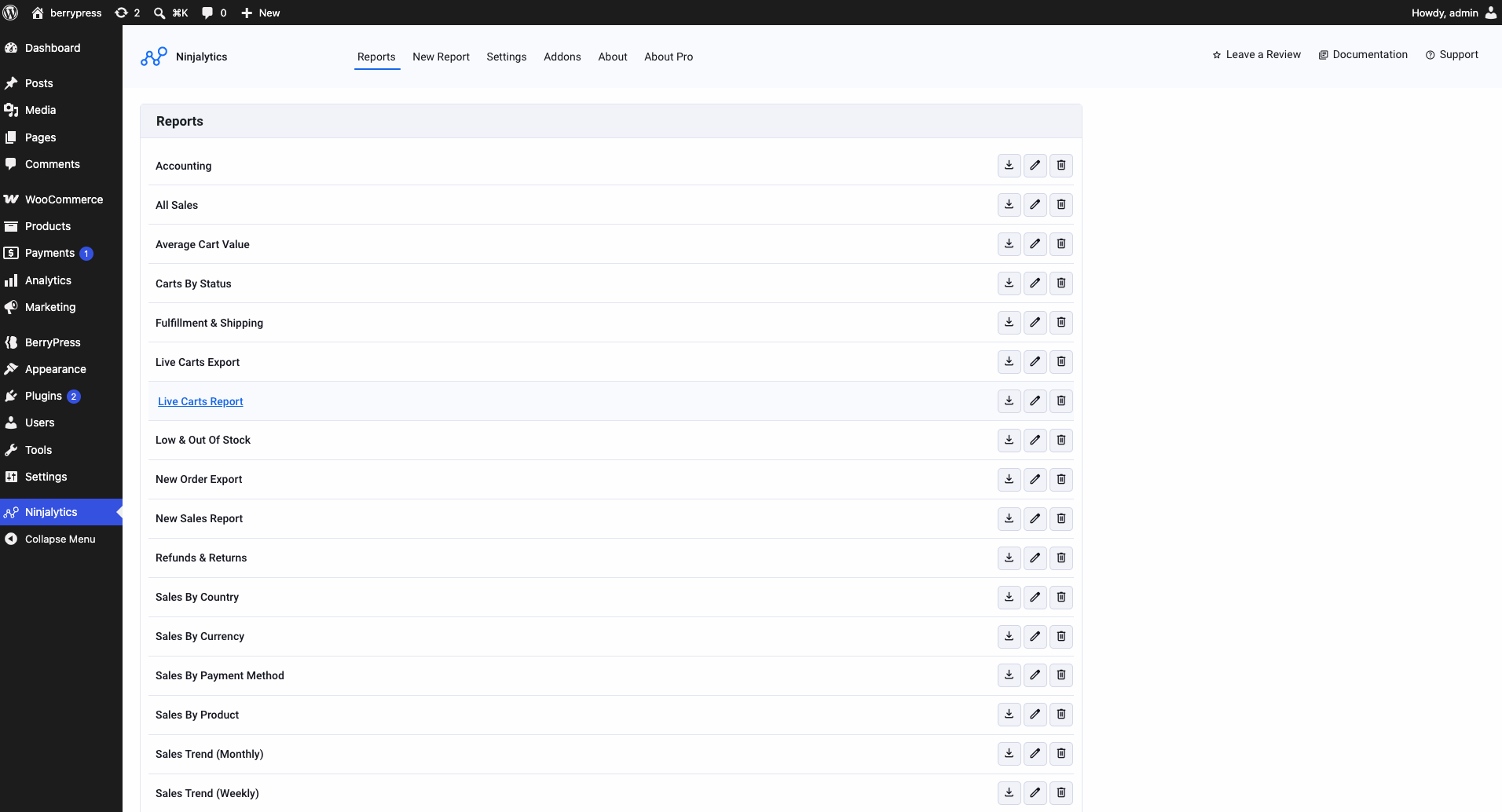
Reports list - all your saved reports in one place
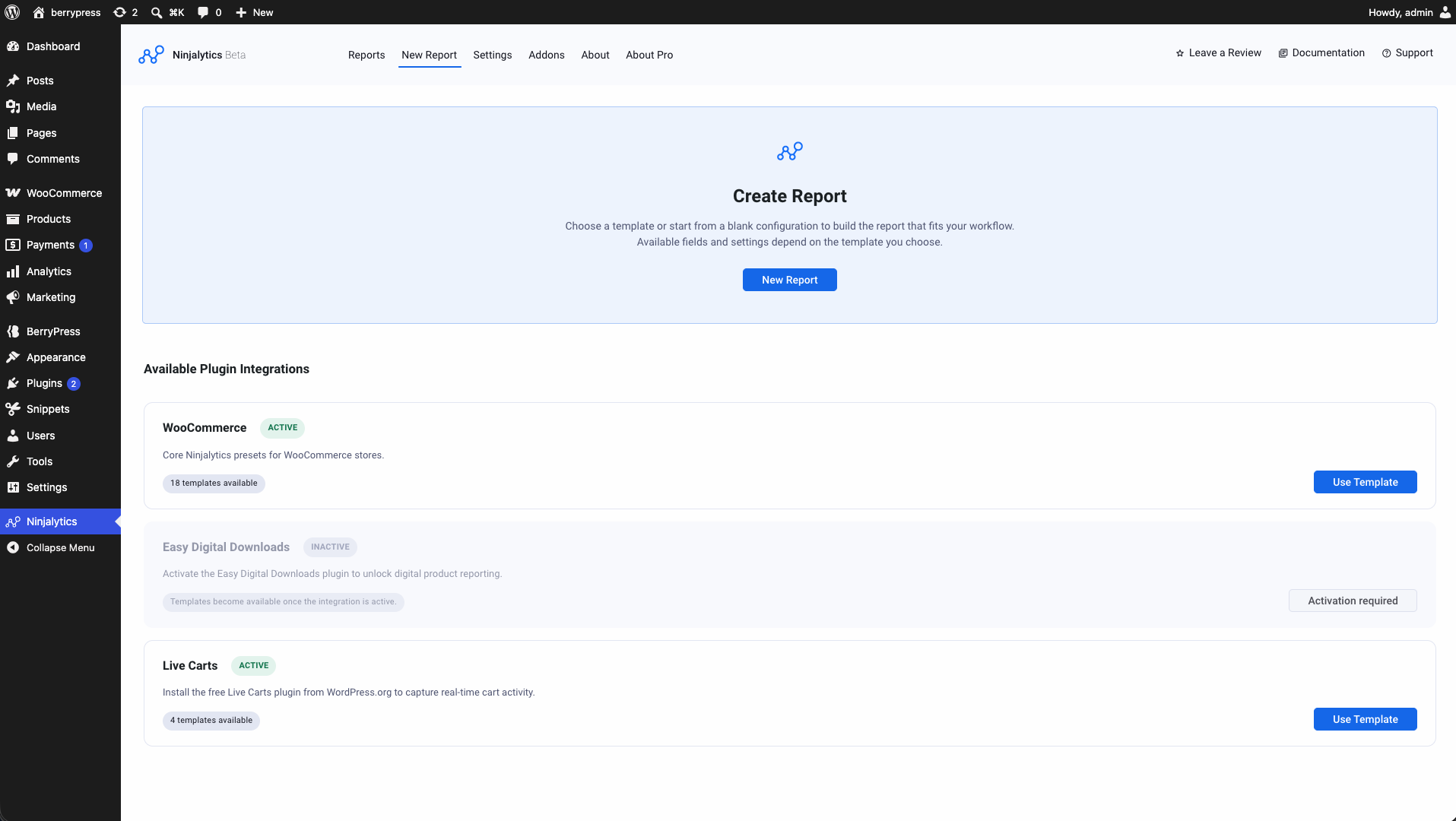
Create Report - start from a template or a blank report, grouped by integration
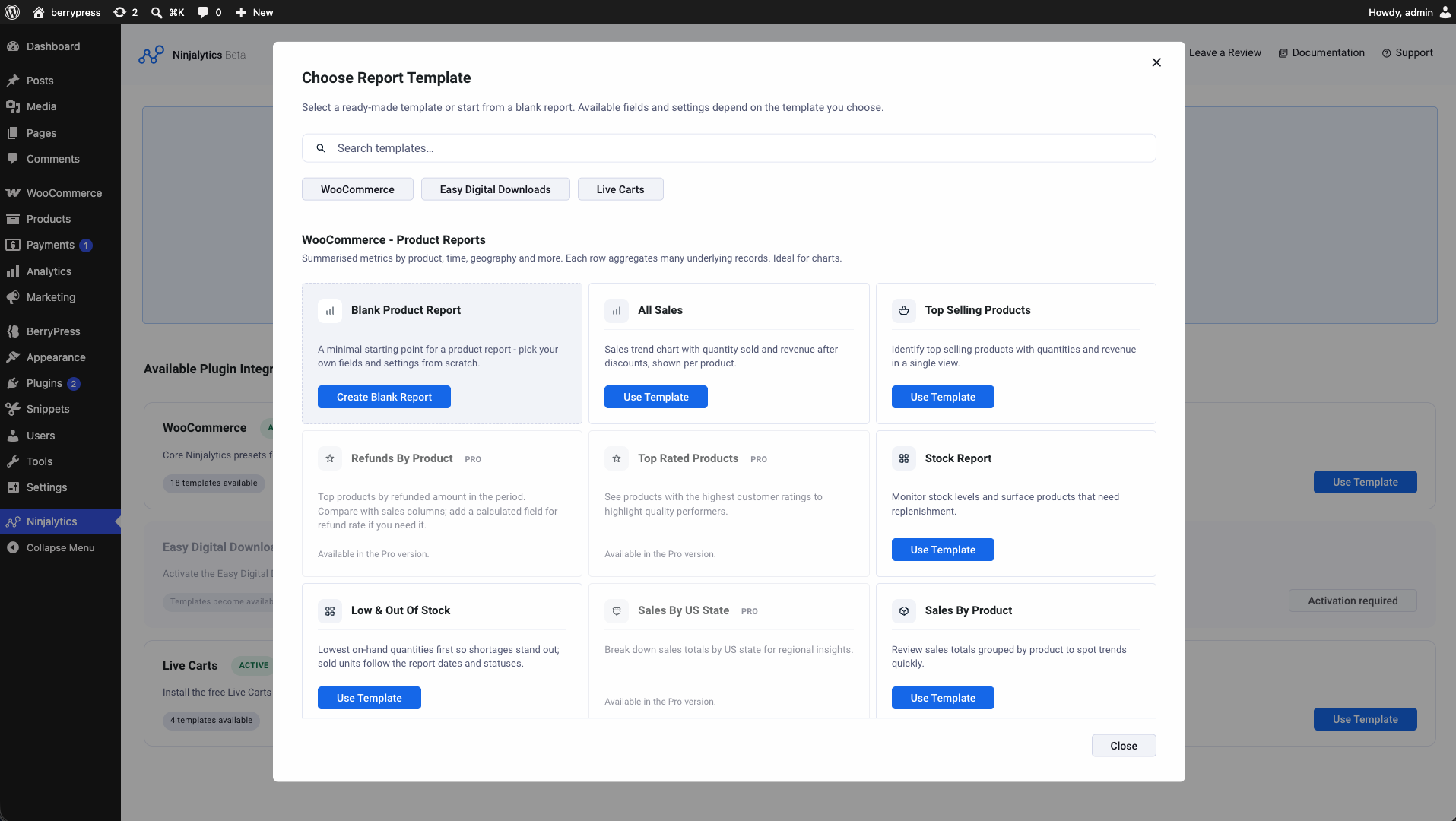
Choose Report Template - templates grouped by type, with Pro options clearly marked
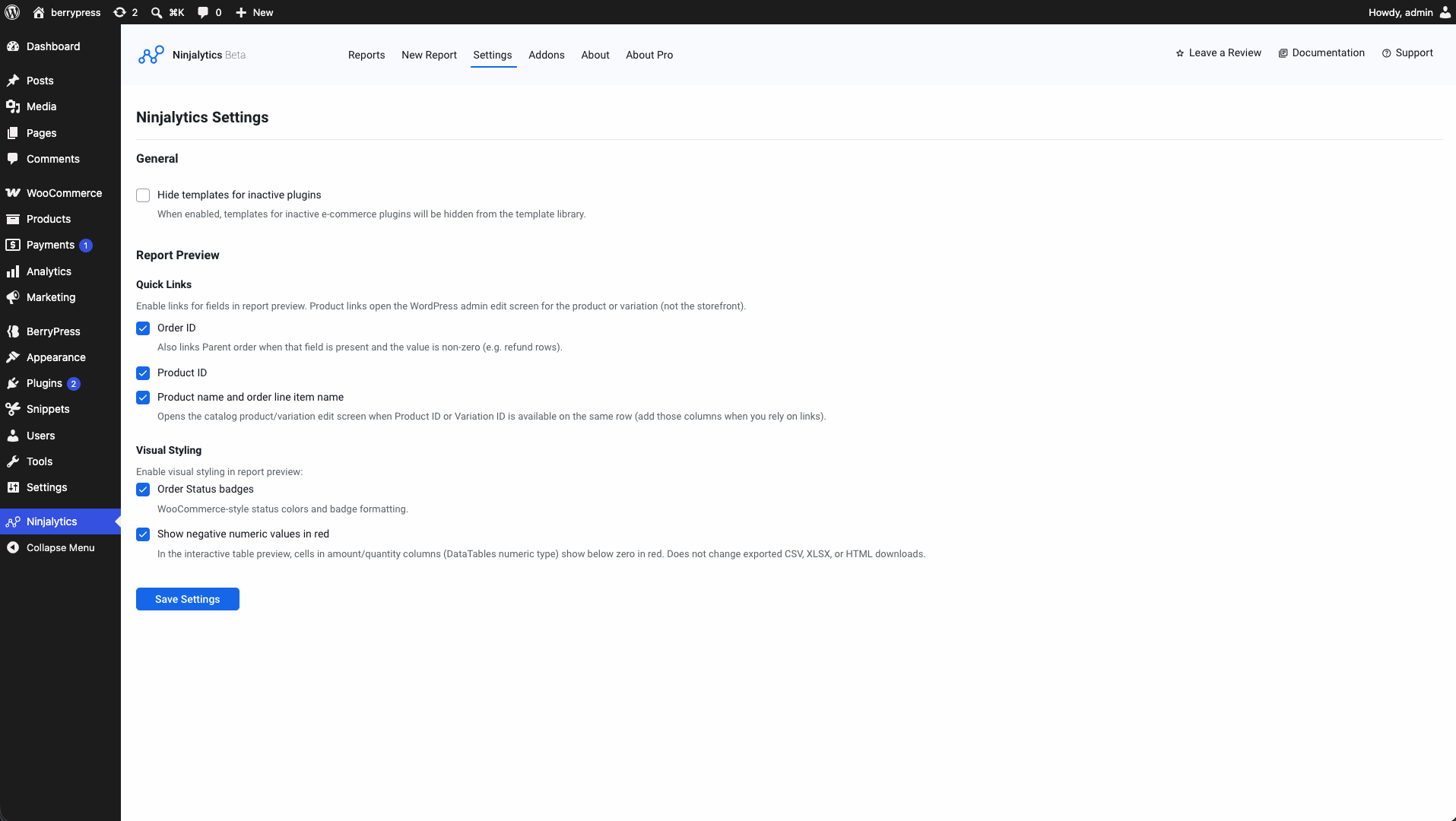
Settings - general options and live preview customization (quick links, status colors, negative number highlighting)
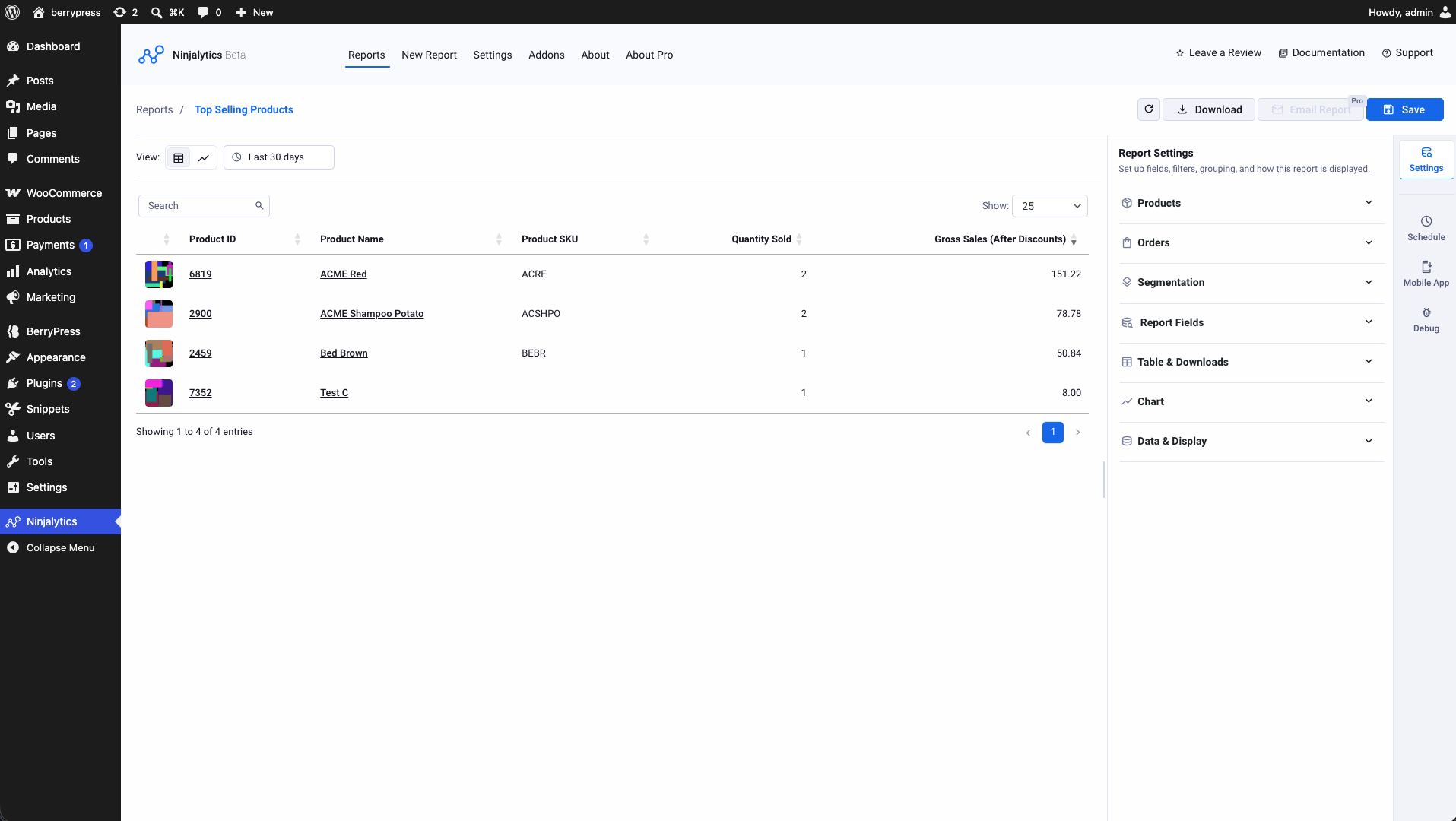
Report editor (table view) - Top Selling Products with clickable order/product links
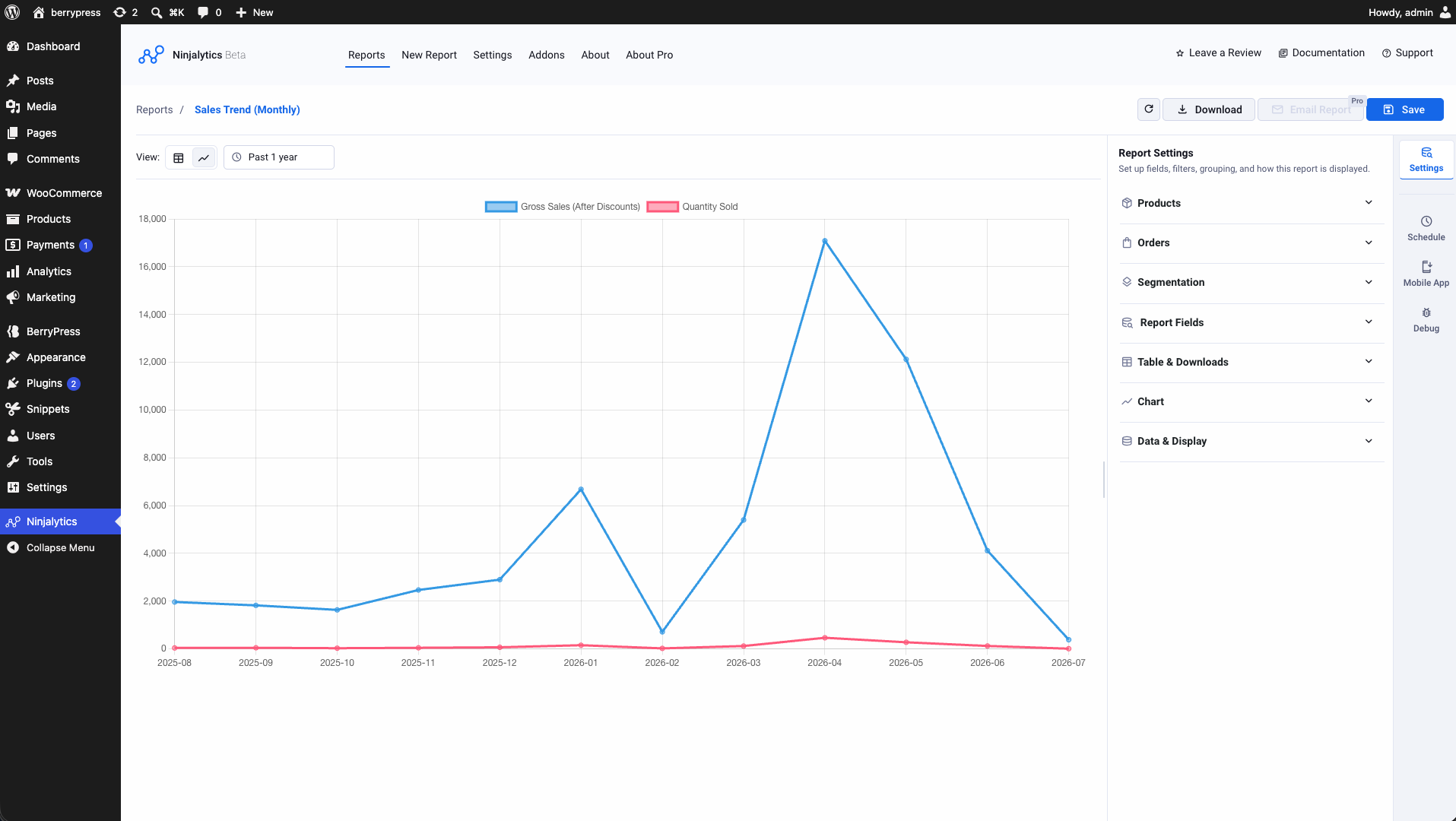
Report editor (line chart) - monthly sales trend for revenue and units sold
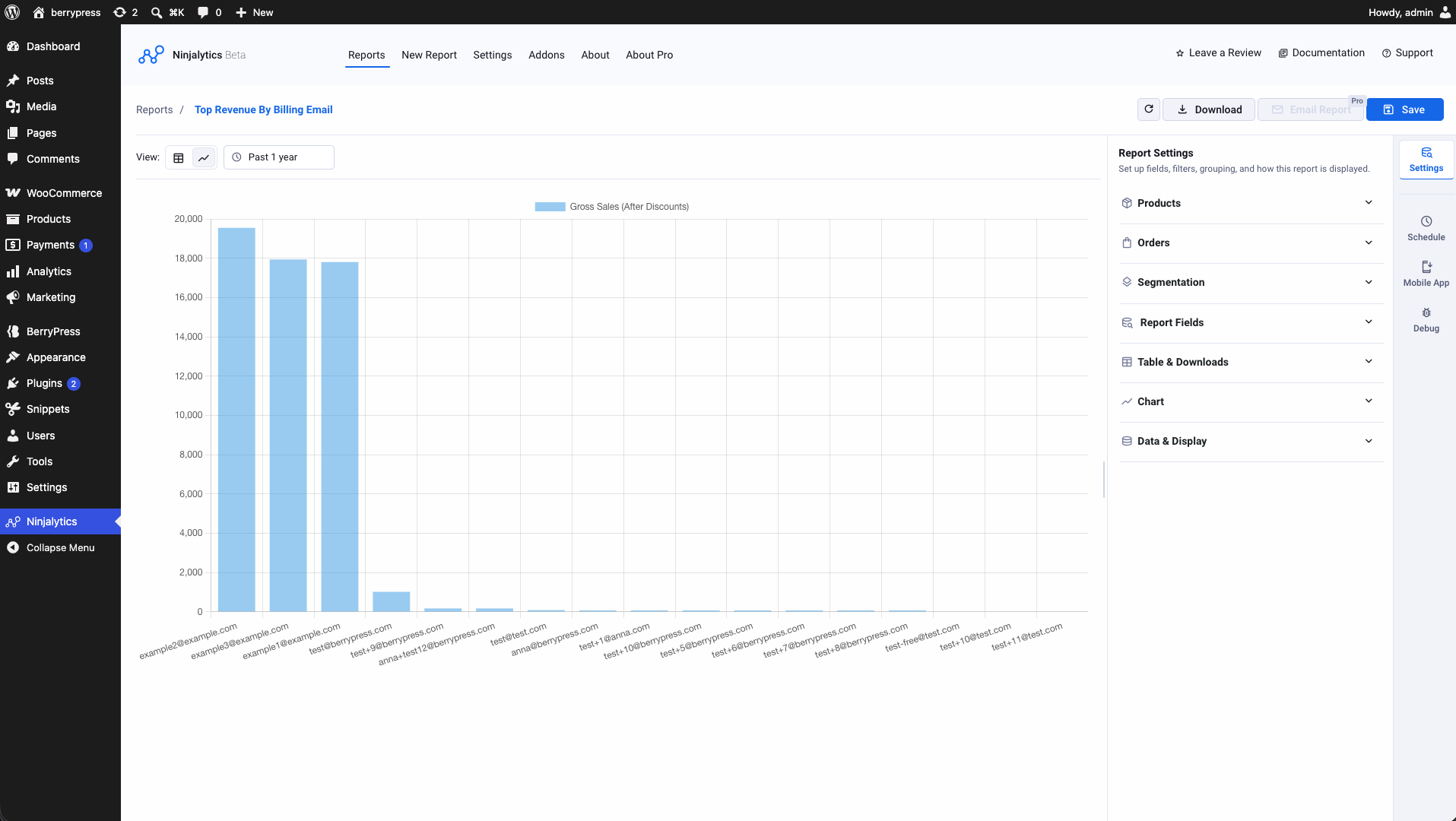
Report editor (bar chart) - top revenue by billing email
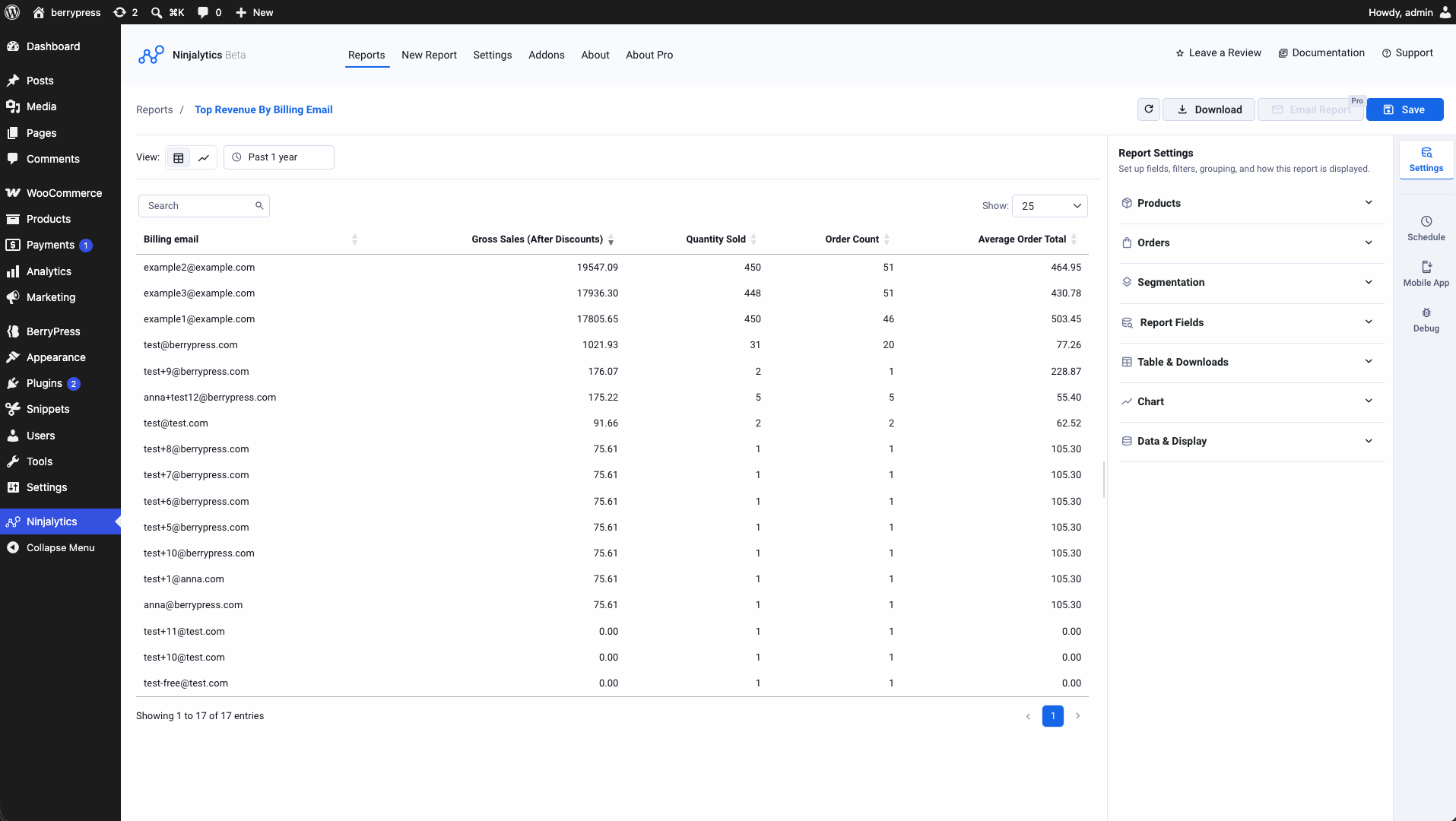
Same report in table view, with sortable columns
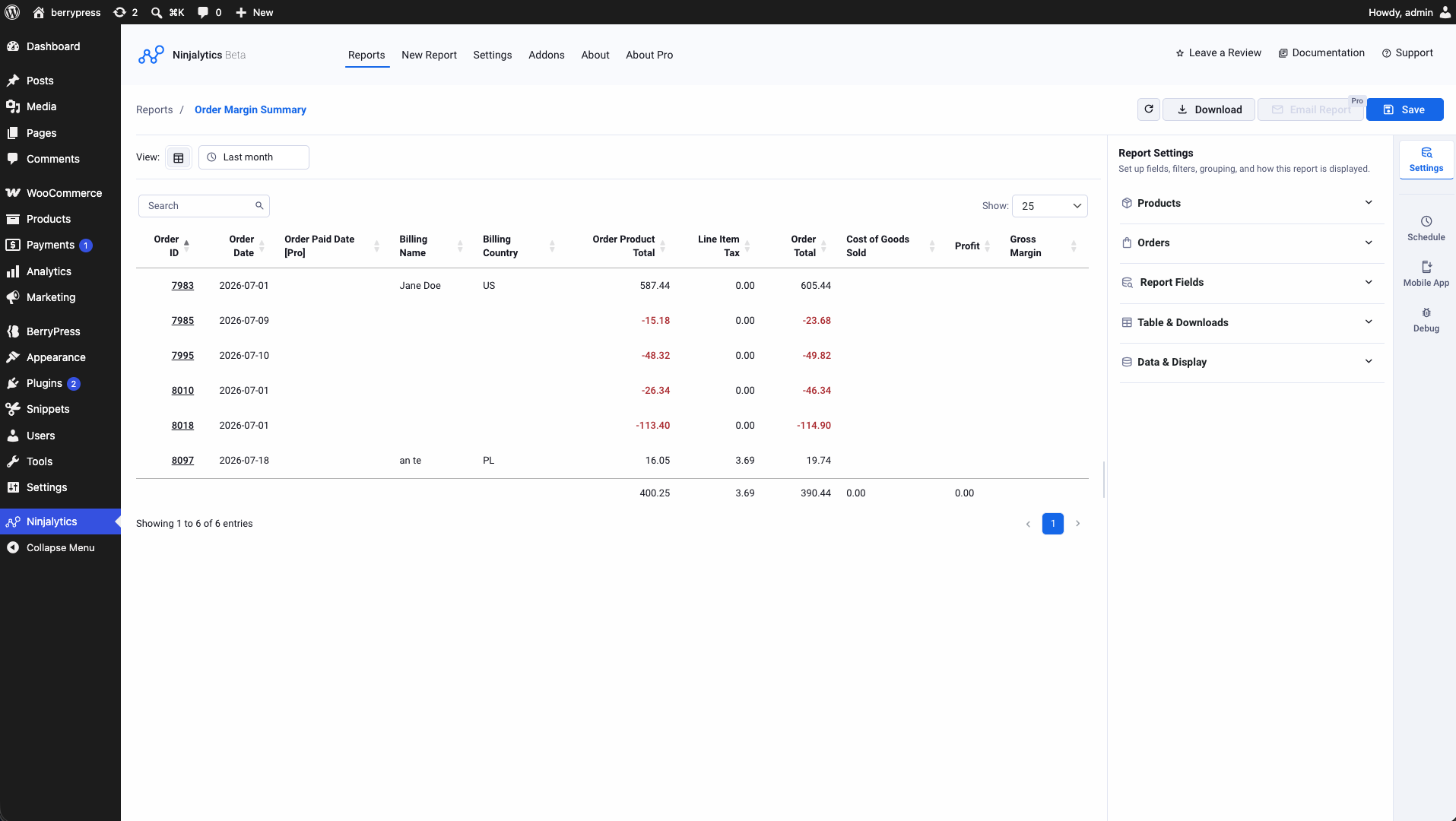
Order Margin Summary export - negative amounts highlighted in red
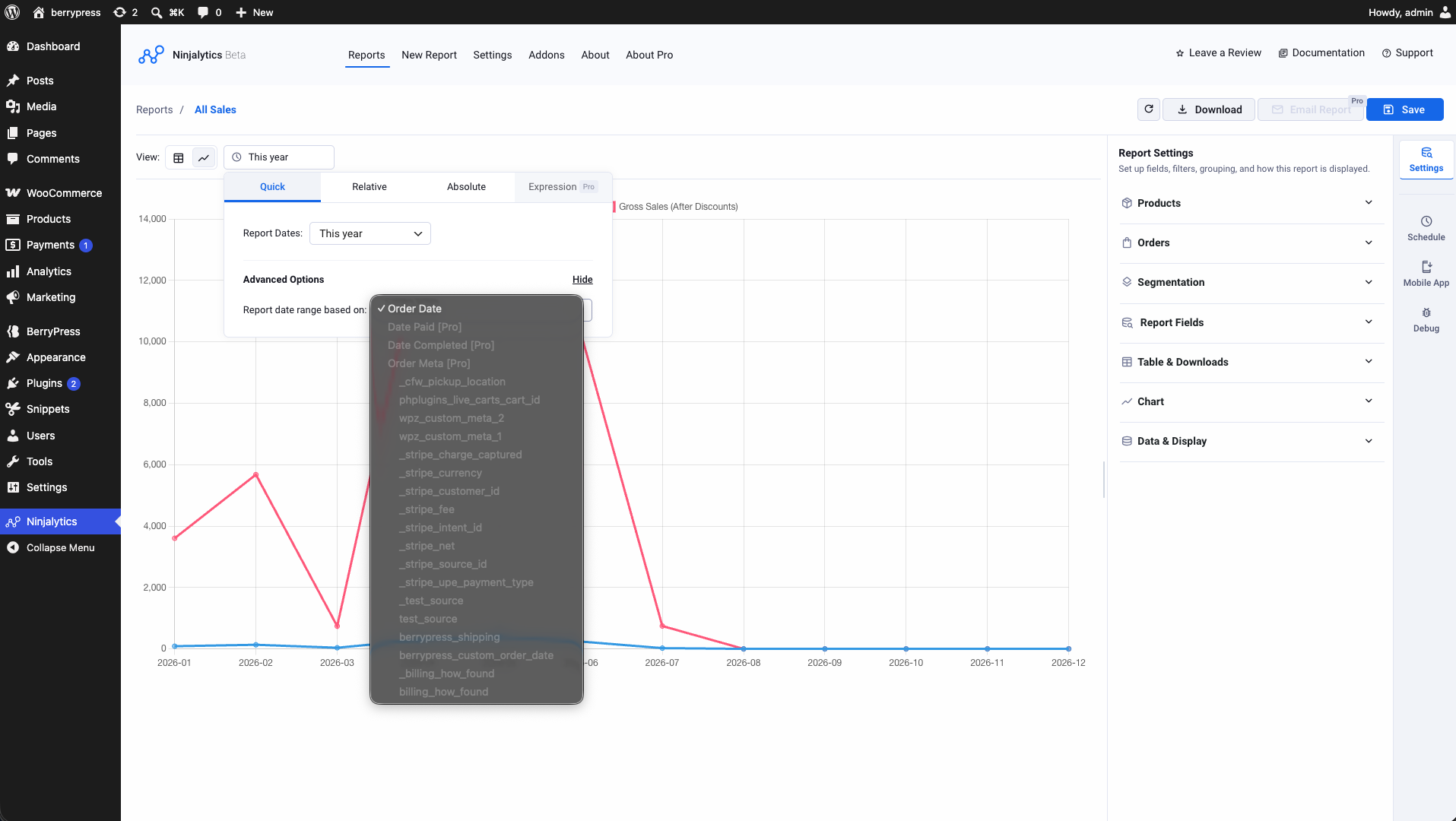
Date range picker - Quick presets with an advanced "date range based on" option
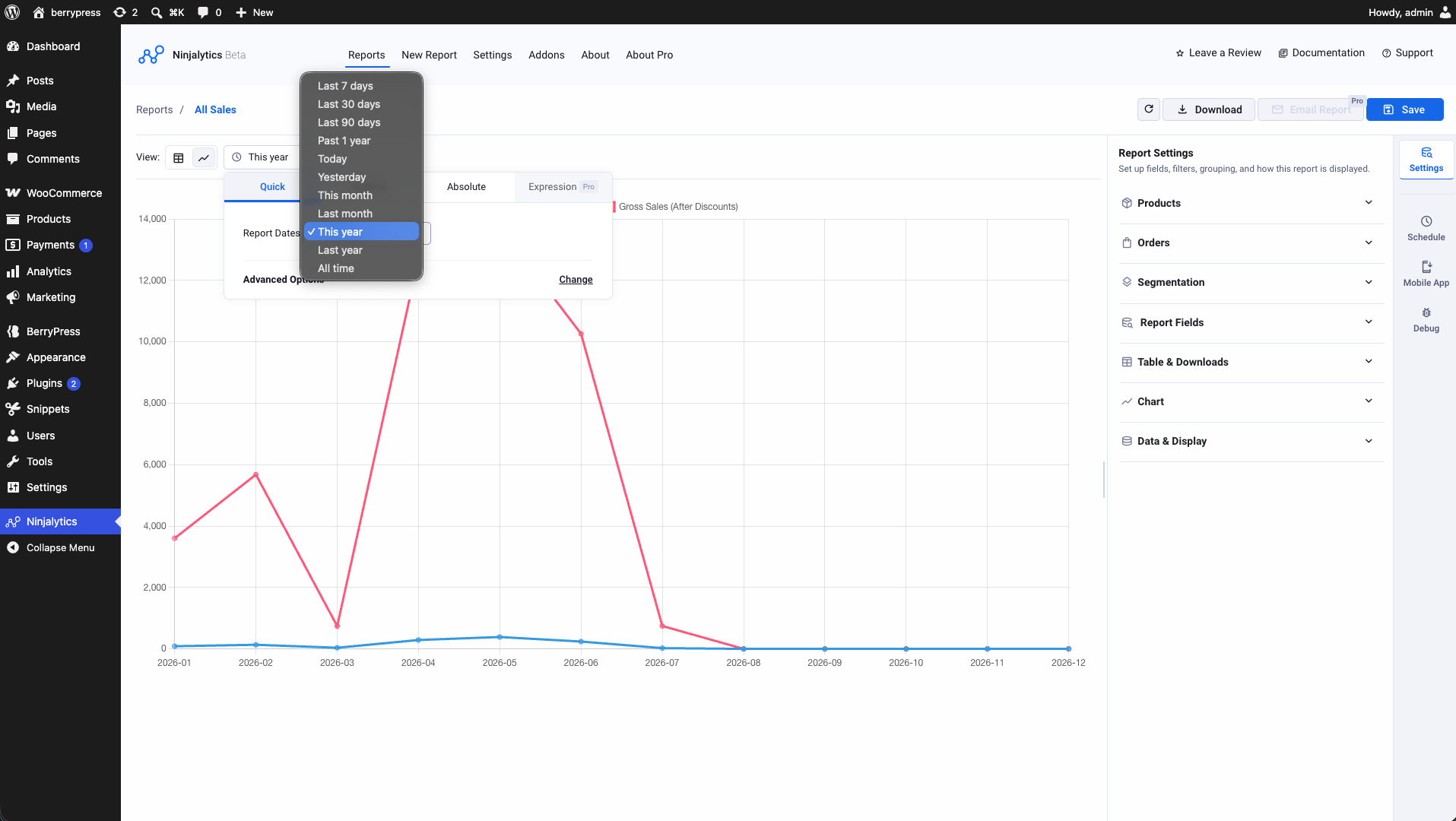
Quick date presets - Last 7/30/90 days, this month, last year, and more
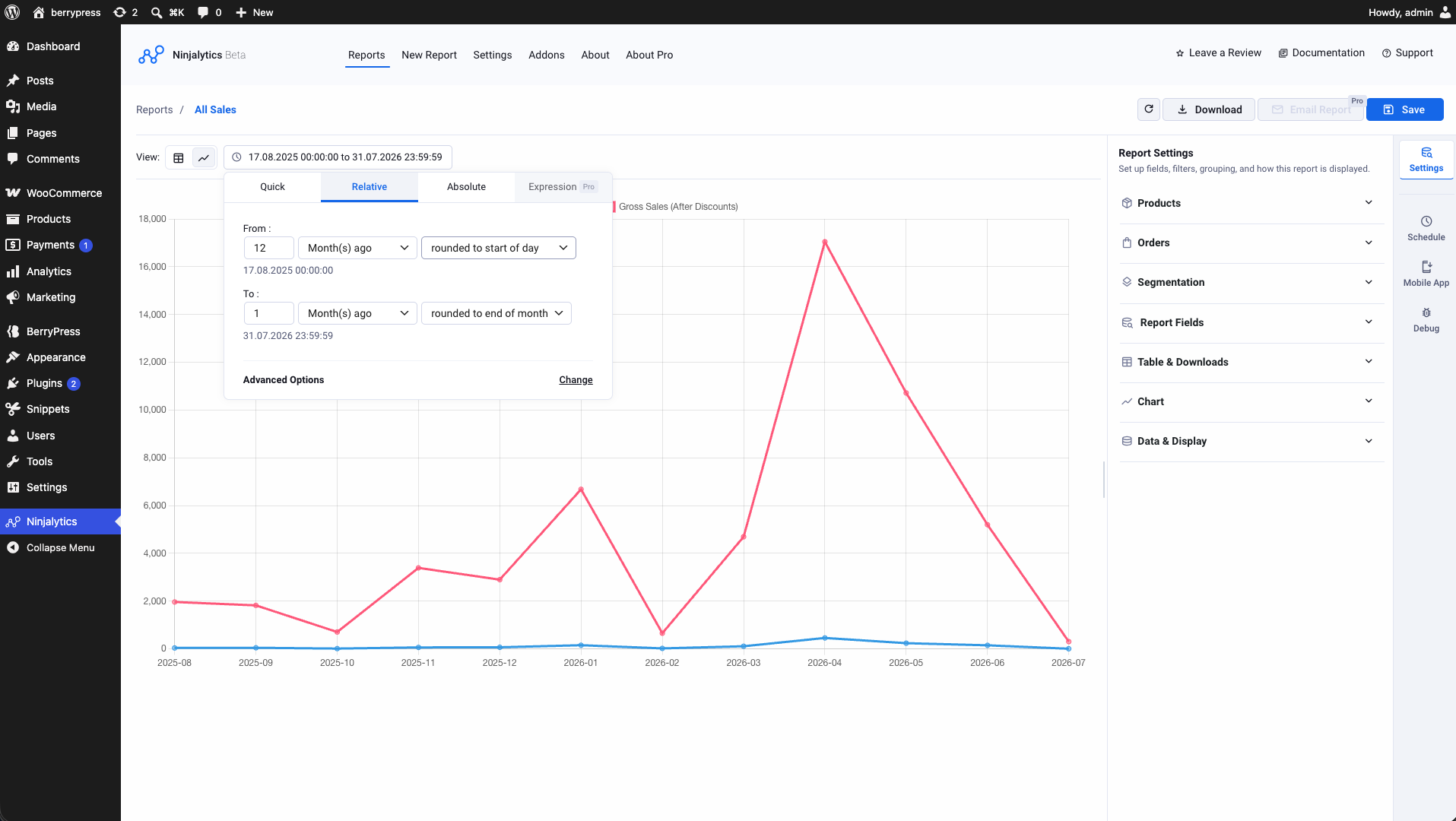
Relative date range - e.g. "12 months ago" to "1 month ago"
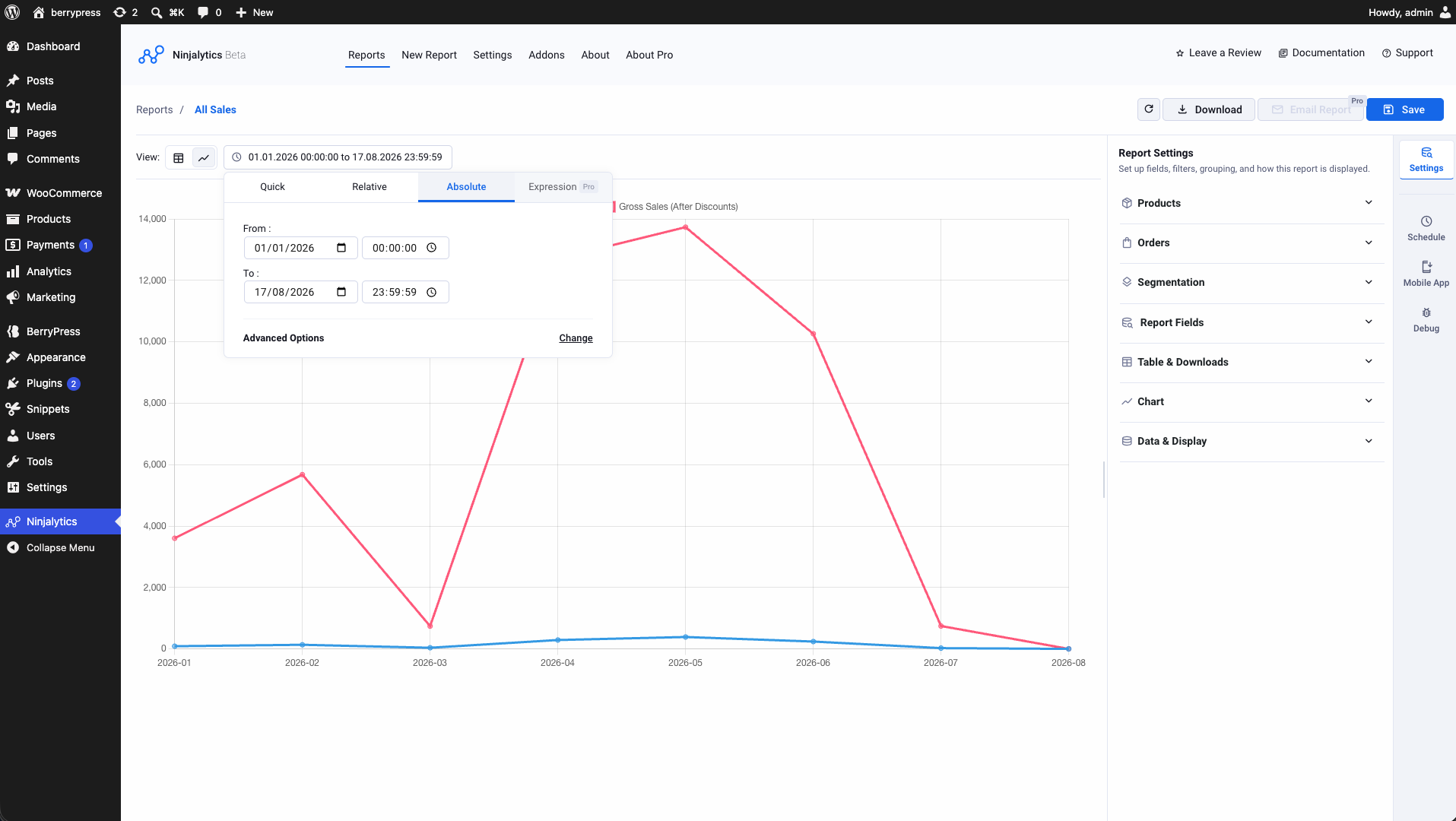
Absolute date range - exact from/to dates and times
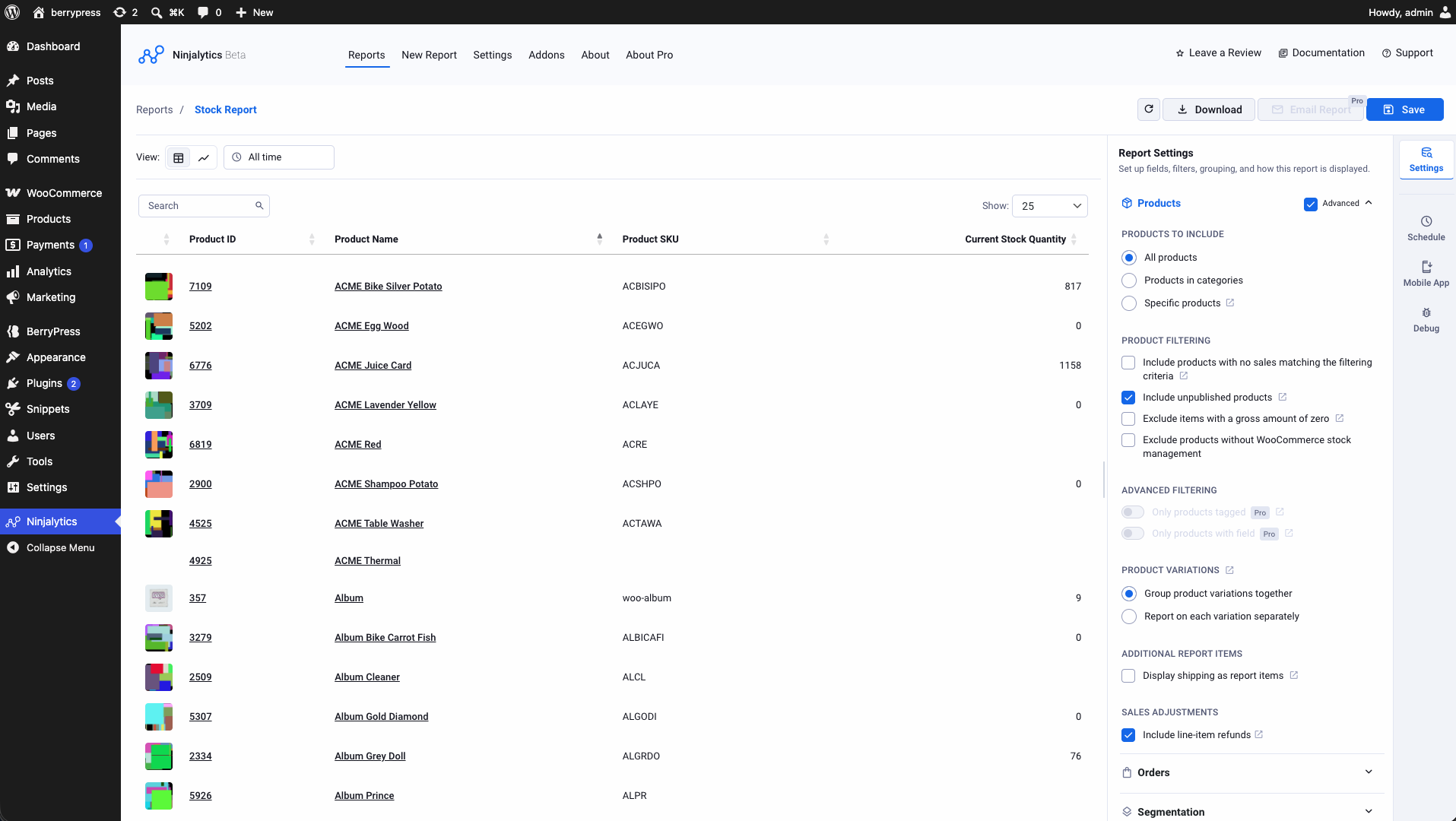
Stock Report - product filtering options, including excluding items without stock management
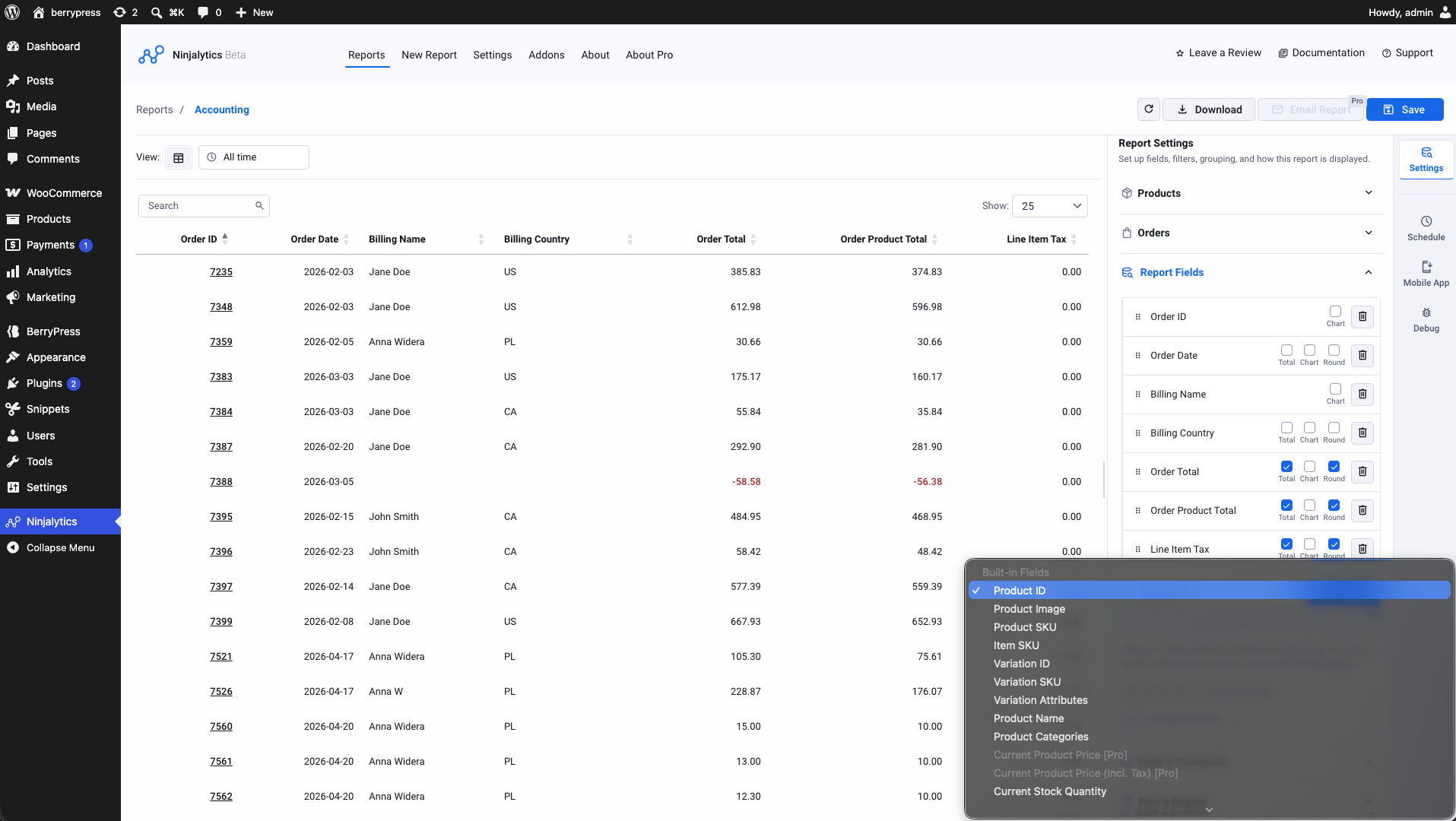
Accounting export - Report Fields panel with the full field picker open
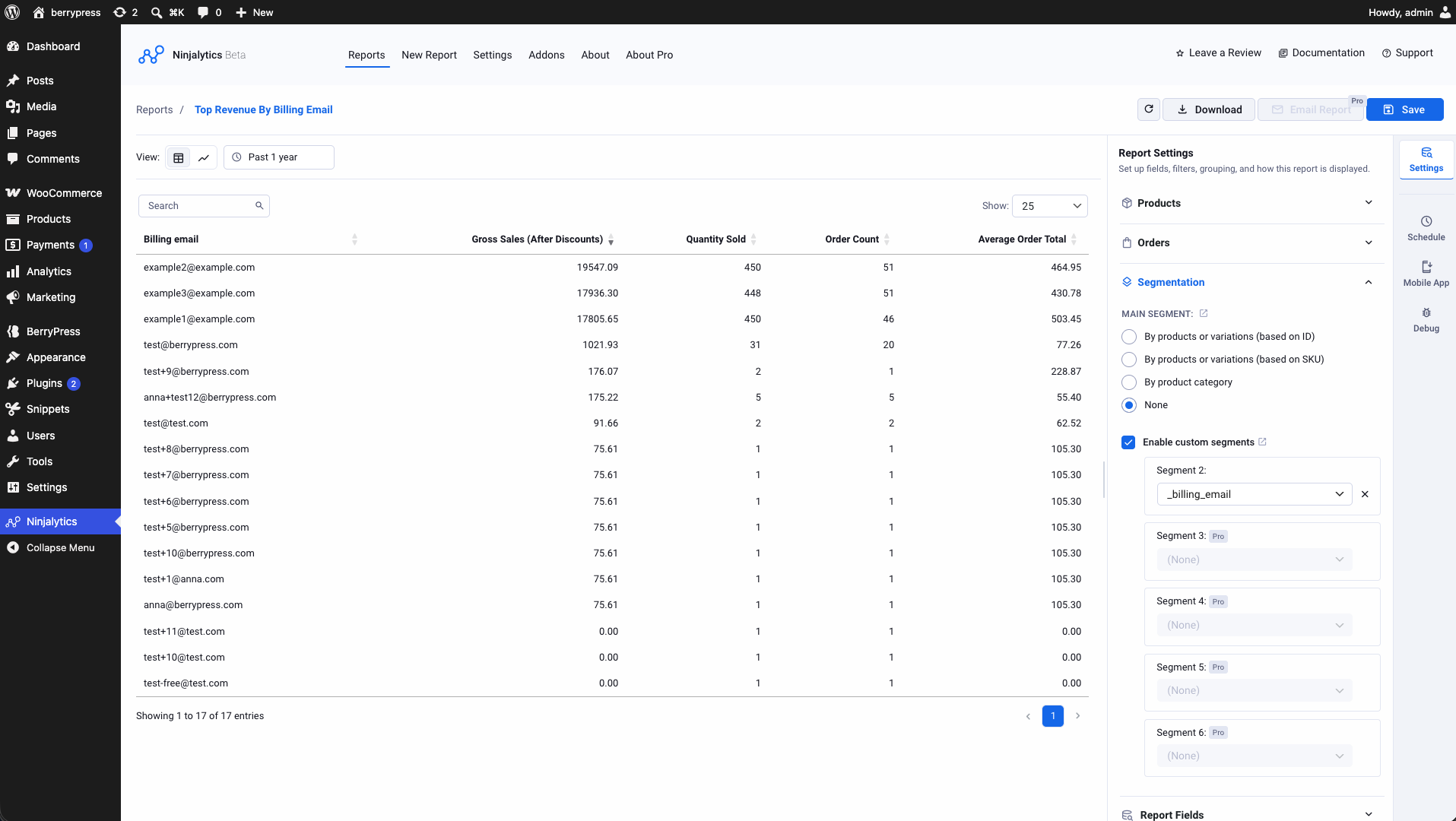
Segmentation - group results by a custom field alongside the main segment
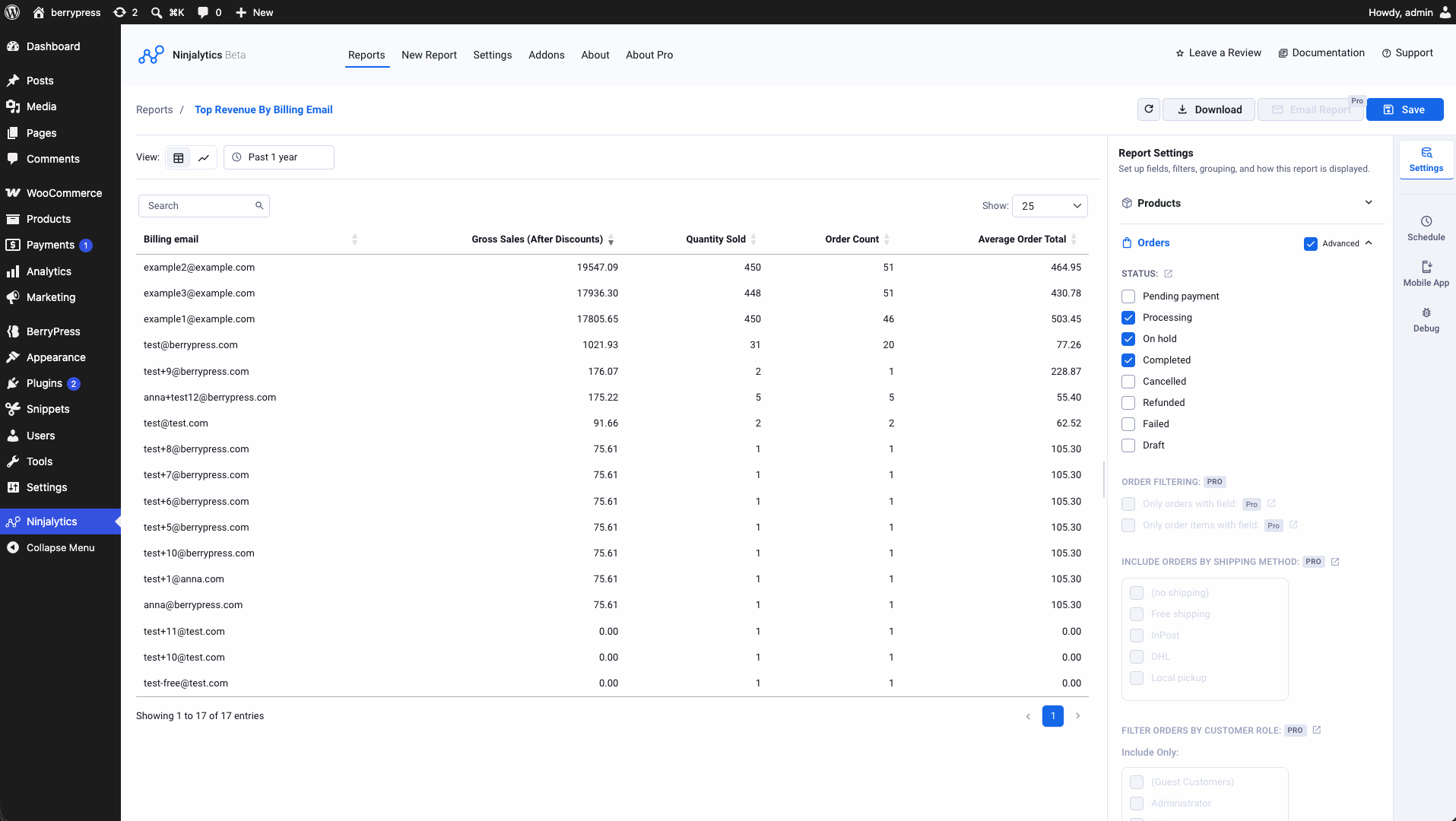
Orders panel - filter by order status, with advanced Pro filtering options
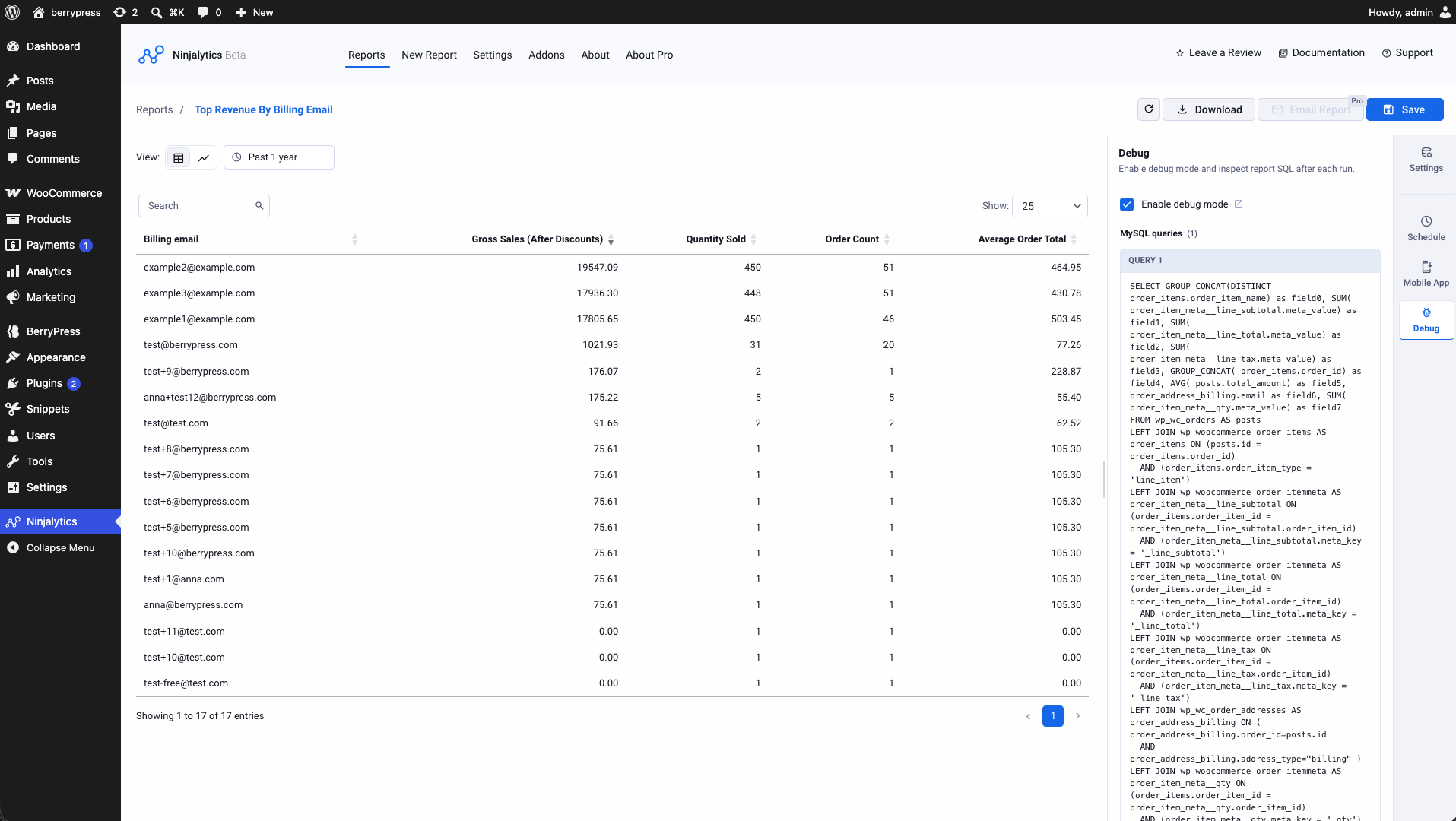
Debug tab - inspect the exact SQL queries behind a report
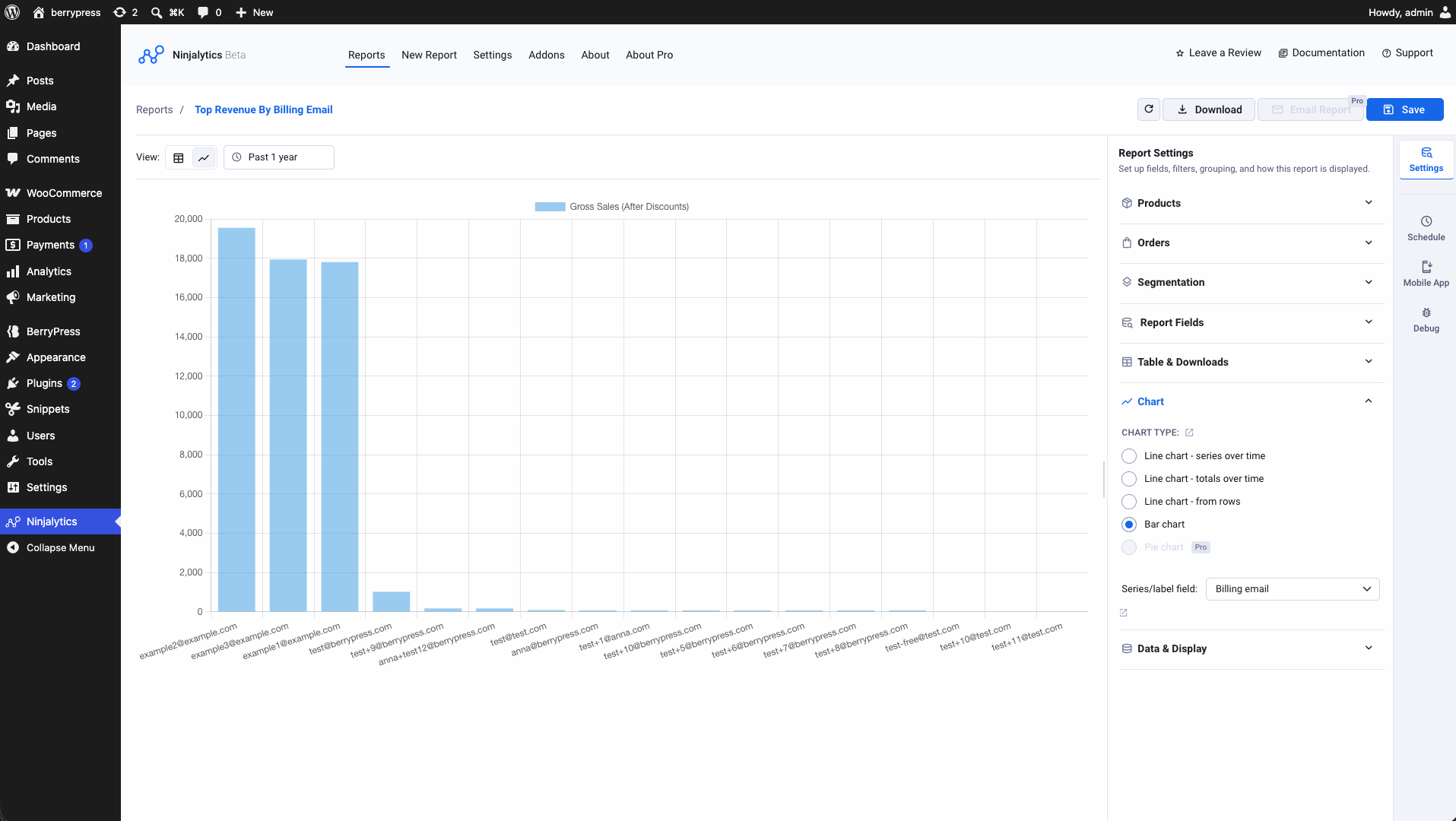
Chart settings - choose chart type and the field used for series/labels
Faq
In some cases output may be affected by the limited precision of PHP’s floating point numbers (see the warning in the PHP manual: https://www.php.net/manual/en/language.types.float.php). This may occur retrieving values from the database, when the plugin does calculations after retrieving values from the database, such as when a report field consists of two database fields added together, or when calculating the totals row. When this occurs, a tiny fractional error may be introduced each time a calculation is performed, typically less than 0.000000000000001 per calculation or retrieval. This is not likely to affect the accuracy of the output in normal usage where only a few decimal places are used, even if a value has been derived from many calculations such as the totals row in a very long report. However, if output rounding is not in effect, you may see unexpected additional decimal places in some fields in your output. In this case we recommend rounding the output values as needed.
Important: Ninjalytics now includes Order Export functionality that replaces Export Order Items. We will be deprecating the standalone Export Order Items plugin in the future.
Two Reporting Modes:
– Product Sales Reports (default): Aggregate data by product – perfect for analyzing sales performance, comparing products, tracking inventory, and making purchasing decisions.
– Order Export Mode: Export individual order line items with full order details – ideal for order fulfillment, accounting, and detailed order analysis.
Migration from Export Order Items:
If you’re currently using Export Order Items, Ninjalytics can automatically import your saved settings. Simply install Ninjalytics and your previous report configurations will be available as presets. You’ll find the “Order Export” template option when creating new reports, which provides the same functionality as Export Order Items.
The free version is powerful and works well for most store owners, providing access to all core reporting features including Order Export mode, pre-built templates, charts, and CSV export.
The pro version adds advanced capabilities for power users:
– Multiple export formats (XLSX/Excel, HTML, Enhanced HTML)
– Email reports to any address with one click
– Alternative date filtering (by Order Paid Date or Completed Date)
– Custom calculated fields with your own formulas
– Include any custom product/order meta fields
– Advanced filtering by product tags, user roles, and order meta fields
– Multiple custom segments for complex data grouping
– Ninjalytics Mobile App (iOS & Android beta)
– Premium support with faster response times
See the “Get Pro Features” section above for the complete list.
We built Scheduled Email Reports for WooCommerce as a premium add-on that can be used to schedule reports from both Ninjalytics and Export Order Items.
After you install and activate Ninjalytics, open the Ninjalytics page from the WordPres admin menu, and select the Addons tab to install free and premium feature upgrades for your ecommerce store.
Full documentation with setup guides, configuration details, and troubleshooting tips is available here:
https://berrypress.com/docs/ninjalytics/
You can also access specific topics directly, including compatibility, presets & templates, and report configuration.
For technical issues or custom configuration questions, please open a private support ticket here:
https://help.berrypress.com/open.php
We recommend avoiding posting access details in public threads – use the private form above for secure communication.
For general questions or community support, you can also open a ticket on the WordPress.org forum:
https://wordpress.org/support/plugin/product-sales-report-for-woocommerce/
Ninjalytics is built to work with most third-party plugins. If you encounter a conflict, please contact support with details.
Yes! When you have the free Live Carts for WooCommerce plugin installed (Pro version also available), Ninjalytics automatically adds 4 specialized report templates for cart analysis:
– Live Carts Report – aggregate cart statistics
– Live Carts Export – individual cart details
– Carts by Status – segment by status (active, abandoned, converted)
– Average Cart Value – monitor trends over time
This integration helps you analyze cart abandonment, track cart values, and understand customer behavior before checkout.
If you’re using WPML or another multilingual plugin that creates separate product entries for each language, we recommend using the “By products or variations (based on SKU)” grouping option. This setting groups all language variations of the same product together based on their shared SKU, giving you accurate consolidated sales data across all languages.
To enable this:
1. Create your report
2. In the report settings, look for the grouping options
3. Select “By products or variations (based on SKU)”
This ensures that a product sold in English, German, and French will appear as one combined entry in your report rather than three separate entries.
Reviews
Great support
By 
I had a problem with my report which the support-team handled fast and very well. Thank you so much!
Horrible product after the update.
By 
This plugin cost me 10s of thousands of dollars after their update!
Horrible testing, quality assurance and support.
Cannot handle multiple currencies
By 
It seems to treat all currencies the same. So it does not convert them all into the same currency, so the numbers are rubbish. Sell a $100 item for 14,000 japanese yen, and it will report sales of $14,000!
Ottimo plugin!
By 
Helpful
By 
Easy to use
By 
Works Great
By 
this plugin save my time.
By 
Excellent Product Speeds up stock takes
By 
Works great
By 
Changelog
2.1.3, 2026-09-07
- Fix: formatting in CSV file
2.1.2, 2026-09-04
- Add: import/export report settings
- Improvements: accessibility
- Add: close button to report sidebars
2.1.1, 2026-08-18
- Fix: Download, Remove action buttons in the report list
View full changelog in the plugin root directory: changelog.txt