PublishPress Statuses – Custom Post Status and Workflow
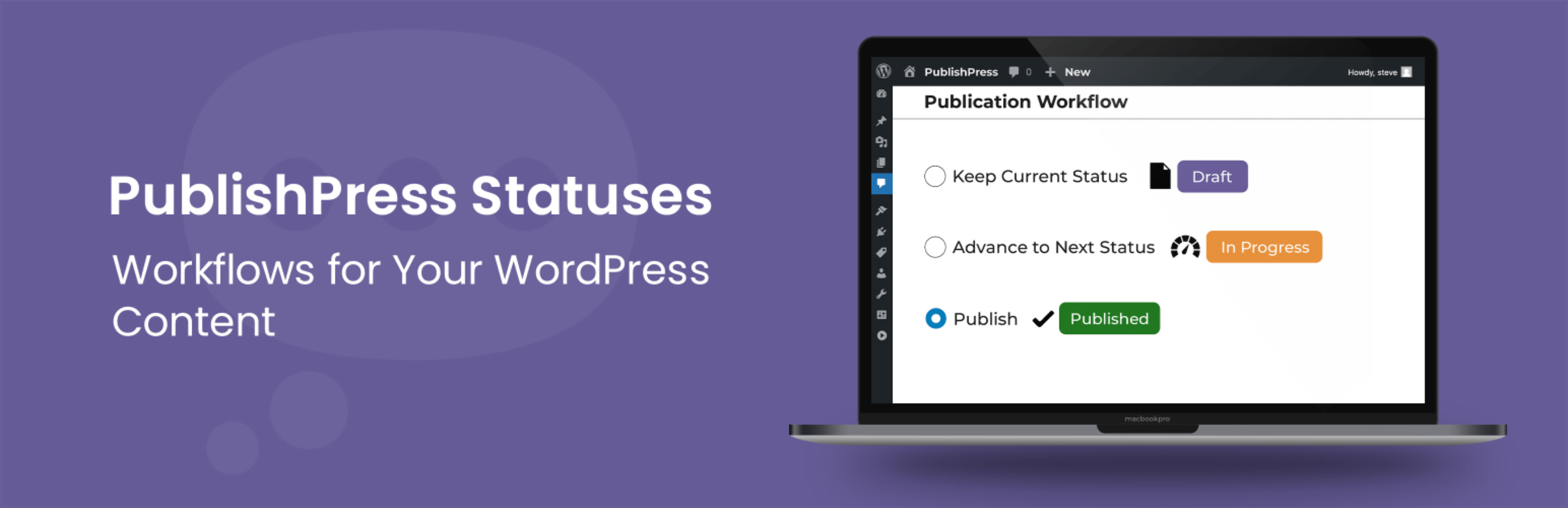
PublishPress Statuses – Custom Post Status and Workflow
Description
Have you ever wanted to label a WordPress post something other than “Draft” or “Pending Review”? The PublishPress Statuses plugin can help.
PublishPress Statuses allows you to create additional statuses for your posts. For example, you can add statuses such as “In Progress”, “Needs Work”, or “Rejected”. You can also control which users can move posts to each status.
Why Use PublishPress Statuses?
WordPress provides you with only two statuses for your post: “Draft” or “Pending Review”. This means that before your content is published it can only be labeled as “Draft” or “Pending Review”.
Those statuses are too limiting for many publishers. For example, what label should you use for content that is assigned to a writer? What label should you use for a post that needs work, or has been rejected? With the PublishPress Statuses plugin, you can add new statuses that accurately describe the stages of your publishing process.
There are two types of statuses:
- Pre-Publication Statues: For posts that are unpublished.
- Visibility Statuses: For posts that are published.
Pre-Publication Statuses
Go to the “Statuses” area in your WordPress site and you’ll six different statuses. This is the main workflow. Every post on your site must use this workflow. However, with PublishPress Statuses, you can move, rearrange and add to this workflow.
- Draft: This is the WordPress default status and can not be modified.
- Pitch: This is a new status. You can use this status to indicate the post is just an idea.
- Assigned: This is a new status. You can use this status to show the post has been given to a writer.
- In Progress: This is a new status. You can use this status to if the post is being worked on.
- Approved: This is a new status. You can use this status to when the post has been accepted and it ready for publication.
- Pending Review: This is a core WordPress status and can not be modified.
Click here to see how to create and use statuses.
In addition to the default workflow, PublishPress Statuses allows you to create alternate workflows. These statuses are for content that is not on a direct path to publication. Examples of these alternate workflows include “Deferred”, “Needs Work” and “Rejected”.
Custom Permissions for Pre-Published Statuses
PublishPress Statuses allows to decide which users can move content to which statuses. Go to “Statuses” then “Settings” and click the “Roles” tab. This allows you to choose which user roles can move a post to this status.
See how control access to statuses.
You can take this further and decide who assign, edit, and delete content in each status. This is possible if you also use the PublishPress Permissions Pro plugin.
Click here to see add advanced capabilities to statuses.
Visibility Statuses
Visibility Statuses allow you to control who can access published content on your WordPress site.
The PublishPress Statuses plugin integrates with the PublishPress Permissions Pro plugin. This integration allows you to create custom visibility statuses and control who can access the content on the front of your WordPress site.
We call this feature “Custom Visibility Statuses” because WordPress has three core visibility statuses:
- Scheduled: This post is scheduled for future publication.
- Published: This post is available to general public.
- Private: This post is published for users logged in to your WordPress site.
Using PublishPress Statuses and PublishPress Permissions Pro together, you can add your own custom visibility statuses.
Custom Permissions for Visibility Statuses
The PublishPress Statuses plugin integrates with the PublishPress Permissions Pro plugins and PublishPress Capabilities Pro plugins. These allow you to control capabilities for each visibility status. You can decide who can assign, read, edit and delete content in each status.
See how control access to visibility statuses.
You can take this further and decide who assign, edit, and delete content in each status. This is possible if you also use the PublishPress Permissions Pro plugin.
Join PublishPress and get the Pro plugins
The Pro versions of the PublishPress plugins are well worth your investment. The Pro versions have extra features and faster support. Click here to join PublishPress.
Join PublishPress and you’ll get access to these ten Pro plugins:
- PublishPress Authors Pro allows you to add multiple authors and guest authors to WordPress posts.
- PublishPress Blocks Pro has everything you need to build professional websites with the WordPress block editor.
- PublishPress Capabilities Pro is the plugin to manage your WordPress user roles, permissions, and capabilities.
- PublishPress Checklists Pro enables you to define tasks that must be completed before content is published.
- PublishPress Future Pro is the plugin for scheduling changes to your posts.
- PublishPress Permissions Pro is the plugin for restricted content and advanced WordPress permissions.
- PublishPress Planner Pro is the plugin for managing and scheduling WordPress content.
- PublishPress Revisions Pro allows you to update your published pages with teamwork and precision.
- PublishPress Series Pro enables you to group content together into a series.
- PublishPress Statuses Pro enables you to create additional publishing steps for your posts.
Together, these plugins are a suite of powerful publishing tools for WordPress. If you need to create a professional workflow in WordPress, with moderation, revisions, permissions and more, then you should try PublishPress.
Bug Reports
Bug reports for PublishPress Statuses are welcomed in our repository on GitHub. Please note that GitHub is not a support forum, and that issues that are not properly qualified as bugs will be closed.
Installation
This section describes how to install the plugin and get it working.
- Unzip the plugin contents to the
/wp-content/plugins/publishpress-statuses/directory - Activate the plugin through the ‘Plugins’ menu in WordPress
Screenshots
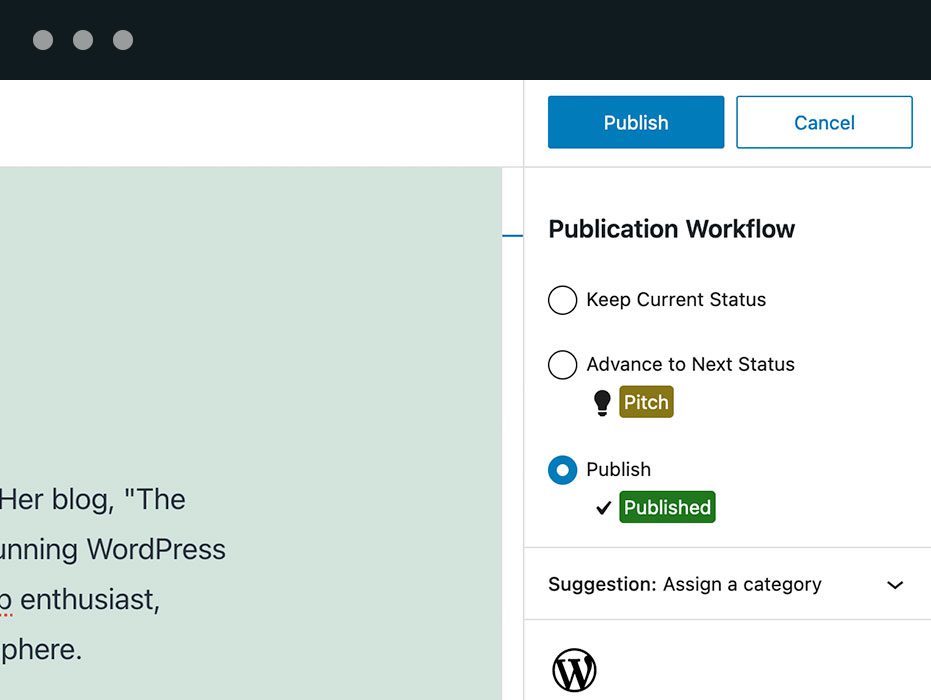
Using PublishPress Statuses you can add custom workflow options that are available when editing posts. You can build one main workflow for your posts. This workflow will be available to your users on the post editing screen.
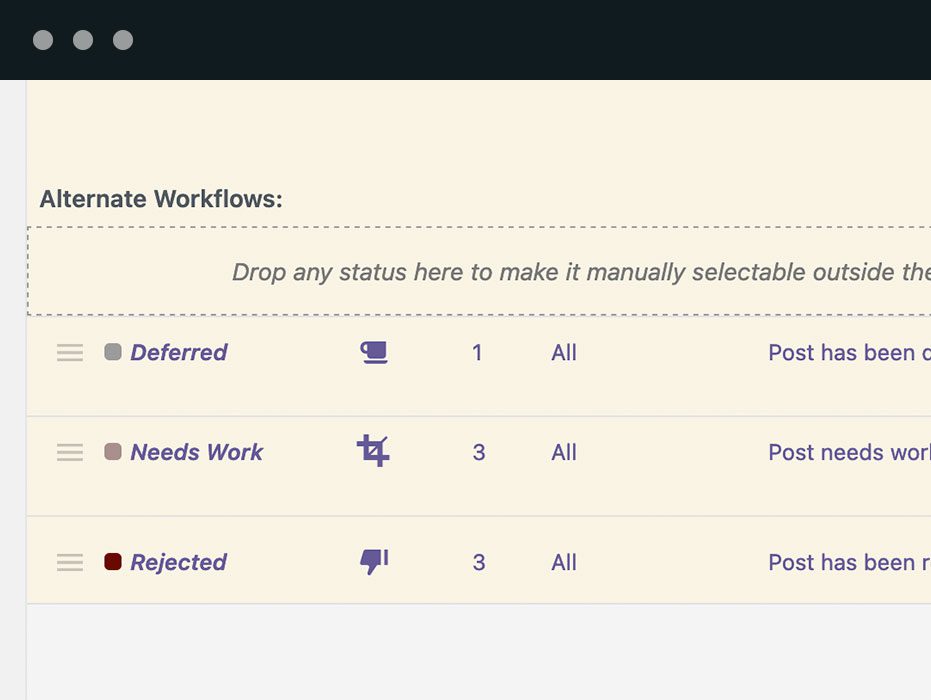
In addition to the default workflow, PublishPress Statuses allows you to create alternate workflows. These statuses are for content that is not on a direct path to publication. Examples of these alternate workflows include "Deferred", "Needs Work" and "Rejected".
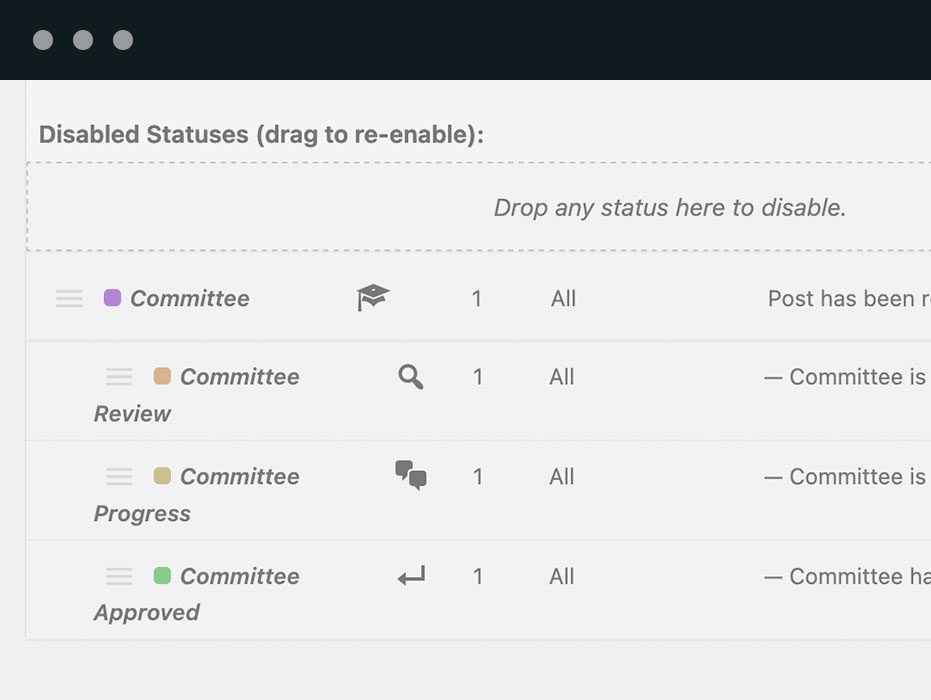
PublishPress Statuses supports branches in your workflows. You can create parent and child statuses. This allows posts to move through the individual branch before returning to the main workflow.
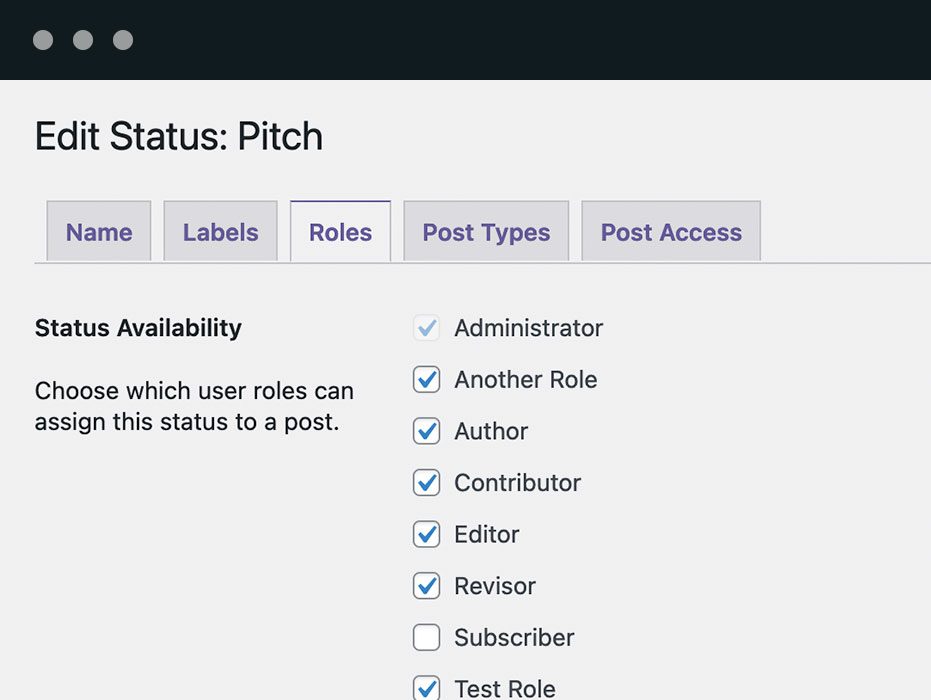
PublishPress Statuses allows you to customize which roles can assign posts to each status. You can give a user role the ability to move a post to just a single statuses. Or you can give a user role full access to your whole workflow.
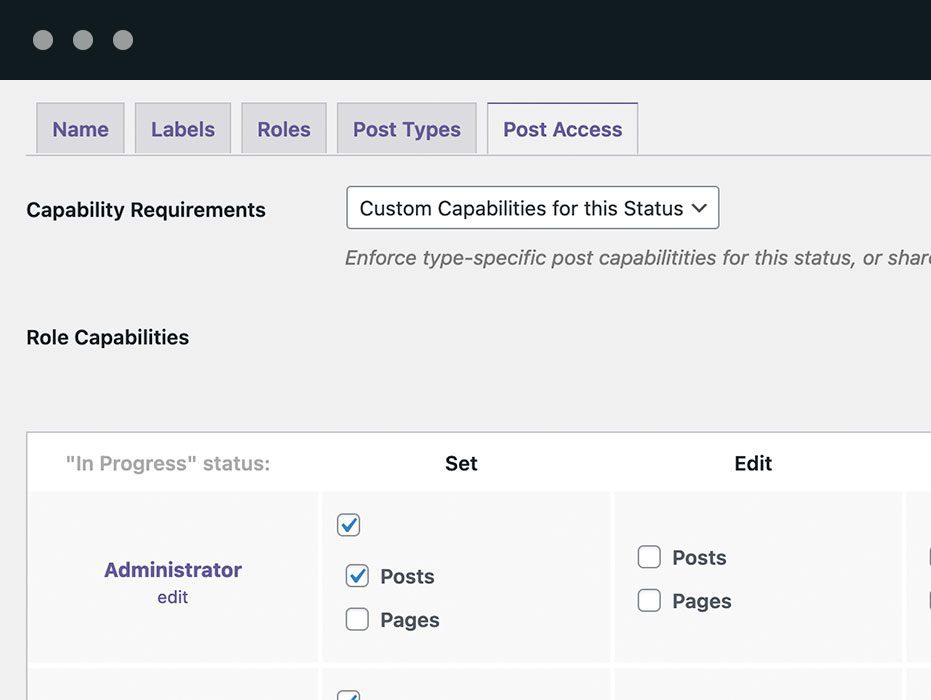
With the addition of the PublishPress Capabilities Pro plugin you can create highly custom permissions for each status. You can control who can set, edit, and delete posts in each status.
Faq
Yes, the PublishPress Statuses plugin integrates with the PublishPress Planner plugin. This allows you to use custom statuses, icons, and colors on the “Content Calendar” screen.
Click here to see the Planner integration.
Yes, it is possible to have different statuses for different WordPress post types. The benefit of this approach is that allows you have different workflows for each post type.
Click here to see how to different statuses for different post types.
The PublishPress Statuses plugin allows you to create workflow branches. These are separate parts of the workflow are displayed shown as indented, away from the main workflow. These branches be used to take content away from the core approval process.
You can create workflow branches with any statuses except for “Draft” and “Pending Review” which are core WordPress statuses.
To create workflow branches, use the drag-and-drop handles next to each status to place them into branches
Click here to see more about the Workflow Branches.
Yes, you can use the Pending Review status with this plugin. “Pending” is one of the default post statuses available in WordPress. You will often see it called “Pending Review”.
A post in the Pending Review status is not published and is not visible to the public. The “Pending review” checkbox is available when you edit posts in WordPress.
Click here to see more about the Pending Review status.
Yes, you can use the Draft status with this plugin. “Draft” is one of the default post statuses available in WordPress. Draft is often confused with the “Pending Review” status. However, these two statuses have different meanings. Draft means “This post is not ready to publish. I’m still working on it.” Pending Review means “This post is ready. Someone else can approve and publish”.
A post in the Draft status is not published and is not visible to the public. Once a post is published, the “Draft” status is the default choice for unpublishing the post.
Click here to see more about the Draft status.
Yes, you can use the Scheduled status with this plugin. “Future” is one of the default post statuses available in WordPress. You will often see it called “Scheduled”.
A post in the Future status is not published yet, but is scheduled to be published in a future date.
Click here to see more about the Future status.
Extended Post Status is a very useful plugin. With PublishPress Statuses we’re aiming to provide more advanced features such as custom capabilities, workflow branching, icons, colors, and much more.
Please report security bugs found in the source code of the PublishPress Statuses – Custom Post Status and Workflow plugin through the Patchstack Vulnerability Disclosure Program. The Patchstack team will assist you with verification, CVE assignment, and notify the developers of this plugin.
Reviews
Essential
By 
Workflow? This is an essential feature for sites having multiple editors. The flow steps can be customized. Perfect.
Works!
By 
Has more features and complexity than I needed, but it works great for adding some custom post statuses.
Great plugin
By 
Great, good that it is now a plugin of its own and not part of the planner plugin
Fast support.
By 
Fast support.
Changelog
The full changelog can be found on GitHub.