QuickSync: Inventory & Order Sync

QuickSync: Inventory & Order Sync
Description
Keep your stores in sync. Get back to selling.
Selling across several stores means more stock to track, product details to update and orders to manage. QuickSync connects WooCommerce with Shopify, Etsy, eBay, Amazon, Square and other supported integrations, so you can spend less time repeating the same changes.
Keep WooCommerce inventory up to date
Turn on inventory syncing to keep matching products aligned as stock changes across your connected stores. Reduce manual adjustments and the risk of overselling, whether you sell online, in store or both.
Sync product updates from one store
Edit a title, price or photo in your chosen source store. With product syncing enabled, QuickSync sends supported changes to your other stores. Product syncing requires Pro or above; available fields and sync directions vary by platform.
Bring new orders into one place
Spend less time switching between order queues. QuickSync copies eligible new orders from your connected sales channels into one chosen fulfillment store, so your team can manage them together. Match products by SKU, choose an available destination and enable order syncing on Pro or above. Supported channels, destinations and tracking updates vary by platform.
Choose which products sync
Sync your whole catalogue or pick the products you sell across stores. Match them by SKU and connect the relevant stock locations. QuickSync treats each WooCommerce site as one inventory location. If you only need stock updates, leave product syncing off.
Get started from WordPress
Install the plugin, open WooCommerce QuickSync, and click Connect QuickSync. Sign in or create an account, then finish setup in QuickSync. Your WooCommerce store starts syncing only when you enable it.
The plugin connects your store to the hosted QuickSync service without copying API keys by hand. From WordPress, you can check the connection, run store checks and copy diagnostics when you need help.
Start with a free trial
The plugin is free to install. A QuickSync account is required, and the hosted service offers a 14-day trial. Without a paid plan after the trial, Free keeps inventory syncing for up to 100 products. Product and order syncing require Pro or above.
Paid plans start at US$19/month for two connected shops on Lite, with inventory syncing for up to 1,000 items. Each variation counts as an item. Additional shops cost extra. Compare current plans and pricing to find the right fit for your catalogue and stores.
Guides and support
- Set up your first sync
- See what syncs on each platform
- Browse the documentation
- Get help from QuickSync support
External services
This plugin connects to QuickSync (https://app.quicksync.pro) so the store can be paired and managed.
POST /store/woocommerce/plugin/handoff/— sends the site URL and a WooCommerce REST key the plugin created locally, and receives a connect link.GET /store/woocommerce/plugin/handoff/{id}/— the plugin polls this after you finish sign-in, to store the connection token. The poll secret is sent only as theX-QuickSync-Handoff-Secretheader.POST /store/woocommerce/plugin/claim/— pairing-code fallback; same data as handoff.GET /store/woocommerce/plugin/status/— connection state, plan name, and whether the REST key still works.POST /store/woocommerce/plugin/status/— only if you tell the plugin this site is a copy or that the site moved.
Unconfirmed handoff rows and the WooCommerce REST keys they carry are hard-deleted after 15 minutes. A new Connect click revokes the previous unused key before creating another.
The connection token is stored in the WordPress options table (quicksync_connection). WordPress has no secret store. Status screens show only a masked token (qs_plugin_••••1234).
Terms of service: https://quicksync.pro/terms/
Privacy policy: https://quicksync.pro/privacy/
Installation
- Install and activate WooCommerce.
- Install QuickSync: Inventory & Order Sync from Plugins Add New, or upload the zip.
- Go to WooCommerce QuickSync and click Connect QuickSync.
- Sign in or create a QuickSync account in the new tab, then confirm the store connection.
- Return to WordPress to check the connection. Complete setup and enable syncing in QuickSync when you are ready.
Screenshots
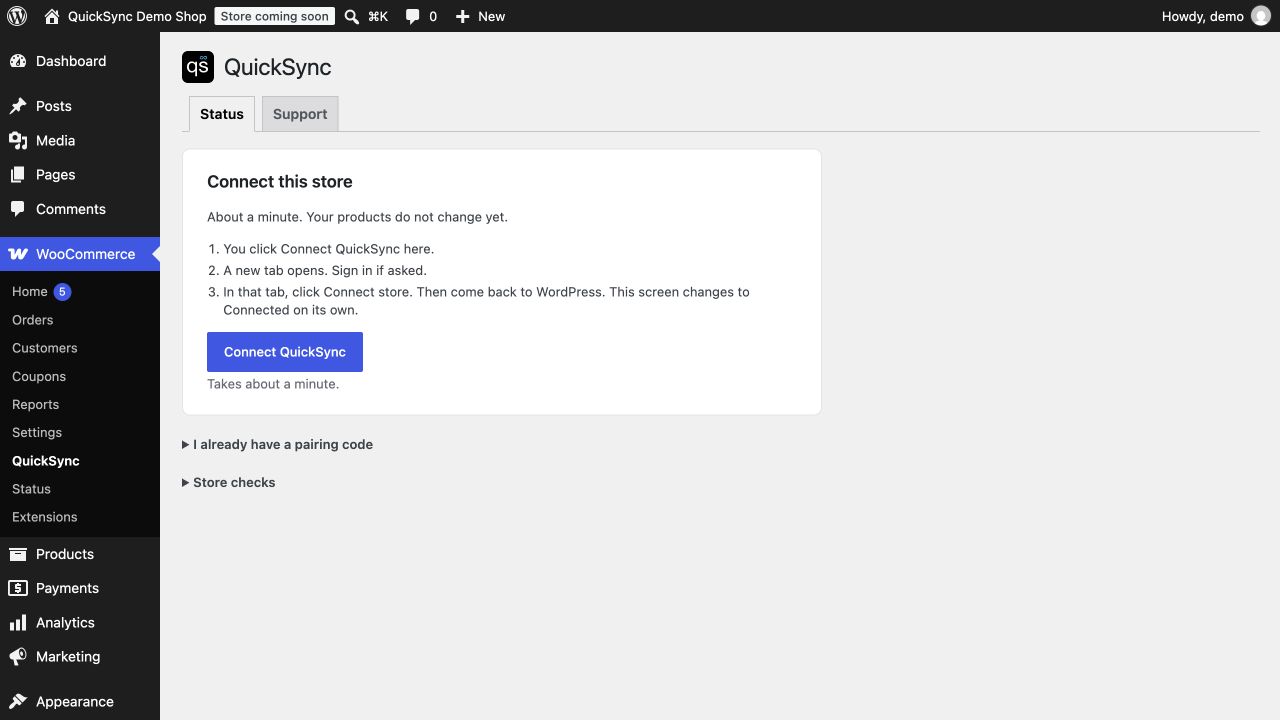
Connect your WooCommerce store from WordPress. Syncing stays off until you enable it in QuickSync. Shown in a local demo shop.
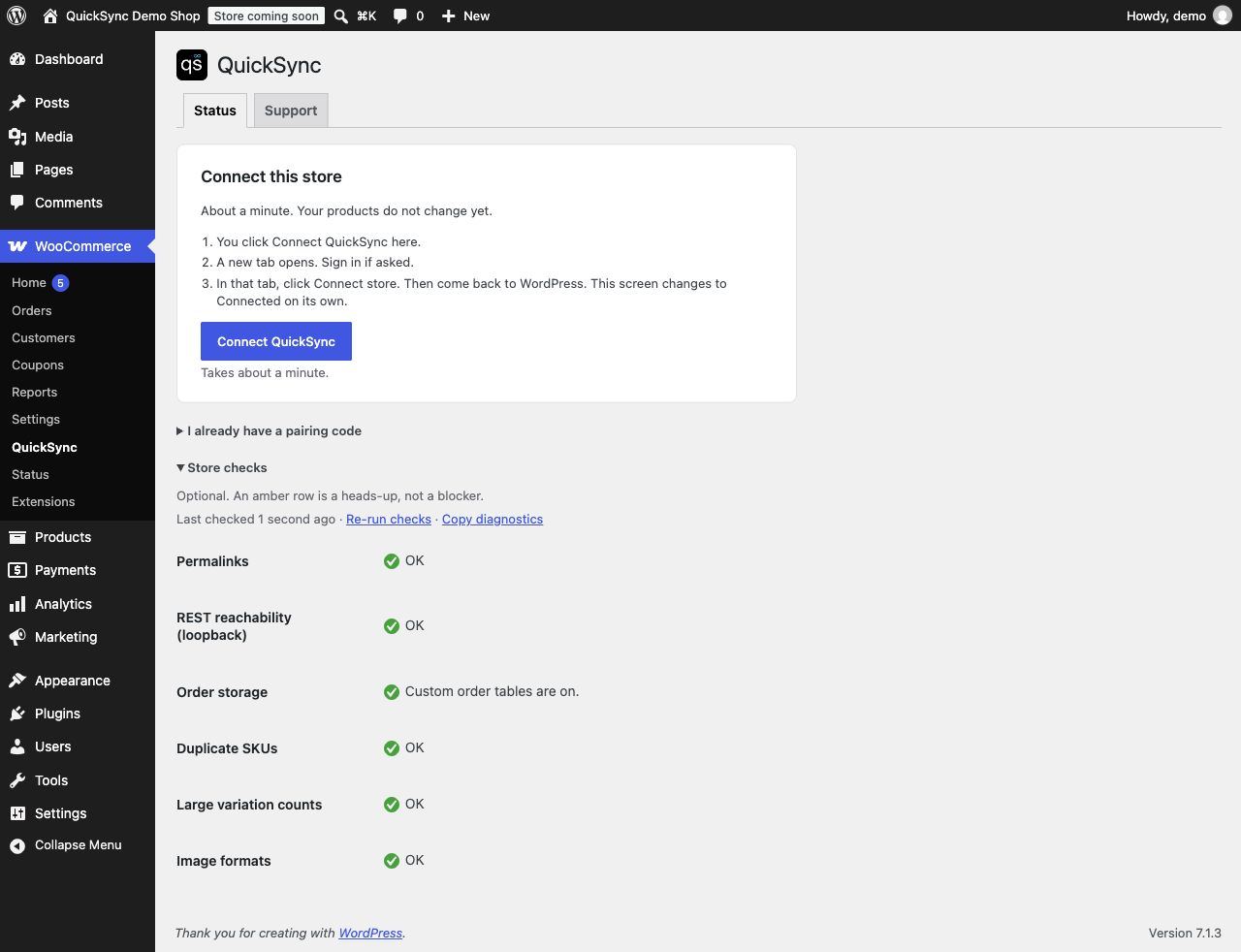
Built-in store checks help you review REST API access, permalinks and catalogue issues. Shown in a local demo shop.
Faq
Yes. Installing the plugin is free. You will need a QuickSync account to sync your stores. The hosted service offers a 14-day trial, a Free plan for inventory syncing up to 100 products, and paid plans for larger catalogues and more features. Compare plans.
Connect both stores to QuickSync and match products by SKU. Inventory syncing keeps their stock aligned. To update product details too, choose one main store and enable product syncing on Pro or above.
Yes. Keep stock aligned between your WooCommerce products and matching Etsy listings. You can also send supported product details from your chosen main store on Pro or above. Etsy’s listing requirements and fees still apply.
Yes. Use matching SKUs to sync inventory with existing eBay listings. Product syncing on Pro or above can also create listings and update supported details from your main store. Set up your eBay selling policies first; eBay fees still apply.
Send WooCommerce stock counts to existing Amazon listings for products you fulfil yourself. QuickSync does not create or edit Amazon listings, read stock changes back from Amazon, or sync FBA inventory.
Yes. Connect your online shop with Square, Clover or Lightspeed Retail X-Series for inventory syncing. QuickSync treats WooCommerce as one stock location; choose which supported locations to connect on the other platform. Available product fields and sync behaviour vary by platform.
Yes, with QuickBooks Online. Inventory syncing works with Inventory-type items and requires quantity tracking in your QuickBooks company. See the syncing reference for supported item and order workflows before setting up the connection.
Yes. Connect multiple WooCommerce stores, or link your store with Wix, Squarespace or TikTok Shop. Xero is also available for supported accounting workflows. Check the full integration list and syncing reference to see what each connection supports. Additional shops beyond your plan’s allowance cost extra.
Yes, for accounts registered through the QuickSync website or billed through the Clover App Market. Choose WooCommerce as your fulfillment store. Order syncing requires Pro or above. Older orders need separate backdated setup. Available order data and tracking depend on the source platform and region; check the platform-specific order support before setup.
Yes. Enable inventory syncing and leave product syncing off. Matching products need the same SKU across your connected stores. You choose your starting stock and which products sync during setup.
No. Connecting gives QuickSync access to your WooCommerce store. You complete setup and turn on syncing when you are ready.
No. The plugin creates a WooCommerce REST key for your administrator account and sends it to QuickSync during connection. If you already have a pairing code from QuickSync, you can use that instead.
Yes. You can also connect WooCommerce from your QuickSync account using the standard authorisation flow.
The plugin records the site URL at connect. If the URL changes, it pauses and asks whether this is a copy or a move.
Open WooCommerce Status Logs and select the source quicksync-for-woocommerce. You can also copy diagnostics from WooCommerce QuickSync Status. Use the Support tab or contact QuickSync support for help. Do not post API keys or connection tokens in public support threads.
Uninstalling keeps the connection information unless you choose to purge it first.
Reviews
Great Help
By 
I was stuck syncing products between Woo and Shop and Joseph hopped on and helped. Great help!
Best help in the world
By 
I was struggling with woocommerce <-> Clover sync using this app. All of a sudden, Joseph jumped in to help and he sorted out the whole thing in a few minutes. I value his proactive help. Really good vibes. Sounds like a nice man.
Changelog
1.0.3
- Renamed the plugin to QuickSync: Inventory & Order Sync.
- Updated directory tags to highlight supported integrations.
- Existing connections, settings and syncing behaviour are unchanged.
1.0.2
- Added Brazilian Portuguese, French, Spanish, German, Dutch, Italian and Japanese throughout the plugin and connection pages.
- Follow each WordPress user’s language preference, including diagnostics and connection notices.
- Existing connections and syncing settings are unchanged.
1.0.1
- Restored QuickSync branding and clarified the plugin description and setup requirements.
1.0.0
- First directory release. One-click connect, pairing-code fallback, diagnostics, Site Health, and WooCommerce status logs.