Replace External Images

Replace External Images
Description
After a migration, many images still load from somewhere else: Wix, Blogger, Squarespace, Medium, an old domain or a CDN you are about to switch off. As long as they do, your site depends on servers you don’t control. If those images disappear, your posts show broken images.
Replace External Images finds these images in your existing content, downloads them into your WordPress Media Library and replaces the external URLs with local ones. You don’t have to open and re-save a single post.
Made for existing content
Most tools only import images when you save a post. With a thousand old posts that doesn’t help. Here you select your posts or pages in the list – or simply click Import all – and every entry is processed in one run. You follow each step in the live log.
Features
- Bulk import – select posts or pages in the list and process them at once, or use Import all in the notice above the list.
- Single import – one click in the editor sidebar for the post you are working on.
- See what is external – the lists show how many external images were found, the editor shows the number for the current entry.
- Live progress – counters for imported, reused and failed images and a filterable activity list.
- Clear reasons – blocked sources (for example HTTP 403 or “not an image”) are skipped and explained. Nothing broken is saved.
- No duplicates – images imported before are reused, and different images with the same file name are kept apart.
- Featured images – an external featured image is replaced with the local copy. Entries without a featured image get the first imported image (can be turned off).
- Import history – every import with the entries changed, the images added and the full log for each image. Copy the log with one click, e.g. for support.
- Gutenberg and Classic Editor.
- Translated into German, French, Spanish and Italian.
Typical situations
- You moved from Wix, Blogger, Squarespace or Medium.
- You pasted content from Google Docs, Notion or another website.
- An old domain or CDN is about to be switched off.
- You want fewer requests to third-party servers and full control over your images.
Free and Pro
Posts and pages are included in the free version, including bulk import, import history and all features above.
Pro adds:
- WooCommerce products and all custom post types
- Undo – revert any import with one click: content and featured images are restored, images added by the import are removed again
- Pro Unlimited: any number of sites and WP-CLI commands (
wp replexim scan,import,runs,undo) for large migrations
One-time payment, no subscription, lifetime updates, 14-day money-back guarantee. See Pro
Privacy
Images are always downloaded directly from your server to the image source – nothing passes through our servers.
On activation the plugin asks whether you want to share non-sensitive usage data via Freemius (e.g. WordPress, PHP and plugin version, site address, admin email) to help us improve the plugin and inform you about updates. This is optional: if you skip it, nothing is sent and the plugin works fully. Details: Privacy policy
Documentation: Help & documentation
Installation
- In your dashboard go to Plugins Add New Plugin and search for “Replace External Images”.
- Click Install Now, then Activate.
To import images from many posts at once:
- Go to Posts or Pages.
- Click Import all in the notice above the list – or select entries, choose Replace External Images under Bulk actions and click Apply.
- Follow the live progress until the import is complete.
For a single post, open it in the editor and click Import external images in the Replace External Images box in the sidebar.
Screenshots

The live import: progress, counters and an activity list for every image.

Filter the activity list to see only the images that need attention.

The list shows how many external images were found – import them all with one click.

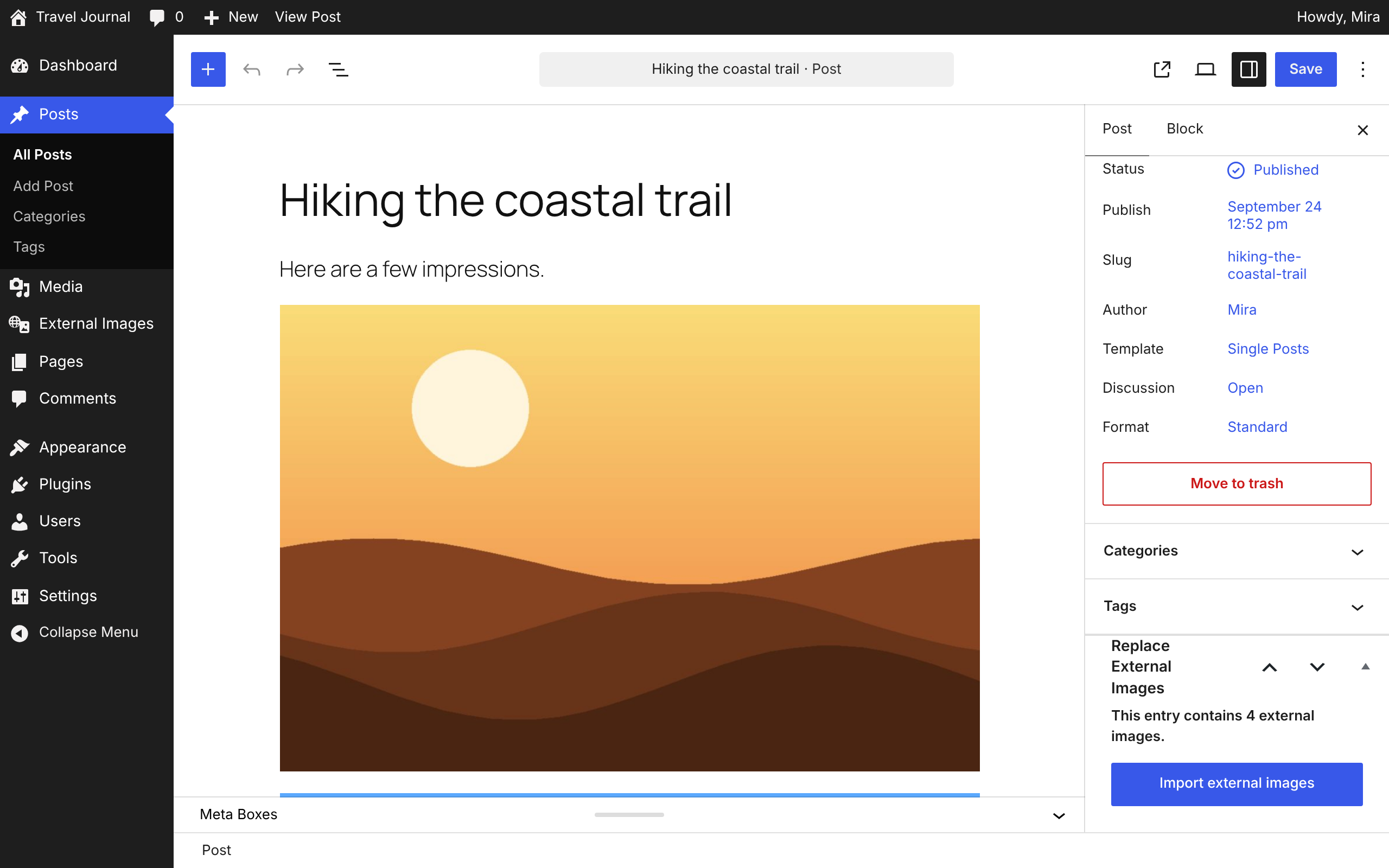
The Replace External Images box in the editor sidebar.

Import history with the full log for every image.
Settings: featured image and how long the history is kept.

Pro: undo an import with one click.
Faq
No. The bulk import processes existing posts and pages directly from the list.
No. It only imports external images. Images that are already in your Media Library are reused.
The external URLs in the content are replaced with the URLs of the new local copies.
Some hosts block automated downloads or return something else than an image. The plugin detects this, skips the image and shows the reason in the log.
Every import is recorded under External Images Import history. With Pro you can undo it there with one click. A backup before large imports is still a good idea.
Yes, with Pro. The free version shows how many external images it found in those content types.
Pages are now included for free. For products and custom post types you get Pro for free – please write to plugins@hansandfriends.de. Your add-ons keep working in the meantime.
Only if you agree when activating it (see Privacy above). The plugin works fully without it.
Reviews
Changelog
2.0.1
- Security: downloaded files are checked before they are saved – only real images (JPEG, PNG, GIF, WebP, AVIF, BMP, TIFF) are accepted, and the file extension always matches the detected image type
- Security: starting an import now requires the permission to upload files (Authors, Editors, Administrators)
- Security: the import history only shows entries the current user may edit; Authors only see their own imports
- Security: hardened the bundled Freemius SDK (sanitized add-on info, no HTTP fallback after TLS errors, capability check for clone resolution)
2.0.0
- NEW: Pages are included in the free version, including bulk import
- NEW: Redesigned import screen with live progress, counters and a filterable activity list
- NEW: “Import all” button and number of external images in the post and page lists; number for the current entry in the editor
- NEW: Own menu “External Images” with import history, help and settings
- NEW: Import history with the full log for every image (kept for 90 days, adjustable to 30–365 days)
- NEW: “Copy log” button on the import screen and in the history
- NEW: Setting to turn off the automatic featured image
- NEW: Translations for German, French, Spanish and Italian; regional variants use the main language
- NEW: Clear reasons for failed images, e.g. “Blocked by the source (HTTP 403)” or “Not an image”
- NEW (Pro): WooCommerce products and all custom post types, undo an import with one click
- NEW (Pro Unlimited): WP-CLI commands
wp replexim scan|import|runs|undo - FIX: An external featured image is replaced with the imported local copy
- FIX: Different images with the same file name are no longer mixed up
- FIX: Images imported before from the same URL are reused instead of downloaded again
- FIX: Backslashes in post content (e.g. in block attributes) are no longer removed
- FIX: The bulk import counts the images of all selected posts correctly
- Images from your own site are no longer listed as external
- Security: imports check that the current user may edit the specific post; downloads use the WordPress HTTP API
- Tested with WordPress 7.1
1.2.0
- Improved prefix consistency across AJAX, JS globals, script handles, and importer internals
- Hardened nonce and request sanitization in admin and AJAX flows
- Improved download handling and clearer logging for blocked sources (e.g. HTTP 403 responses)
- Improved post-type aware back navigation after single and bulk imports
1.1.0
- NEW: Bulk import for external images across multiple posts
1.0.0
- Initial public release