Rino's Toolkit for Elementor

Rino's Toolkit for Elementor
Description
Rino’s Toolkit for Elementor adds eight focused improvements to your daily Elementor workflow. Nothing is forced on you — every feature has its own toggle so you only use what you actually want.
Features
Display Full Class Names
Elementor truncates long class names with “…” in the class input field. This feature shows the full class name so you always know exactly what you’re working with.
Class Highlighter
When you select a class in the Elementor panel, all widgets on the canvas that share that class get a colored border. Useful for seeing the reach of a class before you edit it.
Tab Navigator
Adds a search bar and an expand/collapse toggle above the style sections in the Atomic widget panel. Lets you find style controls quickly without scrolling through every section.
Bigger Indicator Dots
Increases the size of Elementor’s pink, grey, and green indicator dots on Atomic widgets to roughly 2× their default size. Makes it easier to see at a glance which properties have values set.
Widget Path Breadcrumbs
Shows a clickable breadcrumb trail at the bottom of the canvas for whatever element is currently selected. Click any level to jump directly to that parent element.
Zoom Out Canvas
Adds a zoom-out button in the Elementor top bar. Useful for getting a full-page overview without leaving the editor.
Quick Action Buttons
Shows edit, duplicate, delete, move up, and move down buttons when hovering over Atomic widgets on the canvas. Cuts down on right-click menu trips.
Turn Off All V3 Widgets
Uses Elementor’s own Element Manager to unload all legacy V3 widgets from the editor panel. Keeps the widget list focused on V4 (Atomic) widgets. Works non-destructively — existing V3 widgets on your pages are preserved.
Installation
- Upload the
rinos-toolkit-for-elementorfolder to the/wp-content/plugins/directory, or install directly from the WordPress plugin screen. - Activate the plugin through the Plugins screen in WordPress.
- Make sure Elementor is installed and active — this plugin requires it.
- Go to Rino’s Toolkit in the WordPress admin menu to toggle features on or off.
Screenshots
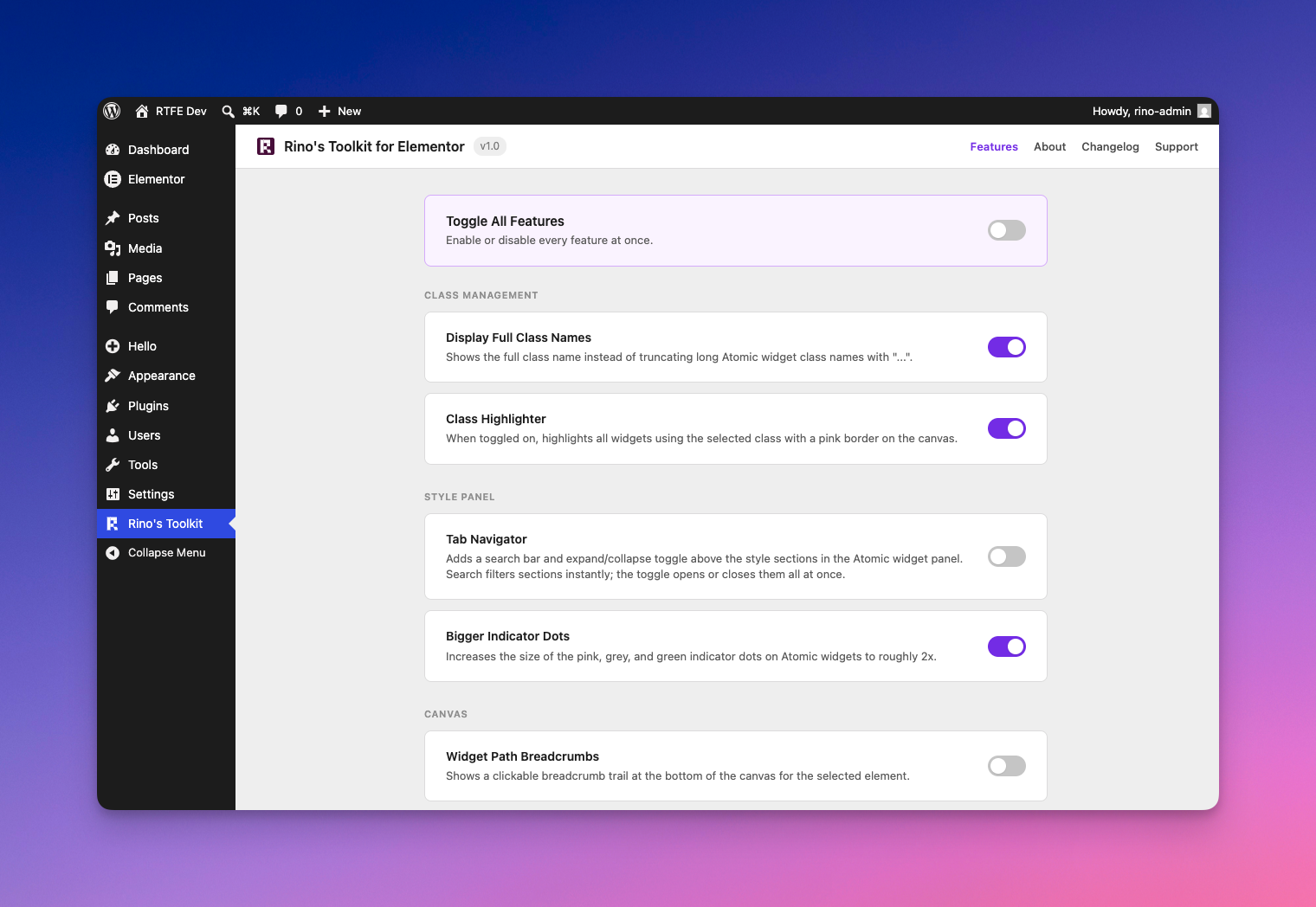
The Rino's Toolkit settings page with all feature groups.
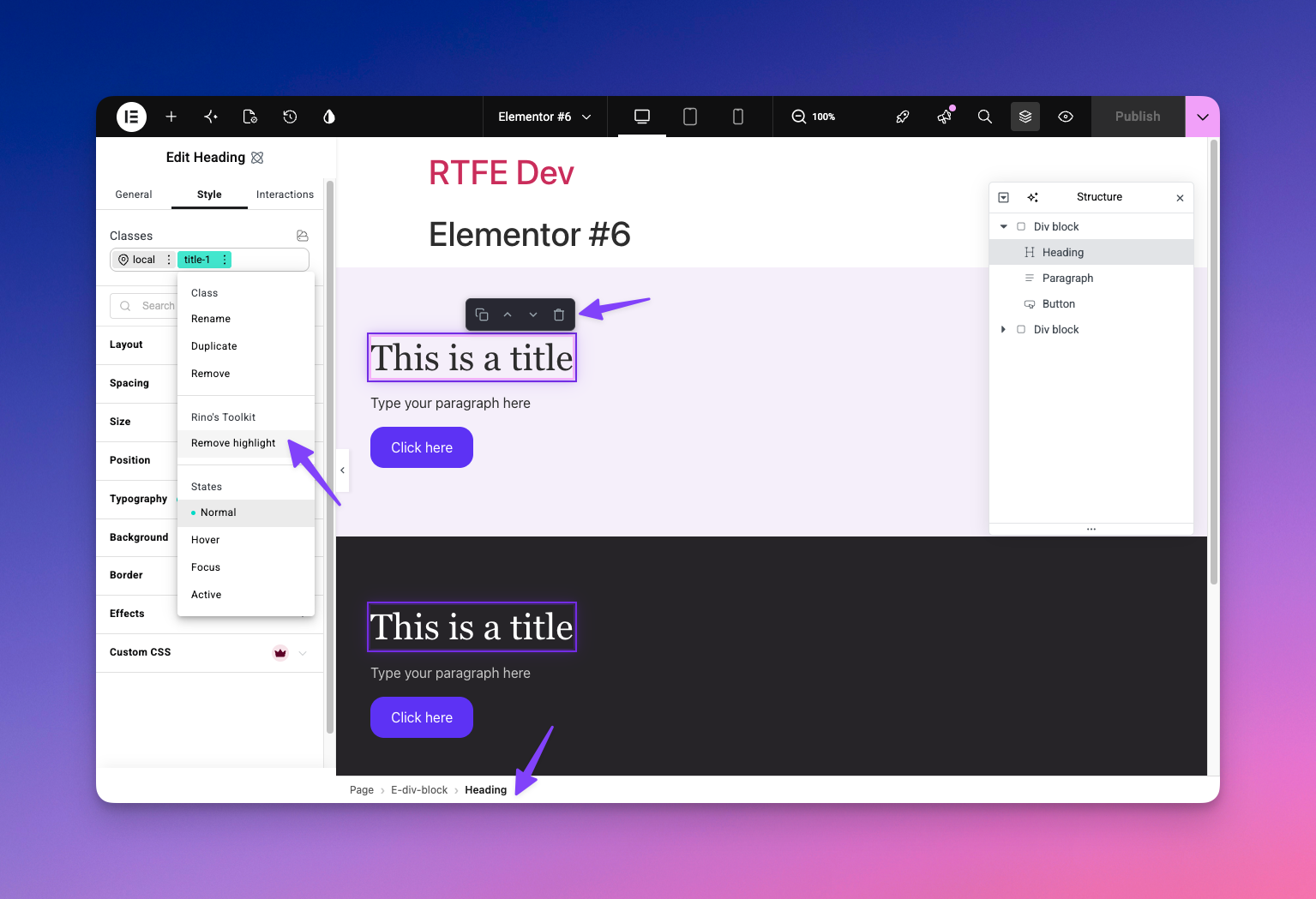
Class Highlighter, Widget Path Breadcrumbs, and Quick Action Buttons in action inside the Elementor editor.
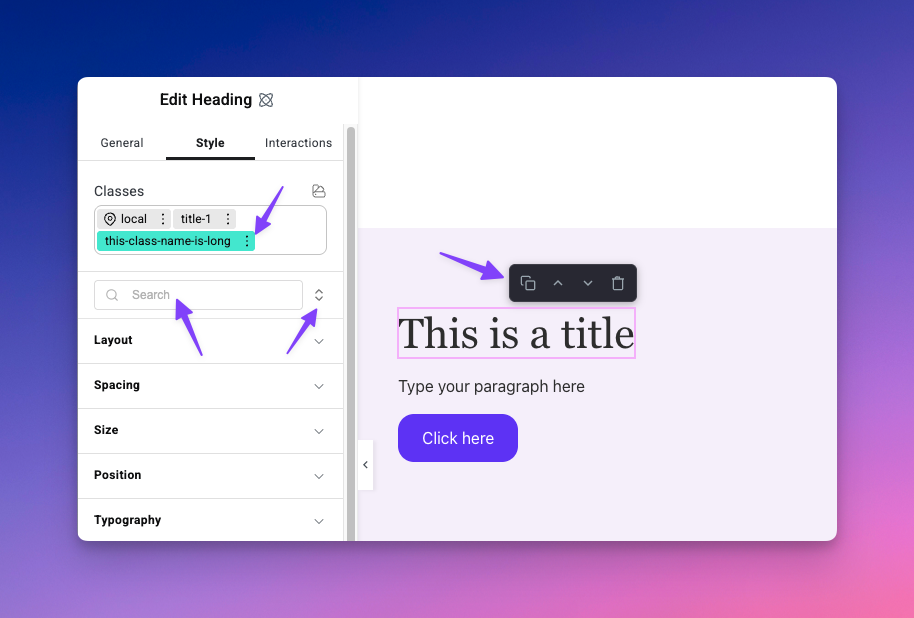
Display Full Class Names with the Tab Navigator search bar and expand/collapse toggle above the style sections.
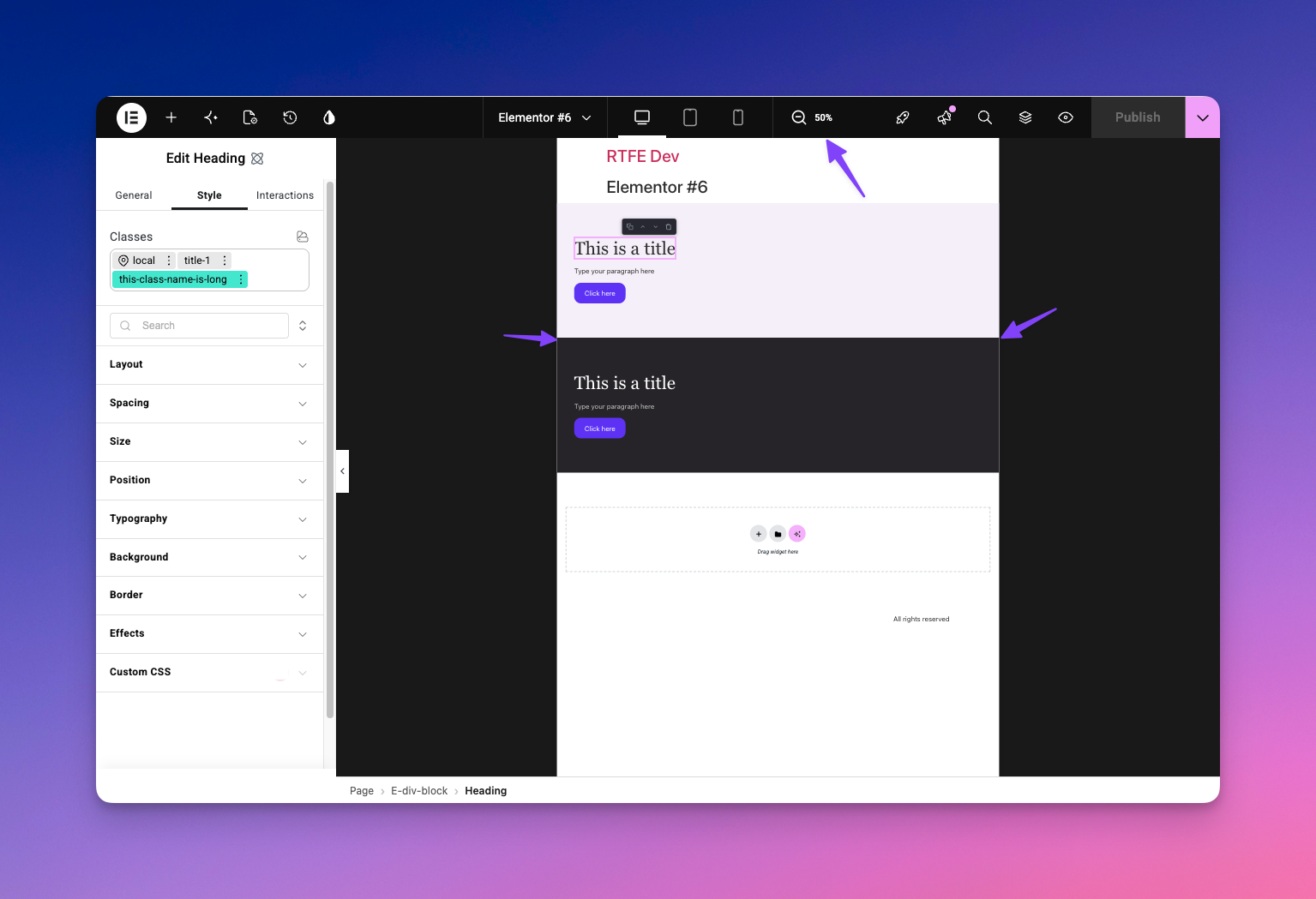
Zoom Out Canvas showing the full page layout at a glance.
Faq
Most features work with Elementor Free. Some features that target Atomic (V4) widgets, such as Tab Navigator and Quick Action Buttons, require Elementor with V4 widget support enabled.
No. The Turn Off All V3 Widgets feature uses Elementor’s own Element Manager, which hides widgets from the panel without removing them from existing pages. Turning the feature back off restores them on the next editor reload.
Per user. Each admin or editor who uses the plugin sets their own preferences. The only exception is the V3 widgets toggle, which affects the Elementor editor globally (because Elementor’s Element Manager is a site-wide setting).
No. All features are editor-only. Nothing added by this plugin loads on your public-facing site.
Reviews
Changelog
1.0
- Initial release. Built live on stream, reviewed by a senior developer, and written to WordPress security standards from day one.
- Display Full Class Names
- Class Highlighter
- Tab Navigator
- Bigger Indicator Dots
- Widget Path Breadcrumbs
- Zoom Out Canvas
- Quick Action Buttons
- Turn Off All V3 Widgets