SELISE Blocks Localization Language Translator

SELISE Blocks Localization Language Translator
Description
Find, edit, translate, and publish languages for your WordPress site or application, directly in your WordPress dashboard.
SELISE Blocks Localization Language Translator is a multilingual AI translator designed to help WordPress sites manage translations at scale. The plugin enables you to translate content (pages, posts), plugins and themes in different languages, update or delete translations, and apply AI-powered suggestions across pages, posts, themes and plugins, without relying on manual translation workflows.
Built for flexibility, it works independently of specific themes and integrates seamlessly with existing WordPress language switcher plugins.
Main Features
SELISE Blocks Localization Language Translator lets you translate your WordPress site quickly, without complex setup. It’s built for content editors, developers, agencies, and site owners who want reliable translations they can edit.
- Manage languages: Add or remove languages and set a default for visitors who haven’t chosen one. Each page gets its own language URL (/de/, /fr/).
- Language switcher: Visitors can change the site language in one click.
- Auto Translate: Translate content and strings automatically, then review and save. This speeds up your work and reduces errors, even in unfamiliar languages.
- Theme and plugin translation: Find strings by theme or plugin instead of digging through large language files. Translations are saved as standard translation files.
- Edit strings: Add strings for custom text, fix existing translations, or delete unused ones to keep your language files clean.
- Page translation: Translate WordPress pages into multiple languages, manage translated page content, and provide a consistent multilingual experience.
How to use
1. Set up your multilingual site
Step 1: Add languages
- Go to Blocks Localization > Languages.
- Pick a language and click Add New Language.
- Repeat for each language. The first language you add becomes the default language.
You can reorder languages and change the default on the same screen.
Step 2: Switch Multilingual on
- Go to Blocks Localization > Settings > Language Settings.
- Switch Multilingual on.
- Choose a URL format:
- Directory: example.com/de/
- Subdomain: de.example.com
- Query parameter: ?lang=de
- If your site already has content, click Assign the default language so existing content gets a language.
Step 3: Add a language switcher
Add the switcher so visitors can change language. Use any one of:
- Language Switcher block
- Language Switcher widget
- Language Switcher menu item
- Language Switcher shortcode
You can show flags, language names, short codes, or a dropdown.
Optional settings
- Browser-language detection: Send visitors to the language their browser uses.
- Language cookie: Remember the visitor’s chosen language.
- Menus per language: Set one menu for each language. Works with classic themes and block themes.
What follows the visitor’s language
Site title, tagline, widgets, search, feeds and the REST API all follow the visitor’s language. The plugin also adds hreflang tags, canonical redirects, and language-aware XML sitemaps for Yoast SEO and Rank Math.
Multisite
Network activation is supported. Each site keeps its own languages.
2. Translate your content
You can translate posts, pages, custom post types, categories and tags. Each page is linked to its translations.
Create or open a translation
- In the Pages or Posts list, click the + button next to the language.
- In the editor, use the Languages box and click + for the language you want.
Translate with Auto Translate (posts and pages)
- Open the page or post in the block editor.
- Click Auto Translate.
- Check the translated title, content and excerpt. Blocks, links, shortcodes and formatting are kept.
- Click Save when you are happy.
Nothing is saved until you click Save. To go back to the original, press Undo (Ctrl+Z / Cmd+Z).
Translate page builder pages
Auto Translate works with Elementor, WPBakery, Divi 4, Divi 5, Avada, Enfold and similar shortcode-based builders.
- Open the Pages or Posts list.
- Hover over the row and click Auto Translate. In Elementor you can also click the globe icon in the top bar.
Important:
- The saved version of the page is translated and saved at once. Save your changes first.
- Only visible text is translated. IDs, CSS classes, links, custom code and HTML widgets stay as they are.
- The previous version stays available under Revisions.
Keep brand names untranslated
- Go to Settings > Auto Translate.
- Add names to the Do-not-translate glossary, one per line.
These words are kept exactly as written.
Translation limit
Auto Translate request accepts up to 500,000 characters per request. Long jobs show progress and you can cancel them.
3. Translate themes and plugins
- Open the theme or plugin you want to translate.
- Find its text domain and list its strings.
- Edit a string by hand, translate one string, or translate all of them.
- Save. The result is stored as standard translation files in wp-content/languages.
A sync from SELISE Blocks only fills in missing translations by default. Turn on Force update only if you want it to overwrite your hand edits.
4. Moving from Polylang
Keep using Polylang
If Polylang stays active, it keeps managing your languages. You can still use Auto Translate on top of it.
Switch fully to this plugin
- Run Import from Polylang.
- Review the preview.
- Start the import. It runs in batches.
- Deactivate Polylang when done. Your URLs keep working.
Undo the import
Click Roll back. This removes everything the import created. Polylang’s own data is only read, never changed.
Privacy
- The multilingual features keep all data on your site.
- Only translation features send text to SELISE Blocks, and only when an administrator or editor starts them.
- The plugin has no tracking and no ads, and loads no scripts or fonts from other sites.
External services
This plugin connects to the SELISE Blocks API to translate content using AI.
When a translation is requested, the plugin sends the original text and the target language to the API. The API then returns the translated text, which is used to update the content on the website.
For larger translation jobs, such as translating all content at once, the process may take some time to complete. Once the translation is finished, the API sends a notification (webhook) to the website. The website then automatically updates the translation files with the newly translated content.
This service is provided by “SELISE Blocks”. SELISE Blocks is an enterprise solution by SELISE Group: terms of use, privacy policy.
Installation
The plugin can be used immediately after installation and activation. A SELISE Blocks account is required only to use the AI Auto Translate feature.
Install the plugin
- In your WordPress admin, go to Plugins > Add New and search for “SELISE Blocks Localization Language Translator”, or upload the plugin folder to
/wp-content/plugins/. - Click Install Now, then Activate.
Connect with SELISE Blocks (optional)
The setup screen opens on first activation. You can open it again at Blocks Localization > Settings > Setup.
- On the setup screen, click “Connect with Blocks”.
- Sign in with your email, Google or Microsoft. If you have no account, click “Create an account”.
- Check that the request origin shows your site’s domain.
- Choose a project, an environment (for example Production), and the access level “Localization Full”.
- Click “Connect”.
You return to WordPress and see “Connected with Blocks project …”. You do not need to create credentials or set permissions anywhere else.
To change the project, environment or access level, click “Disconnect from Blocks”, then connect again.
You can find the setup guide here.
Screenshots
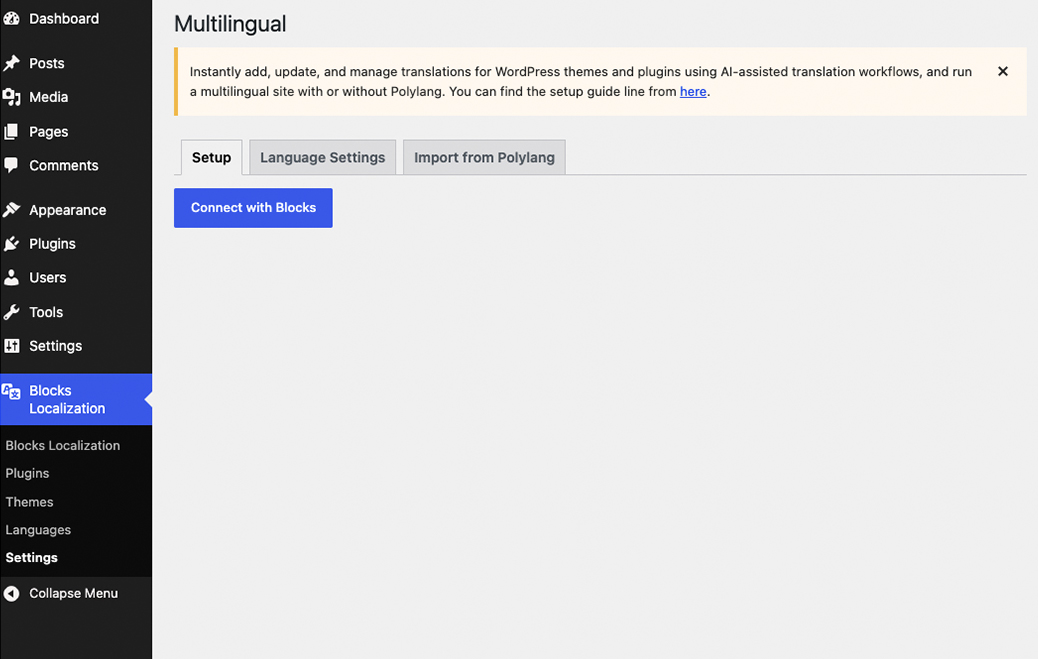
Settings Part
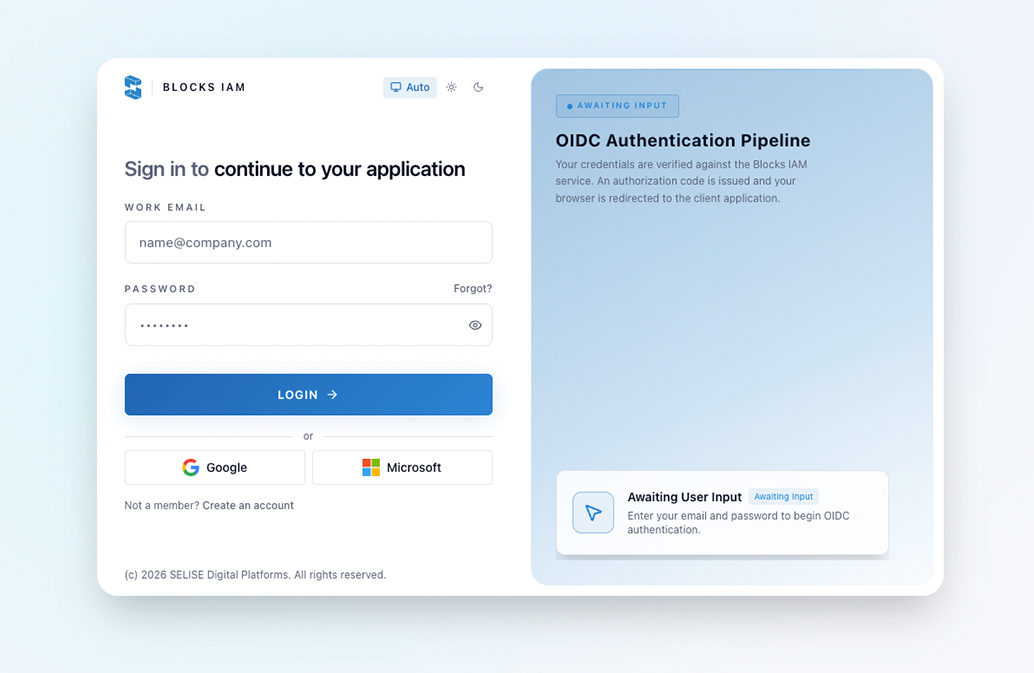
Login with blocks
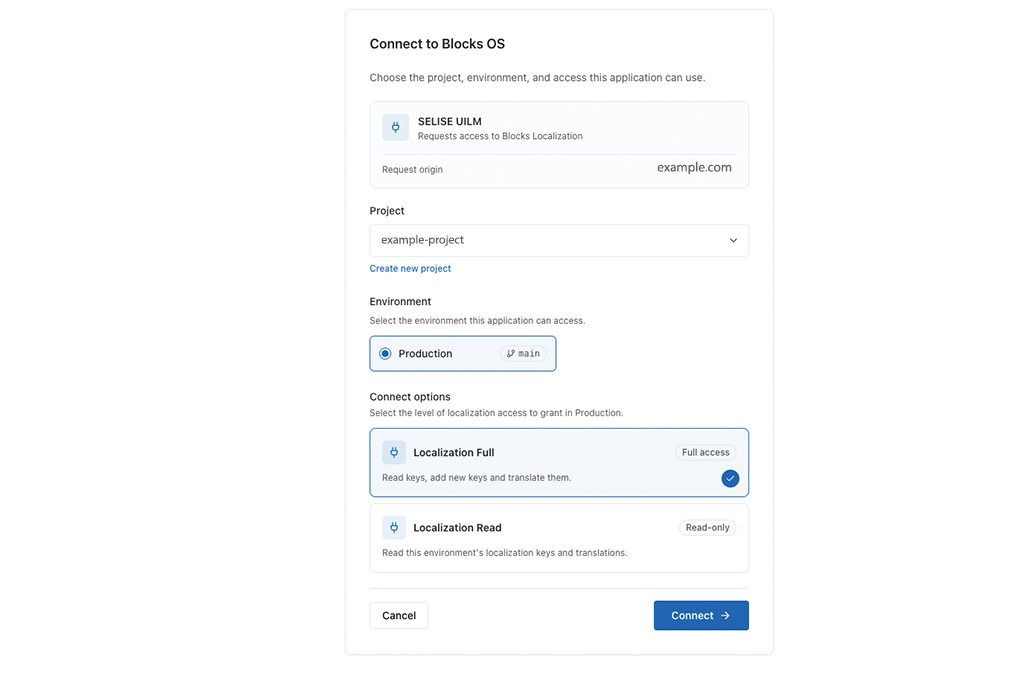
Connect your project
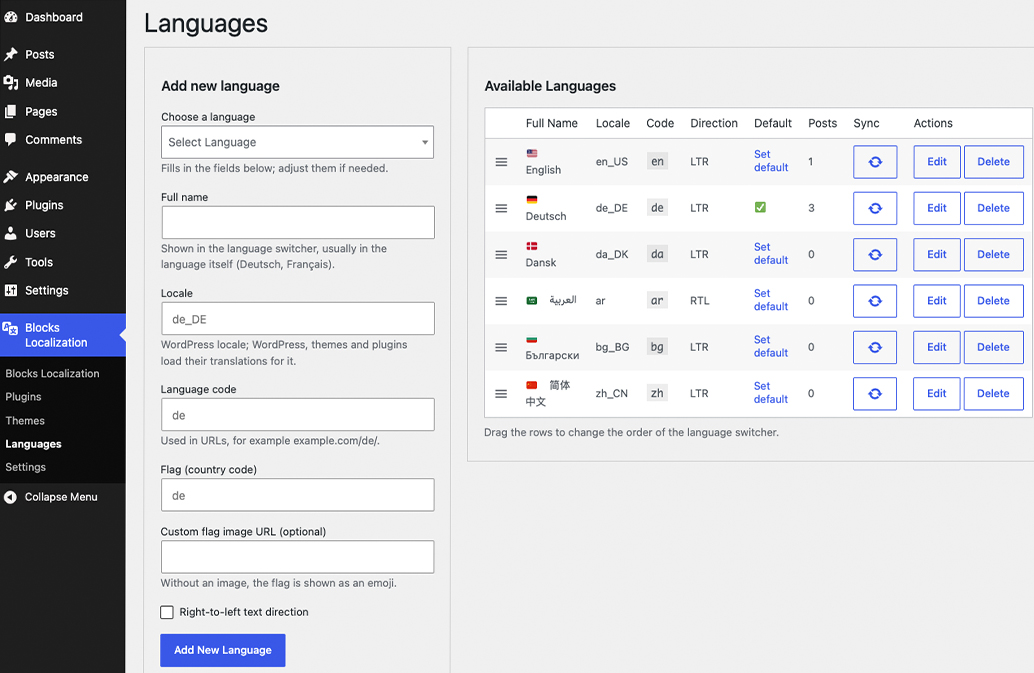
Add languages
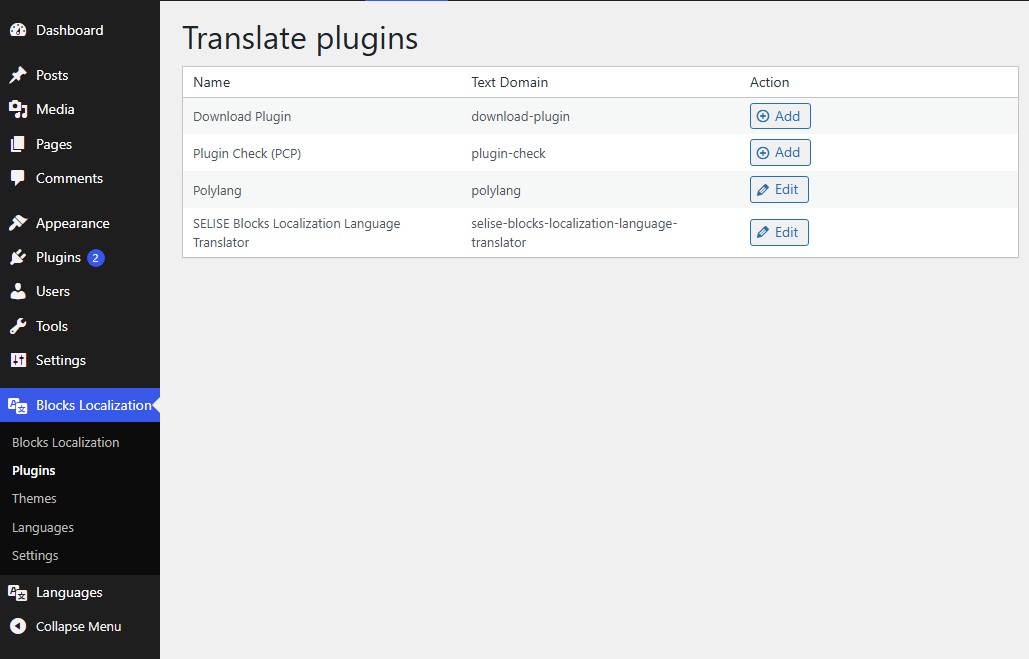
Plugin Selection Page for Translation
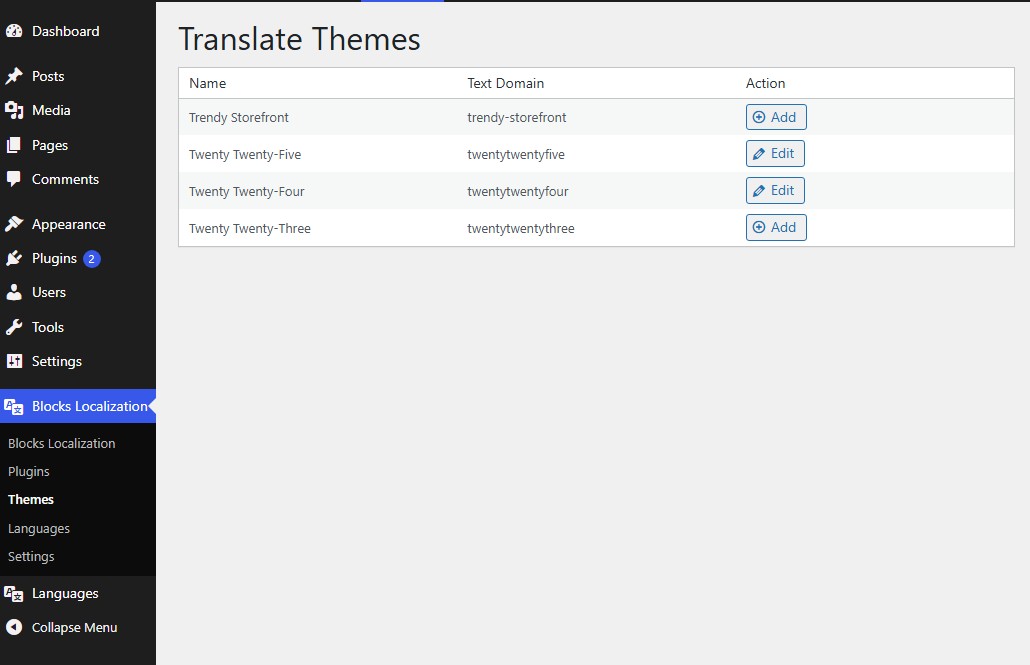
Theme Selection Page for Translation
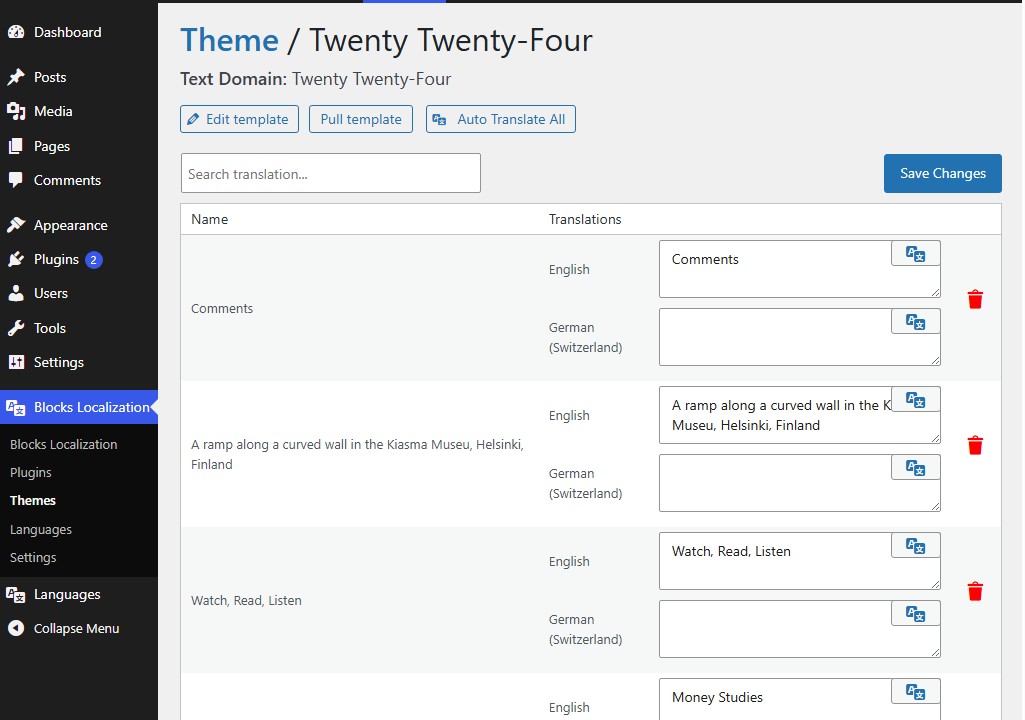
String translation
Faq
SELISE Blocks is the cloud platform from SELISE Group that runs the AI translation. It is not a Gutenberg block library.
Not for languages, URLs, the switcher, menus or manual translation. You need a SELISE Blocks account for Auto Translate and for AI translation of themes and plugins.
The plugin is free and open source. AI translation is a hosted service from SELISE Group and may have usage limits. See the terms of use.
Posts, pages and terms are stored in your WordPress database. Theme and plugin translations are files in wp-content/languages. They stay on your site even if you remove the plugin or stop using the service.
Auto Translate changes the text in the editor but saves nothing until you click Save, and Undo restores the original. For theme and plugin strings, see Force update under “Translate themes and plugins” in the Description tab.
Connecting and the per-string translate buttons work. Auto Translate All sends its results back to your site, so the site must be reachable from the internet. On a local or password-protected site, click Pull template to fetch the results by hand.
Yes, for language-aware XML sitemaps. SEO titles and meta descriptions are not translated automatically.
Auto Translate settings and temporary job data are always removed. Everything else is kept unless you tick Delete all plugin data under Language Settings before deleting. Posts, pages, terms and the files in wp-content/languages are never deleted.
Reviews
Changelog
2.0.0
- New: Built-in multilingual engine, with a switch to turn it on and off: languages (locale, flag, right-to-left, order, default), languages and translations for posts, pages, custom post types and terms.
- New: Language URLs as directories, a query parameter or subdomains, with detection from the URL, a cookie and the browser, and WordPress, theme and plugin texts loaded in the visitor’s language.
- New: Content lists, search, feeds, widgets and the REST API show the current language.
- New: Language switcher widget, shortcode, block and menu item; menus per language.
- New: Classic menu language switchers can show uppercased language slugs as short names.
- New: Language Switcher block for the Navigation block of block themes, with the languages as menu items or as a submenu.
- New: Language menu in the admin toolbar, as in Polylang: shows the content of one language or of all languages in the admin lists, remembered per user; new posts and terms get the chosen language.
- New: Multilingual Settings shows the language switcher shortcode.
- New: hreflang and x-default tags, html lang attribute, Yoast SEO and Rank Math sitemap support, optional WooCommerce support.
- New: Import from Polylang with a dry run, batches and rollback, and a notice when Polylang is deactivated with its data still present.
- New: Uninstall option to keep or delete all plugin data.
- New: Auto Translate button in the block editor translates post and page content into the Polylang language (post editor and site editor).
- New: Auto Translate for page builders: Elementor, WPBakery, Divi 4, Divi 5 and other shortcode builders, from the posts list, the Elementor top bar and the classic editor.
- New: Settings Auto Translate with a do-not-translate glossary.
- Change: Auto Translate works with the built-in engine as well as Polylang.
- Change: One Languages screen (Blocks Localization Languages) for theme and plugin translations and for content, with flags, text direction, post counts, editing and drag-and-drop order. The Languages tab of the Multilingual screen was removed, and the existing languages of both lists are merged on the first visit.
- Change: Requires PHP 7.4 and WordPress 6.4.
- Fix: The language switcher menu item shown as a submenu now gets the theme’s submenu arrow and mobile toggle.
- Fix: The Auto Translate scripts and styles were excluded from the repository by .gitignore.
1.1.6
- Hotfix: Select2 assets added.
See changelog.txt for older changelog.