Shiptastic Rules for WooCommerce
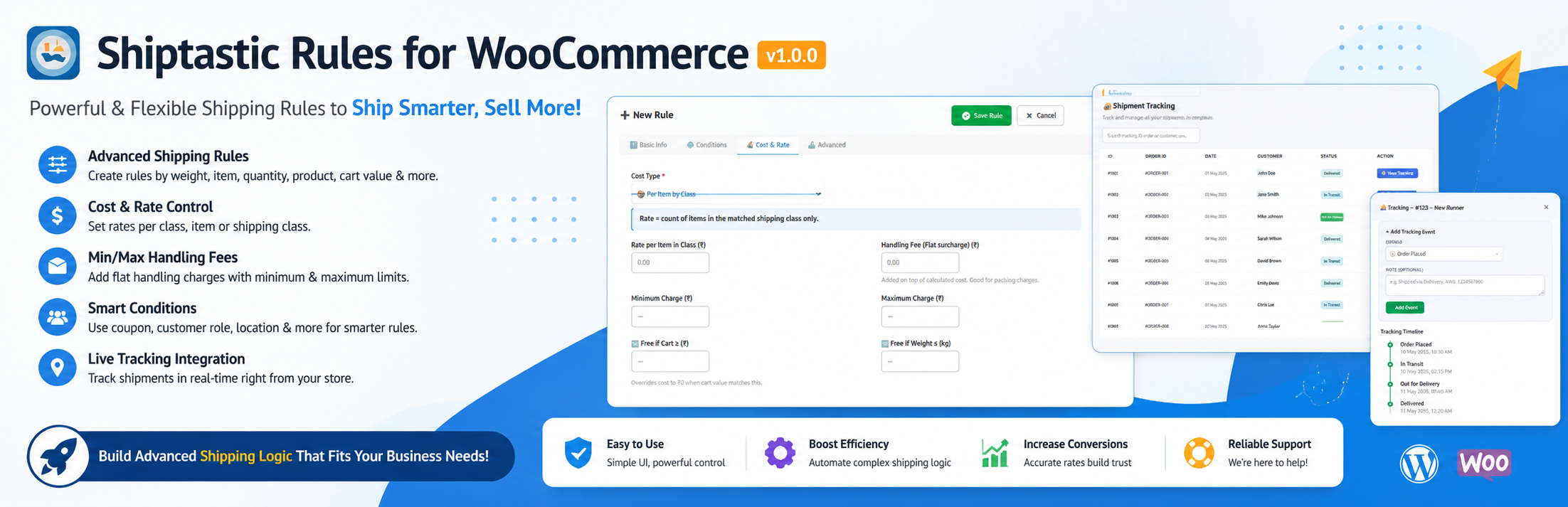
Shiptastic Rules for WooCommerce
Description
Shiptastic Rules for WooCommerce gives WooCommerce store owners a powerful, visual rule builder to create smart shipping rates — and a shipment tracking timeline so customers always know where their order is.
Shipping Rules Engine
Create unlimited shipping rules using any combination of conditions:
- Cart weight, volume, and quantity
- Product type and shipping class
- Cart subtotal / order value
- Applied coupon codes
- Customer user role
- Product dimensions (length, width, height)
The full-screen rule builder shows a real-time preview so you can verify every rate before saving.
Shipment Tracking
- Add tracking events (Order Placed, Packed, In Transit, Out for Delivery, Delivered, and more) from the order edit screen
- Customers see a clean timeline automatically on their My Account Order details page
- Elementor widget included — drag the tracking timeline anywhere and style it with your theme
Key Features
- Full-screen rule builder with real-time preview
- Unlimited shipping rules per zone / method instance
- Custom shipment tracking timeline (admin + customer view)
- “Manage Shipment Tracking” modal in the WooCommerce order edit screen
- Elementor widget for custom placement of the tracking timeline
- WooCommerce HPOS (Custom Order Tables) compatible
- WooCommerce Cart & Checkout Blocks compatible
- Multisite compatible
- Clean uninstall — all plugin data removed on deletion
Installation
Automatic Installation
- Go to Plugins Add New in your WordPress admin.
- Search for Shiptastic Rules for WooCommerce.
- Click Install Now, then Activate.
Manual Installation
- Download the plugin zip file.
- Go to Plugins Add New Upload Plugin.
- Upload the zip file and click Install Now, then Activate.
After Activation
- Make sure WooCommerce is installed and active.
- Go to WooCommerce Settings Shipping.
- Add or edit a shipping zone and click Add shipping method select Shiptastic Rules for WooCommerce.
- Click Edit on the method to open the Rule Builder.
Shipment Tracking Setup
- Open any WooCommerce order in the admin.
- Find the Shipment Tracking sidebar box.
- Click Manage Shipment Tracking to add tracking events.
- Customers will see the timeline automatically on their order details page.
Elementor Widget
- Edit any page or template with Elementor.
- Search for IA Shipment Tracking in the widget panel.
- Drag it onto your layout — it renders the correct order’s tracking timeline for the logged-in customer.
Screenshots

Full-screen rule builder with real-time preview

"Manage Shipment Tracking" modal on the WooCommerce order edit screen
Faq
Yes. WooCommerce must be installed and active. The plugin will not activate without it.
WooCommerce 6.0 and above. Tested up to WooCommerce 9.4.
Yes. Full compatibility with WooCommerce High-Performance Order Storage (Custom Order Tables) is declared.
Yes. No configuration is needed — the timeline appears automatically below the order details table on the My Account Order details page.
No. The widget works with the free version of Elementor.
All plugin data is permanently removed: the custom database table ({prefix}ia_shipment_tracking), all plugin options, and all per-instance shipping rule settings. WooCommerce shipping zone assignments are managed by WooCommerce and are not removed.
All data is preserved on deactivation. Rules and tracking events are available again when you reactivate the plugin.
Yes. Uninstall cleans up data for every sub-site in a multisite network.
Reviews
Changelog
1.0.1 – 2026-06-01
- Tested up to WordPress 7.0
- No functional changes
- Compatibility update for the latest WordPress release
1.0.0 – 2026-05-05
- Initial public release
- Full-screen shipping rule builder with real-time preview
- Shipment tracking timeline (admin modal + automatic customer view)
- Elementor widget for custom tracking timeline placement
- WooCommerce HPOS and Cart/Checkout Blocks compatibility declared
- Multisite-compatible uninstall
- Clean GPLv2 codebase — no tracking, no telemetry, no external calls