SitePulse – Performance Monitor and AI Diagnostics

SitePulse – Performance Monitor and AI Diagnostics
Description
SitePulse tells you exactly what slows your site and what to do about it, directly from your WordPress dashboard.
Activate it, and within seconds you will see which plugins are heavy, which external calls are slow, and how to make your site faster.
🚀 Key Features
🚀Stop Guessing Why Your Site is Slow
– 🚀 AI Diagnostic – Get instant insights into what’s slowing down your site with AI-powered diagnostics
– ⚡ Real-Time Performance Dashboard – See live load-time metrics, Core Web Vitals, and performance trends at a glance
– 📊 Health Score System – Get a composite health score based on load time, TTFB, error rates, plugin count, memory usage, and CPU utilization
– 🔎 Page Analysis – Paste any address (a product, post, archive, your shop or search results) and see exactly which plugins, theme code and external requests slow that page down, with plain-English fixes. Start it from the toolbar on any page with “Analyze this page”.
– 📈 Trend Analysis – Track performance metrics over time to spot issues before they become critical
🔍Identify Heavy Plugins Instantly
– 🔍 Slow Plugin Profiler – Instantly detect which plugins are bottlenecks and how much time they consume
– 🎣 WordPress Hook Analyzer – See execution times for every hook to pinpoint slow callbacks
– ⏱️ Detailed Timing Data – Get millisecond-level timing information for debugging and optimization
– 🏆 Performance Rankings – Sort plugins and hooks by execution time to focus on what matters most
API & External Service Monitoring
– 🌐 API Request Tracker – Monitor all external API calls (payments, analytics, social media, etc.) with response times
– ⚠️ Slow API Detection – Get alerts when third-party services are slowing down your site
– 📍 URL & Response Code Tracking – See exactly which endpoints are slow and their HTTP status codes
Site Health & Stability
– 🚨 Automatic Fatal Error Detection – Get instant email notifications when critical errors occur
– 📋 Comprehensive Error Logs – Track all PHP errors, warnings, and notices with automatic cleanup
– 🔄 Recovery Mode Access – Safe access to fix critical issues without being locked out of your site
– 💾 Error Statistics – View error trends and identify recurring issues
Server & Resource Management
– 💾 Memory Usage Monitoring – Track server memory consumption and identify memory hogs
– ⚙️ CPU & System Resource Tracking – Monitor system resource usage in real-time
– 🔧 Cron Job Spam Prevention – Automatically disable excessive scheduled tasks during high-traffic periods
– 📊 Plugin Count Analysis – Get recommendations on how many plugins are optimal for your setup
Smart Features
– 🎨 Simple and Advanced dashboards – Start with the Simple dashboard and its guided checklist, or switch to the Advanced view for hook-level detail
– 🧠 AI-Powered Diagnostics – Get AI recommendations for performance optimization (coming soon)
– 🎯 Google PageSpeed Integration – Built-in PageSpeed Insights reports with actionable recommendations
– 📧 Email Alerts – Customizable alerts for critical errors with team member management
– ✅ Smart Onboarding – A three-step setup that ends with a real check-up of your homepage
Developer-Friendly
– 👨💻 Advanced Profiler Data – Hook-level metrics and detailed execution analysis for developers
– 🔐 Privacy-First Design – Runs 100% locally with optional external features you control
– 📱 Admin Bar Widget – Quick access to performance metrics from anywhere in WordPress
Customization & Control
– 🎚️ Toggle Features On/Off – Enable or disable monitoring features as needed
– ⏸️ Pause Monitoring – Stop measuring page loads from the toolbar without deactivating; settings and history are kept
– 🔐 Optional External API – Use PageSpeed and AI features completely optional—disable anytime without affecting core monitoring
– 📊 Custom Reporting – View detailed reports filtered by date, plugin, hook, or error type
– 🛡️ Email Blocking – Block outgoing emails during testing or prevent email spam
Security
– 🛡️ Vulnerability Scanner – Scan your site for known vulnerabilities and get recommendations for fixing them
💎 Core Features are Free Forever
We believe every site owner deserves a fast website. The Performance Monitoring, Plugin Profiler, Error Tracking and all the current features included in this version are Free Forever. We will never paywall these essential tools.
🚀 Coming Soon: SitePulse Pro
We are developing a Pro version for agencies and power users who need historical data and automation.
* Ai-Powered Auto-Fixing (Coming Soon)
* Access to our portal (Coming Soon)
* 📤 **CSV & PDF Exports – Download performance logs and data for deeper analysis and reporting
* Historical Performance Timelines (Coming Soon)
* Advanced SQL Query Monitor (Coming Soon)
* Multi-Site Dashboard – Manage and monitor all websites from a single admin dashboard.(Coming Soon)
* Performance Alerts & Notifications – Get notified of performance regressions with detailed change analysis(Coming Soon)
* PageSpeed Deep Dive – Full PageSpeed Insights reports with opportunities, diagnostics, and lab data(Coming Soon)
* Historical Performance Charts – Track performance metrics over weeks and months with trend analysis(Coming Soon)
* Opportunities & Recommendations – Actionable optimization suggestions from PageSpeed with implementation guides(Coming Soon)
* Custom Reports & Exports – Generate and download detailed performance reports in multiple formats(Coming Soon)
* Multi-Page PageSpeed Tracking – Monitor PageSpeed Insights performance across multiple pages and URLs with individual reports and comparisons(Coming Soon)
* URL Performance Dashboard – Track performance metrics for specific URLs, homepage, key landing pages, and custom URLs you select(Coming Soon)
* Scheduled PageSpeed Audits – Automatically run PageSpeed Insights on multiple URLs on a schedule to track performance trends(Coming Soon)
* Comparative Analysis – Compare PageSpeed scores and metrics across different pages to identify which content needs optimization(Coming Soon)
* Vulnerability Scanner automatic & Alerts – Scan your site for known vulnerabilities and get recommendations for fixing them
* Unlimited and fast and precise AI Diagnostic – Get instant insights into what’s slowing down your site with AI-powered diagnostics
* **And more.
👉 Join the Pro Waitlist – Get early access, exclusive launch pricing, and be among the first to unlock advanced features.
External Services & Data Privacy
SitePulse uses an external service to provide enhanced features including PageSpeed analysis and AI-powered diagnostics.
🔗 External Service Integration
SitePulse communicates with api.sitepulse.me (operated by the plugin developer) to provide:
– PageSpeed Reports – Google PageSpeed Insights analysis with performance scores, Core Web Vitals metrics, and page screenshots
– AI Diagnostic Reports – AI-powered performance analysis and optimization recommendations
– Remote Management (optional) – lets your SitePulse dashboard show this site’s backups (UpdraftPlus or BackWPup) and its plugin, theme and WordPress updates, and start, cancel or set up its backups. It stays off until you turn it on for the site in your SitePulse dashboard, and you can block it in SitePulse’s settings.
📊 What Data is Collected?
To provide these enhanced features, SitePulse sends only performance-related metrics to the external API:
– Plugin names, versions, and slugs installed on your site
– WordPress hook execution times and memory usage
– API request URLs and response times
– Site domain name
– Performance statistics and load times
🔒 What Data is NOT Collected?
SitePulse is designed with privacy in mind and does NOT collect:
– ❌ Personal user data (names, emails, passwords, IP addresses)
– ❌ User content (posts, pages, comments, custom data)
– ❌ Database content or sensitive information
– ❌ Customer or visitor information
– ❌ Any personally identifiable information (PII)
🔁 Remote Management
While Cloud Services (PageSpeed & AI Reports) are on, the site checks in with api.sitepulse.me every hour, and every 5 minutes while remote management is on. A check-in sends the SitePulse and WordPress versions, which backup plugin is active, whether remote management is blocked on the site, how WP-Cron runs there: the address of wp-cron.php, whether WP-Cron is turned off and how long scheduled tasks have been waiting, and whether the site’s own server can reach its wp-admin, as the plugin’s hourly check found it: the HTTP status of wp-admin and the login page, how long they took, when it checked and, when they failed, why (a timeout, a connection error, an HTTP status or a PHP fatal error, with the first line of the error message, up to 200 characters).
Only while remote management is on, the site also sends:
– Plugin and theme names, versions, whether they are active, their auto-update setting and available updates
– WordPress, PHP and database versions and the site language
– Backup schedules, how many backups are kept, storage types, the result of the last backup and the dates and sizes of recent backups
– Events when plugins, themes, translations or WordPress are updated, a plugin is activated or deactivated, the theme changes or a backup finishes
– Page speed figures from SitePulse’s profiler: once a day, the time plugins, themes and WordPress took per page load the day before (with the five slowest), and after each update, the updated item’s time on the full day before and the full day after it
– PHP fatal errors in SitePulse’s error log: the first line of the message (up to 300 characters), the file and the line
– How far a running update or undo is: its step, the backup’s progress and the item it is on
While remote management is on, the dashboard can also:
– Start or cancel a backup, and apply backup settings saved in your dashboard (schedules, how many backups to keep, which parts of the site to include) to UpdraftPlus or BackWPup. It restores a backup only when you undo a safe update from the dashboard (see below), and never deletes backups or changes where they are stored.
– Update plugins, themes and WordPress, on request or automatically under the site’s update policy (by default security and minor updates, three days after release, between 1 and 5 am site time). Updates run through WordPress’s own updater, so they come from WordPress.org or a premium plugin’s own updater, never from api.sitepulse.me. Each update is preceded by a backup and followed by a check of the home page, wp-admin and, with WooCommerce, the cart and checkout; a plugin or theme that breaks them is rolled back to its previous version.
– Run a safe update of one plugin or theme. First the plugins (or themes) folder and the database are backed up with UpdraftPlus or BackWPup; without a backup plugin there is no backup. SitePulse’s screenshot service loads the site’s monitored public pages (the home page by default) just before and just after the update and compares them. If a page changed a lot or stopped loading, the dashboard offers to keep the update or undo it. With an UpdraftPlus backup, undoing restores that folder and the whole database to the time of the backup, so anything saved since (such as orders, comments or form entries) is lost; otherwise it reinstalls the previous version from WordPress.org. After an undo, WordPress’s own automatic updates do not install the undone version again, for 90 days or until a newer version is installed.
– Turn WordPress’s own automatic updates on or off for plugins and themes.
Remote management runs in WP-Cron, which WordPress only runs when the site gets visitors unless a server cron job runs it. So while remote management is on, api.sitepulse.me requests the site’s wp-cron.php, at most once a minute, when the dashboard has work waiting for the site or the site has stopped checking in. That request sends no data; with ?sitepulse_check_in=1 the site checks in during that run instead of at its next scheduled check-in.
Requests are signed with the site’s SitePulse license, or with a key the dashboard rotates for remote management; the license key itself is never sent. Remote management never sends backup files, passwords, storage credentials or site content, and SitePulse never installs code from api.sitepulse.me. Turn on “Block remote management” in SitePulse’s settings to stop it on this site at any time, whatever the dashboard says.
⏰ Data Transmission Schedule
- You can view what data will be sent in the SitePulse dashboard before transmission
- Transmission only occurs when enhanced features are enabled
🔐 Your Control & Privacy
- All data transmission is for the purpose of providing PageSpeed and AI diagnostic features
- You can disable these features at any time from the plugin settings
- The plugin continues to work locally without external features
- No data is sold or shared with third parties
Service Terms: By using SitePulse’s enhanced features, you acknowledge that performance metrics are sent to api.sitepulse.me for analysis.
Privacy: For more information, visit: https://sitepulse.me/privacy/
Support
Having trouble or have suggestions?
Visit the SitePulse Support Forum or open an issue on GitHub.
We respond quickly and love feedback that helps improve performance visibility for everyone.
Installation
Try it in WordPress Playground (No Installation Required)
You can instantly try SitePulse without installing anything using WordPress Playground:
This opens a temporary WordPress environment in your browser with SitePulse pre-installed and activated.
Standard Installation1. Upload the sitepulse folder to /wp-content/plugins/
- Activate SitePulse from the Plugins screen.
- Open the SitePulse Dashboard menu to view metrics and configure options.
- (Optional) Set up scheduled checks using WP-Cron or your hosting panel’s cron jobs.
Screenshots

Real-time Admin Dashboard – View load-time metrics, Core Web Vitals, and Google PageSpeed Insights reports at a glance

Simple Performance Overview – Easily spot what's slowing your site down with a beginner-friendly dashboard view

Advanced Settings & Controls – Customize monitoring features, manage error logs, and toggle services on/off for testing and optimization
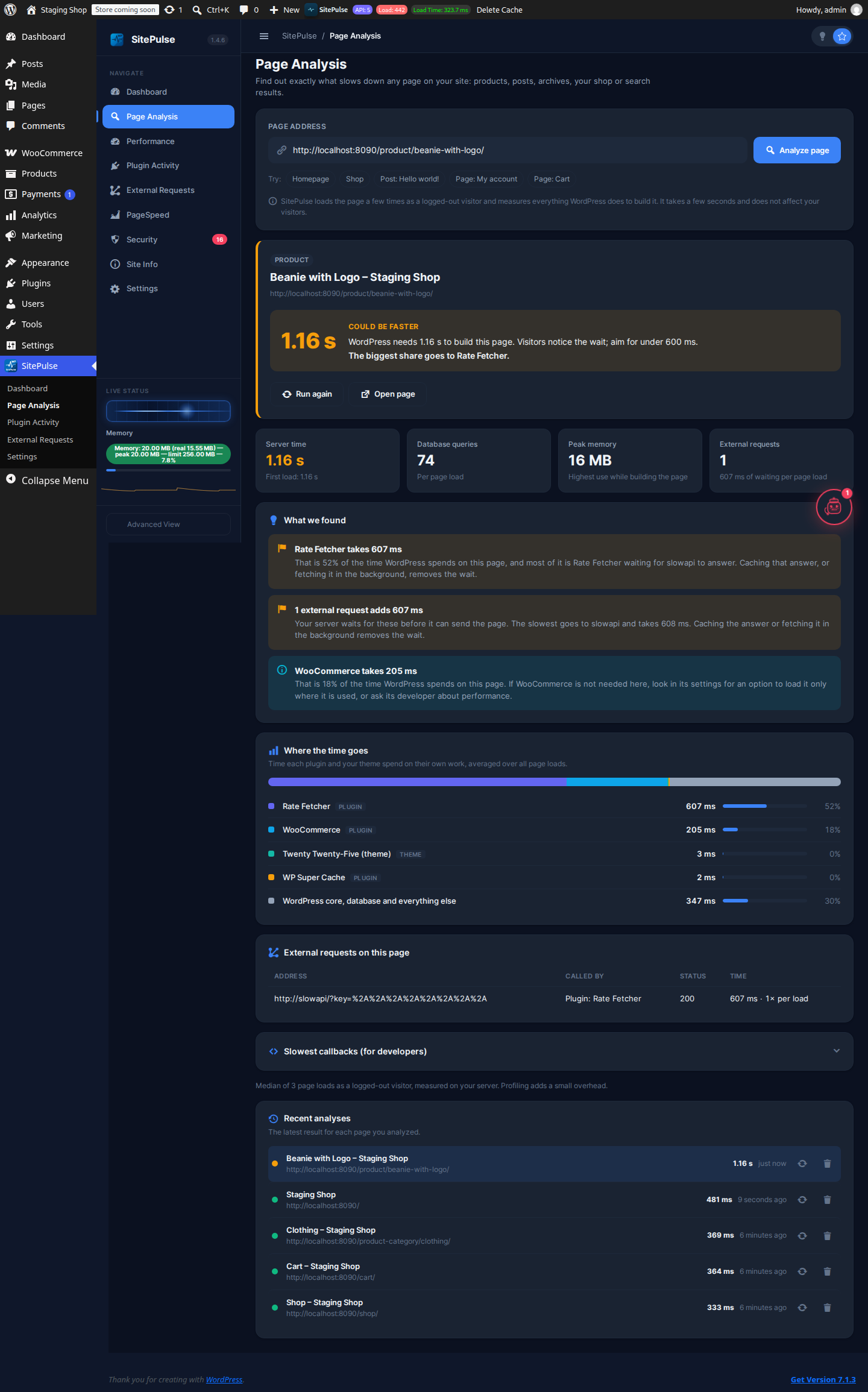
Page Analysis – See exactly which plugins, theme code and external requests slow down any page, with plain-English findings

Interactive Setup Wizard – Step-by-step onboarding guide to configure monitoring preferences and get started instantly
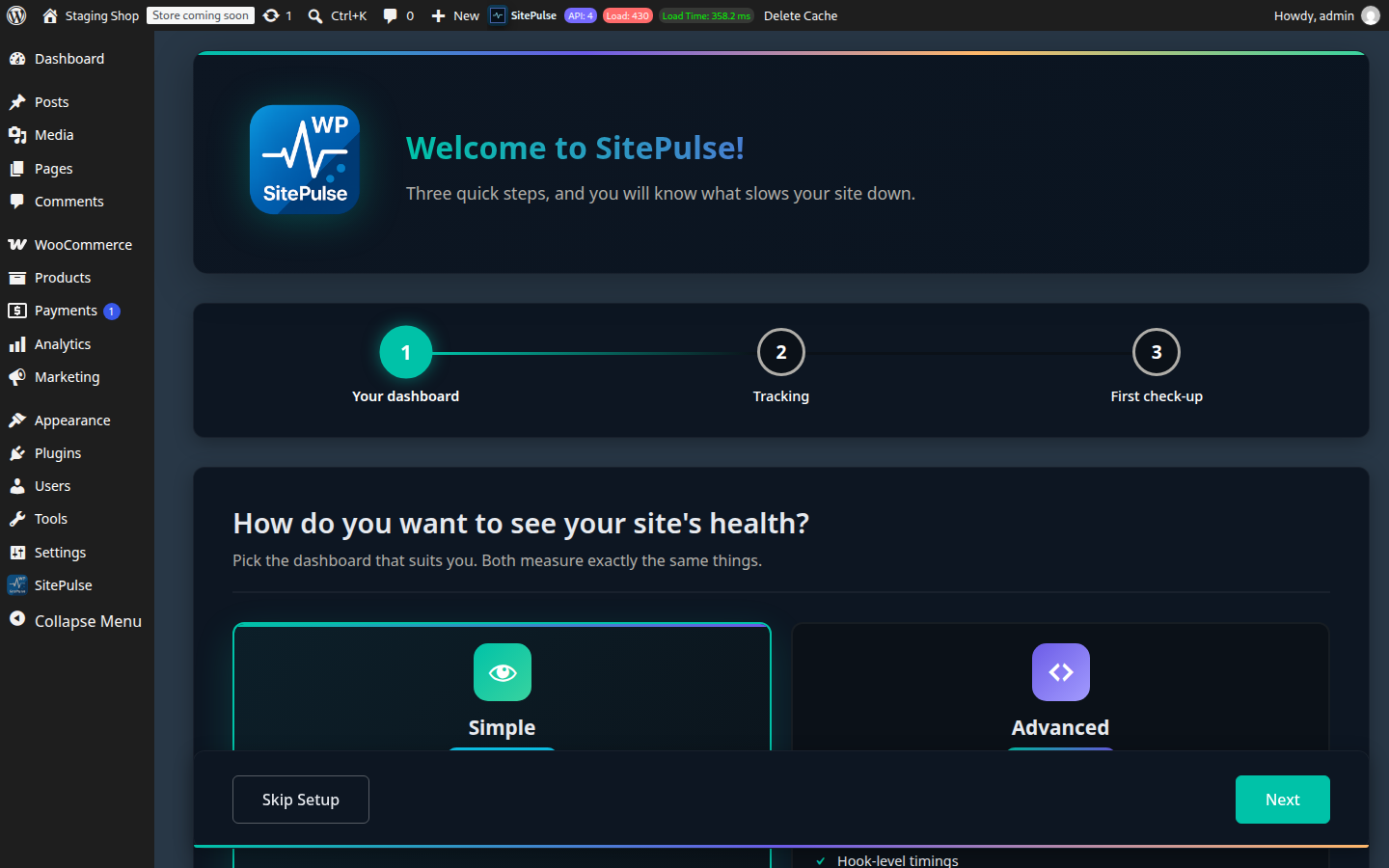
Choose the Simple or Advanced dashboard during onboarding; switch any time.

Developer View – Unlock advanced profiler data, hook-level metrics, and detailed execution analysis for power users

Onboarding ends with a real check-up of your homepage and clear next steps.
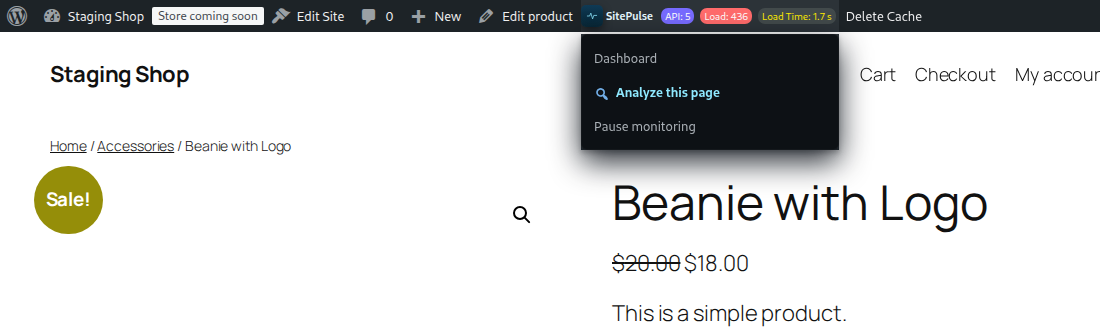
Analyze this page – Start a Page Analysis of any product, post or archive from the toolbar, or pause monitoring without deactivating.

Actionable Performance Recommendations – Receive tailored optimization suggestions to quickly identify and resolve bottlenecks
Faq
Yes! You can instantly try SitePulse using WordPress Playground — a browser-based WordPress environment. Click Try SitePulse Demo to launch a temporary WordPress site with SitePulse pre-installed. No account or installation required.
No. SitePulse is built to be lightweight and runs asynchronously. Profiling is optional and can be toggled off anytime, or paused entirely from the SitePulse toolbar menu (“Pause monitoring”) without deactivating the plugin.
Open the page on your site and choose SitePulse Analyze this page in the toolbar, or go to SitePulse Page Analysis and paste its address. SitePulse loads the page a few times as a logged-out visitor and shows how long WordPress needs to build it, how much of that time each plugin and your theme take, every external request the page makes, and what to do about it. It works for any front-end address: products, posts, pages, archives, your shop and search results.
Some hosts, firewalls and password-protected staging sites block a site from requesting its own pages. Click Open the page and measure my visit: the page opens in a new tab, SitePulse measures that visit, and the report appears in the first tab. The same happens if a page cache or CDN answers instead of WordPress.
The last 24 hours. Speed warnings, Plugin Activity, scores and AI diagnostics are based on the time each plugin’s and theme’s own code adds to a page load during the last 24 hours. A plugin you fixed, updated or deactivated stops being flagged within a day, and code that runs very often but quickly is not flagged however much its time adds up. Activity of code that has not run for two days is removed. The External Requests screen keeps its full log.
Yes. Choose Pause monitoring in the SitePulse toolbar menu (or “Pause instead of deactivating” when you deactivate). SitePulse stops measuring page loads, so it adds no profiling overhead, and keeps your settings and history. Choose Resume monitoring when you need it again.
Yes, but only for optional enhanced features. SitePulse can communicate with api.sitepulse.me to provide PageSpeed reports and AI diagnostics. The core monitoring features work 100% locally without any external connection. Only performance metrics (plugin names, load times, memory usage) are sent — never personal data or user content.
When enhanced features are enabled, SitePulse sends only performance-related data: plugin names/versions, hook execution times, memory usage, and API request metrics. NO personal information, user data, database content, or sensitive information is ever collected or transmitted.
Yes, with UpdraftPlus 1.26 or later or BackWPup 5 active. Turn remote management on for the site in your SitePulse dashboard to see its backup schedules, recent backups, plugins, themes and available updates, start or cancel a backup, apply backup settings you saved in the dashboard, and update plugins, themes and WordPress safely: after a backup, one at a time, with a rollback when an update breaks the site. You can block it from SitePulse’s settings at any time. It is not available on multisite networks yet.
The check after each update loads wp-admin from the site’s own server, so SitePulse checks every hour that it can, and shows the result under Site Information (System Information in the Advanced dashboard’s settings) and in the toolbar, with a Check now button. When it cannot (often a host that blocks a server’s requests to itself, or a PHP fatal error), your SitePulse dashboard shows it too, since updates would stop until it is fixed.
Yes. Page Analysis works on any front-end address, including WooCommerce product, shop, cart and category pages, and SitePulse runs on multisite environments.
No. This is the Core version of SitePulse. It is a fully functional, unlimited performance monitor. We are building a separate Pro version for advanced historical data and AI features, but the features you see here today will remain free forever.
You can sign up to be notified when Pro launches at sitepulse.me.
Reviews
More useful than i initially thought
By 
I've been using this plugin for a few weeks. It helped me identify a few slow downs on some of my client websites. after identifying some stuck processes that needed to be manually stopped, it helped increase site loading speeds. Also the development appears to be active, i reported a bug i found and the developer fixed it within a few days. looking forward to see what additional features get added!
Changelog
1.5.0
- New: Remote management (optional). Your SitePulse dashboard can show this site’s plugins, themes and available updates, plus a history of updates, plugin changes and backups, and update plugins, themes and WordPress, on request (on one site, or on all your sites at once) or under an update policy (by default security and minor updates, after three days, at night): a backup first when UpdraftPlus 1.26+ or BackWPup 5 is active, then one update at a time through WordPress’s own updater, each checked on the home page, wp-admin and WooCommerce’s cart and checkout, and rolled back when it breaks them. With UpdraftPlus 1.26+ or BackWPup 5 active, the dashboard also shows this site’s backup schedules and recent backups, can start or cancel a backup and apply saved backup settings (schedules, how many backups to keep, what to include), and warns about backups kept only on the server, missing or overdue backups and unusually small ones. The dashboard also shows how each update changed page speed (the full day before against the full day after), daily page speed and PHP fatal errors in one timeline of everything that changed on the site, builds monthly client reports, and can alert you by email, Slack or webhook when an update or backup fails, check-ins stop or the site slows down. It is off until you set the site up in your dashboard with its connection key, and you can block it at any time under SitePulse Settings. An update cut short by a PHP time limit or crash takes the site out of maintenance mode and puts the previous version back, and the dashboard can rotate the key remote management signs with.
- New: safe update of one plugin or theme from your dashboard: the plugins (or themes) folder and the database are backed up first, screenshots of the site’s monitored pages taken just before and after the update are compared, and when a page changed a lot or stopped loading you can keep the update or undo it. Undoing restores the folder and the whole database from the UpdraftPlus backup (anything saved since is lost), or without one reinstalls the previous version from WordPress.org.
- New: connect this site to your SitePulse dashboard with a connection key, as with ManageWP: choose Get connection key under SitePulse Settings Remote Management (or the Connection key link on the Plugins screen), then enter the site’s address and the key in your dashboard. A site with the free plugin joins one of your plans, and it is set up at once: it registers with SitePulse if needed, checks in as soon as the key is used, even when its WP-Cron does not run, and the settings page updates by itself. You can disconnect it from the settings at any time.
- New: SitePulse checks every hour, from the site’s own server, that wp-admin and the login page load, the way WordPress checks an edited plugin for errors. Site Information (System Information in the Advanced dashboard’s settings) and the toolbar show whether wp-admin can be reached, why not when it cannot (a timeout, a blocked connection, an HTTP error or a PHP fatal error) and since when, with a Check now button, and each check-in tells your SitePulse dashboard, which warns that updates would stop.
- New: remote management also works on sites where WP-Cron does not run by itself (few visitors, or DISABLE_WP_CRON without a server cron job): api.sitepulse.me wakes the site’s WP-Cron when the dashboard has work for it, so updates and backups start within about a minute, and the dashboard warns when a site’s WP-Cron is not running, with the server cron job to add. When a check-in is 10 minutes late, an administrator’s wp-admin page checks in after it loads.
- Fixed: with SitePulse active, WordPress’s plugin and theme editors missed most PHP fatal errors in edited code (those PHP reports as uncaught exceptions, such as a call to a missing function), because SitePulse’s error log caught them first. WordPress now sees them again; SitePulse still logs each one.
- Fixed: an AI diagnosis on a site without a license key (for example, after its key was removed) failed with “the license key field is required”. The site now registers with SitePulse first and gets a key; when SitePulse refuses, the message says why.
- Fixed: the vulnerability scan said “Vulnerabilities detected.” on a site with none, answered “Free scan requests exhausted” to any refused request, and showed nothing in Easy Mode while the first scan waited in the queue. It now says when the queued scan was requested and when to check again, counts the findings, and explains a refusal (daily limit, Pro license, SitePulse temporarily unavailable).
- Fixed: Easy Mode said “No Threats Found” before the first vulnerability scan, and showed the severity of every finding as “Unknown”.
- Fixed: a failed AI diagnosis kept showing “Waiting in queue” and could start a new diagnosis by itself an hour later. It now shows the failure, the reason SitePulse gave and a retry button. A temporary server error no longer marks a diagnosis as failed or hides the previous report.
1.4.7
- Fixed: after SitePulse had been running for a while, warnings kept blaming plugins that were slow in the past or that simply ran often. Warnings, rankings, scores and AI diagnostics now use the last 24 hours and the time each plugin’s own code adds to a page load.
- Fixed: slow external requests from earlier days no longer appear as warnings or in diagnoses; the External Requests log still lists them.
- Fixed: “Slowest Plugins” lists plugins slowest first, with averages over the last 24 hours.
- Fixed: the dashboard assistant showed “?ms” for the slowest item and based its heaviest-plugin tip on outdated timings.
- Improved: Plugin Activity forgets code that has not run for two days, so stored data stays small.
1.4.6
- New: Page Analysis. Analyze any page (products, posts, archives, your shop, search results) and see which plugins, theme code and external requests slow it down, with plain-English findings. Replaces the old single-page tracking, which only supported posts and pages and mixed in data from other requests.
- New: “Analyze this page” in the toolbar on every front-end page.
- New: when the server cannot load its own pages, Page Analysis measures your browser visit instead.
- New: Pause and resume monitoring from the toolbar, without deactivating.
- New: getting-started checklist on the dashboard.
- Improved: the Simple dashboard (Easy Mode) is now the default; the classic dashboard is the “Advanced view”. Dashboard preferences are saved per user instead of per browser.
- Improved: onboarding ends with a real check-up of your homepage.
- Improved: plain menu names: Page Analysis, Plugin Activity and External Requests.
- Improved: profiler measures each callback’s own time, so nested plugins are no longer counted twice.
- Improved: pages for visitors no longer load jQuery or SitePulse styles; only administrators who see the toolbar do.
- Improved: the deactivation dialog offers to pause instead, a quick-start guide and a support link, and can be translated.
- Improved: uninstalling also removes the error log and plugin timing data.
- Fixed: switching off External Requests tracking now really stops it (it kept recording before), and the dashboard switches confirm the right state.
- Fixed: single-file plugins (such as Hello Dolly) appear under their own name in Plugin Activity.
- Fixed: a deprecation notice from the error handler on PHP 8.4 and newer.
- Fixed: PHP warnings and errors (such as “Undefined array key avg_ms”) when a site still holds data saved by earlier versions or damaged data.
- Removed: the simulated “Real-Time Tracking” modal on the front end.
1.4.5
- Better reporting
- Cron Fixes
1.4.4
- Fixed an UI bug
- Improved performance for plugins with hooks
1.4.3
- Hooks now display the url of the page that triggered it
- Remove sitepulse pro dependencies
- Added early profiler
- Auto increment profiler calls when persistent
- Auto detect active hooks activately consuming resources
- Fixed a bug where the hook report was not showing
1.4.2
- Hook and api hook bugs fixed
1.4.1
- Better performance handling
- sitepulse alternative cronjobs management
- Fixes
1.4.0
- Easy Mode for beginners
- AI Assistant integration
- Fixes
1.3.6
- Streamlined onboarding wizard from 7 steps to 3 steps for faster setup
- Added performance impact indicators (High Impact, Average, Good) for plugin activity
- Added internal request identification in External Requests reports
- Admin bar compact view mode option for cleaner interface
- Clarified feature naming: “Performance Monitor” and “External Requests tracker”
- Enhanced settings page with email blocking and WP Cron configuration warnings
- Improved deactivation feedback modal
1.3.5
- Autoload option
- Error report free version
- Cron fails detection
- Feedback from deactivation – Help us to improve
1.3.0
- Whitelabel support
- AI Diagnostic is here!
1.2.8
- vulnerabilities scan + fix and improvements
1.2.2
- Hotfix and cleanup
1.2.0
- Complete UI redesign with modern, intuitive dashboard interface
- Enhanced plugin load time detection and performance metrics
- Refreshed frontend and backend iconography for better visual clarity
- Improved API request tracking and cron job management
- Comprehensive error handling with fatal error email notifications
- New Basic View for simplified performance overview
- Code optimization and performance improvements
- Added PageSpeed Insights widget integration
- Fixed recovery mode email notifications
- Introduced performance glossary for user education
- Refined button styling with design system guidelines
- Google PageSpeed Insights branding and integration
- Confirmed compatibility with WordPress 6.9
1.1.1
- Added admin notices to surface important updates and status messages
- Automatically enable Tracker mode when the plugin is activated
- Confirmed compatibility with WordPress 6.8
1.1.0
- Added frontend tracking interface
- Block cronjobs and outgoing emails
- Load time tracking per page and plugin usage report
1.0.0
- Initial public release with uptime monitoring, dashboard, and basic profiler