Spindle Dynamic Glossary
Spindle Dynamic Glossary
Description
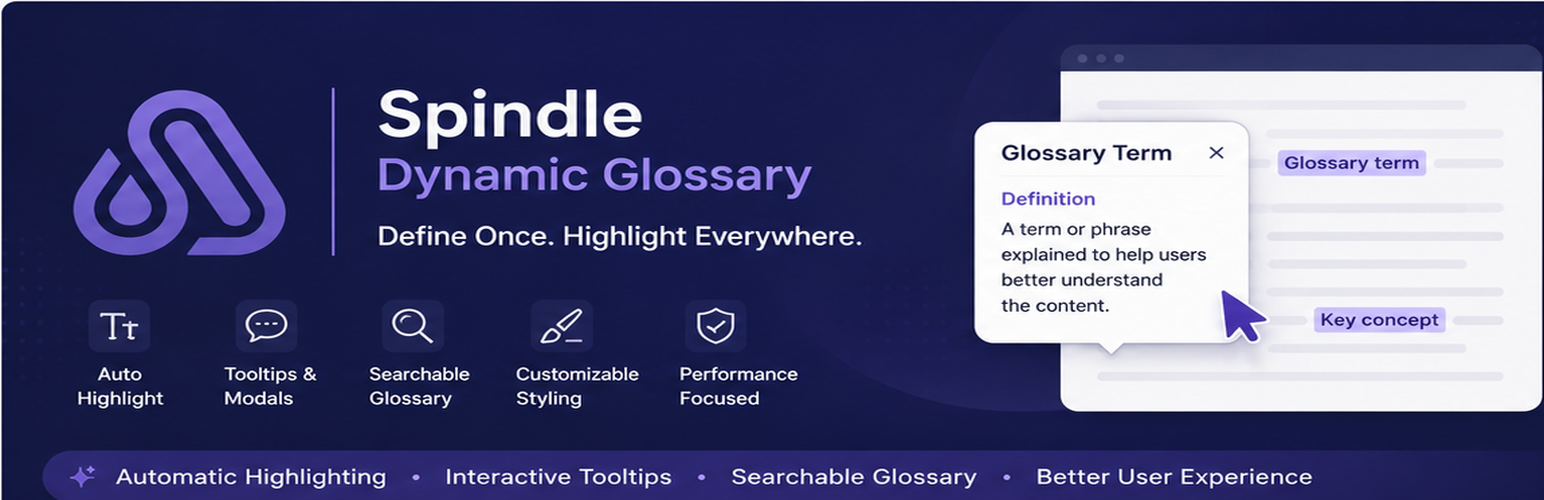
Spindle Dynamic Glossary helps you build glossaries, dictionaries and terminology tooltips on your WordPress site.
Define a term once and it is highlighted automatically wherever it appears in your posts and pages. Visitors hover or tap to read the definition in a tooltip or pop-up, and a searchable A-Z glossary can be added to any page with a shortcode.
Features
- Automatic highlighting in the post types you choose, every mention or just the first.
- Safe matching that never touches links, headings, buttons, scripts, code samples, shortcodes or HTML entities.
- Accessible tooltips and pop-up: keyboard and screen-reader friendly, dismissible with Escape, and kept on screen automatically.
- Searchable A-Z glossary with live search and a letter menu.
- Dashboard with a setup checklist, statistics and status at a glance, and a settings screen with a live tooltip preview.
- Fonts: choose Poppins, Josefin Sans or the WordPress default for the plugin’s screens, and optionally use the same font for tooltips, the pop-up and the glossary on your site. Both fonts are included, so nothing is loaded from other websites.
- Per-post opt-out from the editor sidebar.
Source code and development history: github.com/adedayospindles/spindle-dynamic-glossary
Bundled resources
- Poppins, Copyright 2020 The Poppins Project Authors, licensed under the SIL Open Font License 1.1.
- Josefin Sans, Copyright 2010 The Josefin Sans Project Authors, licensed under the SIL Open Font License 1.1.
The license texts are included in assets/fonts/.
Installation
- Install the plugin from Plugins > Add New, or upload the
spindle-dynamic-glossaryfolder to/wp-content/plugins/. - Activate it from the Plugins screen.
- Open Spindle Glossary > Dashboard and follow the setup checklist: add a term, publish a glossary page and review the settings.
Screenshots


Faq
Go to Spindle Glossary > Add New Glossary Term. The title is the word to highlight and the content is its definition. Publish it and the term is highlighted in your content straight away.
Add the [spindle_glossary] shortcode to any page. The dashboard can also create a draft glossary page for you.
By default the definition opens in a pop-up. You can send visitors to the term page instead under Spindle Glossary > Settings > General.
Yes. Open the post and switch off Highlight glossary terms in this post in the editor sidebar.
Text inside links, headings, buttons, form fields, scripts and styles, and (by default) code samples, plus shortcodes and HTML entities. Highlighting runs only in the main post content, never in excerpts, feeds or the REST API.
Each term has its own page at /glossary/term-name/. There is no automatic archive at /glossary/, so a page called “Glossary” can live at that address. Developers can change this with the spindle_dynamic_glossary_post_type_args filter.
Only if you ask it to. Your terms and settings are removed only when Delete all data when the plugin is deleted is switched on under Spindle Glossary > Settings > Advanced.
Reviews
Changelog
2.3.0
- Fixed: highlighting could break scripts, code samples and HTML entities.
- Fixed: terms with symbols, accents, apostrophes or ampersands (C++, Café, Moore’s Law) were not highlighted.
- Fixed: a page at /glossary/ was hidden by the post type archive, and term pages could return 404 until permalinks were saved.
- Fixed: tooltips could be cut off at the screen edge or widen the page on phones.
- Fixed: the “Box” tooltip method did not work on touch screens.
- Accessibility: labelled controls, correct heading levels, keyboard-accessible tooltips and a proper pop-up dialog.
- Improved: faster matching, assets load only where needed, and glossary data is kept on uninstall unless you choose to delete it.
- New: Glossary dashboard, redesigned settings screen with a live tooltip preview, and a per-post switch in the editor sidebar.
- New: bundled Poppins and Josefin Sans fonts for the plugin’s screens, with an option to use them on your site.
2.2.1
- First release on WordPress.org.