Squeeze – Image Optimization & Compression, WEBP Conversion

Squeeze – Image Optimization & Compression, WEBP Conversion
Description
Squeeze is a lightweight yet powerful image optimization plugin for WordPress.
It compresses and converts your images directly in your browser, so no image ever leaves your site.
Unlike most competitors, Squeeze:
♾️ Has no image compression limits — you can squeeze as many images as you want.
☁️ Doesn’t send your images to any external servers — all processing happens locally in your browser.
⚡ Converts images to WEBP instantly and directly, replacing the original file (no duplicates, no clutter).
🖼️ Optimizes images on the fly inside Gutenberg, Elementor, and GenerateBlocks — right when you upload or insert them.
It’s privacy-safe, lightning-fast, and storage-efficient.
Squeeze official website | Plugin’s documentation
🌟 New Features since version 1.7 🌟
- Direct WEBP Conversion: Convert JPG/PNG images into WEBP instantly and replace originals — saving tons of storage.
- Pre-Upload Compression: Compress images before they even reach your server, reducing upload time and bandwidth usage.
✨ Key Features ✨
- Increase Page Speed: Reduces image sizes to improve website loading speed and overall user experience.
- WEBP Conversion and Serving: Convert images to the modern and efficient WEBP format and serve them seamlessly. The plugin adds .htaccess rules to serve WEBP images for supported browsers without changing URLs. Alternatively, enable the “Replace Image URLs” option to explicitly use WEBP versions on all pages.
- Client-Side Image Squeezing: Compress images directly in the browser without sending files to external servers
- Upload Optimization: Compresses images on-the-fly during the upload process, ensuring optimized images are added to your media library.
- Gutenberg and GenerateBlocks Support: Squeeze images directly on upload in Gutenberg or GenerateBlocks builder.
- Bulk Compression: Allows you to compress multiple images at once from your WordPress Media Library.
- Custom Directory Compression: Select a directory on your site and compress all the images within it.
- Selective Compression: Choose which images to compress based on your preferences and requirements.
- Custom Squeezing Settings: Adjust compression parameters such as quality level to suit your specific needs.
- Backup Option: Creates a backup file to restore a compressed image to the original image.
- Wide Format Support: Squeezes images in popular formats, including JPEG, PNG, AVIF, and WEBP.
⚜️ Premium Features ⚜️
- Image Comparison: Compare original and Squeezed images directly in the Media Library.
- Resize Original Image: Set maximum width and height for the original image.
- Bulk Squeeze from a Page: Compress all images from a specific page.
- Elementor Integration: Squeeze images directly while editing in Elementor.
- Image Exclusion: Exclude specific images from bulk compression.
- Priority support & updates!
Don’t settle for limitations—upgrade now and supercharge your experience!
Explore the Premium version here.
How does the Squeeze plugin work?
Squeeze plugin compresses images directly from your WordPress Media Library or during the image upload process. All the work is handled directly inside your browser using advanced compression algorithms. That means there’s no third party service for compression images. Thus, you can be sure with the privacy of your images, ensuring data privacy and faster processing.
Installation
- Download the plugin ZIP file from the WordPress Plugin Directory, or install the plugin via the WordPress plugin installer.
- Extract the ZIP file (if downloaded from WordPress Plugin Directory).
- Upload the plugin directory to the wp-content/plugins/ directory of your WordPress installation.
- Activate the Squeeze plugin from the WordPress plugins dashboard.
Screenshots

Compressed image with Squeeze Plugin
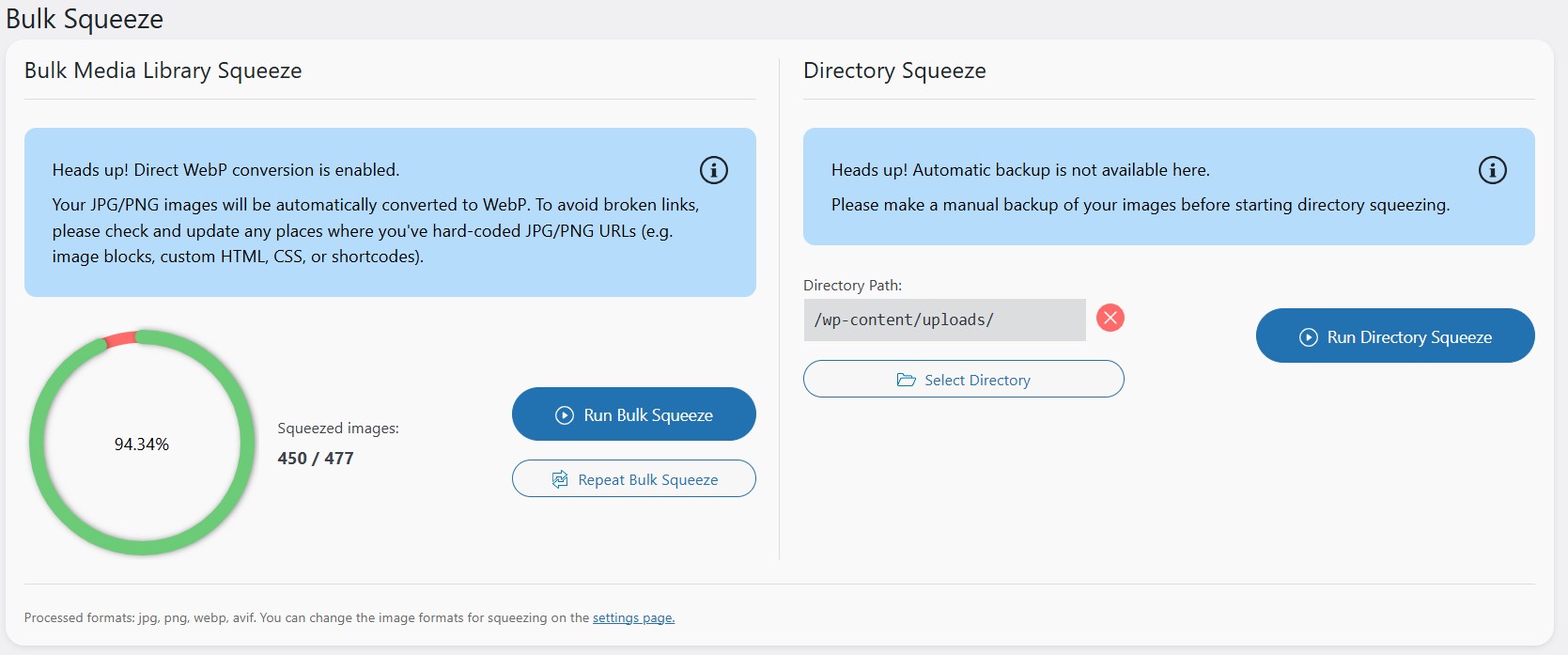
Squeeze's Bulk Compression Page

Squeeze's Restore and Recompress Options
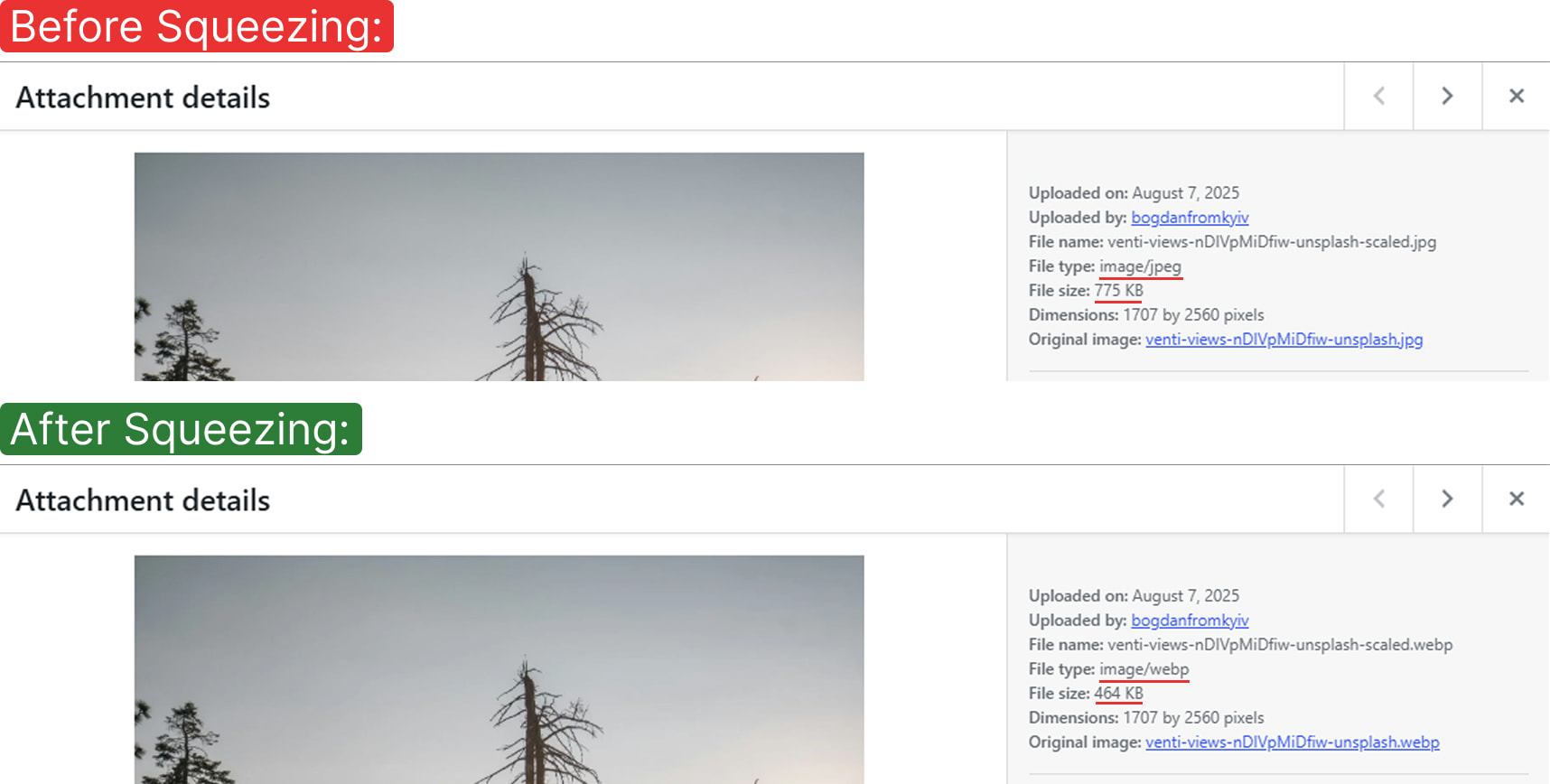
Direct conversion of an image into WEBP format. The original image is being replaced by the compressed image in WEBP format.

A method of replacing images URLs with the corresponding WEBP versions.
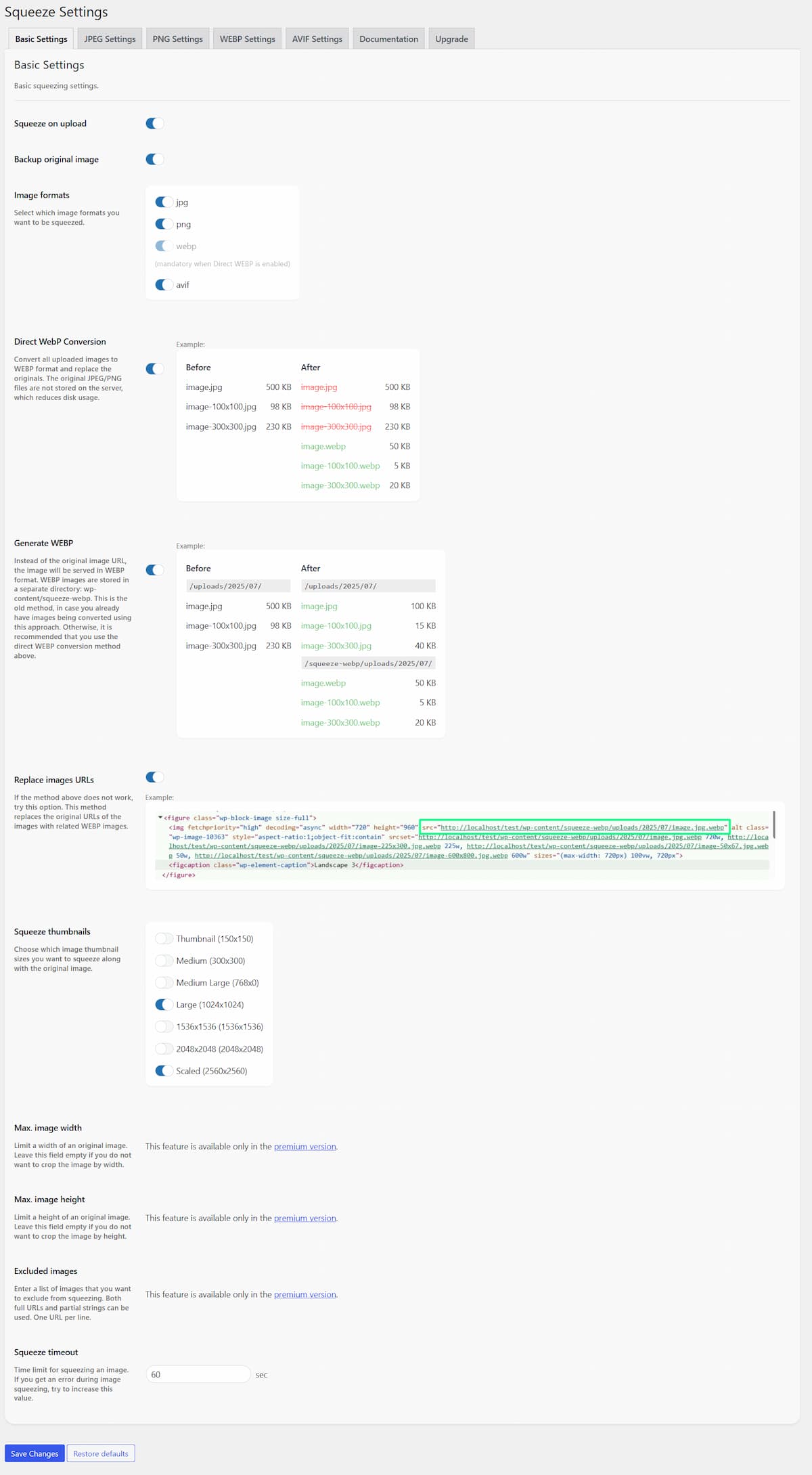
Squeeze's Basic Settings

Squeeze's JPEG compression settings
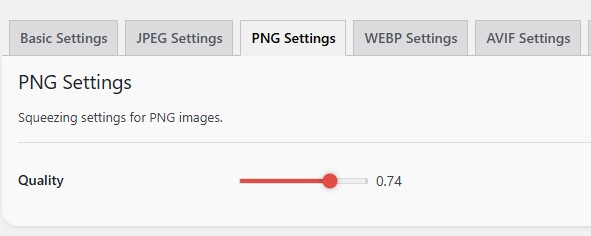
Squeeze's PNG compression settings

Squeeze's WEBP compression settings

Squeeze's AVIF compression settings

Squeeze's Bulk actions in the List view of the Media Library

Squeeze's Filter in the Grid view of the Media Library
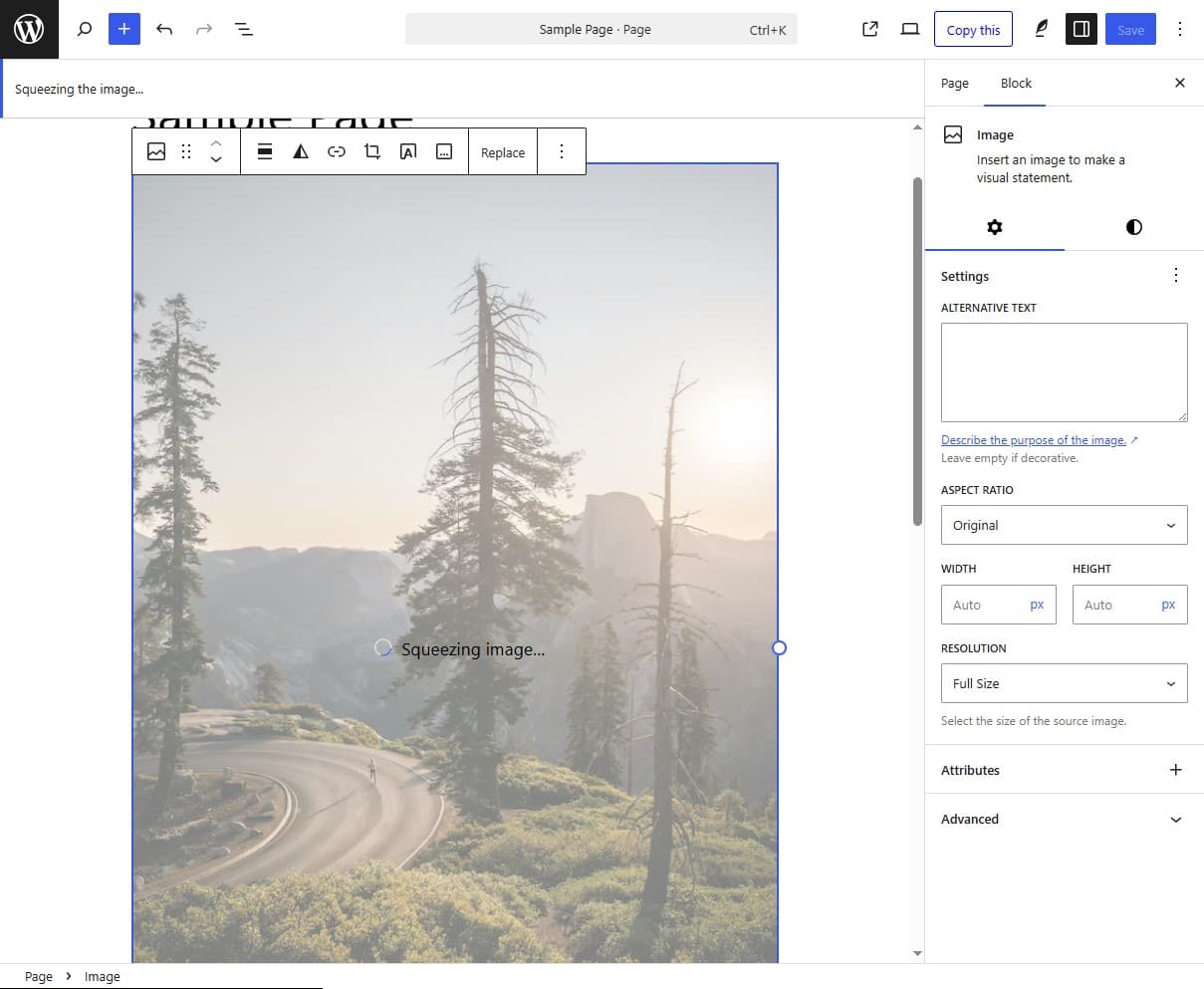
Squeeze images directly on upload in Gutenberg or GenerateBlocks builder.
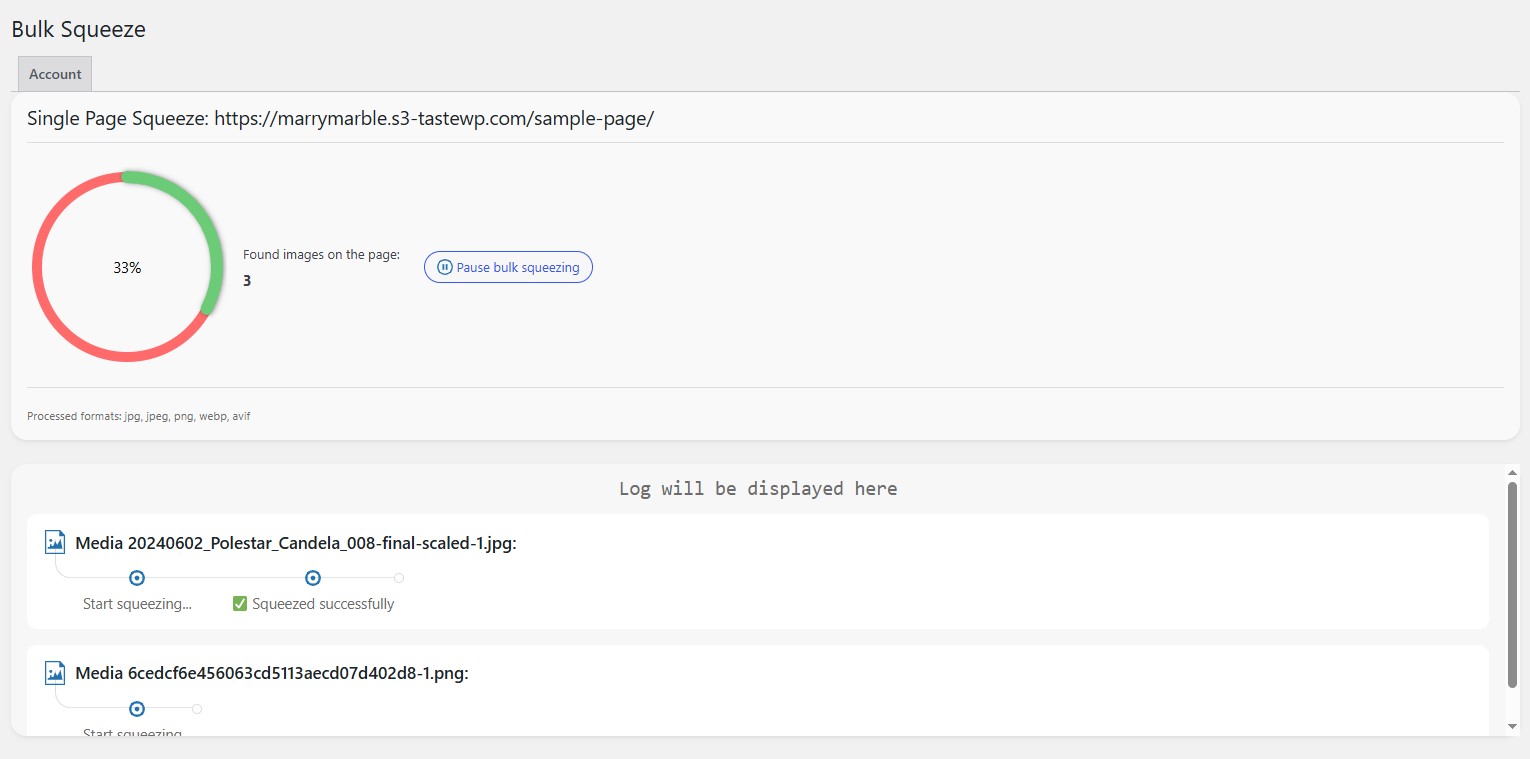
Preview image with live Squeezing options (Premium feature)
Faq
The plugin uses client-side compression algorithms and provides you with the ability to compress images in your WordPress media library or during the image upload process.
Because the compression process happens directly into your browser – it depends on your device’s performance.
The images compressed directly in your browser – means no external server used. Squeeze does all the work locally. So you should not worry about privacy.
- No compression limits.
- No cloud servers or API keys.
- Direct, local WEBP conversion for the newly uploaded images (no extra copies).
- Works instantly in Gutenberg and Elementor.
Yes! The Squeeze plugin supports converting images to the WEBP format during the compression process. WEBP is a modern image format that provides superior compression while maintaining high quality, resulting in faster loading times and reduced bandwidth usage. To enable this feature, check the “Direct WEBP Conversion” option under the Basic Settings tab to convert images in WEBP format.
Yes! It’s perfectly safe, especially for new uploads.
For existing images, the Squeeze plugin can automatically update JPG/PNG image URLs to their WebP versions when available.
Just a quick note — this replacement happens only when the page loads, so your database isn’t changed.
If you deactivate the Squeeze plugin, some images may stop showing. To fix that, simply reselect those images from the Media Library.
If you deactivate Squeeze while the Direct WebP option is enabled, some images may stop showing because their JPG/PNG versions were converted to WebP.
To fix that, simply reselect those images in your posts or pages to restore the correct URLs.
Squeeze plugin converts your JPG/PNG images into WEBP format replacing the original images.
To enable this feature, check the “Direct WEBP Conversion” option under the Basic Settings tab to convert images in WEBP format.
That means if you have an image in JPG format like image.jpg, after conversion to WEBP format it becomes image.webp.
Previously, the generated WEBP images were stored in the wp-content/squeeze-webp directory within your WordPress installation.
That method is not very optimal, because it creates extra images which reduce your server’s storage space.
However, if you already used that approach, you can keep it enabled for backwards compatibility.
That means your browser is blocking access to canvas image data (this prevents image conversion).
The privacy.resistFingerprinting setting (or similar privacy features) is enabled.
What you can do:
- Open
about:configin Firefox and setprivacy.resistFingerprintingtofalse, then restart Firefox. - Use a different browser (Chrome, Edge) or a browser profile without this setting.
The Squeeze plugin utilizes the same scripts and libraries that power the Squoosh.app, an open-source project by the Google Chrome team. These include highly efficient image processing libraries such as:
- MozJPEG: Used for compressing JPEG images.
- Browser Image Compression: Used for compressing PNG images. This does not come from the Squoosh.app, as its OxiPNG takes quite a long time to compress images.
- WEBP: Used for converting and compressing images to the modern WEBP format.
- AVIF: An advanced codec for creating lightweight and high-quality AVIF images.
Image compression helps improve your website’s performance by reducing the file size of images without significantly impacting their quality. Smaller image files load faster, resulting in faster page load times and a better user experience. Additionally, compressed images consume less bandwidth, which can be beneficial for websites with limited hosting resources or mobile users with limited data plans.
Squeeze plugin supports JPG, PNG, WEBP and AVIF image formats.
Yes, the plugin provides a bulk compression feature. This saves time and effort compared to compressing images individually.
Yes, you can compress images from any directory within your WordPress installation.
Yes, the plugin allows you to customize various compression settings according to your preferences. The Settings page is located at Settings -> Squeeze.
It may happen if you are trying to compress a PNG image with a high resolution. In that case, you should wait a while, until the image finishes its compression or a “Request timed out.” error message occurs.
Go to the plugin’s setting page (Settings -> Squeeze).
At the “Basic Settings” tab increase the value of the field “Squeeze timeout”. By default it equals 60 seconds, try to make it bigger. If the error still persists, that means the script cannot process your image.
The full documentation is available here: https://pluginarium.com/squeeze/squeeze-documentation/
Reviews
Finally, the Perfect Image Compression Plugin!
By 
I’ve been searching for a truly reliable image compression plugin for a long time, and I finally found it in Squeeze. What I love most is that it doesn’t consume any server resources—the compression happens right in the user’s browser. On top of that, it uses well-established open-source encoder technology, which makes the whole process both efficient and trustworthy. This plugin has completely solved an issue that has bothered me for years. Huge thanks to Bogdan Bendziukov for creating such a high-quality plugin!
Exceptional Image Compression Plugin for WordPress
By 
I have been searching for a great image compression plugin for WordPress for over a year and I finally found it. When someone is looking for an image compression plugin, they most likely want smallest file size with best quality. That is why I think Squeeze is the best image compression plugin for WordPress at the moment. I tried so many different tools and services to see what would yield the best results for me and Squeeze came out on top.
I had very simple feature requirements:
- Resize ( Premium feature in Squeeze. )
- Convert to
.webp - Compress
Although the resize feature requires purchasing the premium version, it is a no brainer for the price it is being sold.
Highlights
- The plugin comes with sensible defaults and anyone can change them with simple inputs.
- The compression algorithms have fantastic quality.
- You do not have to connect your website to a third-party service and pay per compression. That is all free and happens in your browser.
- You can backup original images.
In conclusion, I rarely write raving reviews and have done so only a couple of times in the past for WordPress plugins, but Squeeze definitely deserves the recognition. (:
It will be one of the most popular image compression plugins
By 
It will be one of the most popular image compression plugins for wordpress in no time. With each update, it works better.
Lifesaver!
By 
I've been waiting for a plugin that can leverage Squoosh compression for years! I'm impressed!
If I had one feature request it would be auto resizing to a specific set of dimensions like in Squoosh 🙂
Works great
By 
Great plugin! I'd love webp support if possible.
Changelog
1.7.4
- Replacing existing JPG/PNG images to WebP related from Direct WebP conversion
- Minor code refactor and bug fixing
1.7.3
- Added compatibility with Filebird plugin
- Refactored some JS functions
1.7.2
- Added compatibility with Elementor (Premium version only)
1.7.1
- Fixed Editor’s interception request bug
- Add notification if Canvas extraction is blocked
1.7.0
- Added direct WEBP conversion option
- Compress newly uploaded images immediately, before they being uploaded to the server
- Skip uploading the compressed image, if it becomes larger than original after compression
- Fixed account tab on the Settings page
- Added explanation screenshots for some options on the Settings page
1.6.7
- Added auto-squeezing for the images uploaded via Image block
- Adjusted UI for the bulk squeezing
- Added documentation tab on the Settings page
1.6.6
- Changed hook for enqueuing assets
1.6.5
- Added bulk Squeeze in the Grid mode
- Fixed filesize after Squeezing (on page reload)
- Fixed load_text_domain bug
1.6.4
- Changed PNG compression script
1.6.3
- Removed Freemius from the free version
1.6.2
- Pro version available
1.6.1
- Fixed vulnerabilities and bugs
1.6
- Refactored PHP and JS code
1.5.2
- Fixed WEBP conversion
- Added option to select image formats
1.5.1
- Fixed webworker bug
1.5
- Added WEBP serving
- Minor UI updates
1.4.9
- Added UI popup for bulk directory squeeze
- Added filters to the Media Library to select non-squeezed images
1.4.8
- Added webworker
- Fixed pause/resume on bulk Squeeze
- Minor UI/UX updates
1.4.7
- Updated plugin’s UI and description
1.4.6
- Bulk compress option for the list view of the Media Library
- Pause/Resume option for the bulk compress process
- Fixed bugs with the list mode
- Fixed bug when bulk process stuck if image processing failed
- Added timeout for image compression process
- Added scaled image size for compression
- Refactored JS code
1.4.5
- Add bulk restore option to the list view of Media Library
- Compress selected thumbnails separately
1.4.4
- Delete .bak file on media delete
1.4.3
- Fixed minor JS bug
1.4.2
- Fixed security issue: check permissions for file upload
1.4.1
- Fixed security issue: Arbitrary File Upload
1.4
- Add AVIF support
1.3
- Add WEBP support
- Update settings page layout with tabs
- Add ability to re-compress images
- Add ability to compress images from custom directory
1.2
- Fix minor bug in Media library
1.1
- Fix PNG compressor
1.0
- First release.