Stockline – Custom Stock Messages for WooCommerce

Stockline – Custom Stock Messages for WooCommerce
Description
WooCommerce tells shoppers “Out of stock” and leaves it there. Stockline lets you say something useful instead: “Only 2 left, order soon”, “Made to order, ships in 2–3 weeks”, “Sold out, ask us about restocking”.
Your own message for every stock state
- In stock: e.g. “In stock, ships today”. Also shown for products that don’t track stock, where WooCommerce shows nothing.
- Low stock: e.g. “Only {qty} left, order soon”, using WooCommerce’s own low stock threshold (store-wide or per product).
- On backorder: e.g. “Ships in 2–3 weeks”.
- Out of stock: e.g. “Sold out, back soon”.
Leave any message empty to keep WooCommerce’s text, with your icon and colour. Other plugins can add states of their own, such as a “Pre-order” state, and they get a message, icon and colour on the same screen.
Looks right in your theme
- Icons (check mark, warning, clock, cross, delivery truck, dot) and a colour per state.
- Plain text or a soft coloured badge.
- A live preview of each state on the settings screen as you type, before you save.
- Keeps WooCommerce’s own CSS classes, so your theme’s styling still applies.
Works everywhere WooCommerce shows stock
Classic themes, block themes (the Add to Cart form block) and variable products, where the message updates as shoppers pick options. Stockline hooks the final stock HTML that WooCommerce itself builds, so there are no template overrides to go stale after WooCommerce updates.
Placeholders and light HTML
Use {qty} for the units left and {product} for the product name. Bold text and links are allowed, e.g. Sold out, <a href="/contact">ask us about restocking</a>.
For developers
stockline_stock_htmlfilters the final markup ($html,$product,$state).stockline_states,stockline_stateandstockline_placeholderslet other plugins add a state with its own message, icon and colour, and placeholders for it. Preorderline uses them for a “Pre-order” state with{date}.stockline_product_settingslets a plugin give a product or variation its own message, icon or colour, andstockline_page_colorsadds the colours it uses to the page’s stylesheet.stockline_enqueue_stylesloads the small stylesheet beyond product pages, e.g. for a Single Product block on a landing page.stockline_loadedfires once Stockline has loaded, for add-ons.
Stockline Pro
Stockline’s messages are store-wide. If some products need their own (“Back mid-November”, or “Size S is back in December” for one variation), the separate Stockline Pro add-on adds a message, icon and colour per product and per variation, a preview dialog on the product screen, and columns for them in the Gridline bulk editor. Everything described above works without it. See extendiment.com/plugins/stockline. Stockline Pro is sold under our Terms and Privacy Policy.
Installation
- Install and activate Stockline from Plugins Add New Plugin, or upload the zip there. WooCommerce must be active.
- Go to WooCommerce Settings Products Stock messages.
- Pick a style (plain text or badge), then set a message, icon and colour for each stock state. The preview under each state shows the result as you type.
- Save, and open a product page to see the new stock line.
Screenshots
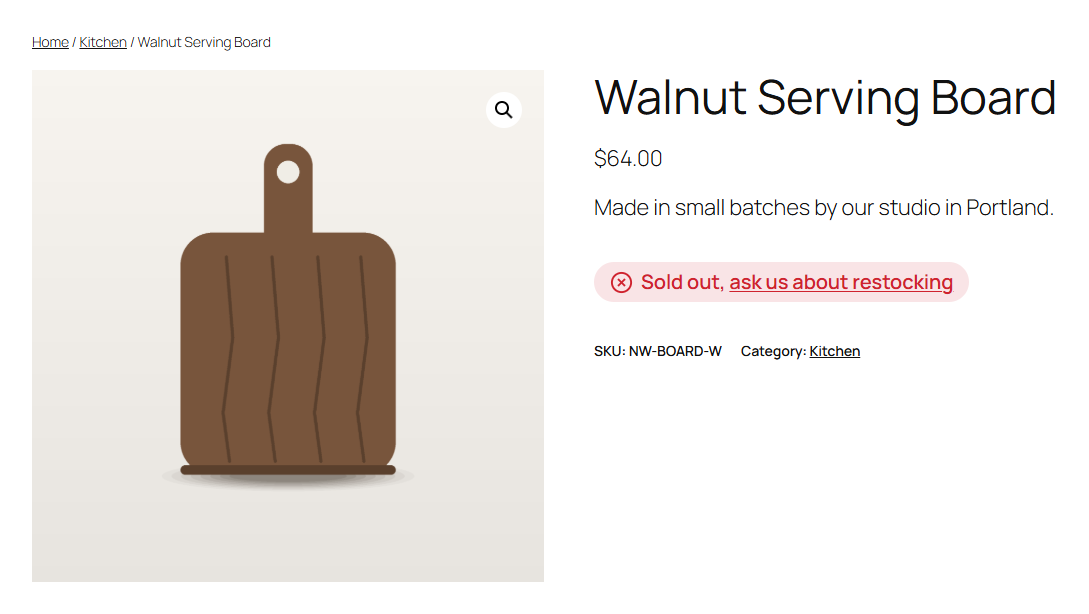
Out of stock: your own store-wide message, here with a link, in the badge style with the default icon and colour.
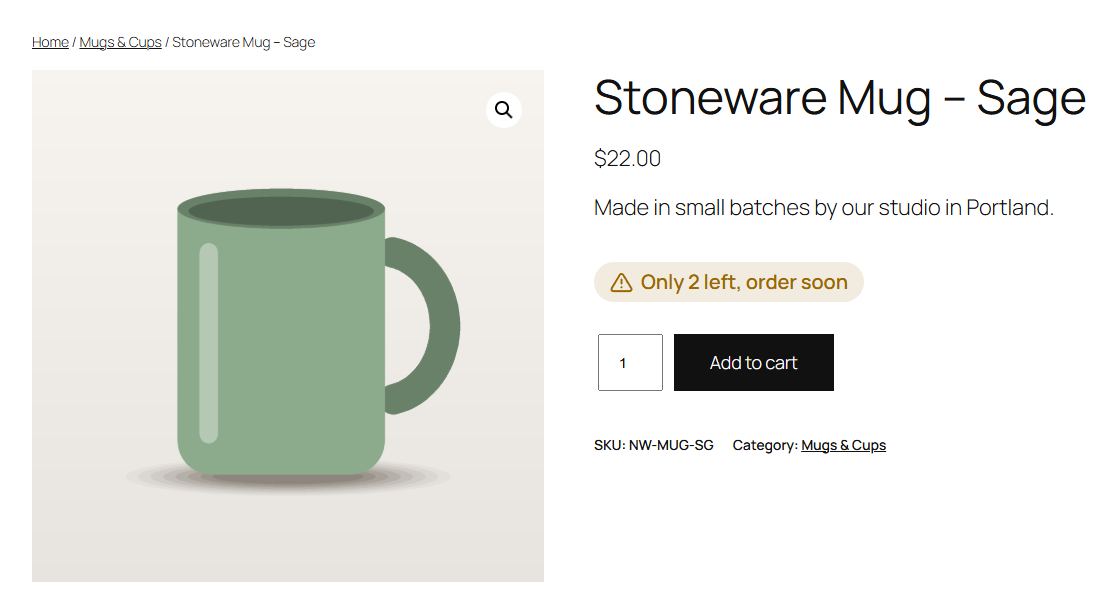
Low stock: your own wording with the quantity left, from the store’s low stock threshold.
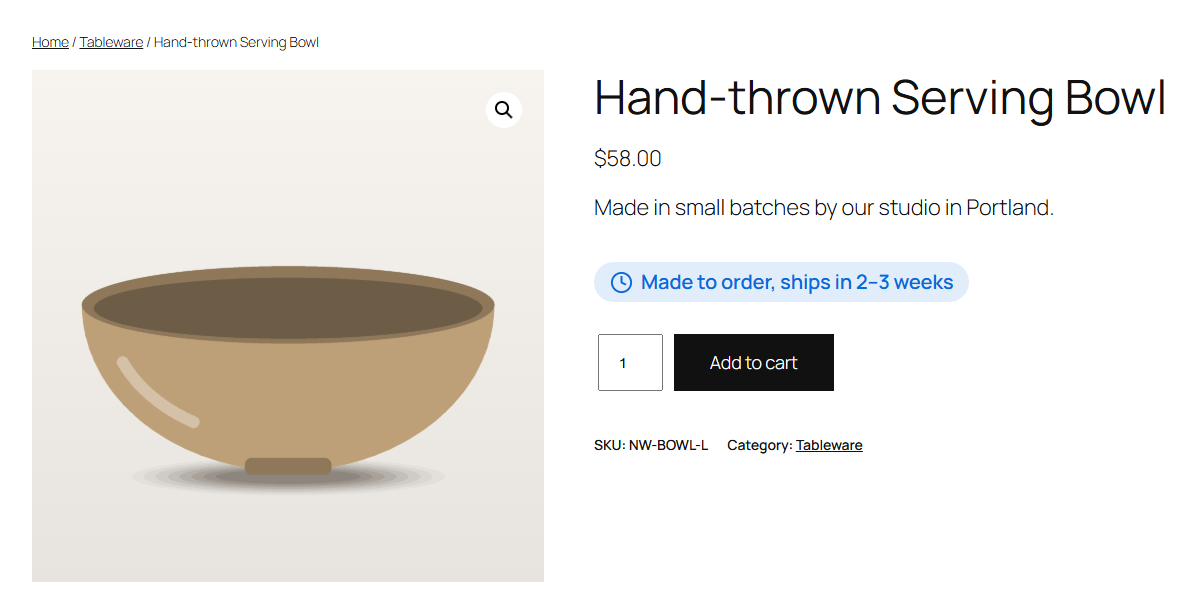
On backorder: tell shoppers when it ships instead of “Available on backorder”.
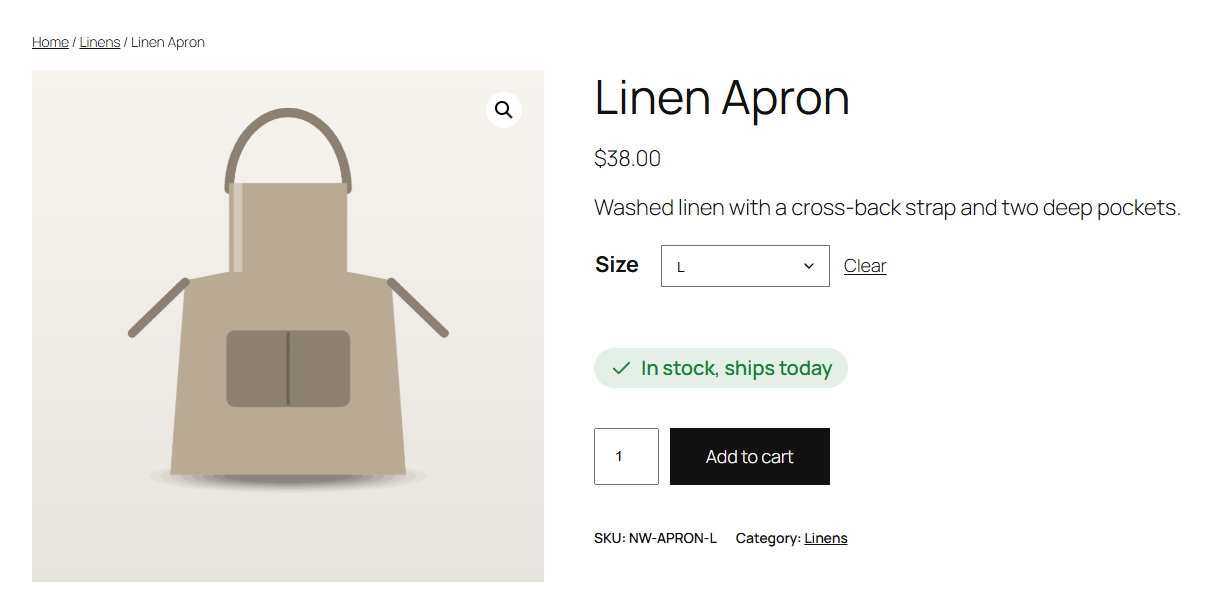
Variations get their own stock line as shoppers pick options.
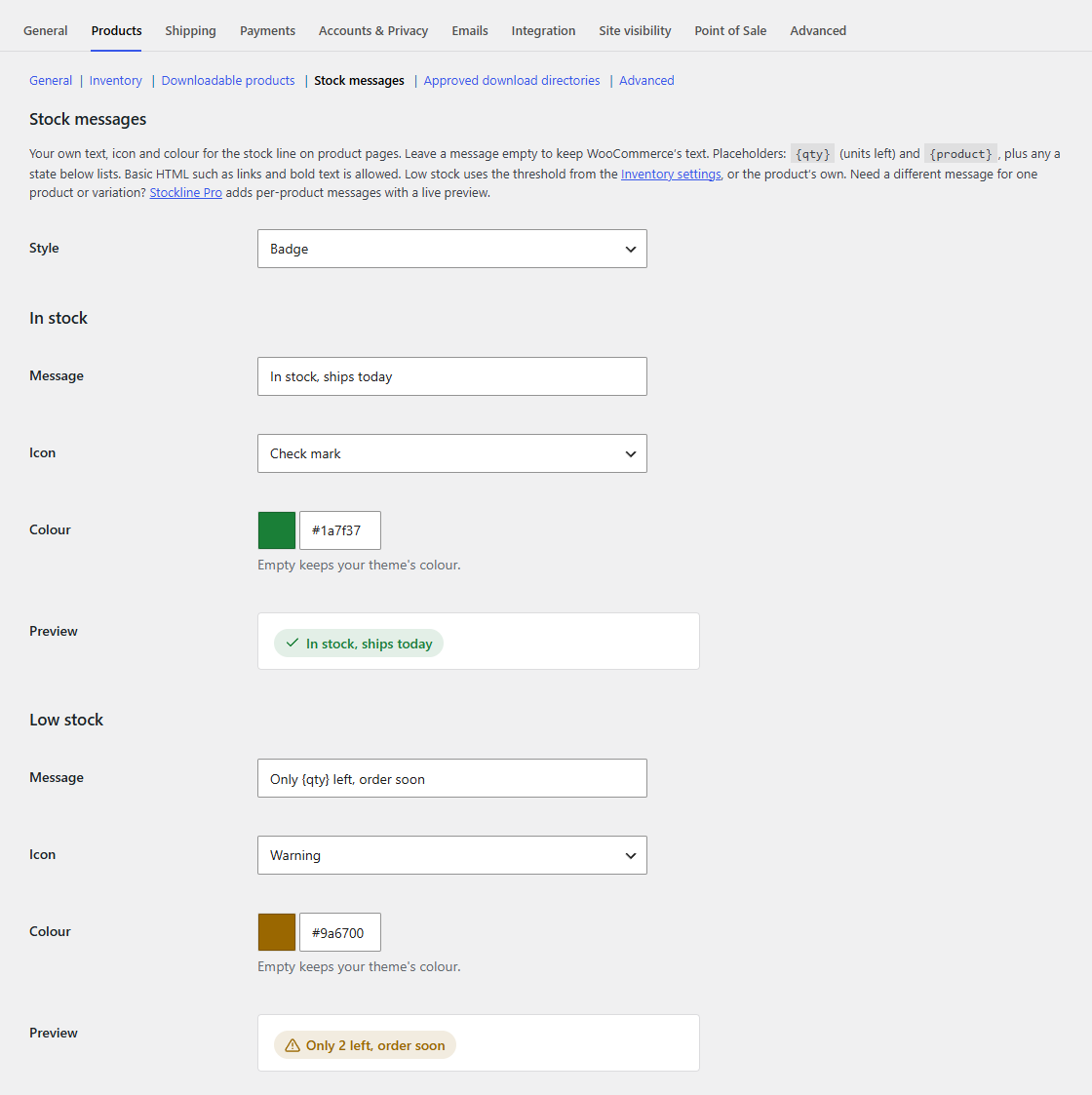
Settings: message, icon and colour for each stock state, with a live preview as you type.
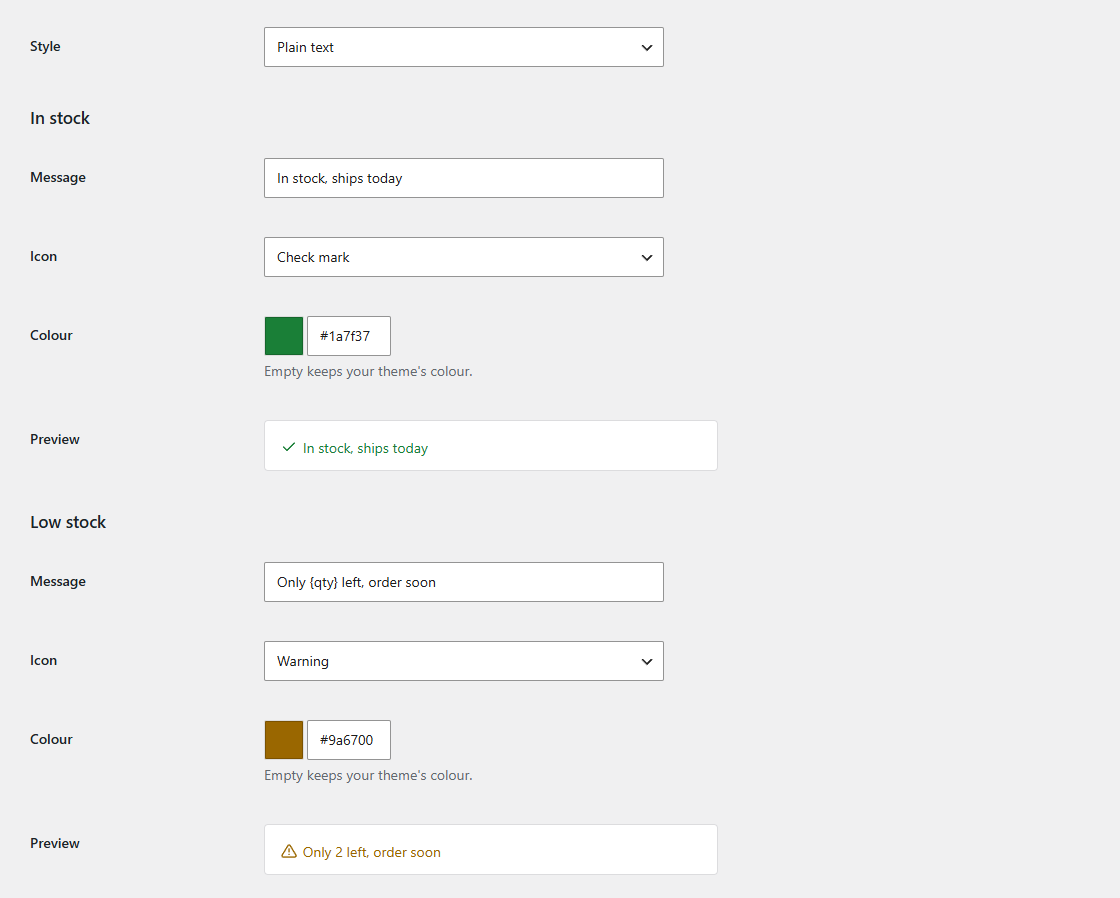
Pick the plain text style and the previews follow before you save: the same messages and icons in the state’s colour, without the badge.
Faq
No. Stockline only changes the message shoppers see. Stock levels, backorders and the low stock threshold are still WooCommerce’s settings.
From WooCommerce: the product’s own low stock threshold, or the store-wide one under WooCommerce Settings Products Inventory.
WooCommerce shows nothing for in-stock products that don’t track stock. Set an In stock message in Stockline to show one there too.
Stockline’s messages, icons and colours apply to the whole store. Variations show the store’s message for their stock state, with their own quantity in {qty}.
Yes. The product page in block themes renders stock through the same WooCommerce function Stockline hooks into.
Yes. The line has the classes stockline, stockline--{state} (in-stock, low-stock, backorder, out-of-stock) and stockline--plain or stockline--badge, plus WooCommerce’s own stock classes. The colour is a CSS variable, --stockline-color, set by a stockline--color-{hex} class (e.g. stockline--color-cf222e).
Usually a page cache: clear your caching plugin’s or host’s cache and reload the product page. If it still shows WooCommerce’s text, check that the message for that state isn’t empty (empty keeps WooCommerce’s wording) and that your theme shows the stock line at all.
When you click Deactivate on the Plugins screen, Stockline asks what should happen to its data if you then delete the plugin. Keep it (the default) and your stock messages, icons and colours are still there if you install Stockline again. Choose Delete it permanently when the plugin is deleted to have them removed when you delete it. Deactivating alone never removes anything, and your products and their stock levels are never deleted.
Yes, on translate.wordpress.org. The template is also included as languages/stockline.pot for tools such as Poedit or Loco Translate.
Reviews
Changelog
1.0.3
- Changed: a stock state added by another plugin (such as Pre-order) now lists its extra placeholders on the settings screen, and says that its message replaces the text each product shows for that state.
1.0.2
- Fix: on a multisite network, deleting the plugin now removes a site’s data only if that site chose to; deactivating it on one site no longer decides for the others.
1.0.1
- Changed: Tested with WooCommerce 11.2.
1.0.0
- First release.