Storzen Product Preview for WooCommerce
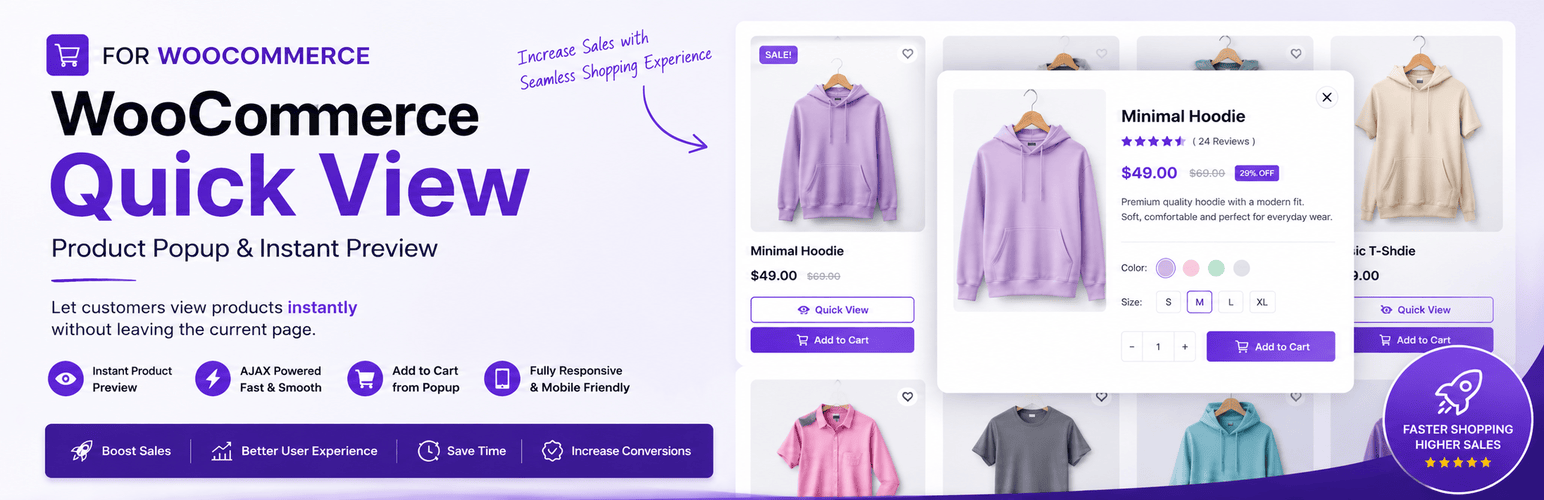
Storzen Product Preview for WooCommerce
Description
Quick View for WooCommerce – Popup & AJAX Product Preview is the fastest, most complete free WooCommerce quick view plugin available. Let customers preview product images, prices, variations, and add items to cart — all inside a smooth AJAX popup — without ever leaving the shop page.
Stop losing customers to slow product navigation. WooCommerce Quick View lets shoppers instantly preview products, explore variations, choose options, and add items to their cart — all without leaving the current page or waiting for a full page reload.
Give your customers a faster, smoother shopping experience and make it easier to browse more products, compare options, and complete purchases.
Works with any WooCommerce theme. Supports simple products, variable products, Gutenberg, Elementor, Divi, and classic themes — out of the box.
Why Use Storzen WooCommerce Quick View?
WooCommerce stores lose up to 40% of potential buyers to slow page-by-page navigation. Storzen Quick View fixes this with:
- Instant AJAX product preview popup — no page reload, zero friction
- WooCommerce variable product support — size, colour, and custom attributes inside the popup
- Product image gallery — thumbnail strip with click-to-swap
- Sidebar drawer mode — slide-in panel for a modern sidebar shopping experience
- Full-screen mobile popup — fixes the broken mobile display every competitor has 3-star reviews for
- Next/Previous navigation — browse products without closing the popup
- Shortcode support — works with Elementor, Gutenberg, Divi, and any page builder
- Checkout redirect — send shoppers straight to checkout after add to cart
- Lightweight — CSS and JS load only on shop and category pages
Key Features
Instant Product Preview Popup
Opens as a centered modal or a side drawer — displaying product image gallery, title, category, price, stock badge, star rating with review count, short description, quantity selector (with variation support), Next/Previous navigation arrows, and Add to Cart button — all without a page reload. Full-screen on mobile.
Quick View Button on Shop & Category Pages
Automatically adds a customizable “Quick View” button to every product card on your shop, category, and archive pages.
Works with Any WooCommerce Theme
Built to be fully compatible with all standard WooCommerce themes right out of the box — no extra configuration needed.
Full Design Control — No CSS Required
Use the built-in settings panel to customize:
- Button background color & text color
- Button border radius
- Modal popup width
- Button label text & position (on image / below title / below price)
Quantity Selector in Popup
Customers can choose how many units to buy directly in the popup using +/− buttons before adding to cart — no need to visit the product page just to change quantity.
Star Rating with Review Count
The product’s average star rating and total review count are displayed inside the popup. Social proof at the decision moment is proven to boost conversions.
Product Category Badge
The product category is shown as a linked badge above the title. Helps shoppers understand where a product fits without navigating away.
Product Image Gallery in Popup
A thumbnail strip below the main image lets shoppers browse all product photos without leaving the popup. Click any thumbnail to swap the main image instantly — no extra AJAX request, no page reload.
Stock Availability Badge
A colour-coded badge below the price shows “In Stock” (green) or “Only N left!” (amber) at a glance. Urgency cues at the decision moment are proven to lift conversion rates. The low-stock threshold is filterable via storzen_qv_low_stock_threshold.
Sidebar Drawer Mode
Switch the Quick View popup from a centered modal to a side drawer that slides in from the right. Offers the “open sidebar mode” experience that real users specifically mention as a reason to choose premium plugins — now free. Toggle between Modal and Drawer in the General settings.
Full-Screen on Mobile
On screens under 480px the popup automatically expands to fill the entire viewport with a sticky close button. Fixes the broken mobile display that competitors have 3-star reviews for. Works in both Modal and Drawer modes.
Next / Previous Product Navigation
Arrow buttons inside the popup let shoppers browse to the next or previous product in the same category — without closing the modal or reloading the page. Keeps shoppers in the discovery flow and reduces bounce. Pro upgrade unlocks custom navigation order (price, popularity, newest) and keyboard arrow key support.
Checkout Redirect After Add to Cart
A simple toggle sends shoppers directly to the checkout page after adding a product to cart from the popup — no extra steps, no friction. Ideal for single-product stores and ad campaign landing pages. Pro upgrade adds a configurable delay and custom redirect URL.
Variable Product Support
Variation dropdowns (size, colour, and any custom attribute) render inside the Quick View popup for variable products. WooCommerce updates the price, stock, and Add to Cart button live as the shopper makes selections — no page visit required.
Shortcode Support
Place a Quick View button anywhere with [storzen_quick_view id="123"]. Works in Gutenberg blocks, Elementor, Divi, classic editor, and any widget area. Ideal for featured product sections and custom landing pages.
Hover or Click Trigger
Choose whether the Quick View popup opens on button click (default) or automatically after the cursor rests on the button for a moment. Hover mode is ideal for discovery-focused stores where shoppers browse quickly. Fully accessible — click always works as a fallback.
Popup Open Animation Presets
Pick from four popup entry animations — Slide up, Fade, Zoom in, or None — directly from the Design settings panel. Pure CSS, zero extra libraries. Works alongside all themes without conflict.
Choose Where the Button Appears
Control which pages show the Quick View button — shop page, category pages, or both.
Disable on Mobile
A one-click toggle hides the Quick View button on mobile devices — ideal for stores with mobile-optimised checkout flows.
Mobile Responsive
The popup is fully responsive and optimized for phones, tablets, and desktops.
Lightweight & Performance-Friendly
CSS and JavaScript load only on pages where the Quick View button is displayed — zero bloat on the rest of your site.
Keyboard Accessible & Screen Reader Friendly
Focus trap, Escape key support, and ARIA labels are included for full accessibility compliance.
Perfect For
- Fashion & clothing stores — show size/colour variations inside the popup
- Electronics & gadget shops — display detailed specs and gallery images without page loads
- Large WooCommerce catalogs — let customers browse 10x faster with quick view
- Stores running ad campaigns — use checkout redirect for a frictionless “buy now” flow
- Page builder users — Elementor, Gutenberg, and Divi quick view button via shortcode
- Any store focused on CRO — social proof (ratings, reviews, stock badge) at the decision moment
How It Works
- User hovers or clicks on a product
- Quick view button opens a popup modal
- Product details load instantly via AJAX
- User can view images, price, and description
- Add to cart without leaving the shop page
That’s it. Shortcode also available: [storzen_quick_view id="123"] for Elementor, Gutenberg, and any page builder.
Installation
- Upload the plugin folder to the
/wp-content/plugins/directory, or install directly from the WordPress Plugin Directory. - Activate the plugin through the Plugins screen in WordPress.
- Ensure WooCommerce is installed and active.
- Go to Storzen Quick View to configure button text, position, display options, and design tokens.
- Visit your shop page — the Quick View button will appear automatically on product cards.
Screenshots

Quick View button on product cards in the shop loop

Product popup — image gallery, rating, price, stock badge, and Add to Cart

Variable product popup with size and colour variation dropdowns

Sidebar drawer mode — slide-in panel from the right edge of the screen

Admin settings — General panel with trigger mode and popup mode options

Admin settings — Design panel with animation presets and colour controls
Faq
Yes. WooCommerce must be installed and active for Storzen Quick View to work.
Yes. Since v1.1.5, variation dropdowns (size, colour, and any custom attribute) render directly inside the Quick View popup. WooCommerce updates the price, stock status, and Add to Cart button live as the shopper selects options — no page visit required.
No. Storzen Quick View only loads its CSS and JavaScript on shop, category, and product pages where the button is shown.
Yes. The popup is fully responsive and optimized for all screen sizes.
It works with most well-coded WooCommerce themes. If you experience a styling conflict, please open a support ticket and we will help you resolve it.
Yes. Go to Storzen QuickView in your WordPress admin. You can change the button text, set the button position (on image, below title, or below price), and choose which pages to show it on.
Yes — use the Design tab in the settings page. Colour pickers let you choose button background and text colours; number inputs control the border radius and modal width. All customisation is done through structured controls — no CSS editing required.
Yes. The modal traps focus, supports Escape key to close, and includes ARIA labels for screen reader compatibility.
Yes. Use the [storzen_quick_view id="123"] shortcode inside any Elementor text or shortcode widget to place a Quick View button anywhere on your page.
Yes. Add the Quick View button anywhere using the Shortcode block with [storzen_quick_view id="123"]. The plugin also includes WooCommerce Blocks compatibility for product grid blocks.
Yes. Go to General settings and switch Popup display mode from “Modal (centered)” to “Drawer (slide from right)”. The popup will slide in from the right edge of the screen instead of appearing as a centered overlay.
Yes. On screens 480px and under, the popup automatically expands to full-screen with a sticky close button. You can also disable the Quick View button entirely on mobile using the “Disable on mobile” toggle.
Yes. Enable Next/Previous navigation arrows in General settings. Shoppers can browse same-category products without closing the popup.
Yes. Enable “Redirect to checkout after add to cart” in General settings. After a successful AJAX add-to-cart, shoppers are sent directly to the checkout page — ideal for single-product stores and ad campaigns.
Four options in the Design settings panel: Slide up (default), Fade, Zoom in, and None. All animations are pure CSS — no extra JavaScript libraries needed.
Advanced features like custom navigation order, keyboard arrow key navigation, redirect delay, and custom redirect URL are available in Storzen Pro. The free version includes all core features fully functional.
Reviews
Changelog
1.1.7
- Added sidebar drawer mode — popup can now slide in from the right side of the screen instead of appearing as a centered modal; toggle between Modal and Drawer in General settings.
- Added full-screen mobile popup — on screens 480px and under the popup automatically fills the entire viewport with a sticky close button; fixes broken mobile display reported in competitor reviews.
- Added
popup_modesetting (modal/drawer) with allowlist validation. - Version bumped to 1.1.7.
1.1.6
- Added Next/Previous product navigation — arrow buttons inside the popup allow shoppers to browse same-category products without closing the modal; Pro advanced options (custom order, keyboard navigation) shown as locked upgrade prompts.
- Added checkout redirect toggle — when enabled, shoppers are sent directly to the checkout page after adding a product to cart from the popup; Pro advanced options (redirect delay, custom URL) shown as locked upgrade prompts.
- Added
get_neighbor_ids()helper in AJAX class — finds prev/next product IDs by category using WP_Query. - Added Pro lock UI to admin settings panel — locked rows with upgrade link for advanced Next/Prev and redirect options.
- Version bumped to 1.1.6.
1.1.5
- Added variable product support — variation attribute dropdowns render inside the Quick View popup; WooCommerce JS updates price, stock, and Add to Cart button live on selection.
- Added shortcode support —
[storzen_quick_view id="123"]renders a Quick View button anywhere (Gutenberg, Elementor, Divi, widgets, templates). - Assets now also enqueue on pages containing the shortcode.
- Version bumped to 1.1.5.
1.1.4
- Added hover trigger mode — popup can now open automatically after the cursor rests on the Quick View button, configurable via General settings.
- Added popup open animation presets — four options (Slide up, Fade, Zoom in, None) selectable from the Design settings panel; implemented with pure CSS keyframes.
- Added
trigger_modeandmodal_animationsettings with allowlist validation. - Version bumped to 1.1.4.
1.1.3
- Added product image gallery — thumbnail strip below the main image allows shoppers to browse all product photos inside the popup with a click-to-swap interaction.
- Added stock availability badge — shows “In Stock” (green) or “Only N left!” (amber) below the price; urgency cue drives conversions.
- Added “Show product gallery” toggle in Display settings.
- Added “Show stock badge” toggle in Display settings.
- Added
storzen_qv_low_stock_thresholdfilter to customise the low-stock quantity threshold (default: 5). - Version bumped to 1.1.3.
1.1.2
- Added quantity selector (+/− buttons) in the Quick View popup for simple products — customers can choose quantity before adding to cart.
- Added star rating with review count in the popup — links to the product review section for social proof at the decision moment.
- Added product category badge above the product title — linked to the category archive to help shoppers navigate.
- Added “Show product category” toggle in Display settings.
- Updated Display settings description for the rating toggle to reflect the new review count.
- Version bumped to 1.1.2.
1.1.1
- Renamed plugin to “Storzen QuickView for WooCommerce” across all strings, admin menu, and UI header.
- Fixed version constant mismatch (STORZEN_QV_VERSION was ‘1.1.0’, now correctly ‘1.1.1’).
- Added
uninstall.phpfor WordPress.org compliance — removes plugin options on uninstall when opted in. - Performance optimized.
1.1.0
- Replaced arbitrary Custom CSS textarea with structured Design controls (button colour pickers, border-radius, modal width) to comply with WordPress.org plugin guidelines.
- Custom CSS is now generated programmatically from validated design tokens — no freeform code is stored or injected.
- Existing installs are automatically migrated: the
custom_cssoption is removed and new design-token defaults are written on plugin activation. - Added wp-color-picker integration in the admin for colour fields.
- Added live preview swatch in the Design panel.
1.0.0
- Initial release.
- Quick View button on shop, category, and related product loops.
- AJAX-powered modal with product image, title, price, rating, excerpt, and Add to Cart.
- Settings page: button text, position, and display page control.
- Mobile responsive modal.
- Keyboard accessible (focus trap, Escape to close, ARIA labels).
- Compatible with WooCommerce 8.x and WordPress 6.x.