Sync media with AWS S3 CloudFront
Sync media with AWS S3 CloudFront
Description
Plugin scans the media upload directory of your WordPress site and pushes media files from there to AWS S3 bucket. Thus files from wordpress upload directory (default it is wp-content/uploads) are moved to AWS S3 bucket. Besides it is possible to change your images files sources URLs to AWS ones – their src attribute in the HTML will have URLs of AWS bucket CloudFront. Finally you site performance will grow
Installation
- Log in to your WordPress dashboard, navigate to the Plugins menu, click on \”Add New\”
- Click on \”Upload Plugin\” and upload the archive \”Add-To-Cart-redirect-for-WooCommerce.zip\” then click on \”Install\”.
- Activate the plugin through the \”Plugins\” menu in WordPress.
Screenshots
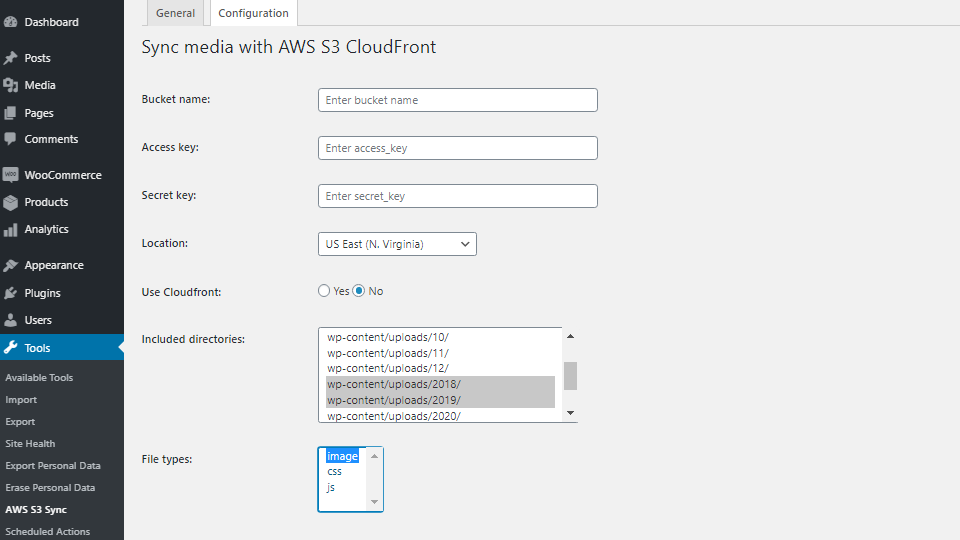
Configuration tab allows you to enter your AWS S3 "Bucket name", "Access key" "Secret key", "Location" and select the directories and file types, which you want to upload to S3.

If you want to use CloudFront service, just select "yes" for "Use Cloudfront" option and enter your CloudFront ID in the appropriate field.
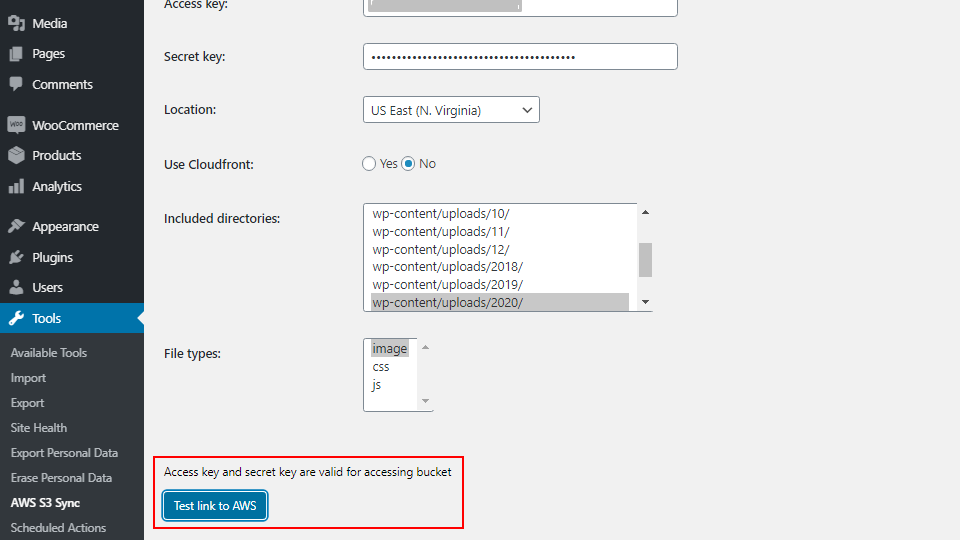
You can test your AWS S3 credentials by clicking on the "Test link to AWS" button. An appropirate message will be shown.

General tab contains the "Upload file to S3" button, which starts the process of the file upload. Besides you can see observe the process thanks to progress bar with the list of the already uploaded files.

You will see the message about your invalidation ID if you have saved a configuration "Use Cloudfront" > "yes" and have indicated your CloudFront ID.

Src attribute of your images and the other media files depends on the "Use Cloudfront" settings in plugin. In case you do not activate this option, your images sources URLs will stay without changes.

In case you have activated "Use Cloudfront" > "yes" and have indicated the CloudFront ID, then the images sources URLs will be changed to the new ones, provided by AWS.
Faq
There is a test link button to validate your data in advance
Images that are initially called by wordpress methods from the media library will change their URLs to AWS CloudFront domain. CloudFront option will not work in case you have hardcoded content URLs in your template, etc.
It can work wrong if there is already installed any other plugin which uses SDK AWS classes
Plugin uploads the next file types: gif, png, jpg, jpeg, svg, webp
Reviews
There is no documentation or usage tutorial
By 
There is no documentation or usage tutorial. Therefore, with the developer's guidance through a tutorial, it is difficult to know how to configure it correctly.
Not copy to s3
By 
Insufficient documentation.
Plugin work
By 
Plugin is tested and works fine
By 
Didnt work for me
By 
Changelog
1.0
- Stable tested version with the latest WordPress