Sidebar Shortcode

Sidebar Shortcode
Description
Features:
- Add sidebars to WP Posts and Pages with shortcodes using a sidebar Name or sidebar ID.
- Add one or more optional custom classes to match your theme styles or custom CSS styles.
How to Use:
Method 1 – (Recommended Use: Add a sidebar using a sidebar Name.)
A sidebar Name can be found in the Appearance > Widgets section of your WordPress Admin Area.
Example uses:
[sidebar name="your-sidebar-name"][sidebar name="your-sidebar-name" class="custom-class"][sidebar name="your-sidebar-name" class="custom-class-1 custom-class-2 custom-class-3"]
Method 2 – (Advanced WP Users: Add a sidebar using a sidebar ID.)
A sidebar ID can be found in your theme’s register_sidebar functions, usually in the theme’s functions.php file.
Example uses:
[sidebar id="your-sidebar-id"][sidebar id="your-sidebar-id" class="custom-class"][sidebar id="your-sidebar-id" class="custom-class-1 custom-class-2 custom-class-3"]
General Notes
- The spelling and capitalization of a shortcode Name or ID must exactly match that of the desired sidebar.
- Definition of an active sidebar: An active sidebar is a sidebar that contains widgets.
- A
[sidebar]shortcode without an active sidebar Name or active sidebar ID displays nothing. - An active sidebar ID overrides a sidebar Name if both are present in the same shortcode.
- There is no limit to the number of shortcodes that can be used on the same page or post.
- The same sidebar shortcode can be used multiple times on the same page or post.
HTML Class Notes
- Separate multiple custom classes using a space character. Examples shown in
Methodsections above. - There is no limit to the number of custom classes that can be used.
- Each custom class must only contain (letter,number,-,_) characters, otherwise all custom classes are omitted.
- The sidebar ID is always added to the HTML class attribute if it contains only (letter,number,-,_) characters.
Demo:
Installation
- Install the plugin using the
Pluginsmenu in your WordPress Admin Area or upload the plugin folder to the/wp-content/plugins/directory. - Activate the plugin through the
Pluginsmenu in your WordPress Admin Area. - Add sidebar shortcodes using the instructions in the above
How to Usesection.
Screenshots
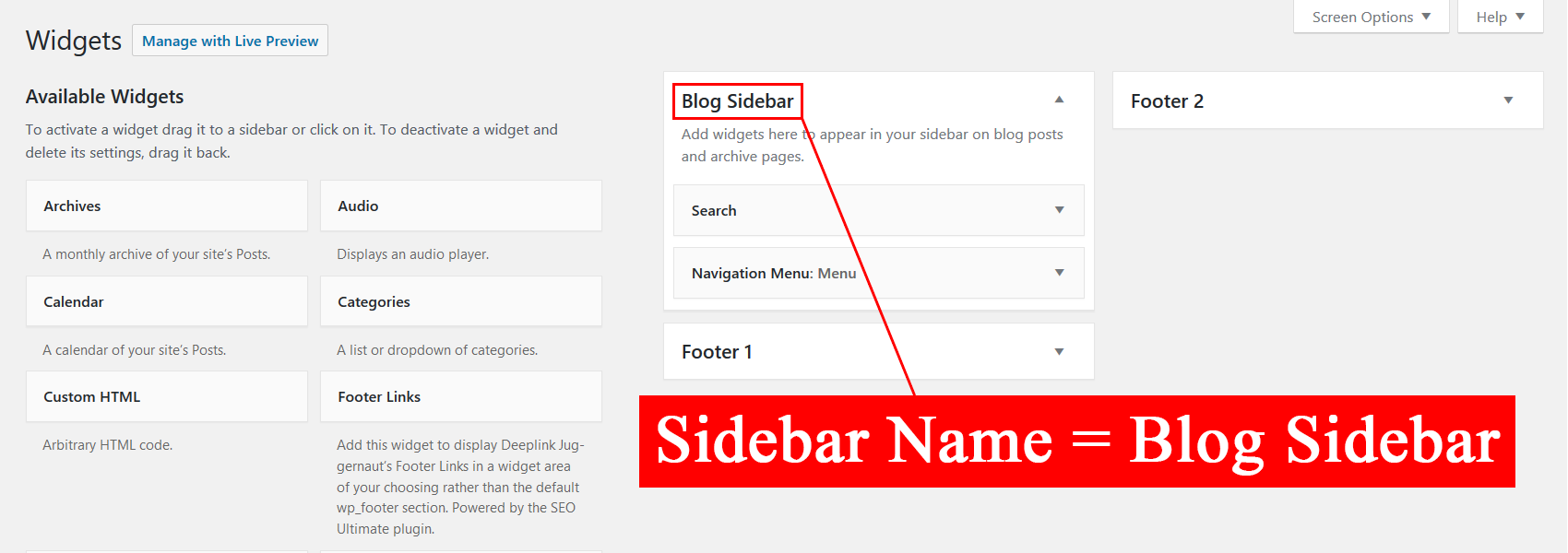
How to find a sidebar Name.

How to find a sidebar ID.

Example use of the shortcode.
Faq
Either no widgets are in the desired sidebar or the shortcode attributes are incorrect. See instructions in the above How to Use section.
Sidebar Names can be found in the Appearance > Widgets section of your WordPress Admin Area. See the Method sections and Screenshots section for details.
Advanced WP users can find sidebar IDs in the active theme’s register_sidebar functions, usually in the theme’s functions.php file.
See the Method sections and Screenshots section for details.
See also: https://codex.wordpress.org/Function_Reference/register_sidebar
There is no limit to the number of custom classes.
Yes, but a valid sidebar ID will override a sidebar Name if both are present in the same shortcode.
Reviews
Works Great!
By 
This works really great! Exactly what I needed. Could you please make this for Blog Posts too? I just want to pull my blog posts, exactly as they are created, on to a "page". Thanks for creating the sidebar shortcode!
Works wonderful
By 
[sidebar name='Sidebar']It's working!
By 
Changelog
1.0.0
- Initial release.