Tokurabo Takeout Menu for Square
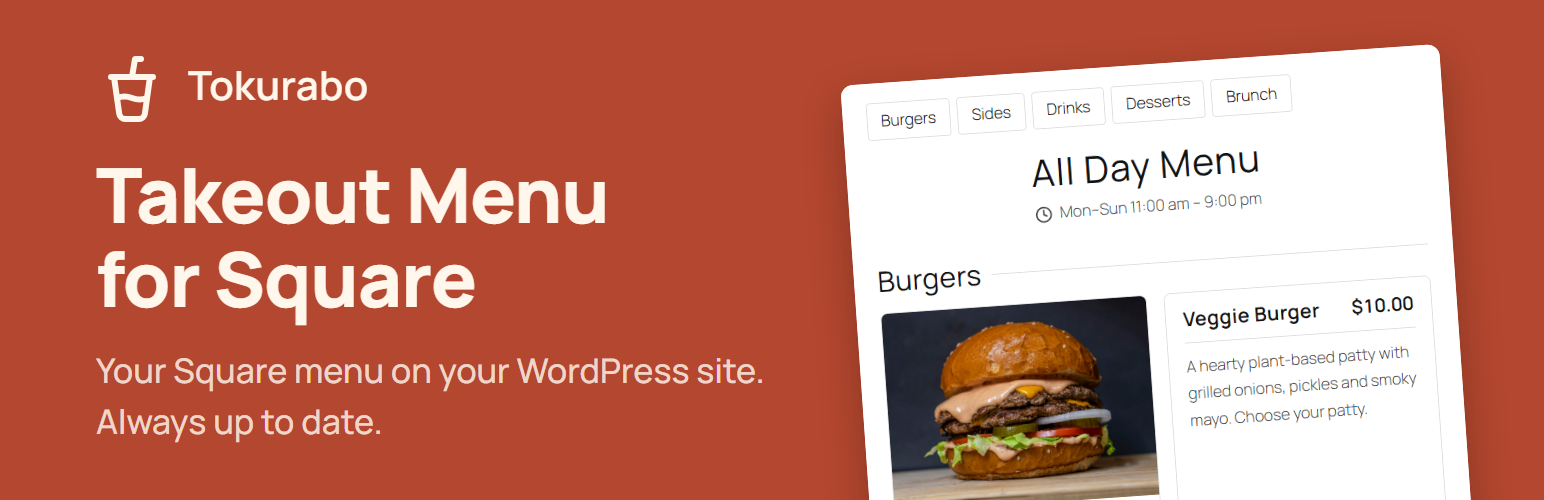
Tokurabo Takeout Menu for Square
Description
Tokurabo Takeout Menu for Square shows your Square menu on your WordPress site. Change a price, a photo or an item in Square, and your website follows.
You already keep your menu in Square. You should not have to type it again on your website.
Show your menu without taking orders online
Many Square sellers want their menu on their website, but they do not want online ordering or online payments. This plugin does just that. Your menu, prices and photos come from Square and stay up to date. Customers can see what you offer, and you keep taking orders the way you do now.
What it shows
- The menus you choose, with their menu groups and items, in the same order as in Square
- Photos, descriptions and prices
- Price variations (for example, small and large)
- Modifiers (options), with “Required” or “Optional” and how many to choose, and their photos
- Serving hours of each menu
- Prices with or without tax
- Tap an item to see all its photos, the full description and modifiers
How it works
- Paste your Square access token, choose your location and the menus to show
- The plugin copies your menu into its own tables and syncs it every hour. You can also sync it right away with a button
- Photos are saved on your own server, so your site stays fast
- Your visitors’ browsers never connect to Square
How to show the menu
- Click “Create menu page” on the settings page, or
- Add the “Takeout Menu” block to any page, or
- Use the shortcode
[tokurabo_takeout_menu]
Show one item in a blog post
Add the “Takeout Menu Item” block to any post or page and choose an item by name. Great for “New on the menu” posts. It stays up to date with Square. If you remove the item in Square, it quietly disappears from the post.
Want to keep a post as it is, for example for a past seasonal menu? Click “Convert” in the block toolbar. The item becomes regular blocks (image, heading and paragraphs) that you can edit freely. The photo is copied to your media library. After that, the post no longer follows Square.
Two layouts are included: Cards (each item in a box with a large photo) and List (rows with a small photo on the right). Colors and fonts come from your theme.
Not only for takeout
The plugin only shows your menu. Restaurants and cafes that serve dine-in only can use it to show their menu too.
For web designers
Building a site for a restaurant or cafe that uses Square? Set this plugin up once, and the owner never has to ask you to update the menu again. They change it in Square, and the website follows. Colors and fonts come from the theme, and you can turn off the plugin styles and use your own CSS.
This plugin is not made by, endorsed by or affiliated with Square or Block, Inc. Square is a trademark of Block, Inc.
External services
This plugin connects to the Square API to read your store information, locations, menus, items, taxes and the photos of items and modifiers. It only reads data. It never changes anything in your Square account.
- When: when you open the settings page, when you click “Sync now”, and once an hour (WP-Cron).
- What is sent: your Square access token, the IDs of the location and menus you chose, and the IDs of items that track inventory (to read their stock counts).
- Where: https://connect.squareup.com (or https://connect.squareupsandbox.com when you choose Sandbox). Photos are downloaded from the image URLs that Square provides.
Square is provided by Block, Inc. This plugin is not made by, endorsed by or affiliated with Square or Block, Inc. Square is a trademark of Block, Inc.
- Terms of service: https://squareup.com/legal/general/ua
- Privacy notice: https://squareup.com/legal/general/privacy
Your visitors’ browsers do not connect to Square. Photos are served from your own server.
Credits
- Icons: Lucide (https://lucide.dev). Copyright (c) 2026 Lucide Icons and Contributors. ISC License (https://github.com/lucide-icons/lucide/blob/main/LICENSE).
Installation
- Install and activate the plugin.
- Go to Takeout Menu in your admin menu.
- Choose Square as the service.
- Get your Square access token:
- Go to https://developer.squareup.com/apps and sign in with your Square account.
- Create an application. Any name is fine, for example “My website”.
- Open the application and choose Credentials in the left pane.
- Choose Production at the top of the page.
- In the Production Access token box, choose Show and copy the token.
- Paste it into the settings page and save. Keep this token secret.
- Choose your location and the menus to show, and save.
- Click “Sync now”. When it is done, click “Create menu page”, or add the block or the shortcode to any page.
Screenshots
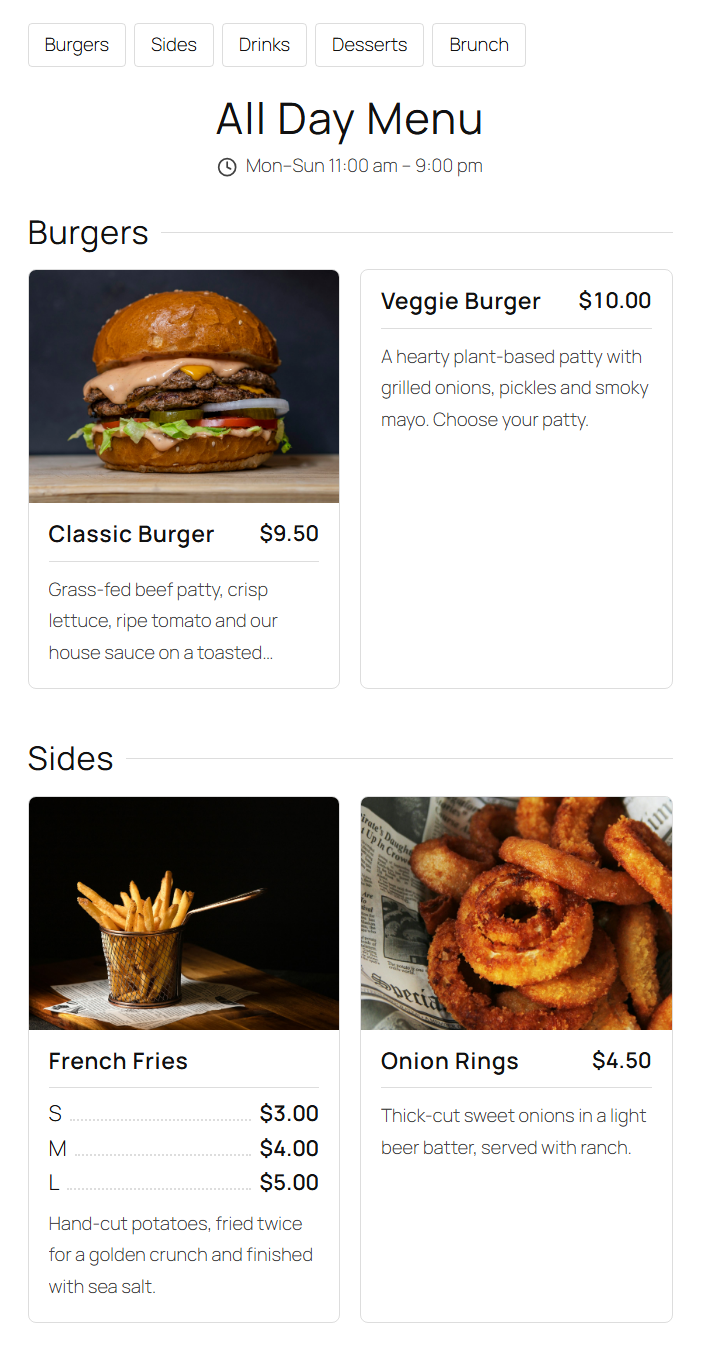
Cards layout. Menu names, hours and menu groups come straight from Square.
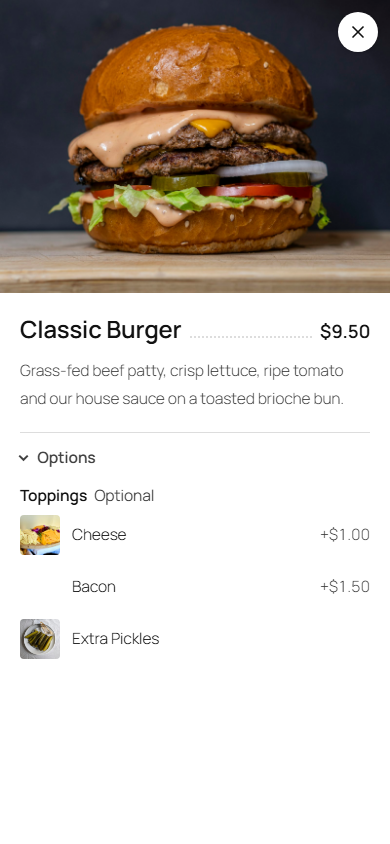
Tap an item to see its full description, options and option photos.
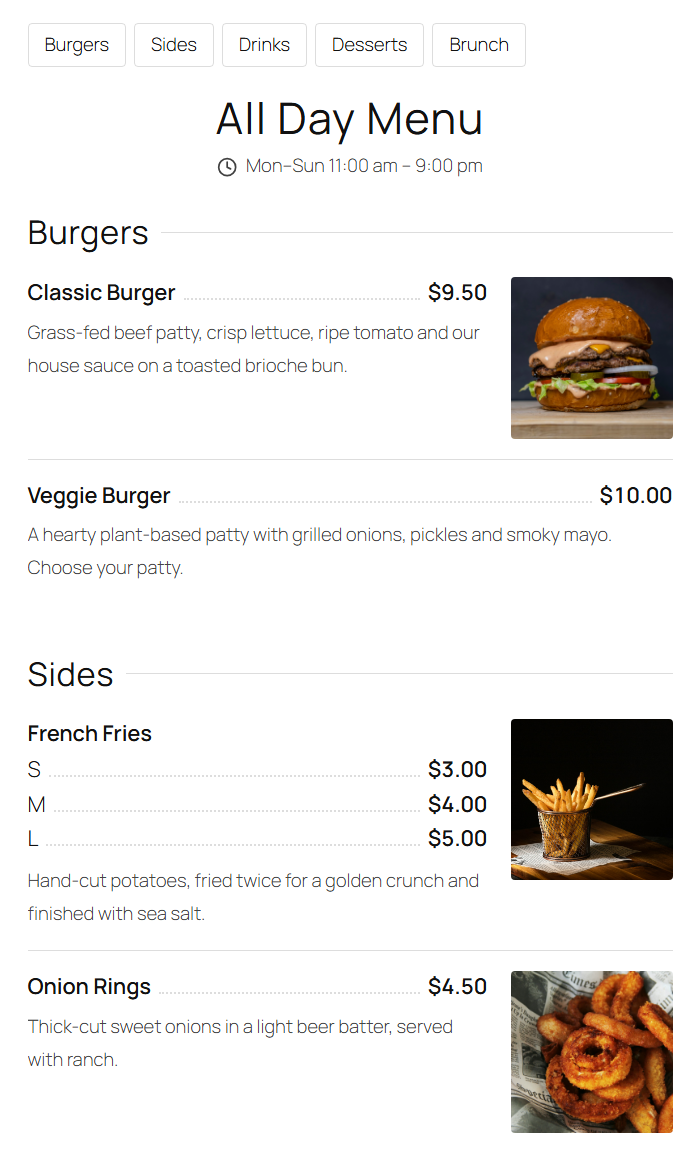
List layout.
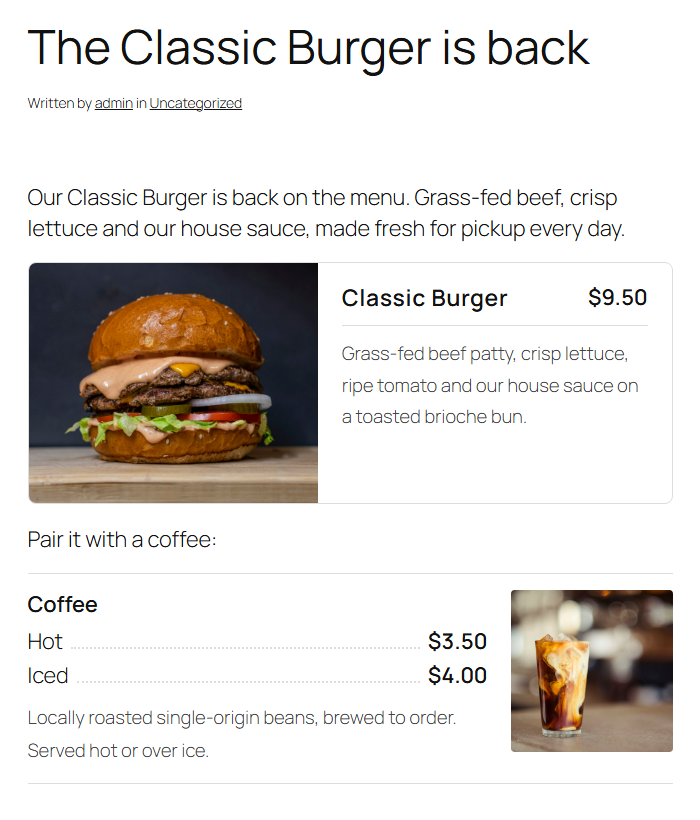
Show a single item in any post with the Takeout Menu Item block.
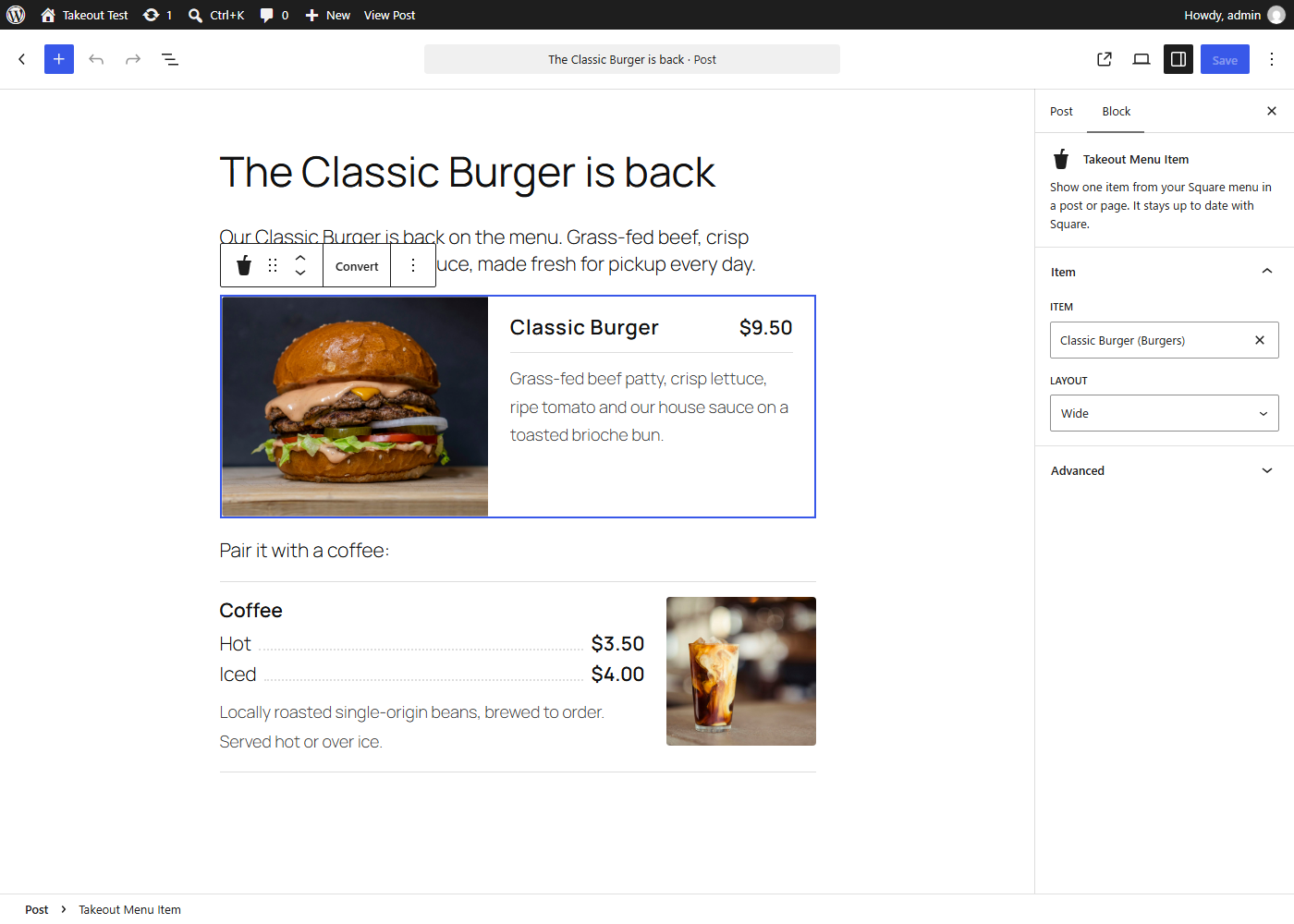
Pick the item and layout in the block sidebar.
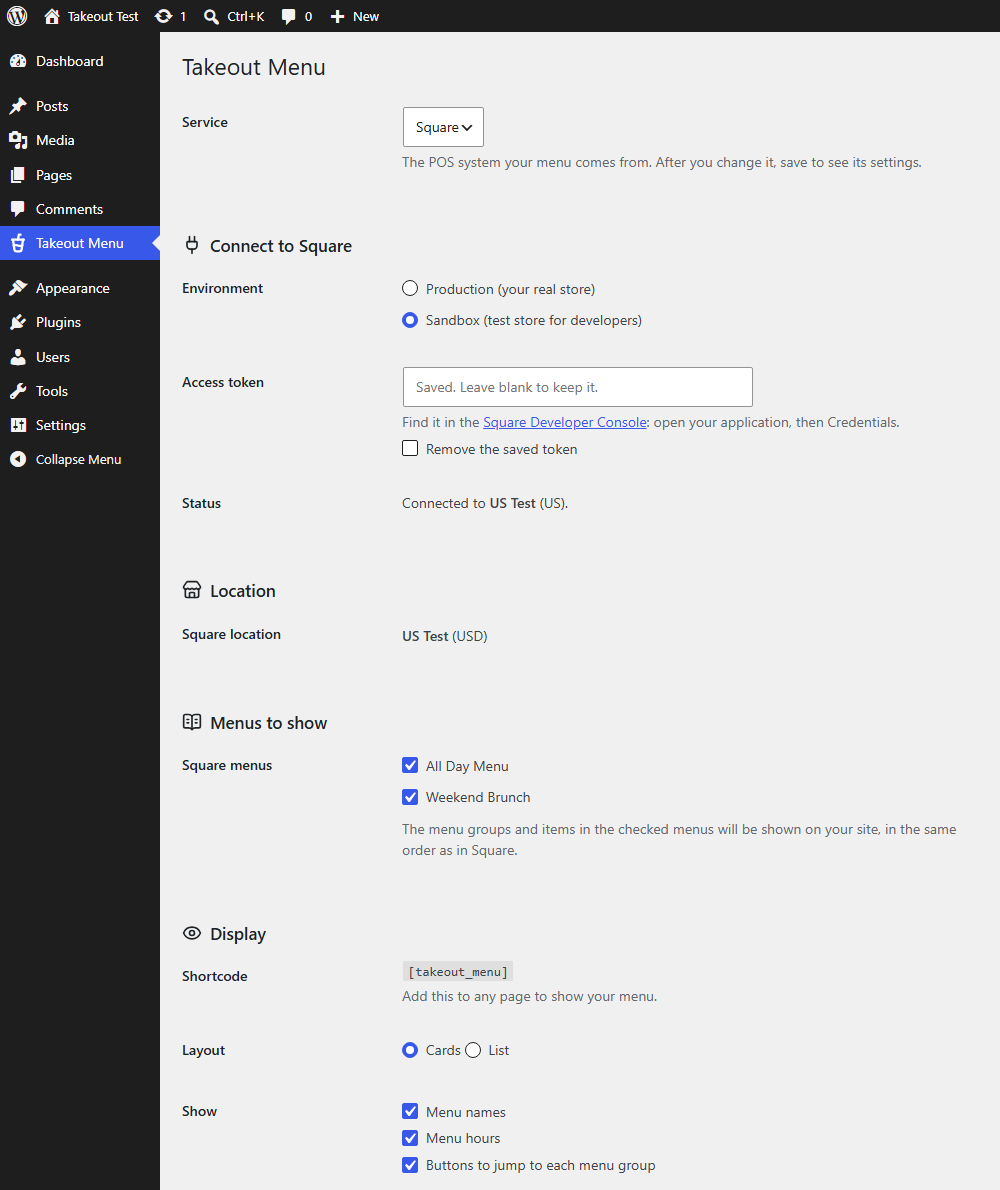
Settings: connect to Square, then choose a location and menus.
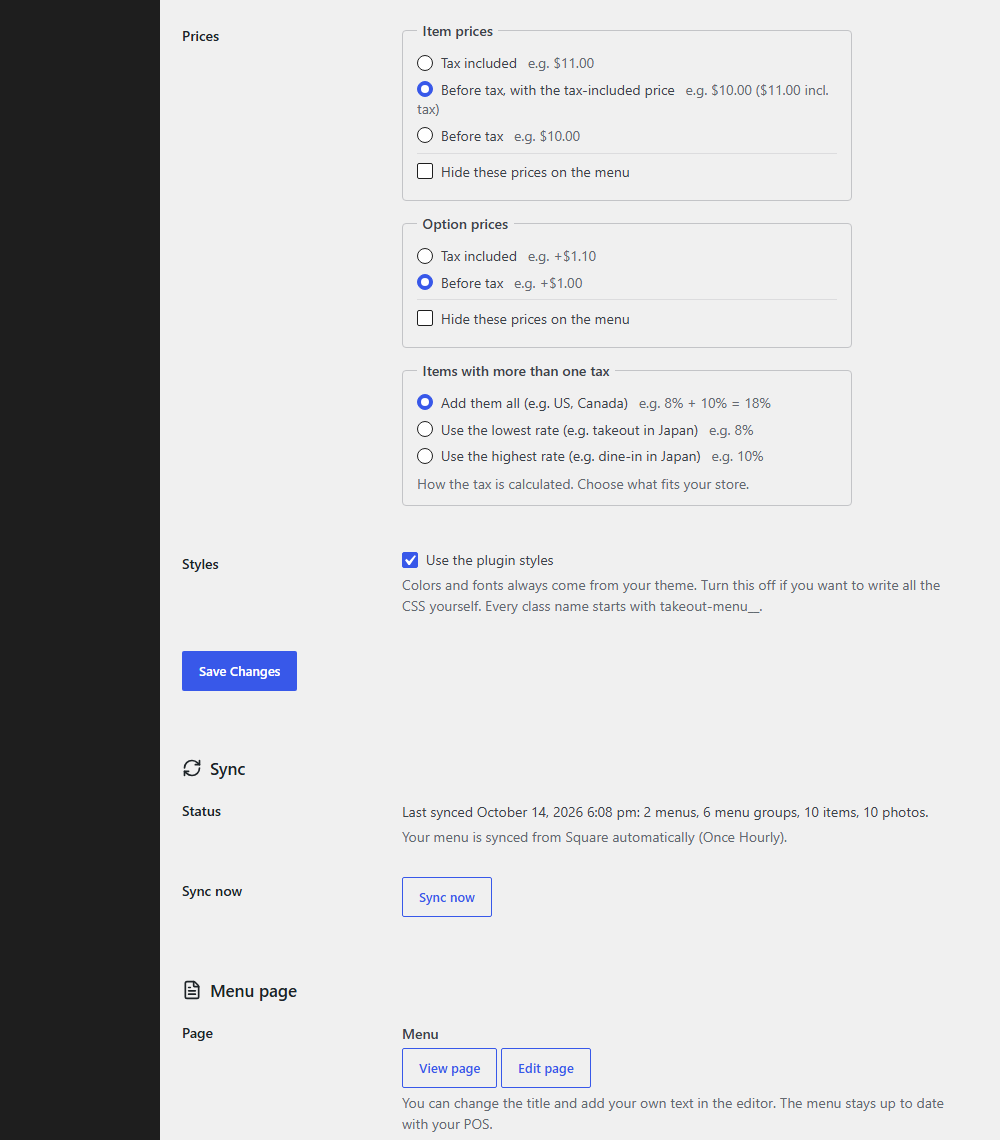
Settings: prices and taxes, sync status and the menu page.
Faq
No. This plugin works on its own.
Yes. That is what this plugin is for. It shows your menu only. It does not take orders or payments.
Yes.
The menus you choose on the settings page. Menus are made in your Square Dashboard under Items & services > Menus.
Every hour. You can also click “Sync now” on the settings page at any time.
Choose the location this website is for. Prices and menus are taken from that location.
Check two things. First, make sure you copied the Production access token, not the Sandbox one. Second, make sure your menus are set up in your Square Dashboard under Items & services > Menus.
The token is saved only in your WordPress database. It is sent only to Square, from your server. It is never shown to your visitors, and their browsers never connect to Square. After you save it, the settings page does not show it again.
Yes. Turn off “Use the plugin styles” on the settings page. Every class name starts with takeout-menu__.
Reviews
Changelog
0.3.0
- New: Imports stock counts from Square for items that track inventory. They are not shown on the menu. Add-on plugins can use them.
- New: Hooks for add-on plugins: extra menus to import, and showing a single item with badges and notes.
- Improved: Clearer setup steps for the Square access token, and new FAQ entries.
0.2.0
- New: Imports your Square location’s business hours. Tokurabo Takeout Orders uses them for pickup times.
0.1.0
- First release.