Vanquish Multiple Addresses – Address Book for WooCommerce

Vanquish Multiple Addresses – Address Book for WooCommerce
Description
Vanquish Multiple Addresses for WooCommerce gives your customers a real address book. They can save as many billing and shipping addresses as they like, name them (Home, Office, …), set a default, and pick one at checkout instead of retyping it every time.
That is the everyday case: the customer who ships to home and to work, or who sends to the same three relatives every December. And when a single order has to go to more than one place at once, each product can go to its own saved address, with its own shipping cost — in the free version too.
It works in the block checkout, and in the classic one
The saved-address selector appears in both, and it is the same selector in each. So is the per-product destination picker, and the split shipping that goes with it. The block checkout is not a “coming soon” here. Every feature on this page already works in both, premium included.
This matters more every month: WooCommerce is moving stores onto the block checkout by default, and an address plugin that only understands the classic one quietly stops working on the day a store switches over.
Free features
- Pick a saved address at checkout, for billing and for shipping
- Ship each product in the cart to a different saved address, in both checkouts
- One shipping package — and one shipping cost — per destination, quoted with your own shipping zones and methods
- The destination of every product on the admin order screen, in the order emails and in the customer’s order details
- Save as many addresses per customer as you like, with no cap
- Name each address — Home, Office, Mum — and set a default for billing and for shipping
- Add, edit and delete addresses from the My Account area
- Add and edit addresses without leaving the checkout, or turn that off and keep the address book in My Account
- Let customers download their own address book, and add addresses from a CSV — two separate switches, because only one of them writes to your store
- Preselect the customer’s default address at checkout, or keep the address WooCommerce already filled in
- Show the selector on the billing form, the shipping form, or both
- Billing and shipping address columns on the admin orders list, which you can hide from Screen Options
- Set the color of the address buttons to match your theme
- Supports High-Performance Order Storage (HPOS)
- Override any template from your theme, and change the rest with filters
There is no cap on the number of addresses, no time limit, and nothing switched off waiting to be paid for. The premium edition adds separate features; it does not unlock these.
Premium features
The free edition keeps the addresses and sends one order to several of them. The premium edition adds what a shop needs once those orders become routine, and lets you manage your customers’ address books yourself. If you sell to businesses, or your customers send gifts, this is the part you are here for.
- Send part of a quantity to another address — ten identical gifts to ten people — in both checkouts, behind its own setting
- Or charge a single shipping cost for the whole order, if that suits your store better
- Charge a handling fee for each extra destination: a flat amount, or based on how many destinations there are
- Keep some things out of it: exclude individual products, or whole categories, so they always go to the main shipping address
- Hand a split order to Vanquish Shipping Tracking (premium): its order screen opens with one shipment per destination, products already assigned, so you only type the tracking numbers
- Store a delivery note with an address and carry it into the order notes
- Give each address its own shipping email, for whoever receives the parcel
- Restrict the address book by user role, and cap how many addresses each customer can save
- Search a customer’s address book, select several addresses at once, delete them together or duplicate one
- Import and export every customer’s addresses as CSV
- Download every setting as a file and load it back, here or on another store
- See a customer’s address book on their user profile, and pick a saved address when editing an order
- Add your own CSS to the My Account and checkout pages
- Translate the labels you write yourself, one text per language, with WPML or Polylang
Screenshots, plans and answers on the plugin’s page: vanquishplugins.com/plugins/multiple-addresses.
More WooCommerce plugins by Vanquish
- Vanquish Upload Files for WooCommerce – let customers upload files (even large ones) on the product, cart, checkout and order pages, for custom, personalized and print-on-demand products.
- Vanquish Shipping Tracking for WooCommerce – tracking numbers on orders and emails, with 1,600+ carriers and their logos, a direct tracking link and a Track button. No account needed.
- Vanquish Attach Me – Order & Product Attachments for WooCommerce – attach files to orders and products, show them to the customer and send them with the order emails.
Installation
- Make sure WooCommerce is installed and active.
- Upload the plugin folder to
/wp-content/plugins/, or install it from the Plugins screen. - Activate the plugin.
- Configure it under Multiple Addresses in the admin menu.
- Your customers will find their addresses under Address book in My Account.
Screenshots
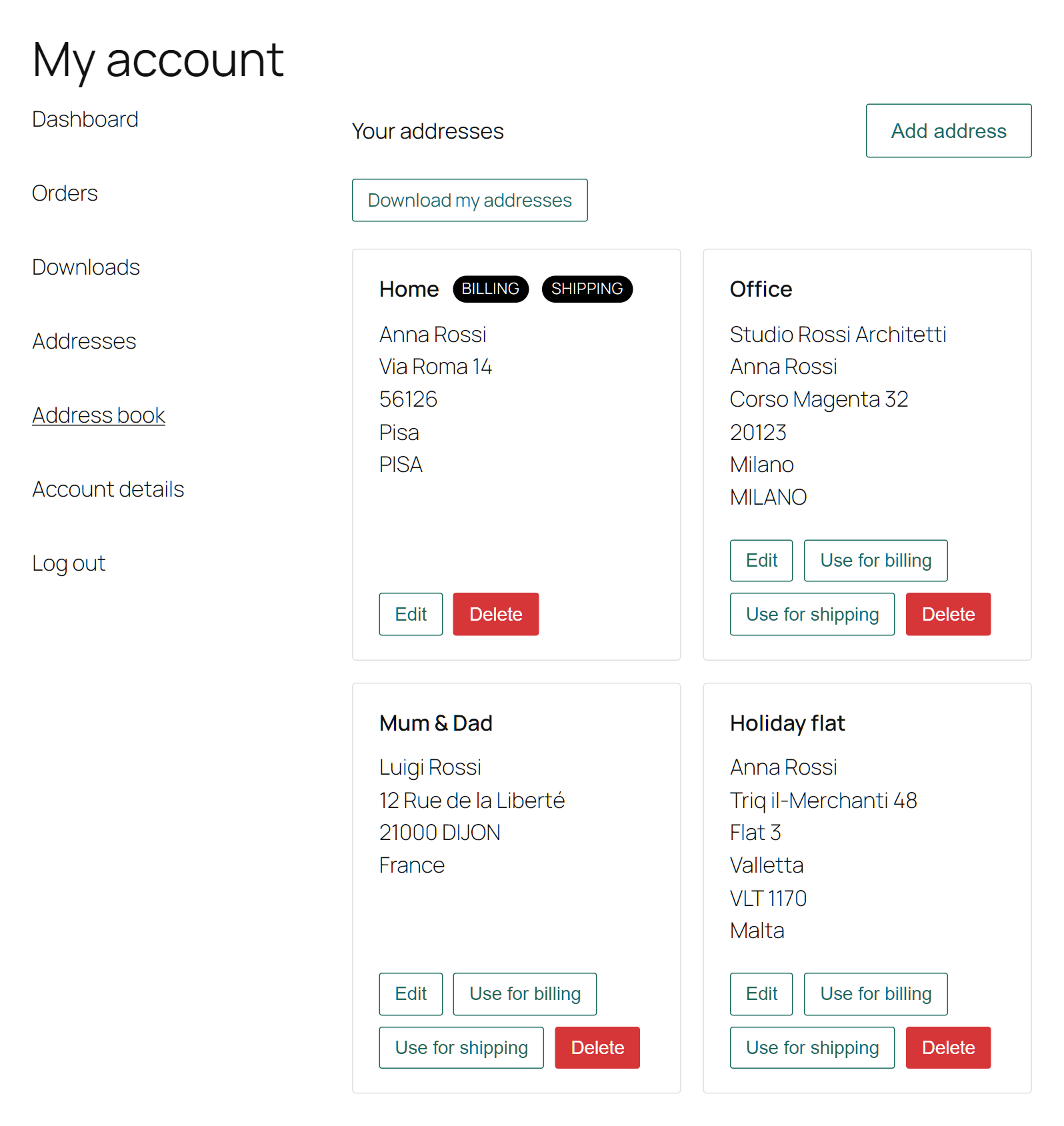
The address book in My Account: every saved address with its name, and the defaults for billing and for shipping marked.
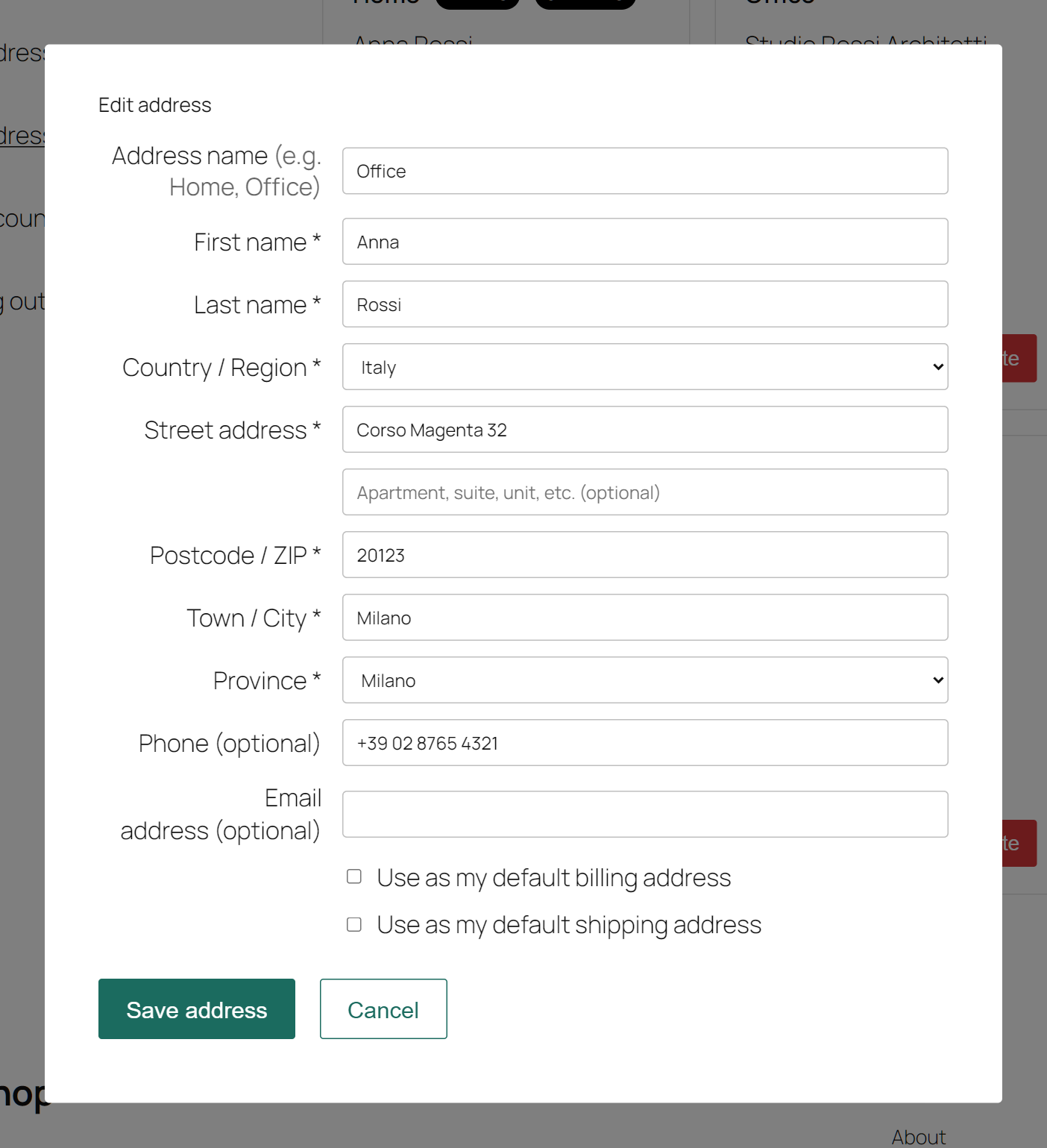
Adding or editing an address without leaving the page, with WooCommerce's own address fields and country rules.
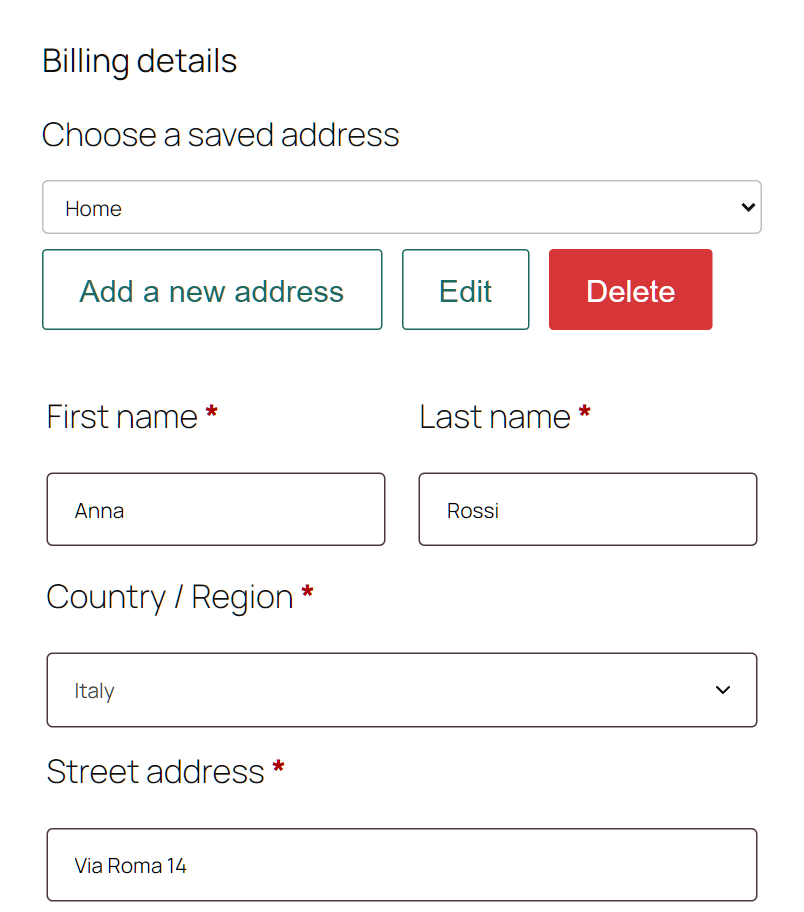
Choosing a saved address in the classic checkout, with add, edit and delete next to the selector.
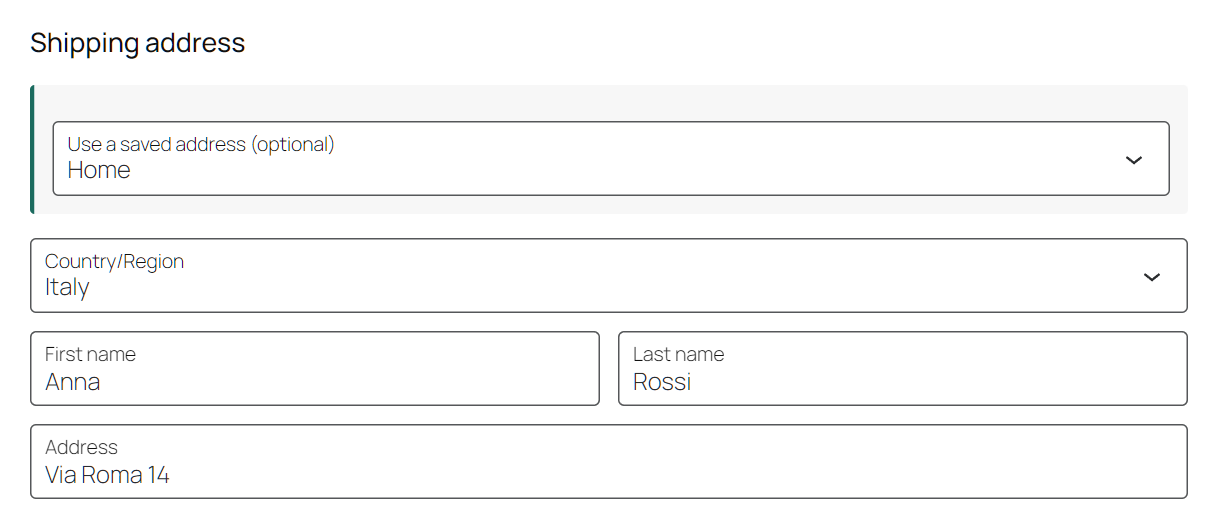
The same choice in the block checkout, inside the address form.
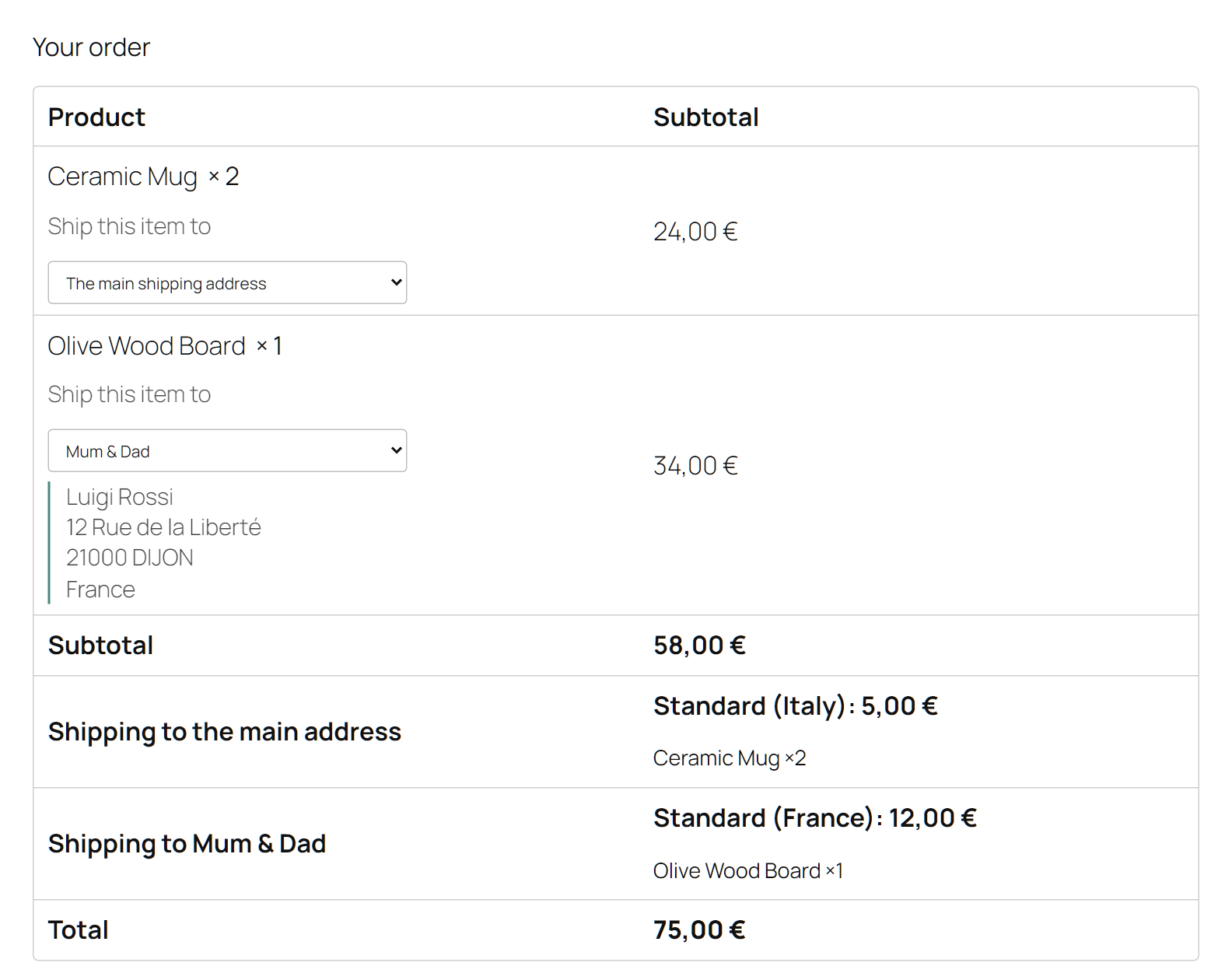
Each product to a different saved address in the classic checkout: one shipping package, and one shipping cost, per destination.
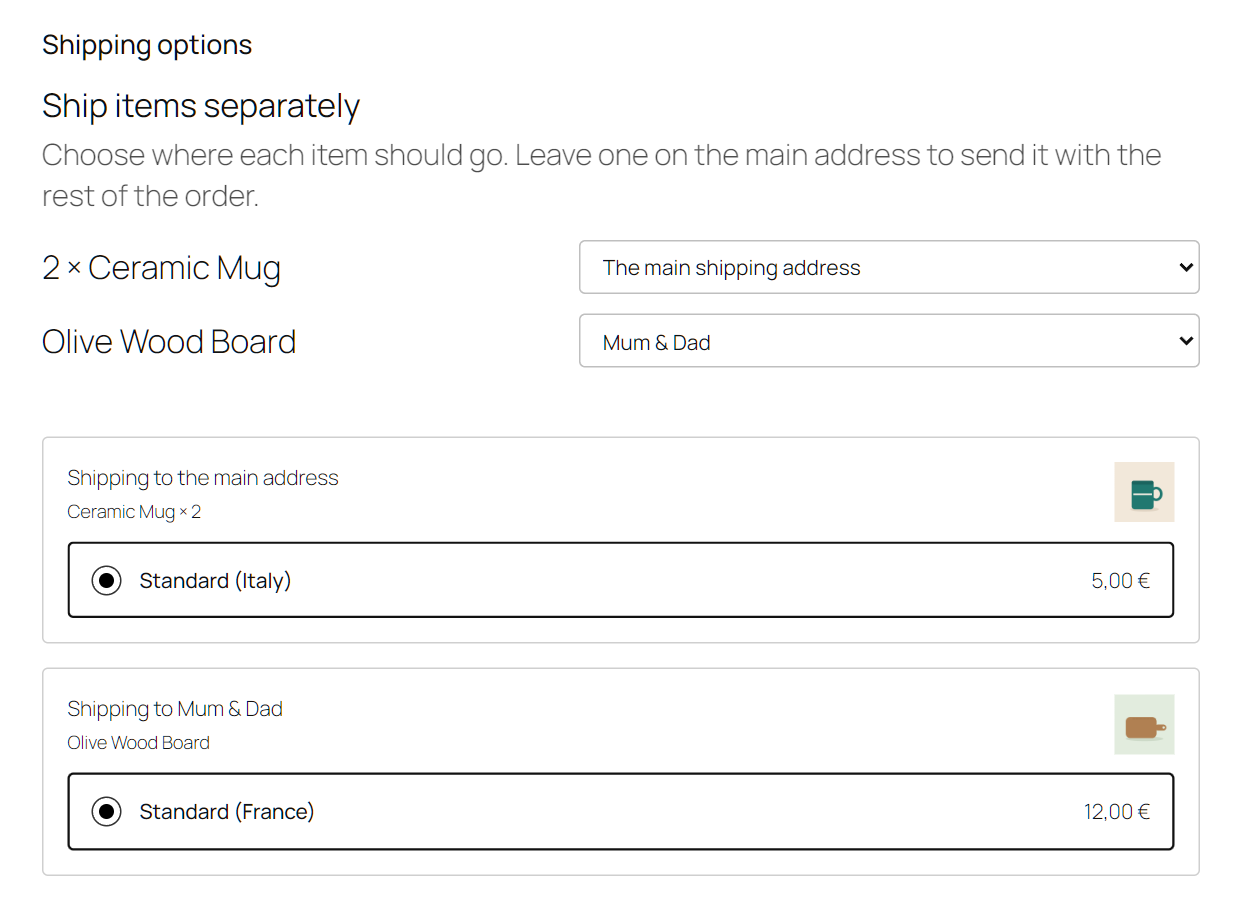
The same in the block checkout, where destinations are chosen right above the shipping options they change.
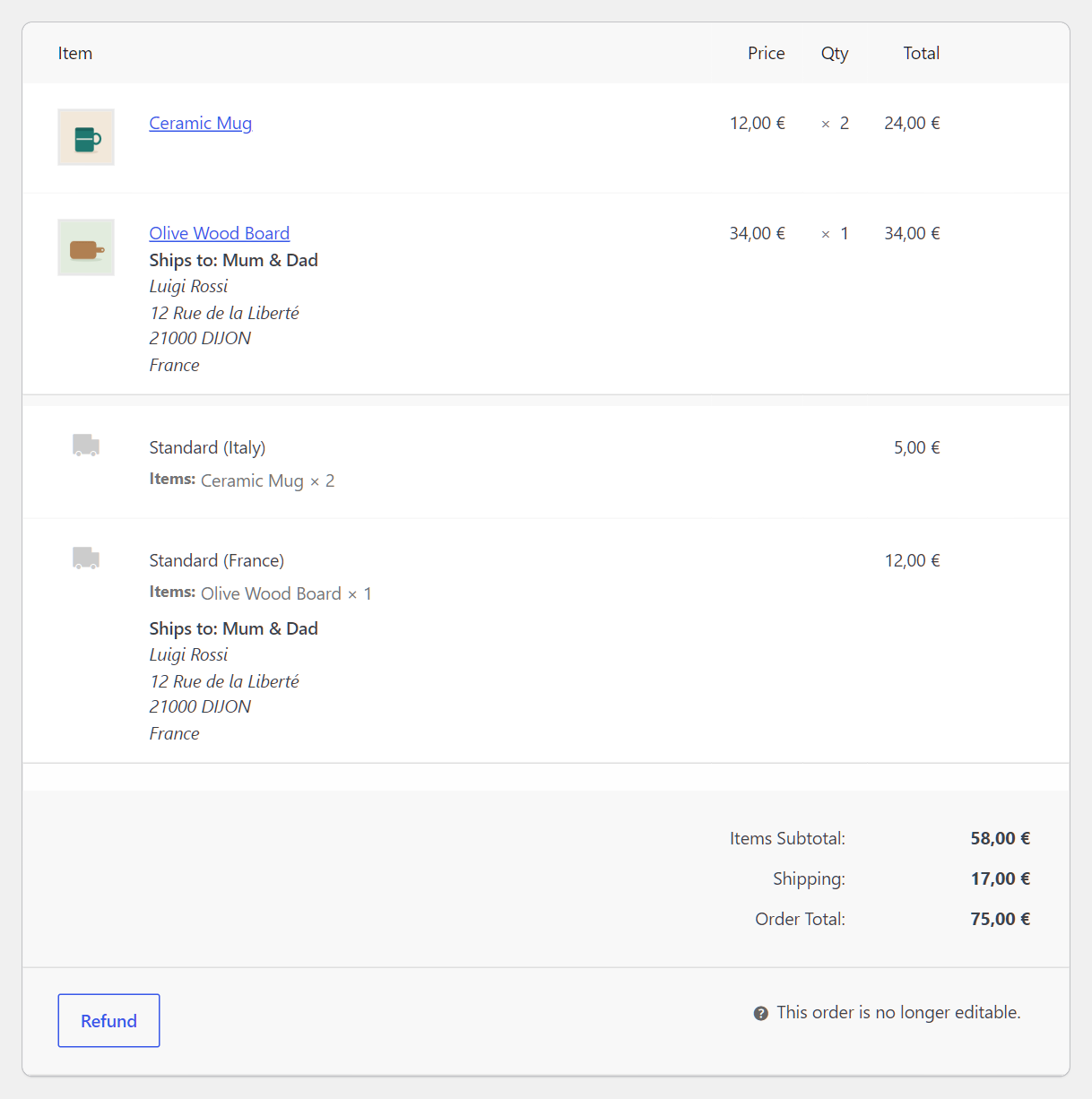
The order in the admin: every product shows where it goes, and so does the shipping line that pays for it.
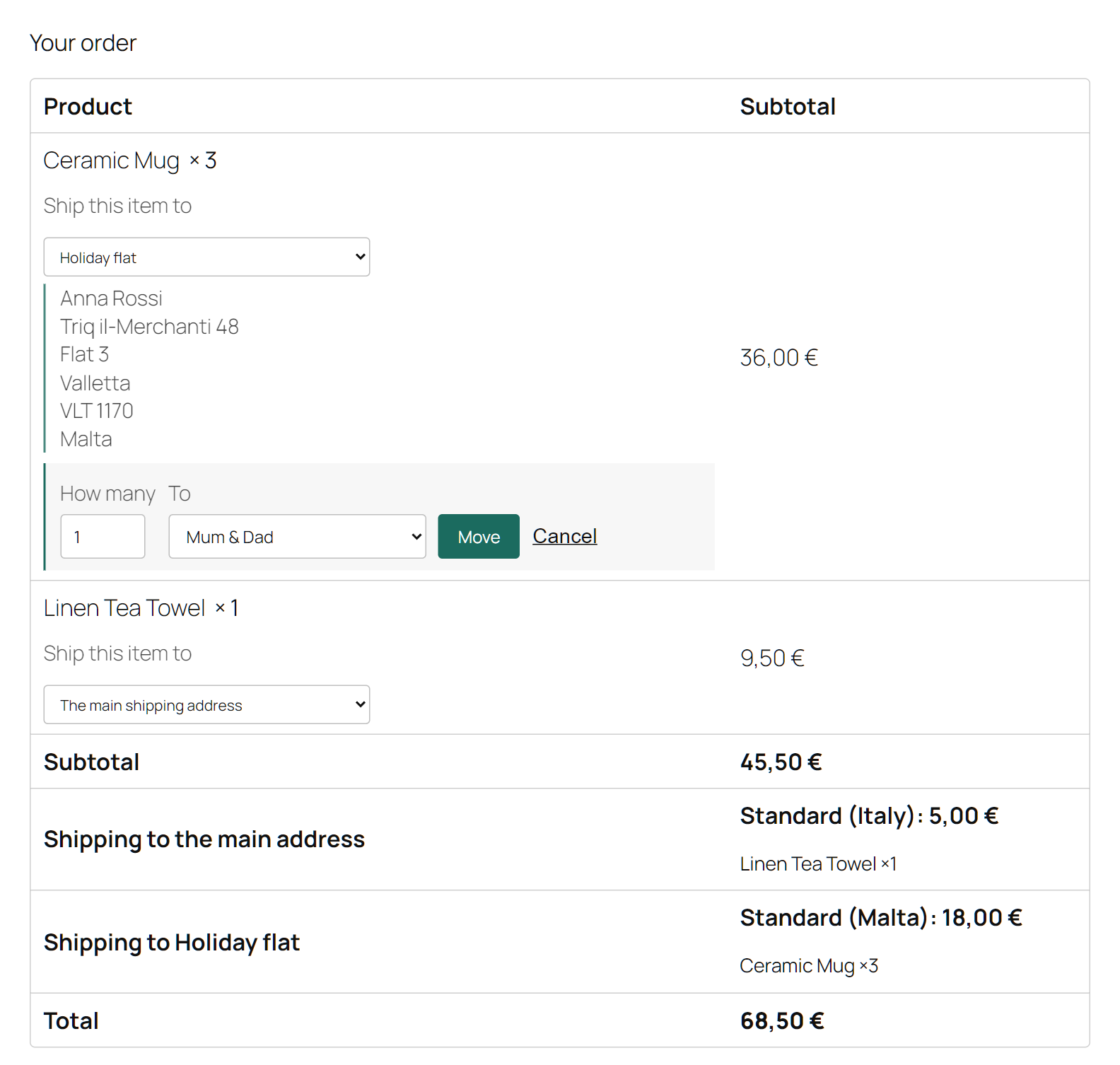
Premium: sending part of a quantity to another address — here one of three mugs goes to Mum & Dad.
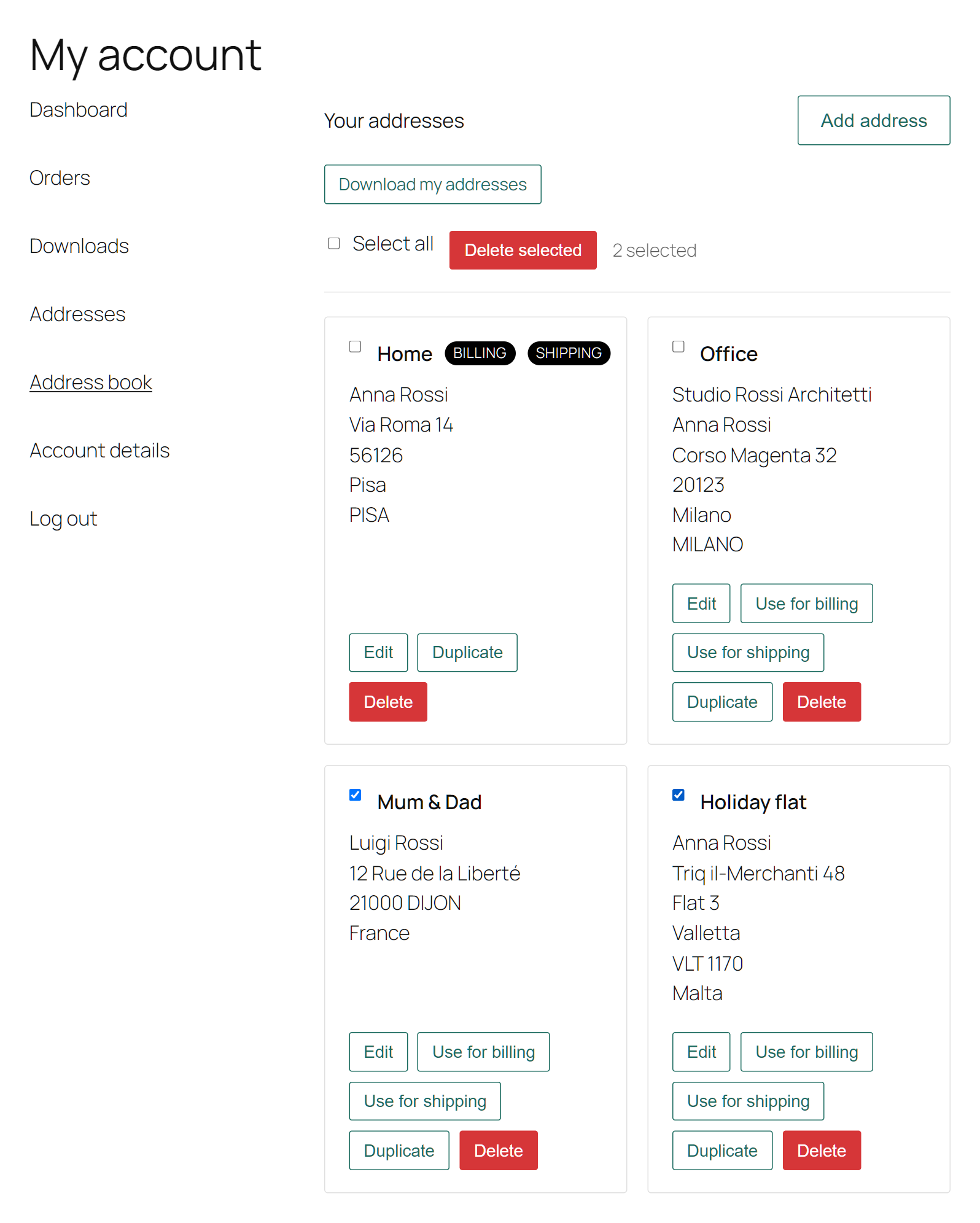
Premium: managing the address book in bulk — select several addresses at once, delete them together, or duplicate one as a starting point.
Faq
Yes. The plugin needs WooCommerce to be installed and active.
In standard WordPress user meta, so they are removed with the user and are never sent to any external service.
Yes. The saved-address selector appears in both the classic checkout and the
block checkout, and the per-product destinations work in both too.
Yes, in the free version too: turn on “Shipping to several addresses” in the
plugin settings. Each product in the cart gets its own destination picker, the
order is split into one package and one shipping cost per address, and that works
in the block checkout as well as the classic one.
The premium edition adds the quantity split, so part of a single product can go
elsewhere too: three mugs, two to the office and one home. It also adds a handling
fee per extra destination, and products or categories that always ship to the main
address.
Yes, and it is strongly recommended. The free version on WordPress.org is the
same plugin with fewer features: install it on your own site, with your own theme,
and check that the address book and the checkout selectors fit your account and
checkout pages before upgrading. Premium adds features on top of it, on the same
foundations.
No, and it cannot: an address book belongs to a user account, so there is
nowhere to keep one for a guest. Customers who log in, before or during
checkout, see their saved addresses straight away.
No. There is one address book, and any saved address can be used for billing, for
shipping, or for both. Each address can be marked as the default for billing and
for shipping independently, so the address you use for both does not have to be
saved twice.
Yes. The address form follows WooCommerce’s own fields and rules for each
country, and the plugin’s own strings are translated like those of any other
plugin. The premium edition goes one step further for the labels you write
yourself, such as the delivery note label or the handling fee label: each one
gets a field per active language, so every customer reads it in their own.
Yes. Every template can be overridden from your theme: copy a file out of the
plugin’s templates/ folder into yourtheme/vanquish-multiple-addresses/ and
edit it there, exactly as you would override a WooCommerce template. Filters
cover what a template cannot reach — vanmuad_can_use_address_book and
vanmuad_can_manage_addresses decide who gets an address book and who may
change it, and vanmuad_address_form_fields lets you relabel, add or remove
fields in the address form.
No. Each customer’s saved addresses are converted the first time their address
book is read, so there is nothing to run and no migration to schedule. The
conversion also fixes something the old plugin could not: an address saved once
for billing and again for shipping becomes a single entry usable for both, and an
address that matches one already saved here is merged into it rather than added
twice.
The old data is never deleted. It stays exactly where it was, so going back to
the previous plugin leaves you with everything you had.
Almost. The address book, the checkout selectors, per-product destinations, split
shipping and the admin-side tools are all here, several of them rebuilt and
improved.
The one thing deliberately left out is the VAT / tax ID field. It was never
really part of an address book, and there are dedicated plugins that do it
properly — including our own. Everything else you were using has been carried
over.
WooCommerce quotes each destination as its own shipment. Anything that depends on
the order value — a free shipping threshold, or a table rate — therefore applies
per destination, using the value of the products going to that address, not
the order total. An order worth 100, split evenly between two addresses, is two
shipments of 50 each, so a “free over 80” rule will not apply to either.
The premium edition can charge a single shipping cost for the whole order instead,
while still recording which address each product goes to.
Reviews
Great product and Support
By 
Came from Shopify to WooCommerce.
Was devasted that WC did not have the multi address feature. But these guys saved my life. Support is super responsive.
Perfect for my e-commerce!
By 
Works flawlessly!
Great extension, stable and lightweight, that does exactly what it promises without any hassle. Well deserved five stars!
Perfect!
By 
Outstanding! The WooCommerce integration is flawless, making multiple address management incredibly simple and user-friendly. Highly recommended!
Changelog
1.4.0
- New in the free version: send each product in the cart to a different saved address, with one shipping package and one shipping cost per address, in the classic and the block checkout. It starts switched off — turn on “Shipping to several addresses” in the plugin settings. Stores that already used it with Premium keep it on.
- Fixed: the destination of each product now also shows on the order screen in the admin, not only in the order emails and the customer’s order details.
- Fixed: after an order placed with the block checkout, the destinations chosen for it are cleared.
- Fixed: in the block checkout, a product’s destination no longer jumps back to “The main shipping address” on screen when the checkout redraws itself; the shipping below it was right all along.
- Improved: the shipping package left on the checkout’s own address is called “Shipping to the main address”, next to the ones named after the other addresses, instead of WooCommerce’s “Shipment 1”.
- Improved: the plugin’s dropdowns, the fields of the address editor and the quantity split controls get a comfortable size on themes that leave form controls at the browser’s default, such as Twenty Twenty-Five; “How many” and “To” now line up.
- Premium: the quantity split, the handling fee, the exclusions and the hand-off to Shipping Tracking work as before. “Charge shipping separately for each destination” is now on by default; a store that turned it off keeps it off.
- Developers: the per-product selector template moved from
premium/item-address-selector.phptocheckout/item-address-selector.php. A copy in your theme at the old path is no longer used.
1.3.5
- New plugin icon.
- The plugin’s homepage is now its page on vanquishplugins.com, with screenshots, plans and answers.
1.3.4
- New plugin icon, in the plugin’s new colors.
1.3.3
- Premium: fixed the customer’s saved addresses on the WordPress user profile screen. The customer’s own download and import buttons appeared there, acting on the admin’s address book instead of the customer’s, and they stopped “Update user” from saving the profile. They are gone from that screen, and “Add address” and the address limit now look at the customer being edited, not at the admin.
1.3.2
- Premium: a “Suggest a feature” page in the plugin menu. It opens our idea form and shows your license key and purchase email, ready to copy, so the form can recognize you the first time.
- Freemius SDK updated to 2.13.5.
1.3.1
- Fixed: in the block checkout, a returning customer could not place an order if the saved address they had used last time had since been deleted from their address book (“Invalid vanmuad/saved-address provided.”). That old choice is now forgotten when the checkout opens.
1.3.0
- Premium: part of a product’s quantity can now be sent to another address — ten identical gifts to ten people, or two mugs to the office and one home. At checkout a line with more than one unit offers “Send some to another address”; the line is divided in the cart, so each part has its own destination, its own parcel and its own line in the order. Works in the classic and the block checkout, and starts switched off.
- Not compatible with plugins that set cart quantities by themselves, such as the “Product cart quantity as the number of uploaded files” option of Vanquish Upload Files. If the two meet anyway, the division is undone and the customer is told why: dividing a line never changes how many units are in the cart, and that is checked rather than assumed, so nobody is ever charged for more than they ordered.
- Products with limited stock can be divided right up to their last unit in the cart.
1.2.0
- Customers can now download their own address book as a CSV, and add addresses from one. These are two separate settings rather than one, because they are not the same risk: downloading only reads rows the customer is already looking at, so it is on by default, while uploading writes to your store and stays off until you turn it on. Uploaded addresses are only ever added, never used to change or remove an existing one, and any limit you have set on how many addresses a customer may keep is still enforced row by row.
- Premium: download the whole plugin configuration as a file and load it back, on this store or another one. Useful when you run several shops, and worth doing before “Reset settings”, which has no undo. The file holds settings only, never addresses.
1.1.0
- A split order now hands its parcel layout to Vanquish Shipping Tracking, if you run its premium version. The order screen opens with one shipment per destination and the right products already assigned to each, so you type the tracking numbers instead of working out by hand which product belongs in which parcel. Nothing reaches the customer until you fill a shipment in, and an order you have already started working on is left alone.
1.0.3
- Premium: the “Support Forum” item in the plugin menu now opens Vanquish support instead of the WordPress.org forum. Freemius builds that link from the plugin slug alone, so the support address set on the product never applied to it and paying customers were being sent to the forum meant for free users, where they have no licence to show. The free version still points at WordPress.org, which is where free support belongs and where it should stay.
1.0.2
- Rewrites the plugin page in plainer English, and documents features that were already there but never mentioned: the button color, adding and editing addresses from the checkout, preselecting the customer’s default address, HPOS support, theme template overrides, and WPML / Polylang.
- Says plainly that the address book needs a customer account, so it does nothing for guest checkout. That was true from the first release and nowhere written down, which is the kind of thing you find out after installing.
- Fixes the wording of the handling fee description, which said “by number of destinations” where it meant “based on”, and settles on American spelling throughout the interface.
1.0.1
- Adds an “Activate Premium” page explaining how to install the premium version after buying. Freemius offers no license field in the free build, and rightly so — the premium code is not in this package at all, so a key would have nothing to unlock. That is invisible to someone who has just paid and is looking for somewhere to type it, so the steps are now spelled out.
1.0.0
- Initial release.
- Address book in My Account: save, name, edit and delete any number of billing and shipping addresses.
- Saved-address selector in the classic checkout and the block checkout.
- An address has no type: any address can be the default for billing, for shipping, or for both, so the one you use for both is not saved twice.
- Optional billing and shipping address columns on the orders list, with High-Performance Order Storage support.
- Addresses saved by “WooCommerce Multiple Customer Addresses & Shipping” are converted automatically, merging entries that plugin stored twice. The old data is left untouched.