Vanquish Request a Quote for WooCommerce

Vanquish Request a Quote for WooCommerce
Description
Vanquish Request a Quote for WooCommerce lets your customers ask for a price instead of buying straight away. They add products to a quote list, send it with a short form, and you answer with your prices. Once you accept the quote, the customer pays it online like any other order.
A quote is a WooCommerce order with its own statuses, so everything you already know keeps working: you edit prices, quantities, shipping and discounts on the order screen, the customer pays with the payment methods of your store, and the paid quote carries on as a normal order.
How it goes:
- The customer clicks Add to quote on the products they are interested in, in the shop or on the product page.
- On the quote page they review the list, fill in the form and send the request. They do not need an account.
- You get an email and find the request under Quotes in your admin. You set your prices and accept it, or reject it.
- The customer gets your quote by email, with a button to pay it. Customers with an account also find it under My account Quotes.
It works with simple and variable products, with any payment method, and with HPOS (High-Performance Order Storage).
Free features
- An Add to quote button in the shop and on the product page, with your own text, and a shortcode to place it anywhere:
[vanqt_add_to_quote id="123"]. - A quote list with thumbnails, SKUs and quantities, and a quote page with the request form, created for you when you activate the plugin. Show the form below the list or beside it.
- A link to the quote list with a counter in the menu you choose, and as a shortcode:
[vanqt_quote_link]. - Choose what can be quoted: every product, or only the products you tick on the product screen. Products without a price can be quoted too.
- Show or hide prices on the products that can be quoted, and keep or remove “Add to cart” on them: sell and quote side by side, or work on price on request only.
- A request form with name, email, phone and message, and an optional privacy checkbox linked to your privacy policy.
- Guests can ask for a quote, and pay it from the link in the email, without creating an account.
- Quote statuses of their own: New quote request, Quote accepted, Quote rejected, and more, in a Quotes screen with Accept / Reject buttons, a counter of the new requests, and an Add quote button to write a quote from scratch.
- Payment of the accepted quote through the checkout of your store. Once it is paid, the quote becomes a normal order and the usual WooCommerce emails go out.
- My account Quotes for the customer: the list of their quotes and each quote in detail, with a Pay button when there is something to pay.
- Four emails, managed in WooCommerce Settings Emails like any other: New quote request to you, and Quote request received, Quote accepted (with the Pay button) and Quote rejected to the customer.
- Spam protection that needs no account anywhere: a hidden trap field and a limit on how often a visitor can send. Google reCAPTCHA v2 is there too if you want it.
- The quote list survives page caching: nothing personal is written in the page itself.
- Every text translatable; template overrides from your theme.
- Works with Vanquish Upload Files Premium: the files customers upload on the product page go into the quote list with the product and reach the quote.
- Migrates automatically from the CodeCanyon plugin “WooCommerce Quote”: your settings are imported and your quotes keep working, with nothing to convert.
Premium features
- Rules for what can be quoted — by category (with or without its subcategories), by tag, by single variation, every product except the ones you list, and automatically for products that are out of stock or have no price.
- Rules for who can ask — by user role, guests included.
- Turn the cart into a quote — a button in the cart sends its whole content as a quote request, options added by other plugins included.
- The customer proposes a price — a “Your price” column in the quote list. You see each proposed price under its product, on the quote and in the email, and one button sets the quote to them.
- Your offer as a PDF — with your logo and your terms, attached to the “Quote accepted” email and downloadable from the customer’s quote: the document a business customer passes on to whoever approves the purchase.
- Your own request form — add, remove and reorder fields: text, email, phone, text area, drop-down, multiple choice, checkbox, date, time and country. Half or full width, required or not, and copied to the order field you choose (company, billing or shipping address, customer note).
- Expiry and automation — accepted quotes expire after the time you set and can no longer be paid; a reminder email goes out before they do; requests you have not answered in time can be accepted automatically. Set a different expiry date, and write a message, on each single quote.
- The customer can reject the quote, giving a reason, and you are told by email.
- A thank-you page of your choice after the request is sent.
- Webhook — the quote is sent as JSON to an address you choose when it is created, when its status changes and when it is paid, signed so that the receiver can check where it comes from. Use it with Zapier, Make, n8n or your CRM.
- Your own sender — a “From” name and address for the quote emails only.
- Your own wording, in every language — rewrite the buttons, the headings, the notices and each email’s subject, heading and message, with placeholders such as the quote number, the total, the expiry date and the payment link, in each language of a WPML, Polylang or Falang site.
Screenshots, plans and answers on the plugin’s page: vanquishplugins.com/plugins/request-a-quote.
External services
This plugin can use Google reCAPTCHA v2 to protect the request form from spam. It is off by default: nothing is loaded from Google and nothing is sent to it unless you turn it on under Quotes Settings and enter your keys. When it is on, the quote page loads Google’s reCAPTCHA script, which runs in the visitor’s browser and talks to Google from there, and when a request is sent your site sends Google the response token produced by that script, together with your secret key, to verify it. The service is provided by Google: terms of service, privacy policy.
This plugin uses Freemius to manage licensing and updates for the premium version, and to offer an optional opt-in when you first activate it. Nothing is sent unless you opt in or activate a licence; if you do, Freemius receives your site URL, WordPress and PHP versions and your administrator email address, in order to deliver updates and support. See freemius.com, its terms and its privacy policy.
The premium version can send each quote to a webhook address that you enter yourself (your CRM, Zapier, Make and so on). It is empty by default and nothing is sent until you fill it in. When you do, the quote’s number, status, total and products, the customer’s name, company, email and phone, their note and the answers given in the request form are sent to that address when a quote is created, changes status or is paid. That address is your own choice, so its terms and privacy policy are those of the service you point it at.
More WooCommerce plugins by Vanquish
- Vanquish Order Approval for WooCommerce – review every order before it goes ahead, and let the customer pay before or after you approve it. Where this plugin is about agreeing on a price, Order Approval is about deciding whether an order can go ahead.
- Vanquish Upload Files for WooCommerce – let customers upload files (even large ones) on the product, cart, checkout and order pages, for custom, personalized and print-on-demand products.
- Vanquish Shipping Tracking for WooCommerce – tracking numbers on orders and emails, with 1,600+ carriers and their logos, a direct tracking link and a Track button. No account needed.
- Vanquish Multiple Addresses for WooCommerce – give customers an address book: save multiple billing and shipping addresses and pick one at checkout.
- Vanquish Attach Me for WooCommerce – attach any file to any order or product, show it to the customer and send it with the order emails.
Installation
- Upload the plugin files to the
/wp-content/plugins/vanquish-request-a-quote-for-woocommercedirectory, or install the plugin through the WordPress plugins screen. - Activate the plugin through the ‘Plugins’ screen in WordPress.
- Make sure WooCommerce is installed and active.
- That is all it takes to start: every product gets an Add to quote button, and a “Request a quote” page is created for you. Go to Quotes Settings to choose which products can be quoted, whether their prices are shown, and which menu gets the link to the quote list.
Screenshots
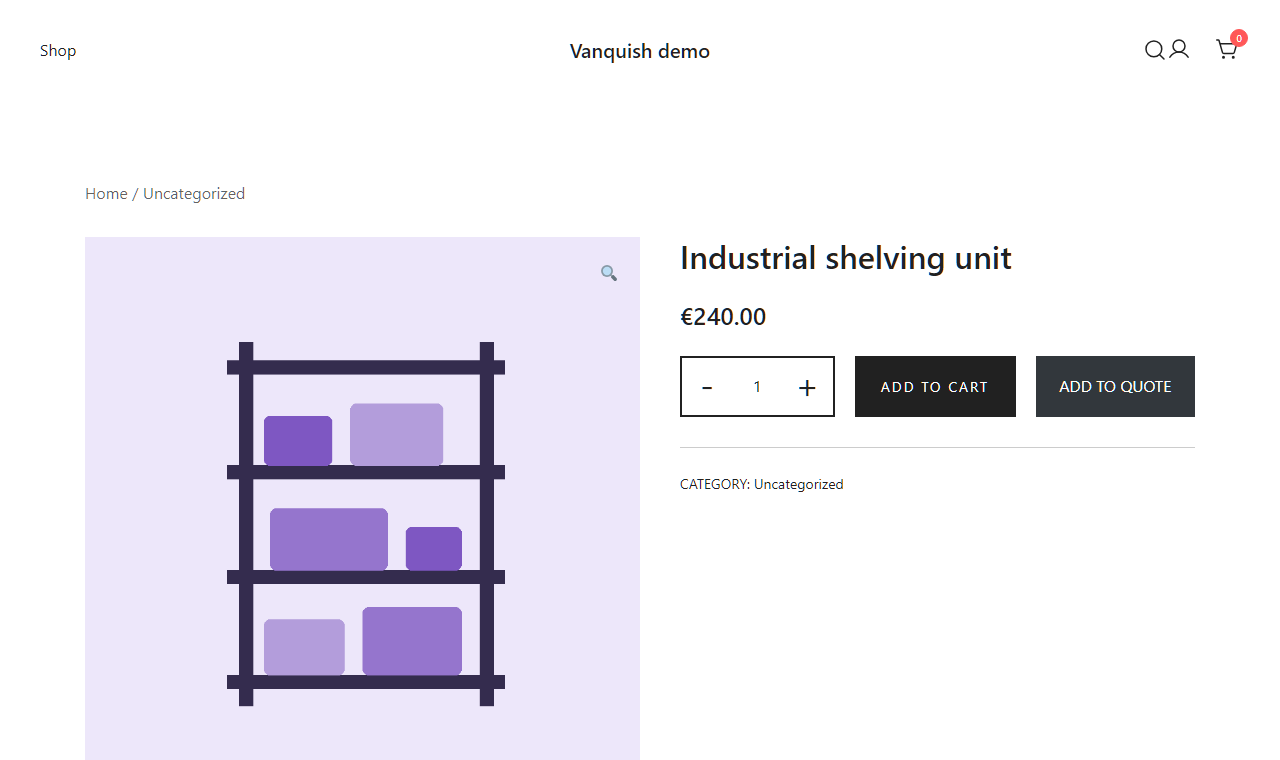
The Add to quote button on the product page, next to Add to cart.

The quote page: the list of products and the request form.

The Quotes screen in your admin, with Accept and Reject on each new request.
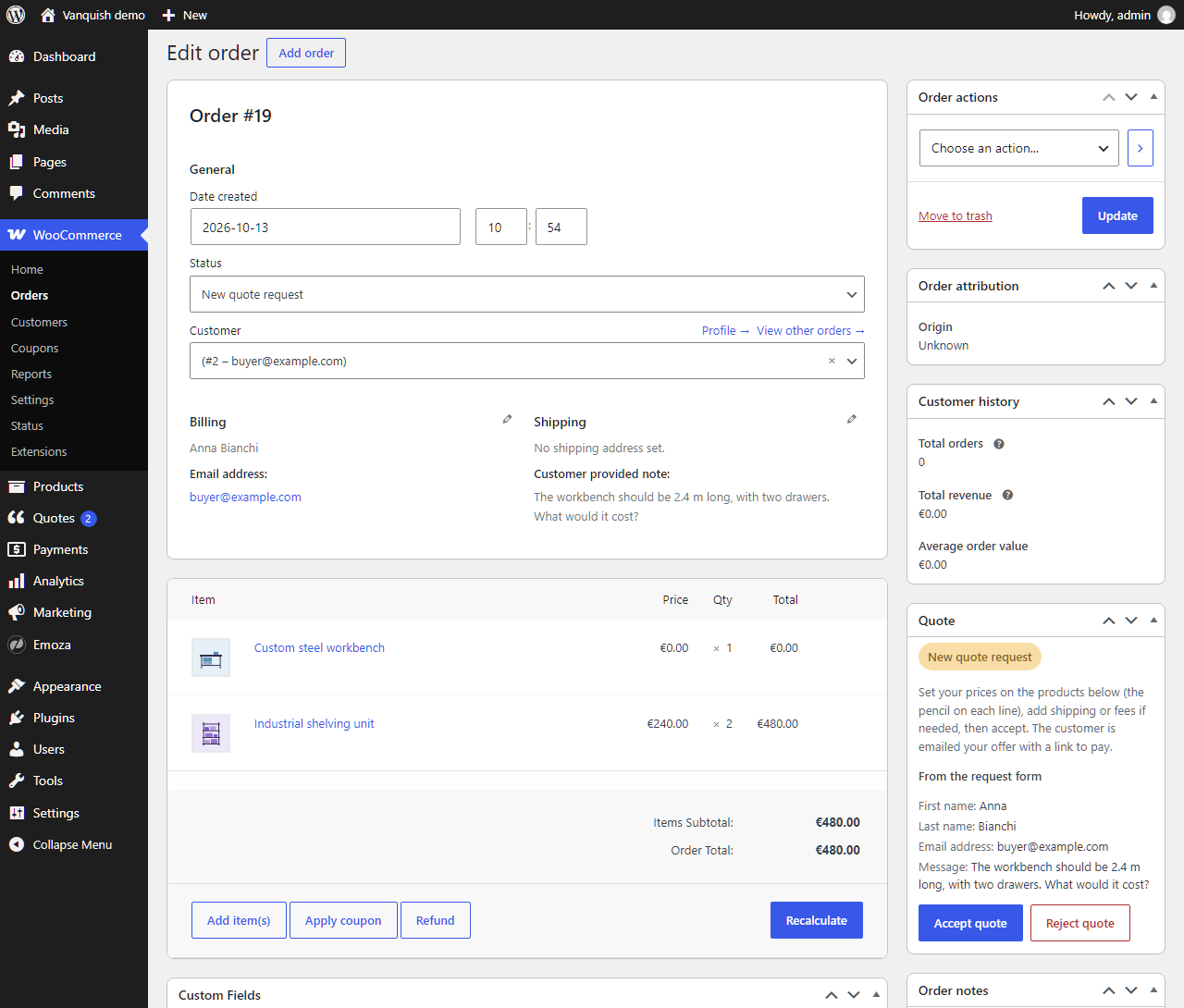
A quote on the order screen: set your prices, then accept it.

What the customer sees in My account: the quote, your prices and the Pay button.

The "Quote accepted" email, with the Pay button.

The settings: what can be quoted, prices, Add to cart, the quote page and the request form.

Premium: build your own request form, with drag and drop and a live preview.

Premium: rewrite the buttons, the notices and the emails, with the plugin's own wording always in sight.
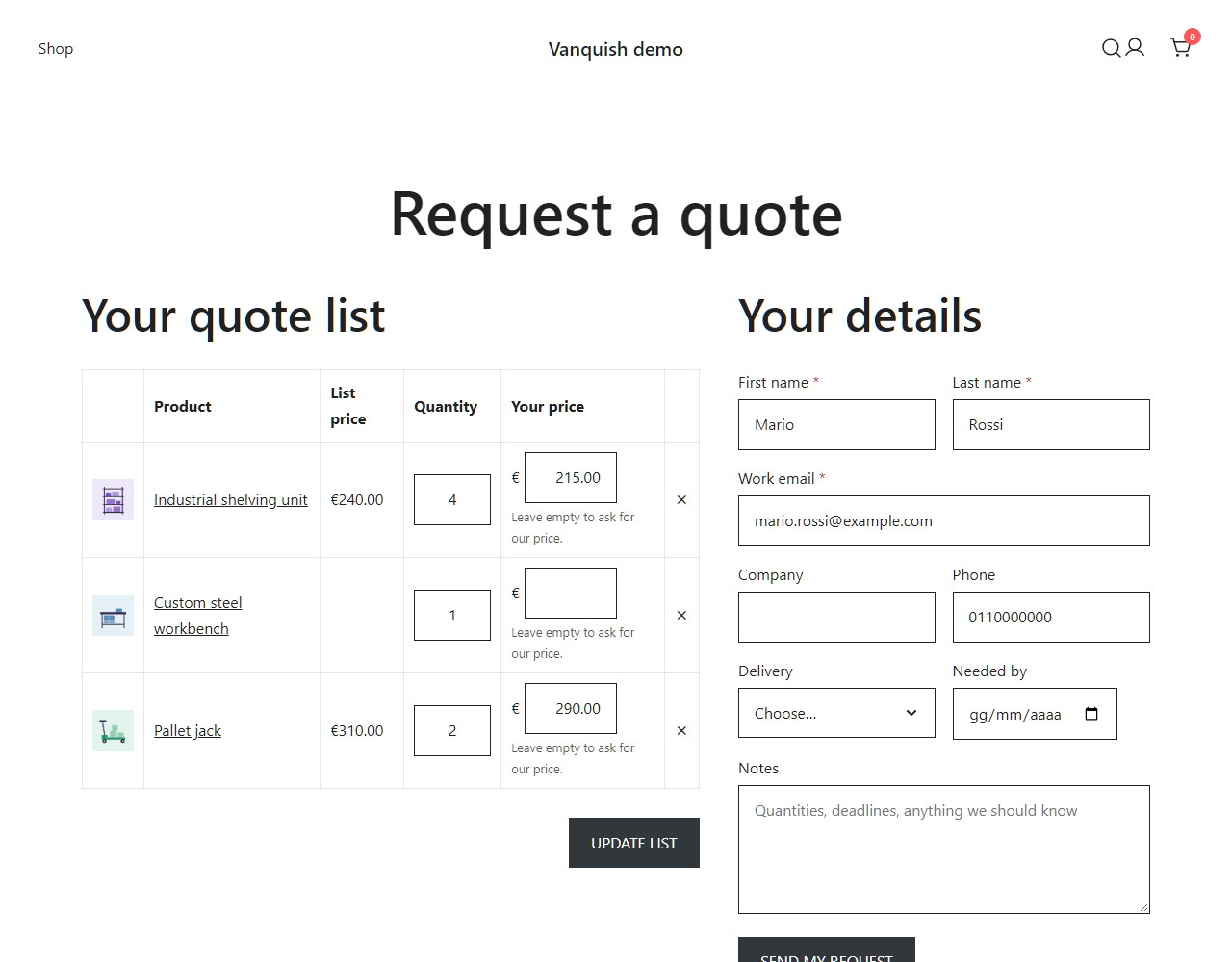
Premium: customers propose their own price for each product in the quote list.
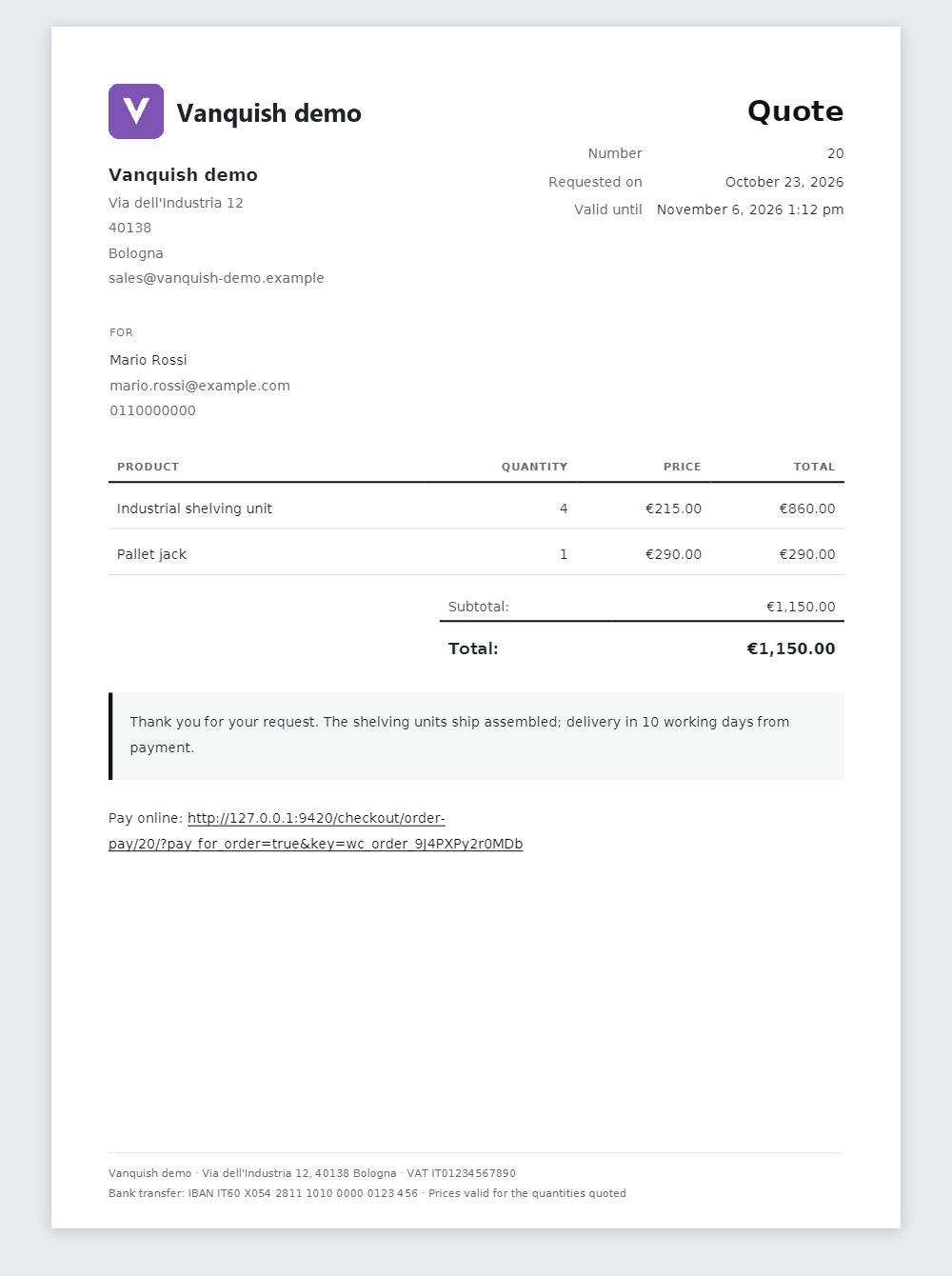
Premium: your offer as a PDF, attached to the "Quote accepted" email and downloadable by the customer.
Faq
The request arrives with the prices of your shop, or with no price for the products that have none. You open it under Quotes, set the price of each line as you would on any order, add shipping or a discount if you need to, and click Accept. The customer receives the “Quote accepted” email with your prices and a Pay button, which leads to the payment page of your store. Customers with an account can also pay from My account Quotes.
No. A guest fills in the form and receives the emails like anyone else, and the link in the email opens their quote and lets them pay it.
Yes. Under Quotes Settings choose “Only for the products I select” and tick Can be quoted on the product screen of the ones you want. The other products are not touched. On the products that can be quoted you decide whether the price is shown and whether “Add to cart” stays next to “Add to quote”.
Yes. Under Quotes Settings, switch off “Show the price of products that can be quoted” and “Products that can be quoted can also be bought the normal way”: the products that can be quoted show no price and can only be added to the quote list.
The button is added through the standard WooCommerce hooks, which most themes run. Product grids made of blocks, and pages laid out with a page builder, often do not run them. In those places use the shortcode: [vanqt_add_to_quote] inside a product page, or [vanqt_add_to_quote id="123"] anywhere, with the ID of the product.
It is on the “Request a quote” page the plugin created when you activated it, which you can rename or replace with any page containing the [vanqt_request_quote] shortcode. Under Quotes Settings you choose a menu to add a link with a counter to, and [vanqt_quote_link] prints the same link wherever you put it.
Yes. The Add quote button on the Quotes screen opens a new order in the “New quote request” status: add the customer and the products, set your prices and accept it. The customer gets the same email with the Pay button.
Yes. The pages are the same for every visitor: the counter and the state of the buttons are filled in by a small request after the page has loaded, and only for visitors who have something in their list.
Yes, with HPOS and with the classic order storage.
Yes, with Vanquish Upload Files for WooCommerce Premium, 2.4.0 or newer; the free version of this plugin is enough. The files a customer uploads on the product page go with the product into the quote list, where they are shown under it, and reach the quote when the request is sent. Required upload fields are required for a quote too: the request is not sent until their files are there. You find the files on the quote’s page in the admin, as for an order, and the customer finds them on the quote’s page in My account.
No. The quote statuses have the same names, so every quote — new, accepted, rejected, expired or long paid — keeps its status and history with nothing to convert. Your settings are imported automatically the first time the new plugin runs, and Quotes Settings Import from the old plugin shows what was imported, which of the functions you were using are now part of Premium, and the two that are no longer there. The old plugin’s data is never changed or deleted, so you can always go back.
The two plugins drive the same statuses, so they cannot run together: while the old one is active the new one waits and says so. Deactivate the old one and everything carries on.
With Premium, yes. Turn on “Proposing a price” in Quotes Settings and the quote list gets a “Your price” column, which customers may leave empty. Each proposed price shows under its product on the quote screen and in the “New quote request” email; “Use the proposed prices” sets the quote to them in one click, and you can still change any line before accepting.
With Premium, yes. Turn on “Quote PDF” in Quotes Settings: your offer goes as a PDF attached to the “Quote accepted” email (and to the “Quote expiring” reminder), and the customer can download it from their quote. It has your logo, your store’s address, the products with your prices, the totals, the expiry date, your message and a text of your own at the foot of the page, such as your terms or bank details, in the colour you choose. You can download it from the quote screen too. To change its layout, copy templates/premium/quote-pdf.php from the plugin into your theme, as vanquish-request-a-quote/premium/quote-pdf.php, and edit the copy.
The text of the “Add to quote” button is a setting. The other texts are translatable like any other plugin’s, and each email’s subject, heading and additional content are edited in WooCommerce Settings Emails. Premium adds a Texts screen to rewrite the buttons, the notices and the email messages, per language.
No. The premium package is the same plugin with more in it. Everything described above under “free features” works the same either way, and the settings you have already made are untouched by activating a licence.
There are monthly, yearly and lifetime plans, for one site up to ten.
To see the current prices and to order, install and activate the free version, then go to Quotes Upgrade in your WordPress admin. The plans and a secure checkout, handled by Freemius, are right there, and the same screen walks you through activating Premium on your site.
Yes, and it is strongly recommended. The free version on WordPress.org is the same plugin with fewer features: install it on your own site, with your own theme and payment methods, and check that the Add to quote button, the quote page and the quote emails fit your shop before upgrading. Premium adds features on top of it, on the same foundations.
Nothing of yours is removed: your settings and your quotes, with their statuses, stay as they are, so reinstalling puts you back exactly where you were. Only the plugin’s scheduled events and caches go.
Reviews
Fantastic plugin! Easy to set up and looks beautiful
By 
I am incredibly impressed with this plugin. The configuration is straightforward and intuitive, allowing me to get the quote system up and running in just a few minutes without any hassle.
It integrates perfectly with WooCommerce, working seamlessly alongside the existing shop structure. On top of that, the UI is clean, modern, and beautiful, blending naturally with my store's design and providing an excellent user experience for my clients.
If you are looking for a powerful, user-friendly, and visually polished quote plugin, this is definitely the one to choose!
Excellent plugin and top-notch support!
By 
I’ve been using this plugin for a while now, and it works flawlessly. It seamlessly integrates with WooCommerce and makes the entire request-a-quote process incredibly smooth for both us and our customers. It is highly customizable and does exactly what it promises.
What really stands out, though, is the customer support. They are fast, professional, and went above and beyond to help me with a minor setup question.
Highly recommended if you need a reliable quote system for your online store!
Changelog
1.1.0
- New (Premium): customers can propose their own price for each product of the quote list. You see it under the product, on the quote screen and in the emails, and one button sets the quote to the proposed prices.
- New (Premium): the quote as a PDF, with your logo, your colour and a text of your own, attached to the “Quote accepted” and “Quote expiring” emails and downloadable by the customer and from the quote screen.
- New: hooks to add columns to the quote list, and an action when a line of the list becomes a line of the quote.
1.0.6
- Tweak: the plugin’s homepage is now its page on vanquishplugins.com, with screenshots, plans and answers.
1.0.5
- Tweak: the readme says how the plugin works with Upload Files for WooCommerce, in the features and in a new question of the FAQ.
1.0.4
- New: a hook under each product of the quote list, used by Upload Files for WooCommerce to show the files uploaded for it.
- Tweak: after a product is added, “View quote list” is a button in the colours of the “Add to quote” button, on a line of its own under the message, instead of a link that some themes drew like the text around it.
1.0.3
- New: hooks for other plugins: a line added to or removed from the quote list, the list emptied, a check before a request becomes a quote, the form of a product that can only be quoted, and a JavaScript event after a product is added. They are what Upload Files for WooCommerce uses to bring its files to quotes.
- Tweak: the status names and the Add quote button are called in this readme as they are in the plugin.
1.0.2
- Tweak: the plugin icon has a new colour, matching the new look of the plugin page.
1.0.1
- Fixed (Premium): on a store migrated from the CodeCanyon plugin, quotes accepted with the old plugin were marked as expired as soon as Premium was activated, when the date the old plugin had stored for them was in the past. Only an expiry date set by this plugin counts now; those quotes stay as they are, and get a deadline when you accept them again or set one yourself.
1.0.0
- First release, replacing the CodeCanyon plugin “WooCommerce Quote”.