Web357 SMTP Connect for Gmail

Web357 SMTP Connect for Gmail
Description
The Web357’s SMTP Connect for Gmail WordPress plugin lets you send all your WordPress emails (WooCommerce notifications, Contact Form 7 / WPForms / Fluent Forms / Gravity Forms submissions, password resets, and any wp_mail() call) through your Gmail or Google Workspace mailbox, using secure OAuth 2.0 authentication. No stored SMTP passwords, no fragile app-password workarounds. Just connect your Google account once and your transactional emails will be sent reliably from your real mailbox, dramatically improving deliverability compared to your host’s default PHP mail() function. If you want a simple, secure way to fix WordPress email delivery using Gmail or Google Workspace, Web357 SMTP Connect for Gmail is for you.
Full setup, Google Cloud OAuth registration, and troubleshooting steps are in the official documentation.
External services
This plugin connects to Google’s identity and mail services so it can send WordPress emails through your Gmail or Google Workspace mailbox using OAuth 2.0. It requires a Google Cloud project and OAuth Client ID/Secret that you create and control.
Google’s identity platform (accounts.google.com, oauth2.googleapis.com) is used to authorize the plugin against your Google account and to exchange/refresh the resulting access token. When you click “Authenticate with Gmail” in the Configuration tab, and again automatically whenever a stored access token is near expiry, the plugin sends your app’s Client ID, Client Secret, redirect URI, and the OAuth authorization code or refresh token, and receives back an access token and refresh token in return. Right after you authorize, it also calls Google’s https://www.googleapis.com/oauth2/v3/userinfo endpoint once to read the connected account’s email address.
Terms of use: https://policies.google.com/terms. Privacy statement: https://policies.google.com/privacy
Gmail’s SMTP server (smtp.gmail.com) is used to actually send every outgoing email (the message subject, body, recipient addresses, headers, and attachments), authenticated via OAuth 2.0 (XOAUTH2), not a stored password. This happens every time WordPress (or any plugin using wp_mail()) sends an email, and when you use the built-in Test Email tool.
Sending mail over Gmail’s SMTP with OAuth requires Google’s full-account mail scope (https://mail.google.com/) rather than a narrower “send only” scope; this is a constraint of Gmail’s SMTP+XOAUTH2 authentication itself, not a plugin choice. The plugin only ever uses this access to send the emails WordPress generates; it does not read, modify, or delete anything in your mailbox.
No data is sent to Google until you complete the OAuth connection yourself.
Basic Features
- OAuth 2.0 authentication via Google: connect your Gmail or Google Workspace account in one click, no app passwords required.
- Reroute every wp_mail() call through Gmail’s SMTP server for reliable delivery and improved inbox placement.
- Test Email tool: send a real test email from the WordPress admin to verify your setup before going live.
- One-click delete: delete the stored access key whenever you want.
- Compatible with WooCommerce, Contact Form 7, WPForms, Fluent Forms, Gravity Forms, MemberPress, LearnDash, and any plugin that uses
wp_mail(). - Translation-ready and works on any modern WordPress theme.
PRO Features
Upgrade to the Premium version to unlock:
- Mail Log: view every sent, failed, and staged email with full headers, content preview, status, and timestamps. See the Mail Log documentation.
- Mail Staging Mode: log emails to the database instead of sending them, perfect for staging and development environments.
- Mail Throttle: limit how many emails per minute leave your site to avoid hitting Gmail’s sending limits.
- Send BCC: automatically send a blind copy of every outgoing email to an internal address (great for record-keeping and compliance).
- Default Reply-To: set a global reply-to address for all outgoing emails when one isn’t already specified by the form or plugin.
- Extended SMTP configuration: custom From Name, encryption type, SMTP port, and an option to disable SSL verification for non-standard setups.
- Priority support and ongoing updates.
Staging, throttle, BCC, and Reply-To are covered in the Advanced Configuration documentation.
Installation
The plugin is simple to install. Full steps, requirements, and license activation are in the installation guide.
Your site must use HTTPS. Google OAuth 2.0 will not complete on a plain HTTP site.
- In WordPress, go to Plugins > Add New Plugin > Upload Plugin and select the
web357-smtp-connect-for-gmail.zipfile. (Or unzip it and upload theweb357-smtp-connect-for-gmailfolder to/wp-content/pluginsvia FTP.) - Activate the plugin.
- Open Settings > SMTP Connect for Gmail.
- Follow the configuration guide to create a Google Cloud OAuth app, paste your Client ID and Client Secret, and click Authenticate with Gmail.
- Send a test email from the Configuration tab to confirm delivery.
Screenshots
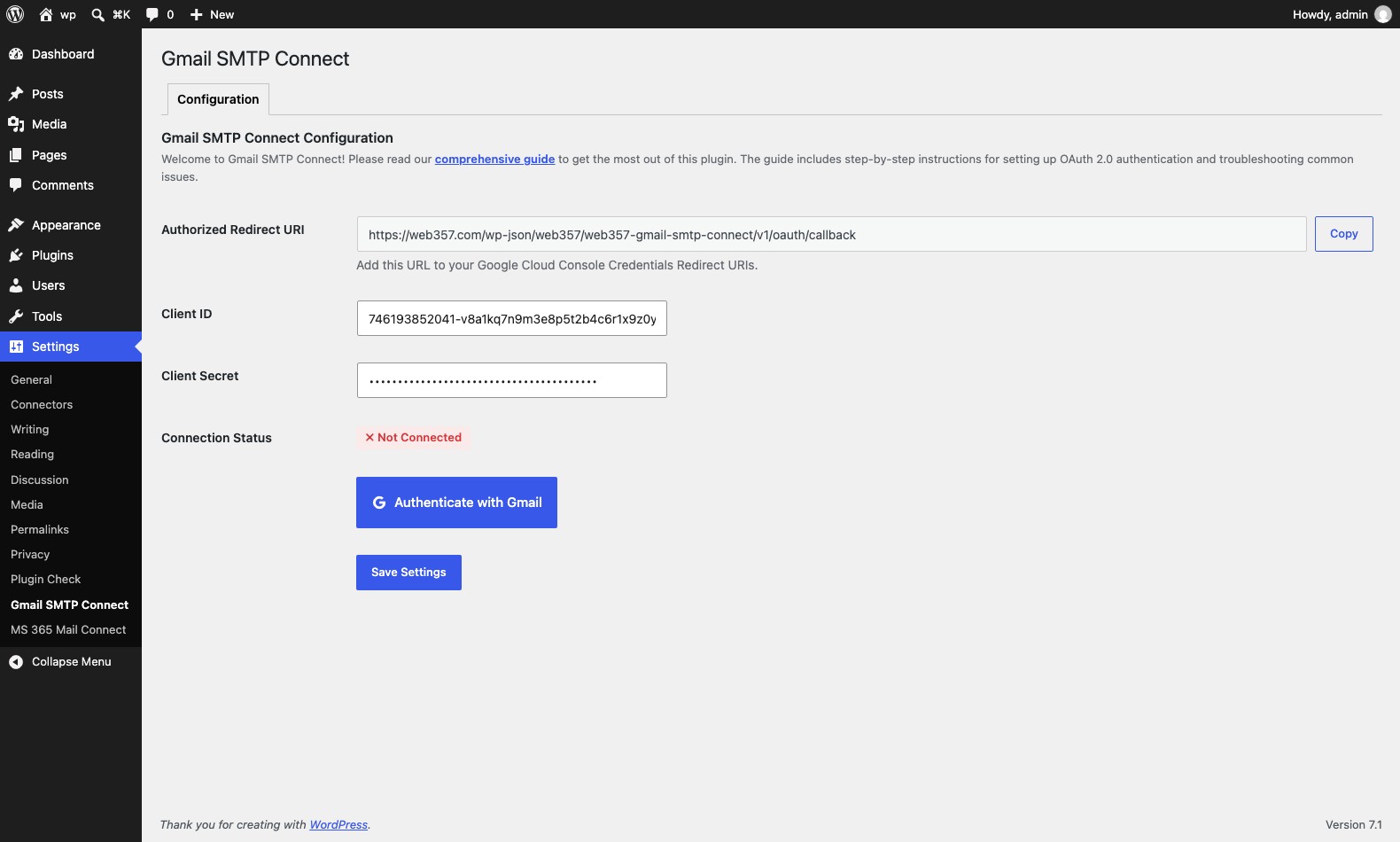
Configuration tab: connect your Gmail or Google Workspace account with one click using OAuth 2.0.
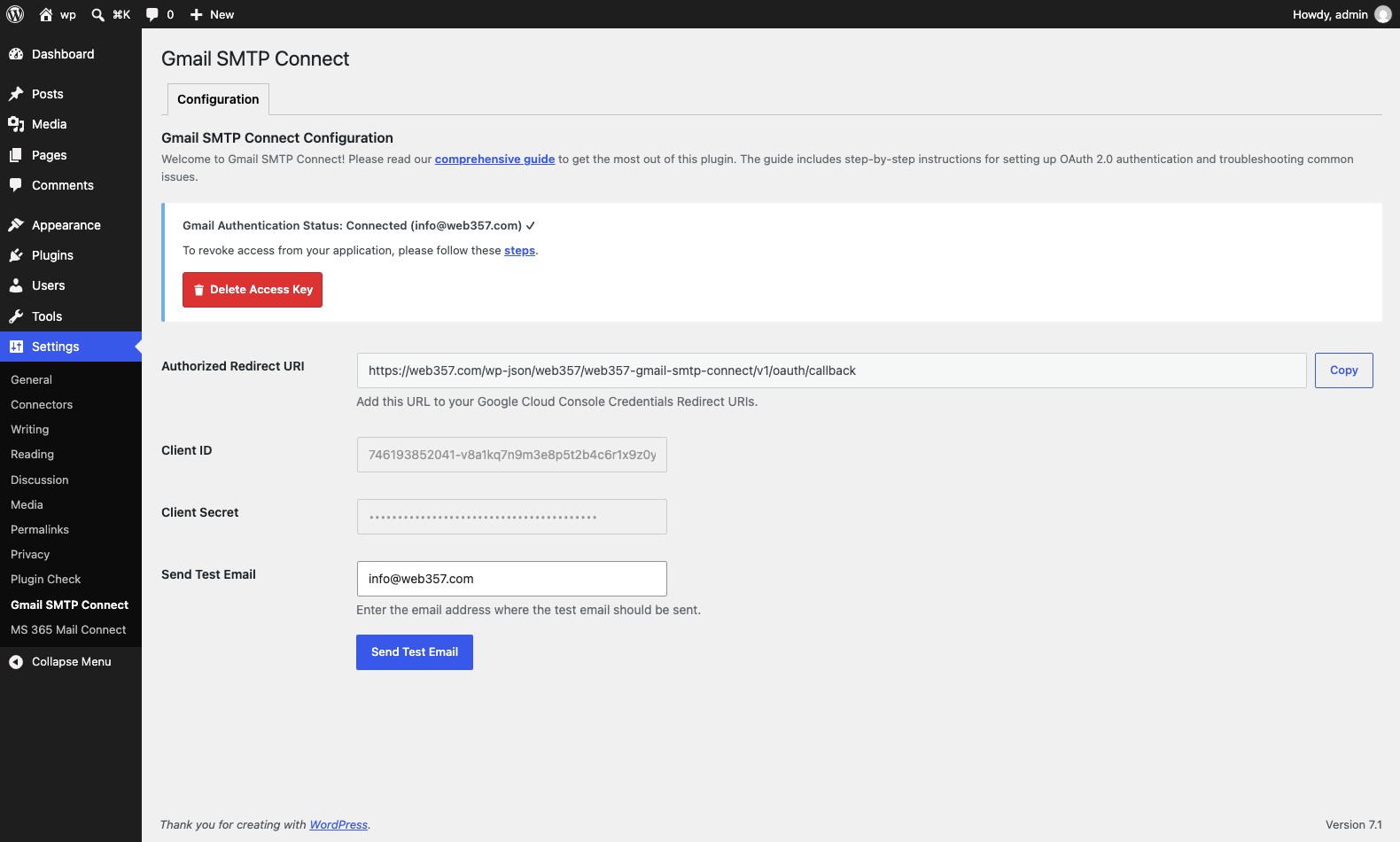
Connection status: confirms the connected Google mailbox and gives a one-click revoke button.

Full Configuration tab: OAuth credentials, connection status, SMTP options, and the Test Email tool.

Mail Log (PRO): review every sent, failed, or staged email with status badges and actions.

Mail details (PRO): inspect headers, HTML/text body, and resend a message from the log.

Advanced Configuration (PRO): staging mode, mail logging, throttle, BCC, and default Reply-To.
Faq
By default, WordPress sends emails via the PHP mail() function from your hosting server, which often ends up in the spam folder or gets dropped entirely. Sending through Gmail means your emails go out from a real, authenticated mailbox using secure OAuth 2.0, dramatically improving deliverability.
No. The plugin uses Google’s modern OAuth 2.0 flow. You connect your Google account once through a secure consent screen: no app passwords, no plain-text credentials stored anywhere on your site.
Yes. The plugin supports both personal Gmail accounts (@gmail.com) and Google Workspace (formerly G Suite) mailboxes. Just connect the account you want to send from.
No. Once the plugin is activated and authenticated, it handles all outgoing email automatically. You do not need PHP mailer constants or a second SMTP plugin. See the FAQ.
All outgoing emails are sent from the Gmail address you authenticated with (the OAuth User Email). You can change the display name via From Name (PRO), but Google’s anti-spoofing rules require the From address to match the connected Google account. See the configuration guide.
Yes. The plugin routes every wp_mail() call through Gmail, so every email triggered by WooCommerce (order confirmations, receipts, low-stock alerts), Contact Form 7, WPForms, Fluent Forms, Gravity Forms, MemberPress, LearnDash, and any other plugin is automatically delivered via your Gmail mailbox.
Yes. The plugin includes a built-in Test Email tool that sends a real test message right from the admin. The PRO version adds Mail Staging Mode, which logs all emails to the database without actually sending them, ideal for staging and development environments. See Configuration and Advanced Configuration.
The PRO version adds a Mail Log tab in the plugin settings where you can review every email (sent, failed, or staged), including recipients, subject, body, status, and timestamp. See the Mail Log documentation.
The PRO version adds a Mail Throttle setting in the Advanced tab to limit emails per minute. This protects you from hitting Gmail’s sending limits and from runaway email loops if a plugin starts misbehaving. Details are in Advanced Configuration.
The button appears only after you have entered and saved both the Client ID and Client Secret. Paste the values from Google Cloud Console, click Save Settings, then authenticate. Full steps are in the configuration guide.
The Authorized Redirect URI shown in Settings > SMTP Connect for Gmail > Configuration must match the URI in your Google Cloud OAuth client character for character (including https://). Copy it with the Copy button and paste it into Google Cloud Console. If a security plugin is blocking the callback, see the OAuth Callback URL Troubleshooting guide.
Your host may be blocking outbound SMTP on ports 587 (TLS) or 465 (SSL). Ask them to allow traffic to smtp.gmail.com on those ports. See Troubleshooting.
Click the “Delete Access Key” button in the Configuration tab to remove the plugin’s credentials. You can also revoke access at any time from your Google Account settings under “Third-party apps & services”. Full steps are in the Revoking Access documentation.
Yes. The plugin stores only the OAuth access and refresh tokens needed to send mail on your behalf, no Google account password is ever stored. All communication with Google happens over HTTPS.
Yes, the core functionality (OAuth connection and sending via Gmail, plus the Test Email tool) is free. The PRO version adds the Mail Log, Mail Staging Mode, Mail Throttle, BCC for outgoing emails, a default Reply-To address, extended SMTP configuration, and priority support.
For more answers, see the FAQ and Guides & Troubleshooting.
Reviews
Changelog
01-Oct-2026 : v1.0.2
- Minor fixes and improvements
12-Sep-2026 : v1.0.1
- Fix PRO update checks so they resolve against the correct package identifiers
- Minor fixes and improvements in the readme.txt
11-Sep-2026 : v1.0.0
- First stable release