Integration for WooCommerce and QuickBooks

Integration for WooCommerce and QuickBooks
Description
Easily create Invoice, customer or any object in QuickBooks Online when an order is placed via WooCommerce. Learn more at crmperks.com
WooCommerce Quickbooks integration Setup
- Go to WooCommerce -> Settings -> QuickBooks tab then add new account.
- Go to WooCommerce -> QuickBooks Feeds tab then create new feed.
- Map required QuickBooks fields to WooCommerce Order fields.
- Open any Woocommerce Order then click “Send to QuickBooks” button.
- Go to WooCommerce -> QuickBooks Logs and verify, if entry was sent to QuickBooks.
Connect QuickBooks Account
You can connect QuickBooks Account by Oauth 2.0. Also you can connect multiple QuickBooks accounts.
Fields Mapping
Simply Select QuickBooks Object(Estimate,Invoice,Customer,SalesReceipt,payment etc) then map WooCommerce Order fields to QuickBooks Online Object fields.
Export Event
Choose event, when WooCommerce Order data should be sent to QuickBooks. For example , send WooCommerce Order to QuickBooks when Order Status changes to “processing”.
Primary Key
Instead of creating new Object(Estimate,Invoice,Customer,SalesReceipt,payment etc) in quickbooks, you can update old object by setting Primary Key field.
Error Reporting
If there is an error while sending data to QuickBooks Online, an email containing the error details will be sent to the specified email address.
CRM Logs
Plugin saves detailed log of each entry whether sent or not sent to to QuickBooks and easily resend an entry to QuickBooks Online.
Filter Orders
By default all orders are sent to QuickBooks, but you can apply filters & setup rules to limit the orders sent to QuickBooks. For example sending Orders from specific city to QuickBooks.
Premium Version.
Following features are available in Premium version only.WP WooCommerce QuickBooks
- Create SalesReceipt, Estimate, Credit Memo, Payment in QuickBooks Online.
- Send all Shipping info , Custom Line description and Complete Tax detail from WooCommerce to Quickbooks.
- QuickBooks Phone Number fields and Custom fields.
- Send Invoice, SalesReceipt, Estimate, Credit Memo, Payment to customer email address.
- Create Refund Receipt in QuickBooks when Order is refunded in WooCommerce.
- Send Shipping and Discount info from WooCommerce to QuickBooks.
- Synchronize Inventory from QuickBooks to WooCommerce.
- Send WooCommerce Orders in bulk to QuickBooks Online.
- Track Google Analytics Parameters and Geolocation of a WooCommerce customer.
- Lookup lead’s email and phone number using popular email and phone lookup services.
Premium Addons
We have 20+ premium addons and new ones being added regularly, it’s likely we have everything you’ll ever need.View All Add-ons
Want to send data to other crm
We have Premium Extensions for 20+ CRMs.View All CRM Extensions
How to Create Quickbooks APP
You can find Screenshots for Creating Quickbooks APP at crmperks.com
Screenshots
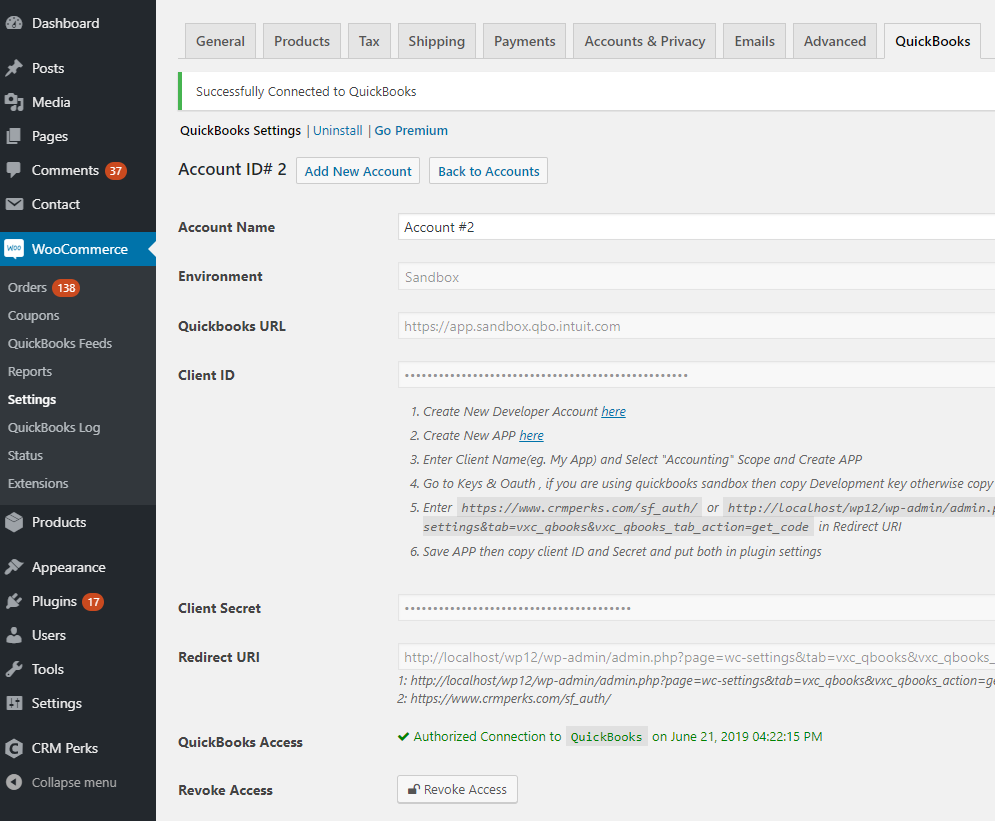
Connect QuickBooks Account.
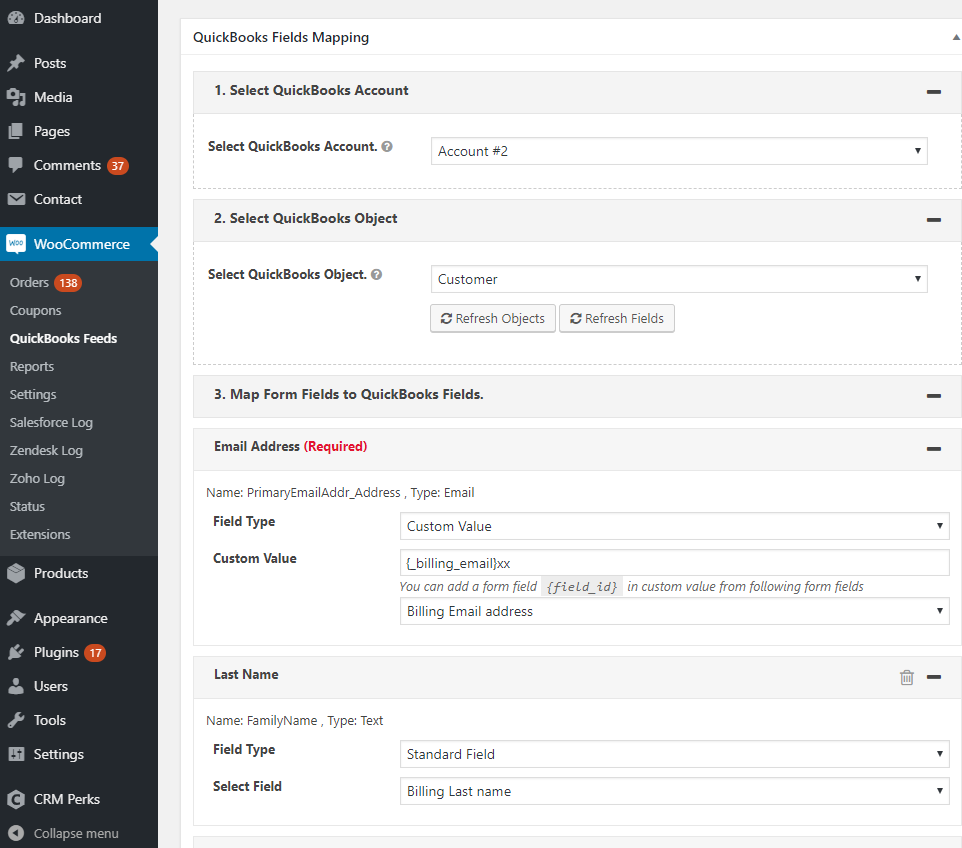
Map QuickBooks Fields to WooCommerce fields.
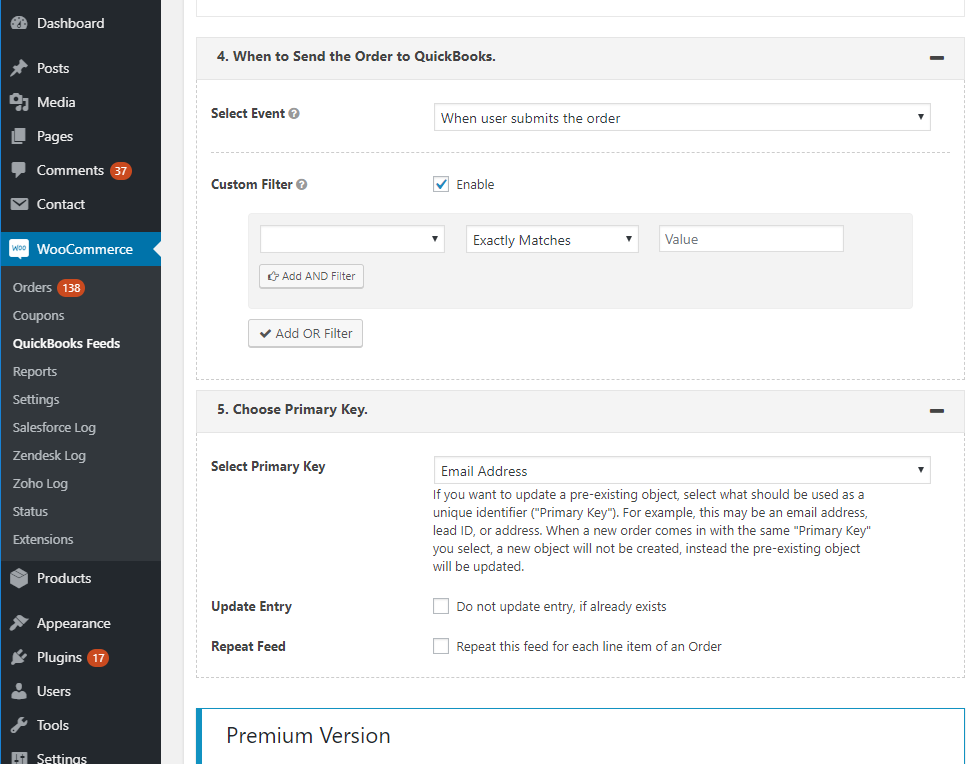
Create New Entry in QuickBooks or Update Old Entry searched By setting Primary key.
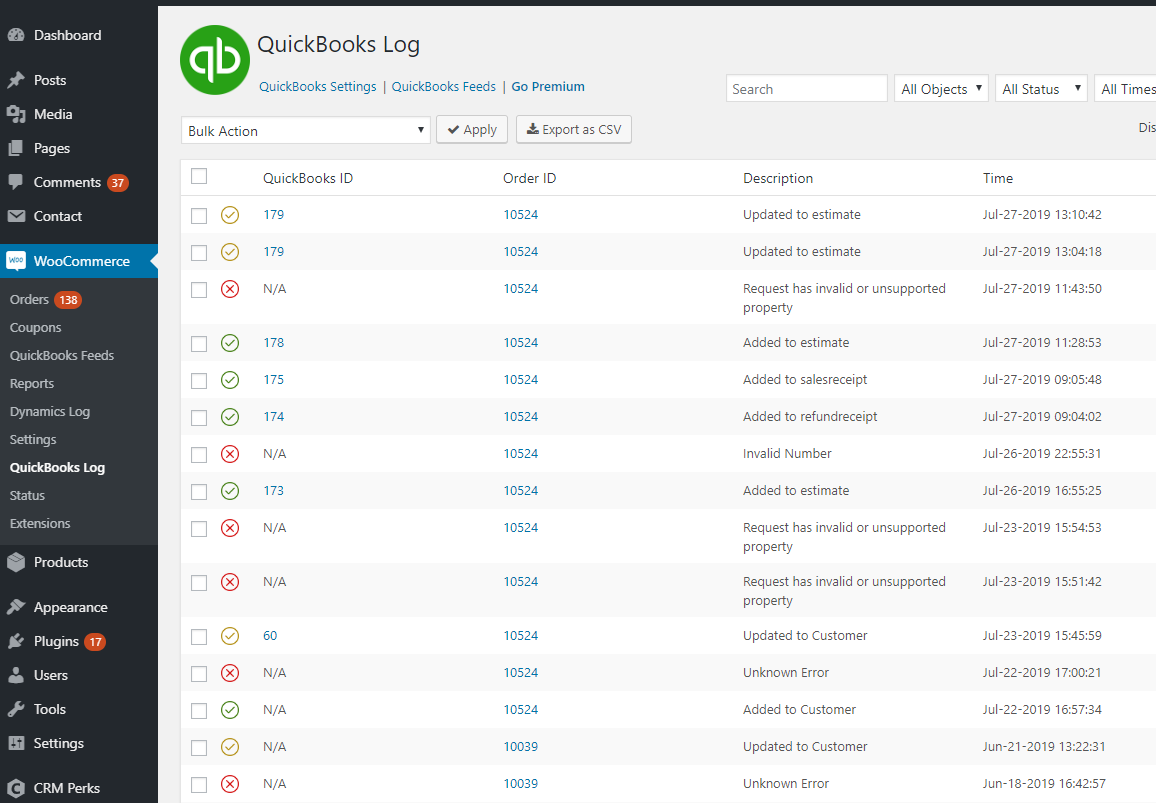
Orders Sent to QuickBooks.
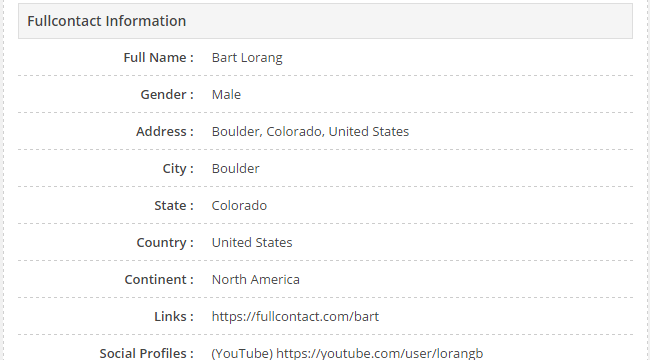
Get Customer's email infomation from Full Contact(Premium feature).
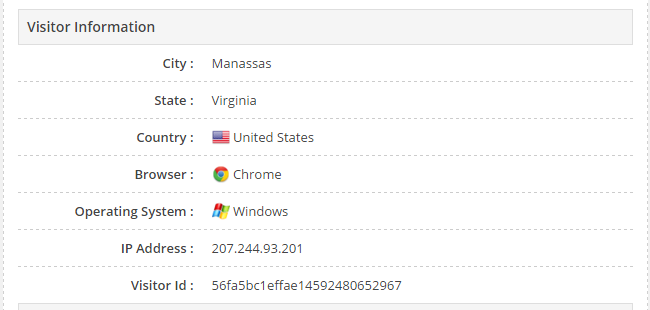
Get Customer's geolocation, browser and OS (Premium feature).
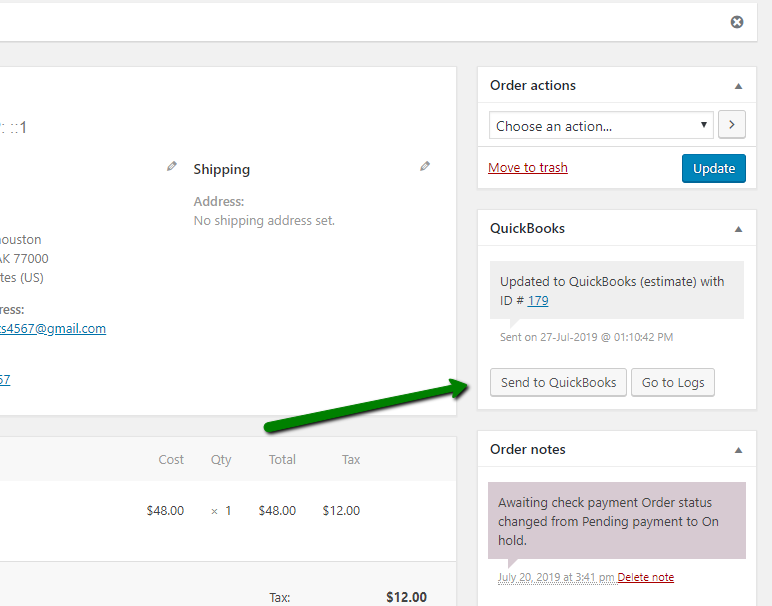
Manually Send WooCommerce Order data to QuickBooks.
Faq
Our team provides free support at https://www.crmperks.com/contact-us/.
WooCommerce QuickBooks Integration has been tested with latest version of woocommerce and it is fully compatible with Woocommerce High-Performance Order Storage (HPOS) feature.
- Simply Connect QuickBooks account to WooCommerce.
- Go to QuickBooks feeds, create a feed then map WooCommerce Order fields to QuickBooks fields.
- All New WooCommerce orders will be automatically sent to QuickBooks.
- Open any WooCommerce Order then click “Send to QuickBooks” button.
- QuickBooks is popular account software and WooCommerce is a popular eCommerce plugin.
- Easily Connect QuickBooks Online and WooCommerce with this free WooCommerce QuickBooks plugin.
- Automatically send all WooCommerce Orders to QuickBooks Online when Order status changes to Processing or Complete.
- First Connect QuickBooks account to WooCommerce.
- Then create QuickBooks feed for Sending WooCommerce Order data to QuickBooks.
- Send New WooCommerce Orders to QuickBooks when Order Status changes in WooCommerce.
- Simply set a CRON for synchronizing inventory from Quickbooks to Woocommerce.
- when you will create a Product in WooCommerce, it will be automatically added to Quickbooks.
- Plugin updates Quantity on hand from QuickBooks to WooCommerce when it changes in Quickbooks.
- When user adds a Woocommerce product to Cart, plugin first checks if this item is available in Quickbooks.
Yes, your data is absolutely secure when pluing transfers it to Quickbooks. When any user creates new WooCommerce Order, your server directly sends data to QuickBooks.
Reviews
La solución perfecta para mi contabilidad e inventario!
By 
La solución perfecta para mi contabilidad e inventario! Este plugin de WooCommerce y QuickBooks es increíblemente fácil de usar. Ha automatizado por completo el proceso de sincronización de mis ventas, ahorrándome un montón de tiempo y estrés.
Good Plugin With Some Bugs
By 
It's a good plugin that works to a point, but the filtering doesn't work.
Great product and flexible
By 
Superb Support and Flexible Plugin
By 
Excellent time and work saving plugin and HUGE support
By 
Awesome
By 
Excellent Support, Works!
By 
Simply works, and awesome support for all versions
By 
Awesome Support!
By 
Gets the job done
By 
Changelog
1.3.4
- fixed “recreate missing db tables and permissions” issue.
- fixed “QB developer app” issue.
1.3.3
- fixed “API minor version” issue.
1.3.2
- added “invoice Term field” feature.
- fixed “CSRF issue with logs page”.
1.3.1
- added “phone and product ID” fields.
1.3.0
- fixed “product meta fields empty with bulk sync” issue.
1.2.9
- fixed “woo variation name” issue.
1.2.8
- fixed “order fee empty” issue.
1.2.7
- fixed “order update from log” issue.
1.2.6
- compatible with Woo HPOS feature.
1.2.5
- fixed “discount codes” issue.
1.2.4
- fixed “woo products quick edit” issue.
1.2.3
- added “service date in line item” feature.
1.2.2
- fixed “fatal error on product created/updated event”.
1.2.1
- added help text for “assign customer” issue.
1.2.0
- fixed “esc variables” issue.
1.1.9
- fixed “esc date” issue.
1.1.8
- fixed “connection lost” issue.
1.1.7
- added item purchase tax fields.
1.1.6
- added mobile field.
1.1.5
- fixed QB item date fields.
1.1.4
- fixed new line issue in custom value.
1.1.3
- fixed “locationtype” field.
1.1.2
- added “map woo tax class to Quickbooks tax code” feature.
1.1.1
- added “default fields mapping” feature.
1.1.0
- added shipping as line item feature.
1.0.9
- fixed “taxable=true” issue.
1.0.8
- fixed “refundreceipt” issue.
- added “custom product description in QB line item” feature.
- added “search items by name” feature.
- added “vat issue”.
1.0.7
- fixed “updaing salesreceipt”.
1.0.7
- fixed “updaing salesreceipt”.
- added “transaction and shipping tax codes” feature.
1.0.6
- added payment method feature.
- fixed shipping fields.
1.0.5
- fixed “line items qty issue”.
1.0.4
- fixed “save tax code mapping” button.
1.0.3
- added QuickBooks tax Code mapping to WooCommerce.
1.0.2
- added Line Item Tax Code and Class option.
1.0.1
- fixed “Order Status” field.
1.0.0
- Initial release.